

Background
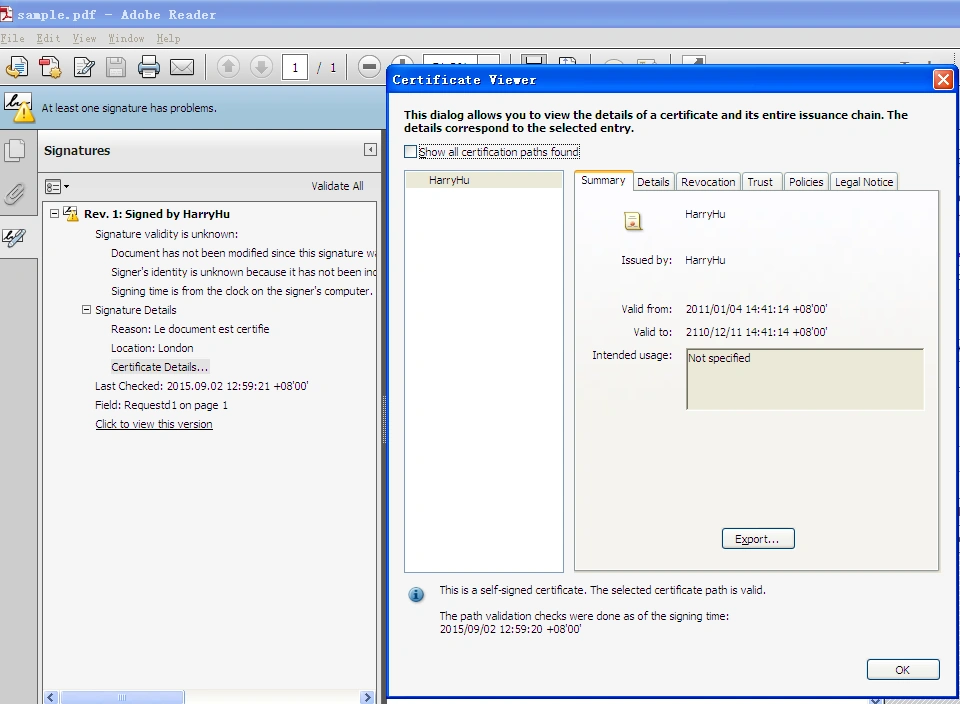
Data security becomes more and more important and essential when the cloud service and Internet are widely used in every aspect of our daily work, especially for the most common used file formats, such as PDF, Word, Excel and PowerPoint documents that may contain confidential context or intellectual property. In this way, we need to take some effective measures to protect those documents. There are some system-level security solutions for the document database, while rarely solutions for documents themselves. And we know that we can encrypt the PDF files with the password to protect the PDF file, but the password can be decrypted easily. This article will focus on introducing a better solution with higher security level namely securing PDF via PDF digital signature using a Free Spire.PDF for .NET. With the digital signature, we can confirm the identity of the author, and ensure the integrity of the transmission process. And that’s why digital signature has become a popular way to protect PDF file from editing and tampering.
In this tutorial, I focus on introducing PDF visible digital signature with the following parts:
- Create a visible digital signature to PDF.
- Get and verify the digital signature.
Preparation
If you are interested and want to try the PDF digital signature in C#, download free Spire.PDF on E-iceblue website or Nuget and install it. It is simple and clean. When you finish with the installation, you can go to "SampleCenter" and API Help, which gives you a brief and clear information for the usage of free Spire.PDF
Tools we need
Visual Studio
Spire.PDF has a bin folder, which contains .NET2.0, .NET3.5, .NET4.0 and NET4.0 ClientProfile. Please add the correct .dll based on your projects. Here I used .NET 4.0
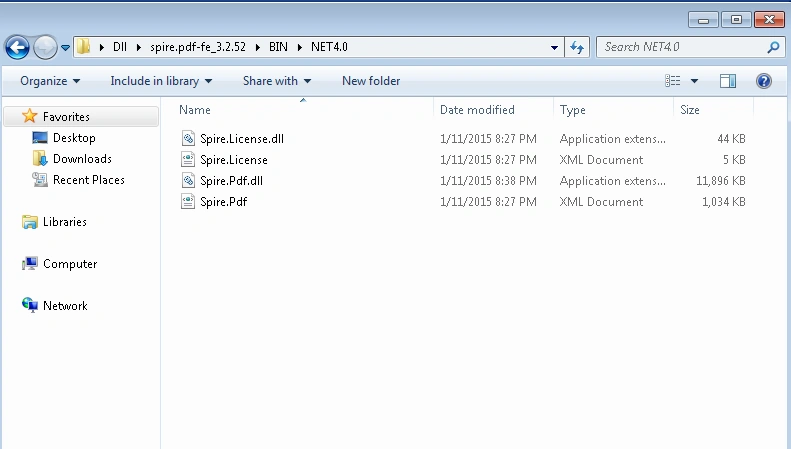
Figure 1: Spire PDF
Part 1: C# code snippet to create visible digital signature
Step 1: Load a PDF file and certificate.
- PdfDocument doc = new PdfDocument();
- doc.LoadFromFile("test.pdf");
- PdfCertificate cert = new PdfCertificate("Demo.pfx", "e-iceblue");
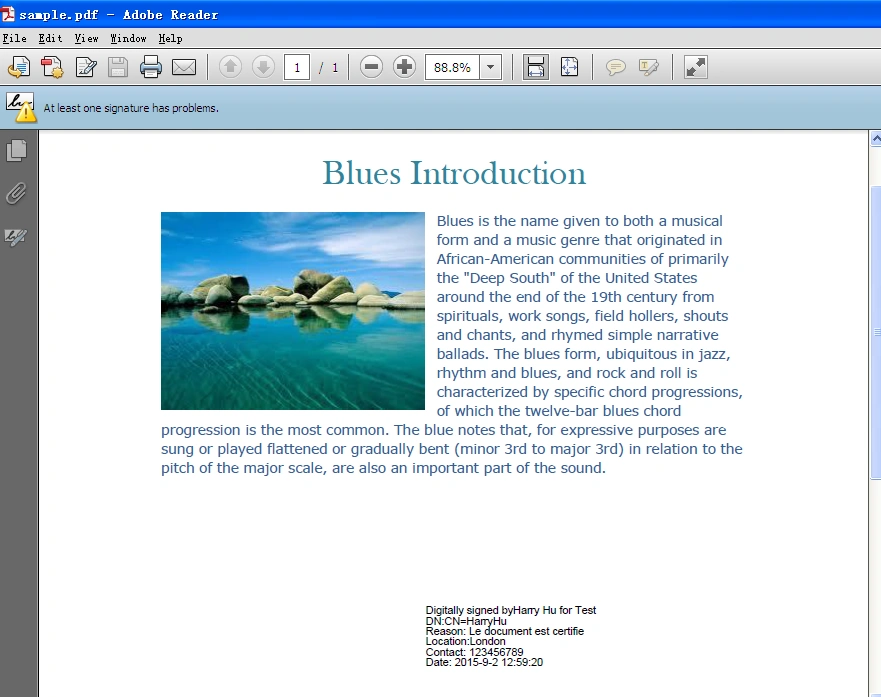
- var signature = new PdfSignature(doc, doc.Pages[0], cert, "Requestd1");
- signature.Bounds = new RectangleF(new PointF(280, 600), new SizeF(260, 90));
- signature.IsTag = true;
- signature.DigitalSignerLable = "Digitally signed by";
- signature.DigitalSigner = "Harry Hu for Test";
- signature.DistinguishedName = "DN:";
- signature.LocationInfoLabel = "Location:";
- signature.LocationInfo = "London";
- signature.ReasonLabel = "Reason: ";
- signature.Reason = "Le document est certifie";
- signature.DateLabel = "Date: ";
- signature.Date = DateTime.Now;
- signature.ContactInfoLabel = "Contact: ";
- signature.ContactInfo = "123456789";
- signature.Certificated = false;
Arun K PushpakaranPosted Jun 1, 2021, 10:36 AM
How can i get the pfx file?
shu berPosted Apr 15, 2018, 4:01 AM
How can I get the IDnumber of the card owner?
Cris FabelaPosted Nov 26, 2017, 6:06 AM
Can we put multiple digital signature inside?
Manthan PatelPosted Aug 29, 2017, 3:02 AM
How can i use .cer file as my certificate? I am having certificate int ePass2003Auto
kushal kalePosted Mar 10, 2016, 6:58 AM
I get error while creating signature at "doc.SaveToFile("sample.pdf");"... Error : File not found.
Harshad PansuriyaPosted Sep 11, 2015, 8:45 AM
Nice Sir
Humayun Kabir MamunPosted Sep 11, 2015, 2:23 AM
Nice...
Pankaj Kumar ChoudharyPosted Sep 9, 2015, 9:47 PM
Thanks You sir to introduce us with such a nice tool..........
Santhakumar MunuswamyPosted Sep 9, 2015, 3:20 PM
Thanks for nice article
Mohammed IbrahimPosted Sep 9, 2015, 2:03 PM
nice share
Rajeesh MenothPosted Sep 9, 2015, 6:54 AM
Nice Share
RakeshPosted Sep 9, 2015, 4:53 AM
Good one
Ankit BansalPosted Sep 9, 2015, 4:28 AM
thanks for sharing..
Karthikeyan KPosted Sep 9, 2015, 4:24 AM
Thanks for sharing...