Introduction
Here, we are going to learn to read Excel files in C# WindowsForm applications. We are going to make a small single-form application which takes an Excel file from the user and shows the data in GridView of Windows Form.
Targeted Audiences
The targeted audience is people with basic knowledge of C#.
Explanation
Things to do,
- Make a C# WinForm application.
- Add a reference.
- Create UI
- Code
After creating a project, you have to add a reference named “Microsoft Excel xx.xx Object library” in your project.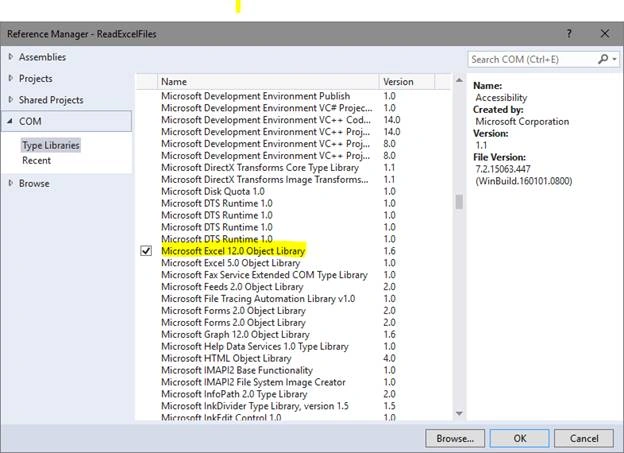
Now, make a UI which contains a button and a single GridView. A button is used to open the Excel file and the GridView is used to show this data in Excel file.
So, here, our UI looks like the following.
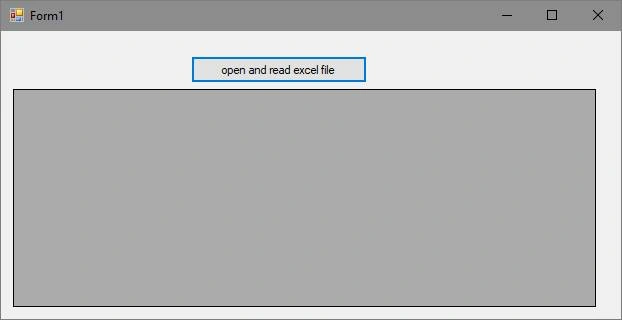
It contains a single button and a GridView in your application.
Now, code the click event of the button to browse computer files so that the user can select his Excel file and it starts showing in the GridView of the application. So, double-click on the button to open the click event the of the button.
Code
- using Microsoft.Office.Interop.Excel;
- using System.Runtime.InteropServices;
Code for the button click event.
- private void button1_Click(object sender, EventArgs e)
- {
-
- string fname = "";
- OpenFileDialog fdlg = new OpenFileDialog();
- fdlg.Title = "Excel File Dialog";
- fdlg.InitialDirectory = @"c:\";
- fdlg.Filter = "All files (*.*)|*.*|All files (*.*)|*.*";
- fdlg.FilterIndex = 2;
- fdlg.RestoreDirectory = true;
- if (fdlg.ShowDialog() == DialogResult.OK)
- {
- fname = fdlg.FileName;
- }
-
-
- Microsoft.Office.Interop.Excel.Application xlApp = new Microsoft.Office.Interop.Excel.Application();
- Microsoft.Office.Interop.Excel.Workbook xlWorkbook = xlApp.Workbooks.Open(fname);
- Microsoft.Office.Interop.Excel._Worksheet xlWorksheet = xlWorkbook.Sheets[1];
- Microsoft.Office.Interop.Excel.Range xlRange = xlWorksheet.UsedRange;
-
- int rowCount = xlRange.Rows.Count;
- int colCount = xlRange.Columns.Count;
-
-
- dataGridView1.ColumnCount = colCount;
- dataGridView1.RowCount = rowCount;
-
- for (int i = 1; i <= rowCount; i++)
- {
- for (int j = 1; j <= colCount; j++)
- {
-
-
-
-
-
- if (xlRange.Cells[i, j] != null && xlRange.Cells[i, j].Value2 != null)
- {
- dataGridView1.Rows[i - 1].Cells[j - 1].Value = xlRange.Cells[i, j].Value2.ToString();
- }
-
-
-
- }
- }
-
-
- GC.Collect();
- GC.WaitForPendingFinalizers();
-
-
-
-
-
-
- Marshal.ReleaseComObject(xlRange);
- Marshal.ReleaseComObject(xlWorksheet);
-
-
- xlWorkbook.Close();
- Marshal.ReleaseComObject(xlWorkbook);
-
-
- xlApp.Quit();
- Marshal.ReleaseComObject(xlApp);
-
-
-
- }
Explanation
When a user clicks the button, she/he can browse all the files on the computer. Also, you can add filters too so that only Excel files are opened. After clicking on the button, it will start reading Excel files and displaying result in GridView. And, after reading all the data, it will clean, release, and quit the object.
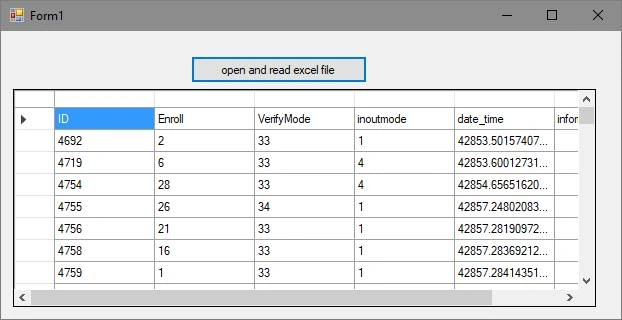
Let’s start our application and select an Excel file to see the output.
Output


Lim HanPosted Jun 25, 2018, 9:08 PM
Good day Sir, May i know where is the Value2 come from, i got the error from here shown object does not contain a definition for value2
Devang MistryPosted May 18, 2018, 1:33 PM
Excellent article Umair, thanks. I have train timings in an excel file in a format like '06:47:50' (HH:MM:SS) and some integer values. What should UI change in the code so that I can see the proper timing info. thanks.
Juan Francisco Morales LariosPosted Oct 13, 2017, 11:55 AM
Hi Umair, good article. Do you know NPOI library ??. NPOI library it's a excel .net library, read and write excels books from and to strongs type collections. Is automatic and very useful. It is accesible from nuget. This is your web https://npoi.codeplex.com/ Regartds !!!