This article explains how to import and read XML documents using VBScript and HTML 5.
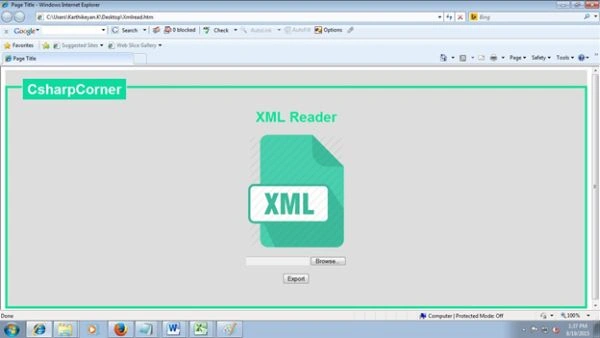
XML reader Home page
Figure 1: XML reader home page

Step 1

  1. Open Notepad.

  2. Add the following XML code.
    1. <SERVER>
    2. <INTERFACE>
    3. <PORT>1</PORT>
    4. <IPADDRESS>10.100.4.9</IPADDRESS>
    5. <NETMASK>255.255.224.0</NETMASK>
    6. </INTERFACE>
    7. <INTERFACE>
    8. <PORT>2</PORT>
    9. <IPADDRESS>10.100.4.10</IPADDRESS>
    10. <NETMASK>255.255.224.0</NETMASK>
    11. </INTERFACE>
    12. </SERVER>
  3. Save the file with the extension “.xml”.

Step 2
  1. Open Notepad.

  2. Add the following HTML code:
    1. <! DOCTYPE html>
    2. <html>
    3. <head>
    4. <title>Page Title</title>
    5. <style>
    6. h1
    7. {
    8. color: #05E395;
    9. }
    10. fieldset {
    11. font-family: sans-serif;
    12. border: 5px solid #05E395;
    13. background: #ddd;
    14. border-radius: 5px;
    15. padding: 15px;
    16. }
    17. fieldset legend {
    18. background: #0BDB9D;
    19. color: #fff;
    20. padding: 5px 10px ;
    21. font-size: 32px;
    22. border-radius: 5px;
    23. box-shadow: 0 0 0 5px #ddd;
    24. margin-left: 20px;
    25. }
    26. </style>
    27. <script language="vbscript" type="text/vbscript">
    28. Sub Handlechange()
    29. MsgBox "File Imported Sucessfully”, vbInformation
    30. End Sub
    31. Sub ExportXML
    32. Dim ObjXML
    33. Dim fileinput
    34. Dim Root
    35. Dim NodeList
    36. Dim Msg
    37. Dim port
    38. Dim ip
    39. Dim nextmask
    40. Set ObjXML = CreateObject ("Microsoft.XMLDOM")
    41. ObjXML.async = False
    42. fileinput = Document.getElementById ("browse").Value
    43. ObjXML.load(fileinput)
    44. Set Root = ObjXML.documentElement
    45. Set NodeList = Root.getElementsByTagName("INTERFACE")
    46. For Each Elem In NodeList
    47. Set port = Elem.getElementsByTagName ("PORT") (0)
    48. Set ip = Elem.getElementsByTagName ("IPADDRESS") (0)
    49. Set netmask= Elem.getElementsByTagName ("NETMASK") (0)
    50. Msg ="[PORT :]" & port.Text & vbNewLine
    51. Msg = Msg & "[IP ADDRESS :]" & ip.Text & vbNewLine
    52. Msg = Msg & "[NETMASK :]" & netmask.Text
    53. MsgBox Msg
    54. Next
    55. MsgBox "Data Read Sucessfully”, vbInformation
    56. End Sub
    57. </script>
    58. </head>
    59. <body>
    60. <form>
    61. <section style="margin: 10px ;">
    62. <fieldset style="min-height:100px;">
    63. <legend><b>CsharpCorner </b> </legend>
    64. <center>
    65. <h1>XML Reader</h1>
    66. <img src="C:\Users\Karthikeyan.K\Desktop\File_type_Extension_22-256.png" alt="View" style="width:218px;height:256px;">
    67. <br>
    68. <br>
    69. <input type="file" id="browse" name="fileupload" onChange="Handlechange()"/>
    70. <br>
    71. <br>
    72. <input type="button" value="Export" id="Export" onclick="ExportXML()"/>
    73. </center>
    74. <label> <br/> </label>
    75. <label> <br/> </label>
    76. </fieldset>
    77. </form>
    78. </body>
    79. </html>
  3. Save the file with extension the “.html”.

Output

  1. Open the HTML document.

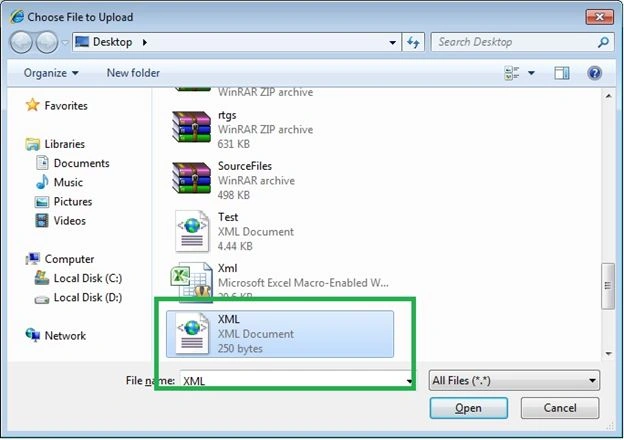
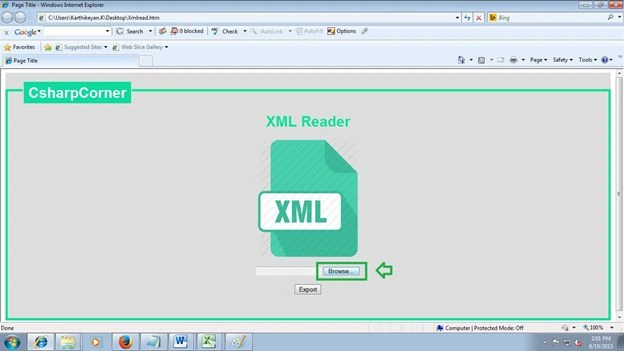
  2. Click the browse button.

    Browse the XML document
    Figure 2: Browse the XML document

  3. Choose the XML document.

    Select the XML document
    Figure 3: Select the XML document

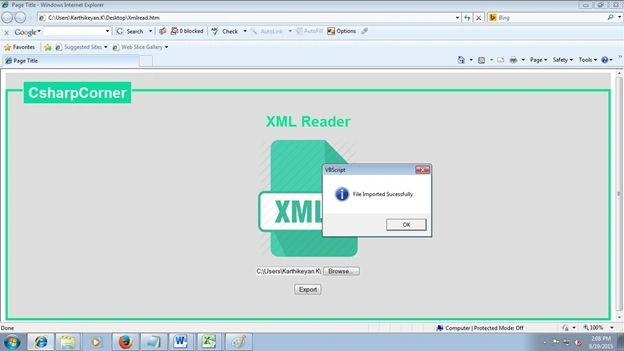
    File Imported Successfully
    Figure 4: File Imported Successfully

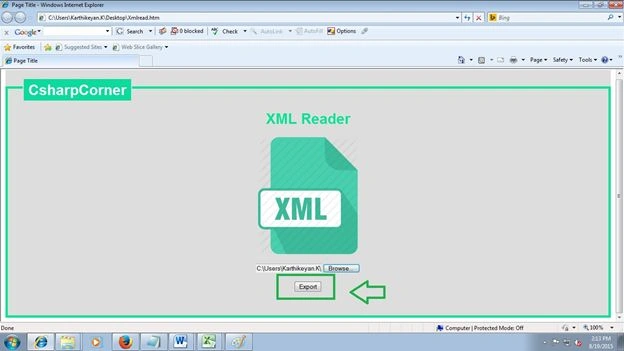
  4. Press the Export button.

    XML document Export
    Figure 5: XML document Export

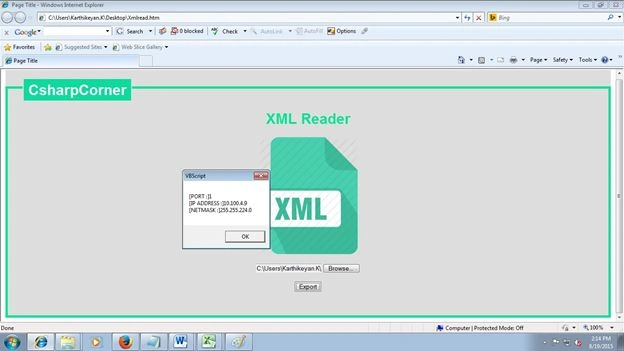
    XML data Output 1
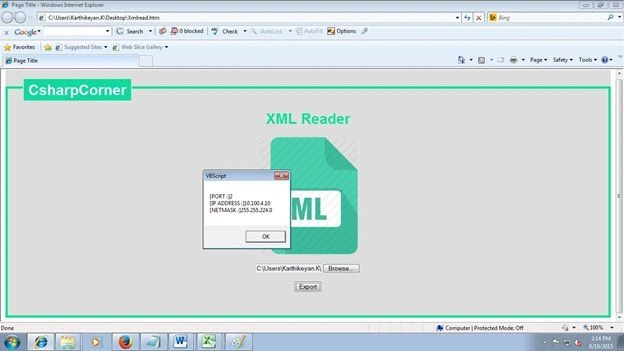
    Figure 6: XML data Output 1

    XML data Output 2
    Figure 7: XML data Output 2

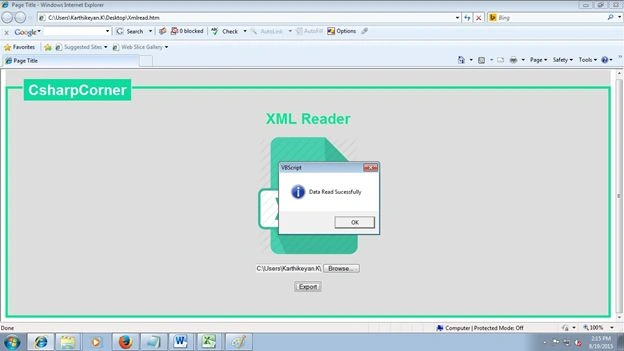
    Data Read Successfully
    Figure 8: Data Read Successfully

Conclusion

Thanks for reading. I hope you liked this article. Please provide your valuable suggestions.