

Introduction
In this article, we will learn how to read an Excel file from the client-side and display its contents in an HTML table by making use of the FileReader() API in HTML5 & jQuery.
The two important jQuery plugins we used here are "xlsx.core.min.js" and "xls.core.min.js" which are used to convert the data from Excel to a JSON array.
First, we will create a File Upload button, then an HTML table which is hidden first, and lastly ab Input button which upon clicking, calls the function to export Excel data to the HTML table.
<input type="file" id="excelfile" />
<input type="button" id="viewfile" value="Export To Table" onclick="ExportToTable()" />
<br />
<br />
<table id="exceltable"></table>
Running the page will look like below.

Now, we reference the jQuery plugin files "xlsx.core.min.js" and "xls.core.min.js" in the head section.
<script src="jquery-1.10.2.min.js" type="text/javascript"></script>
<script src="https://cdnjs.cloudflare.com/ajax/libs/xlsx/0.7.7/xlsx.core.min.js"></script>
<script src="https://cdnjs.cloudflare.com/ajax/libs/xls/0.7.4-a/xls.core.min.js"></script>
The JavaScript function ExportToTable() is given below.
function ExportToTable() {
    var regex = /^([a-zA-Z0-9\s_\\.\-:])+(.xlsx|.xls)$/;
    /* Checks whether the file is a valid excel file */
    if (regex.test($("#excelfile").val().toLowerCase())) {
        var xlsxflag = false; /* Flag for checking whether excel is .xls format or .xlsx format */
        if ($("#excelfile").val().toLowerCase().indexOf(".xlsx") > 0) {
            xlsxflag = true;
        }
        /* Checks whether the browser supports HTML5 */
        if (typeof (FileReader) != "undefined") {
            var reader = new FileReader();
            reader.onload = function (e) {
                var data = e.target.result;
                /* Converts the excel data into object */
                if (xlsxflag) {
                    var workbook = XLSX.read(data, { type: 'binary' });
                }
                else {
                    var workbook = XLS.read(data, { type: 'binary' });
                }
                /* Gets all the sheet names of excel into a variable */
                var sheet_name_list = workbook.SheetNames;

                var cnt = 0; /* This is used for restricting the script to consider only the first sheet of excel */
                sheet_name_list.forEach(function (y) { /* Iterate through all sheets */
                    /* Convert the cell value to JSON */
                    if (xlsxflag) {
                        var exceljson = XLSX.utils.sheet_to_json(workbook.Sheets[y]);
                    }
                    else {
                        var exceljson = XLS.utils.sheet_to_row_object_array(workbook.Sheets[y]);
                    }
                    if (exceljson.length > 0 && cnt == 0) {
                        BindTable(exceljson, '#exceltable');
                        cnt++;
                    }
                });
                $('#exceltable').show();
            }
            if (xlsxflag) { /* If the excel file is .xlsx extension, then create an Array Buffer from excel */
                reader.readAsArrayBuffer($("#excelfile")[0].files[0]);
            }
            else {
                reader.readAsBinaryString($("#excelfile")[0].files[0]);
            }
        }
        else {
            alert("Sorry! Your browser does not support HTML5!");
        }
    }
    else {
        alert("Please upload a valid Excel file!");
    }
}
Other two functions which are called in the above function are BindTable() and BindTableHeader().
function BindTable(jsondata, tableid) {
    /* Function used to convert the JSON array to HTML Table */
    var columns = BindTableHeader(jsondata, tableid); /* Gets all the column headings of Excel */
    for (var i = 0; i < jsondata.length; i++) {
        var row$ = $('<tr/>');
        for (var colIndex = 0; colIndex < columns.length; colIndex++) {
            var cellValue = jsondata[i][columns[colIndex]];
            if (cellValue == null)
                cellValue = "";
            row$.append($('<td/>').html(cellValue));
        }
        $(tableid).append(row$);
    }
}
function BindTableHeader(jsondata, tableid) {
    /* Function used to get all column names from JSON and bind the HTML table header */
    var columnSet = [];
    var headerTr$ = $('<tr/>');
    for (var i = 0; i < jsondata.length; i++) {
        var rowHash = jsondata[i];
        for (var key in rowHash) {
            if (rowHash.hasOwnProperty(key)) {
                if ($.inArray(key, columnSet) == -1) { /* Adding each unique column name to a variable array */
                    columnSet.push(key);
                    headerTr$.append($('<th/>').html(key));
                }
            }
        }
    }
    $(tableid).append(headerTr$);
    return columnSet;
}
The basic idea of the above scripts is that first we read the data from Excel file as an ArrayBuffer or raw binary data depending on the extension of the Excel file, using the FileReader() API of HTML5.
Then, we use jQuery plugins to convert that data into a JSON object. Next, we iterate through the JSON object and bind it to an HTML table. Our sample Excel file contains the data of certain employees, as given below.
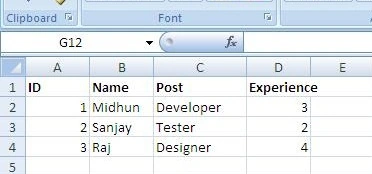
Now, on selecting this Excel file and clicking on the "Export To Table" button, we will export the excel data to the table, as shown below.
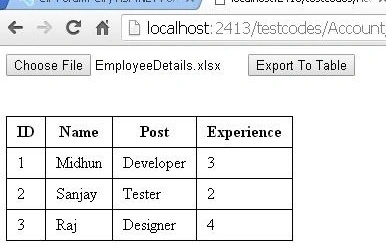
That's it. Our Excel to the table is ready!
This is just a simple example of reading an Excel sheet and displaying the data from the first sheet into a table. You can always explore the script and change it to read multiple sheets and so on.
Please note that this method will be supported only on browsers that support HTML5. You can check the browsers which support HTML5 here.
Also, the above script is tested with an Excel file having a maximum of 15 columns and 10,000 rows. Since this script uses iteration for binding, there may be performance issues while using huge Excel files.
Reference
https://github.com/SheetJS/js-xlsx
https://github.com/SheetJS/js-xls
Summary
In this article, we have learned how to make use of FileReader() API of HTML5 and jQuery to export data from an Excel file to an HTML table.
Hope this will be helpful!
Nicolas LOUISPosted Aug 5, 2024, 10:59 AM
This is a great article. Thx very much!
Shiza KhaliqPosted Nov 3, 2020, 4:29 AM
How do I get data from excel without formatting?
Rajesh TrasuPosted Jun 10, 2020, 6:11 PM
How do I select one sheet over the other in the same excel file?
Peter SharrockPosted Apr 16, 2020, 6:09 AM
Hi, it's great but it doesn't seem to work if there are apostrophes in the excel data.
Dharmendra Kumar PanditPosted Jan 13, 2020, 12:49 AM
Nice One article. I impressed.... Thank you
AYUSH CHAUDHARYPosted Jun 27, 2019, 5:17 AM
Date format change after read using jquery 02-05-2019 to 5/4/19. please reply if any solution I change many date format but doesn't work
yaser M.S.Posted Mar 7, 2019, 12:44 PM
How can add more column for read file excel in html?
Patel SoniyaPosted Mar 5, 2019, 1:57 AM
Very nice thank you so much.
Ismael BalanaPosted Dec 17, 2018, 2:41 AM
Sir very nice thank you sommuch.. what about drect updating withoout using upload.. that excel file drecitly uploaded into html page. is that possible
Pronati DebnathPosted Oct 25, 2018, 9:15 AM
Getting warning pop-up 'Please upload a valid Excel file!' still if it is valid .xls file:(
Muthu KumarPosted Sep 25, 2018, 10:15 PM
Very nice.
Tim TatumPosted Sep 13, 2018, 11:17 AM
Nice! Thank you Midhun.
ravi prajapatiPosted Sep 12, 2018, 6:30 AM
Very nice code
Rohith AttaluriPosted Feb 1, 2018, 6:22 AM
If we want to get only the header names with index of that headers what to do ?
Harsha SPosted Dec 15, 2017, 6:58 AM
Hello Midhun, Using jquery is it possible to write the content to excel sheet .
gaurav singhPosted Dec 2, 2017, 10:17 AM
Please let me know how to solve it
gaurav singhPosted Dec 2, 2017, 10:16 AM
Hello Midhun, if i have a column with header also has empty value then it will not show into html table.
Darshan KshirasagarPosted Nov 23, 2017, 1:50 AM
Yes i am talking about empty cell only. how to solve this
Darshan KshirasagarPosted Nov 22, 2017, 4:16 AM
HI Midhun, Your Code is super working amazing but one issue is if my excel column is empty then its not showing in the table y...? is it possible to show empty column also .
matt dPosted Sep 15, 2017, 6:12 PM
Hello, I tried this method but keep getting Uncaught type Error: t.charCodeAt is not a function at mE (xlsx.min.js:21) at Object.AE [as read] (xlsx.min.js:21) at FileReader.ExportToTable.reader.onload
Sundaram SubramanianPosted Aug 19, 2017, 1:59 PM
Thanks for sharing a good one. !!!!