

RelativeLayout is used to position and size the views related to properties of the layout or sibling views. RelativeLayout does not have the concept of the moving anchor and does not have facilities for positioning elements relative to the bottom or right edges of the layout. RelativeLayout does support positioning elements outside of its own bounds.
Before reading this article, please go through the following article -
Reading this article, you can learn how to use RelativeLayout in Xamarin Forms application for Android and Universal Windows Platform with XAML and Visual C#, in cross platform application development.
The following important tools are required for developing UWP.
- Windows 10 (Recommended)
- Visual Studio 2015 Community Edition (It is a free software available online)
- Using Visual Studio 2015 Installer, Enable the Xamarin (Cross Platform Mobile development and C#/.NET while install/modify Visual Studio 2015.
Now, we can discuss step by step app development.
Step 1
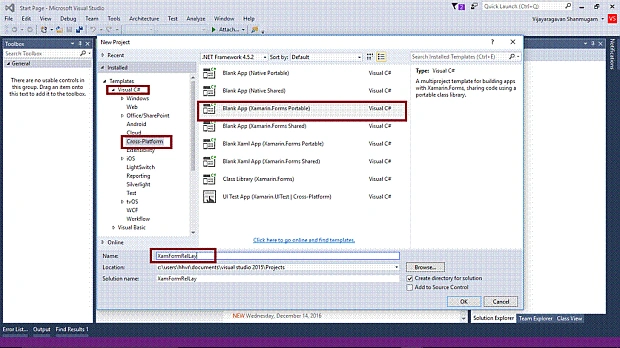
Open Visual Studio 2015. Go to Start -> New Project-> Select Cross-Platform (under Visual C#-> Blank App (Xamarin.Forms Portable)-> Give a suitable name for your app (XamFormRelLay) ->OK.
Step 2
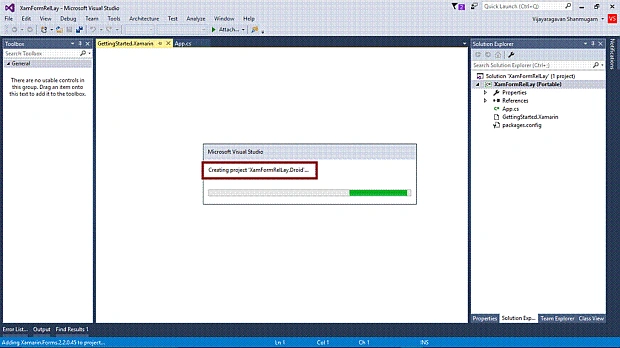
Now, the system starts creating the project “XamFormRelLay_Droid” …
Step 3
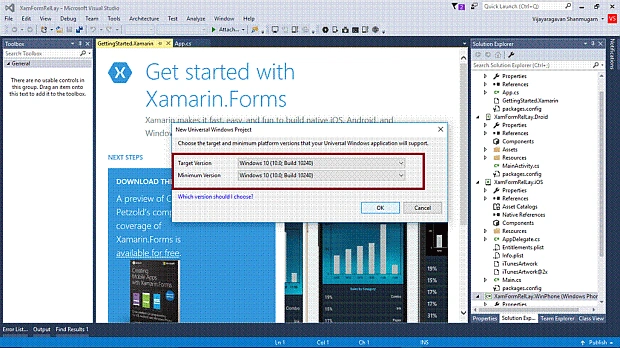
Choose the target and minimum platform version for your Universal Windows Project.
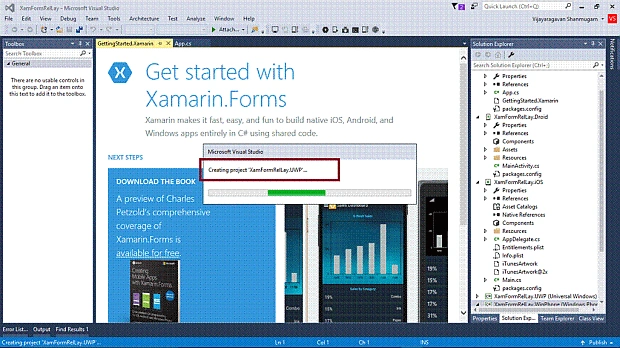
Creating project “XamFormRelLay_UWP” ….
Step 4
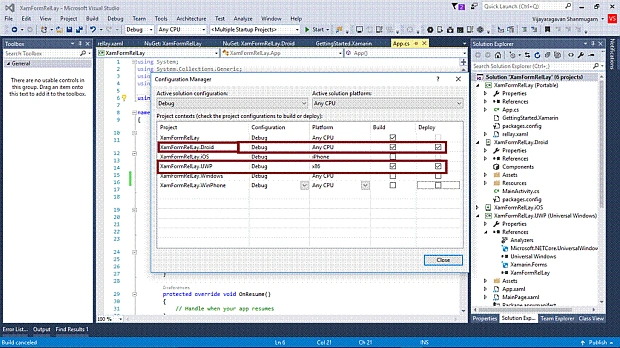
After that, Visual Studio creates six projects and displays the "Getting Started.Xamarin" Page. Now, we have to update the Xamarin Forms reference for portable project and XamFormRelLay_Droid project.
(Please refer to Step 7 in How To Create And Use XAML Content Page In Xamarin Forms Application For Android And Universal Windows Platform) for the same.
Step 5
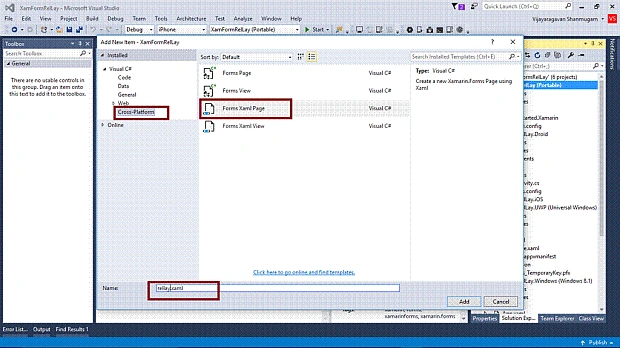
Add an Xaml page for RelativeLayout Demo. Right click XamFormRelLay (Portable) project, select ADD-> NewItem, and select -> CrossPlatform -> FormXamlPage -> Give it relevant name.
Step 6
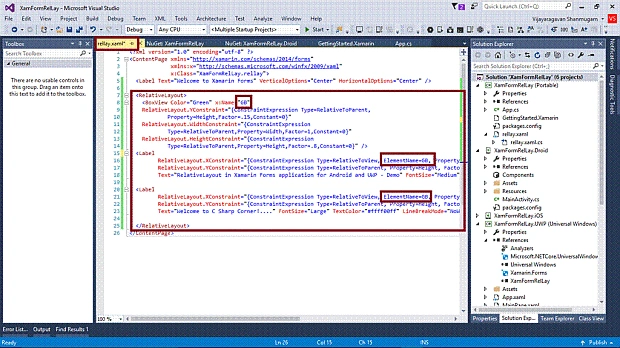
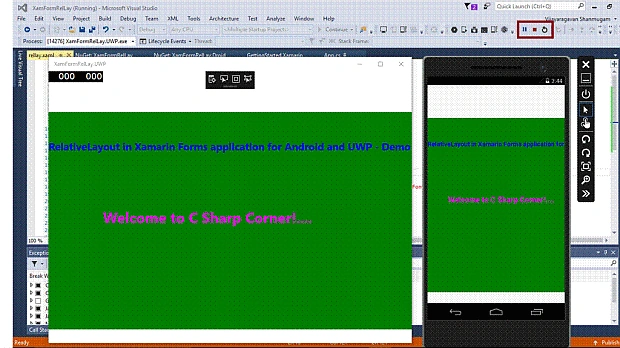
Add the RelativeLayout tag in the project and Inside RelativeLayout, add 1 BoxView and 2 Labels.
Join the conversation! Your thoughts help the community grow.