

In the previous article we learned how to create a site page. This article provides the procedure to rename SharePoint site pages in SharePoint online.
What a is page is
A Web page in a site can display lists of information, enabling team members to organize the information any way they want, such as by subject, due date, or author. For example, you can do the following:
- Filter the content to see only the set of information that applies to you
- Hide information that doesn't interest you
- Change the order in which the information is listed
- Set up customized views to make it easy for your team members to focus quickly on pertinent information
Procedure to Rename the SharePoint site page
Use the following procedure to rename the Site page.
Step 1
Go to your site and open the site page,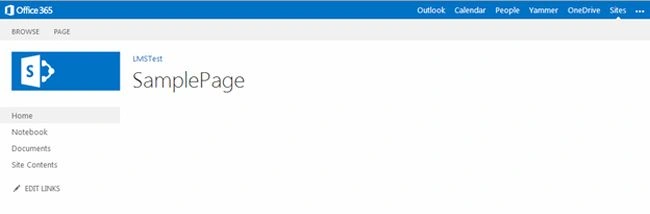
Step 2
Then click on the “PAGE” from your ribbon container as shown below.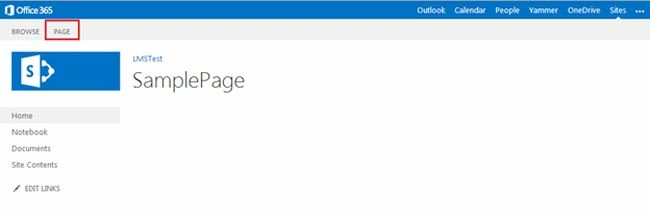
Step 3
When you click on the page, you will get the ribbon bar as shown below: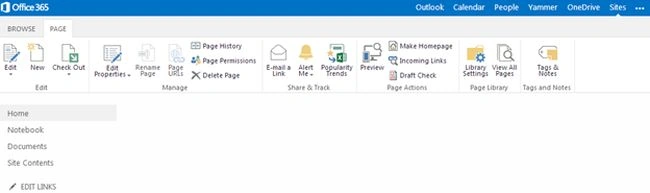
Step 4
Select “Edit Properties” on the ribbon bar to change the page name as shown below: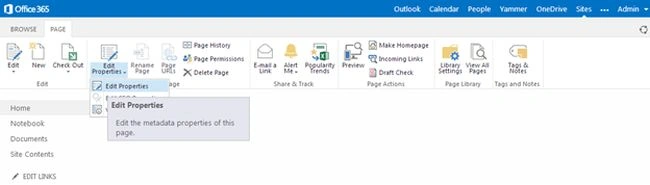
Step 5
Then you will get the edit form page as shown below: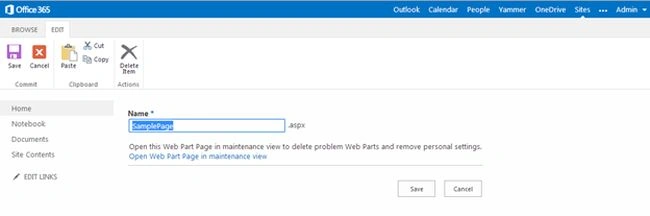
Step 6
On the edit form page provide the page name as you want and click Save to save the changes.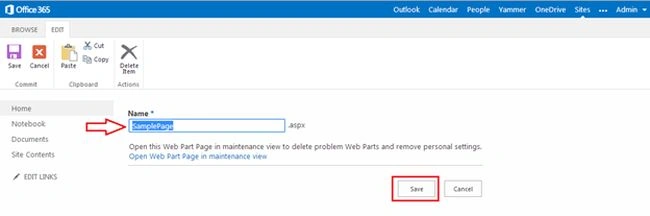
You are done! The page will be renamed successfully.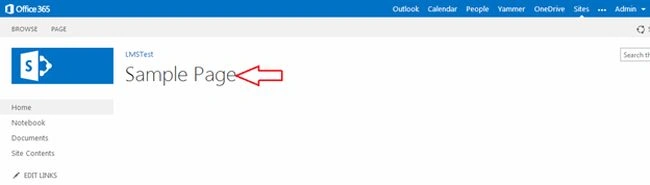
Summary
In this article we explored how to rename the page in SharePoint.
Happy Learning.
Join the conversation! Your thoughts help the community grow.