

Excel automation is one of the features in Excel. Excel automation can automate the generation of reports.
“This is what you are expecting right? Yes.
No problem, Excel will walk you through the following entire process. "
If you are new to Excel macros then read my previous article Create Login Application in Excel Macro Using Visual Basic. Because you must understand some basic things of Excel macros, such as how to enable the developer tab and how to assign a macro for Excel objects.
Chapter 1
In this chapter you will learn how to make a report automation template look attractive using an Excel macro in a spreadsheet.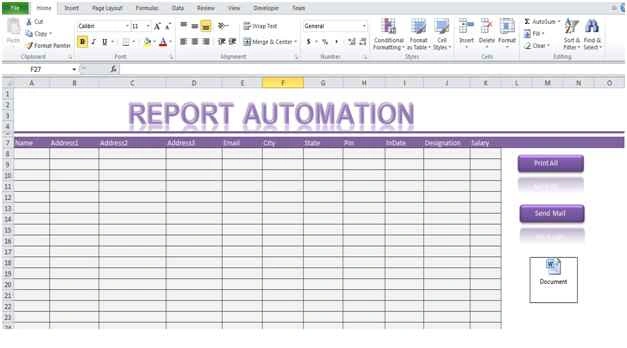
Step 1
Create Shapes in the spreadsheet.
- Start the Excel application.
- On the Insert tab, click the Shapes collection.
- Choose the Rounded rectangle in the Rectangles collection.
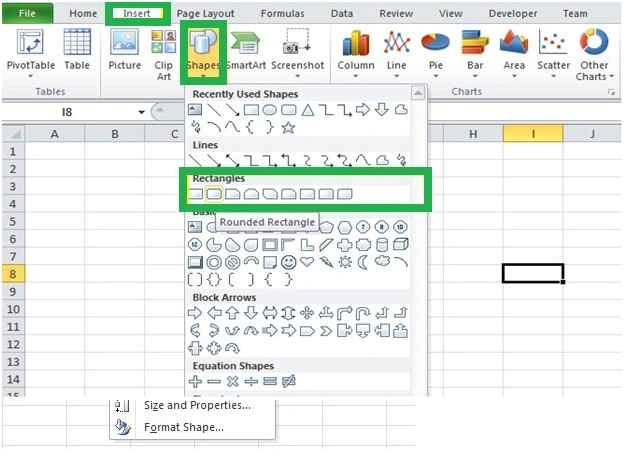
- Select the Rectangle shape, then draw two shapes in the spreadsheet.
- Select the shape then click on the format tab and make some changes in the shape effects so it looks as in the following diagram.

Step 2
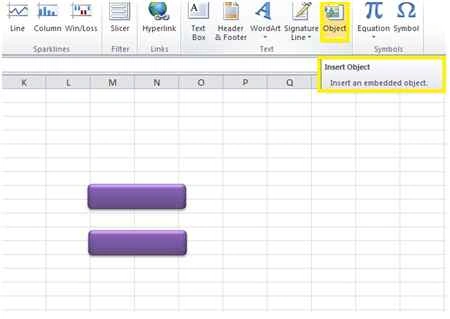
Insert an embedded object in the spreadsheet.
- On the insert tab click object to create a Word document embedded object.
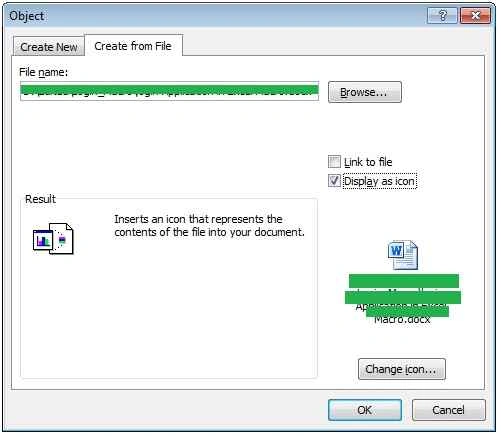
- Click the create from file tab then click browse to select the report template.
- Check the display as icon.
Step 3
Assign a macro for objects.
- Select the rectangle shape1 then double-click the object with selection mode.
- Right-click the shape1 to choose the Assign macro.

- Click the New button on the Assign macro window.

- Follow the sample process to assign the macro shape2 object.
- Open the Visual Basic Editor.
- In the Project Explorer, right-click module1.
- Add the following code between Sub RoundedRectangle1_Click() End sub.
- Public Irow As Integer
- Public i As Integer
- Public j As Integer
- Dim word Document As Object
- Dim document1 As Object
- Dim objword As Object
- Dim objdoc As Object
- Dim objSelection As Object
- Dim oleObj As OLEObject
- Irow = Sheet1.Cells (Rows. Count, "A").End (xlUp).Row - 7
- Set oleObj = Sheets ("Sheet1").OLEObjects (1)
- OleObj.Verb xlVerbOpen
- Set objword = oleObj.Object.Application
- With objword
- .Visible = False
- Set objdoc = .Documents (1)
- End With
- Objword. Documents (objdoc).Activate
- objword.Selection.WholeStory
- objword.Selection.Copy
- Set document1 = objword.Documents.Add
- Word. Documents (document1).Activate
- Word.Selection.EndKey wdStory
- Word.Selection.PasteAndFormat wdPasteDefault
- Word.Selection.WholeStory
- j = 8
- For i = 1 To irow
- Set document1 = objword.Documents.Add
- Word.Documents (document1).Activate
- Word.Selection.EndKey wdStory
- Word.Selection.PasteAndFormat wdPasteDefault
- Word.Selection.WholeStory
- With document1
- .Content.Find.Execute "<Name>", ReplaceWith: =Cells (j, 1).Value, Replace: =wdReplaceAll
- .Content.Find.Execute "<Add1>", ReplaceWith: =Cells (j, 2).Value, Replace: =wdReplaceAll
- .Content.Find.Execute "<Add2>", ReplaceWith: =Cells (j, 3).Value, Replace: =wdReplaceAll
- .Content.Find.Execute "<Add3>", ReplaceWith: =Cells (j, 4).Value, Replace: =wdReplaceAll
- .Content.Find.Execute "<Email>", ReplaceWith: =Cells (j, 5).Value, Replace: =wdReplaceAll
- .Content.Find.Execute "<City>", ReplaceWith: =Cells (j, 6).Value, Replace: =wdReplaceAll
- .Content.Find.Execute "<State>", ReplaceWith: =Cells (j, 7).Value, Replace: =wdReplaceAll
- .Content.Find.Execute "<Pin>", ReplaceWith: =Cells (j, 8).Value, Replace: =wdReplaceAll
- .Content.Find.Execute "<IntDate>", ReplaceWith: =Cells (j, 9).Value, Replace: =wdReplaceAll
- .Content.Find.Execute "<Designation>", ReplaceWith: =Cells (j, 10).Value, Replace: =wdReplaceAll
- .Content.Find.Execute "<sal>", ReplaceWith: =Cells (j, 11).Value, Replace: =wdReplaceAll
- .Save As "C:\Users\Karthikeyan.K\Desktop\Sample\" & Cells (j, 1).Value & ".pdf", 17
- j = j + 1
- End With
- Next i
- Set objword = Nothing
- Set document1 = Nothing
- Add the following code between Sub RoundedRectangle2_Click() End sub.
- Dim OutApp as Object
- Dim OutMail As Object
- j = 8
- Irow = Sheet1.Cells (Rows. Count, "A").End (xlUp).Row - 7
- Set OutApp = Create Object ("Outlook. Application")
- Set OutMail = OutApp.CreateItem (0)
- On Error Resume Next
- With OutApp
- .Visible = False
- End With
- With Application
- .Screen Updating = False
- .Enable Events = False
- End With
- For i = 1 To irow
- With OutMail
- .To = Cells (j, 5).Value
- .CC = "[email protected]"
- .BCC = ""
- .Subject = "Offer Letter"
- .Body = "Hello World!"
- .Attachments. Add ("C:\Users\Karthikeyan.K\Desktop\Sample\" & Cells (j, 1).Value & ".pdf")
- .Send
- j = j + 1
- End With
- i = i + 1
- Next i
- On Error Go To 0
- Set OutMail = Nothing
- Set OutApp = Nothing
- With Application
- .Screen Updating = True
- .Enable Events = True
- End With
Test the user form as in the following:
- Exit the Visual Basic Editor then enter the labels and data as shown below into rows.
- Create a directory with name “Sample” on your desktop.
(Hint: Change the directory path in the macro code.)
The following figure shows the final template in the spreadsheet.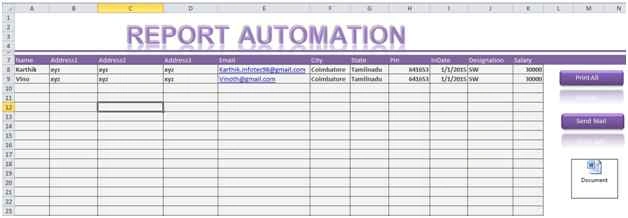
- Click the Print All button to check the directory.
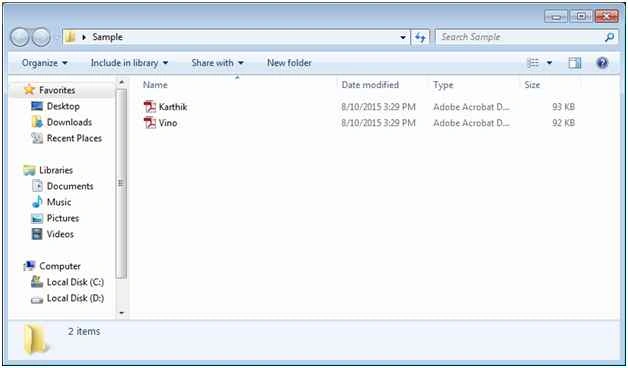
The following figure shows the final report generation.
- Click the Send mail button to send the reports to their email address.
(Hint: Before sending the email, configure your Microsoft Outlook.)
Zishan SiddiquiPosted Feb 19, 2018, 12:22 AM
Hi Karthikeyan, I need ur help. In case, before printing the offer letter I need to see the preview of the same in excel only, is there anyway to do it?
Karthikeyan KPosted Aug 14, 2015, 5:54 AM
Thank you Yashwanth sir...
Yashwanth MuthineniPosted Aug 14, 2015, 5:28 AM
Nice Share.. :)
Santhakumar MunuswamyPosted Aug 12, 2015, 2:59 PM
Good Article. Thanks for sharing
Karthikeyan KPosted Aug 11, 2015, 6:02 AM
Thank u Ravi sir...
ravi chandranPosted Aug 11, 2015, 5:57 AM
thank u karthikeyan sir
Sibeesh VenuPosted Aug 11, 2015, 2:21 AM
Nice Share
Gopi ChandPosted Aug 11, 2015, 1:26 AM
Nice presentation
Debasis SahaPosted Aug 11, 2015, 1:01 AM
Good One..
Rajeesh MenothPosted Aug 11, 2015, 12:54 AM
Good One
Ankit BansalPosted Aug 11, 2015, 12:32 AM
good one..