

RichTextBox Control
A RichTextBox control is an advanced text box that provides text editing and advanced formatting features including loading rich text format (RTF) files.
In this article, I will demonstrates how to create and use various features of the Windows Forms RichTextBox control.
Creating a RichTextBox
We can create a RichTextBox control using a Forms designer at design-time or using the RichTextBox class in code at run-time.
To create a RichTextBox control at design-time, you simply drag and drop a RichTextBox control from the Toolbox onto a Form in Visual Studio. Once a RichTextBox is added to a Form, you can move it around and resize it using the mouse and set it's properties and events.
Creating a RichTextBox control at run-time is merely a work of creating an instance of RichTextBox class, setting it's properties and adding the RichTextBox object to the Form's Controls collection.
The first step to create a dynamic RichTextBox is to create an instance of the RichTextBox class. The following code snippet creates a RichTextBox control object.
- // Create a RichTextBox object
- RichTextBox dynamicRichTextBox = new RichTextBox();
- dynamicRichTextBox.Location = new Point(20, 20);
- dynamicRichTextBox.Width = 300;
- dynamicRichTextBox.Height = 200;
- // Set background and foreground
- dynamicRichTextBox.BackColor = Color.Red;
- dynamicRichTextBox.ForeColor = Color.Blue;
- dynamicRichTextBox.Text = "I am Dynamic RichTextBox";
- dynamicRichTextBox.Name = "DynamicRichTextBox";
- dynamicRichTextBox.Font = new Font("Georgia", 16);
- Controls.Add(dynamicRichTextBox);

Figure 1
Setting RichTextBox Properties
After you place a RichTextBox control on a Form, the next step is to set properties.
The easiest way to set properties is from the Properties Window. You can open Properties window by pressing F4 or right click on a control and select Properties menu item. The Properties window looks like Figure 2.
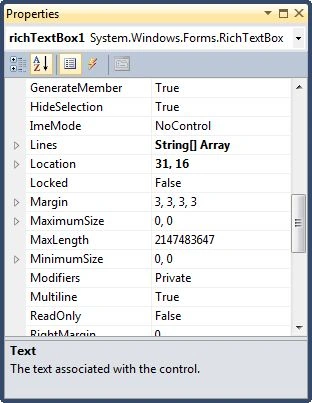
Figure 2
Location, Height, Width, and Size
The Location property takes a Point that specifies the starting position of the RichTextBox on a Form. The Size property specifies the size of the control. We can also use Width and Height property instead of Size property. The following code snippet sets Location, Width, and Height properties of a RichTextBox control.
- dynamicRichTextBox.Location = new Point(20, 20);
- dynamicRichTextBox.Width = 300;
- dynamicRichTextBox.Height = 200;
BackColor and ForeColor properties are used to set the background and foreground color of a RichTextBox respectively. If you click on these properties in Properties window, the Color Dialog pops up.
Alternatively, you can set background and foreground colors at run-time. The following code snippet sets BackColor and ForeColor properties.
- // Set background and foreground
- dynamicRichTextBox.BackColor = Color.Red;
- dynamicRichTextBox.ForeColor = Color.Blue;
- dynamicRichTextBox.BorderStyle = BorderStyle.FixedSingle;
The Name property represents a unique name of a RichTextBox control. It is used to access the control in the code. The following code snippet sets and gets the name and text of a RichTextBox control.
- dynamicRichTextBox.Name = "DynamicRichTextBox";
The Text property of a RichTextBox represents the current text of a RichTextBox control. The TextLength property returns the length of a RichTextBox contents.
The following code snippet sets the Text and TextAlign properties and gets the size of a RichTextBox control.
- dynamicRichTextBox.Text = "I am Dynamic RichTextBox";
- int size = dynamicRichTextBox.TextLength;
One way to append text to a RichTextBox is simply set Text property to current text plus new text you would want to append something like this.
- RichTextBox1.Text += " Appended text";
- RichTextBox1.AppendText(" Appended text");
If a RichTextBox control is set to multiline, the AcceptsTab property is used to set the RichTextBox control to accept the TAB key as text. If this property is not set, pressing the TAB key simply moves to the next control on the Form. By default, the AcceptsTab property value of a RichTextBox control is false.
- // accepts TAB key
- dynamicRichTextBox.AcceptsTab = true;
If WordWrap property is true, the text in the RichTextBox control automatically wraps to the next line if required. If this property is set to true, horizontal scroll bars are not displayed regardless of the ScrollBars property setting.
- // Wordwrap
- dynamicRichTextBox.WordWrap = true;
A Multiline RichTextBox control can have scrollbars. The ScrollBars property of RichTextBox control is used to show scrollbars on a control. The ScrollBars property is represented by a RichTextBoxScrollBars enumeration that has four values – Both, Vertical, Horizontal, and None.
The following code snippet makes both vertical and horizontal scrollbars active on a RichTextBox control and they will be visible when the scrolling is needed on a RichTextBox control.
- dynamicRichTextBox.ScrollBars = RichTextBoxScrollBars.Both;
Font property represents the font of text of a RichTextBox control. If you click on the Font property in the Properties window, you will see Font name, size and other font options. The following code snippet sets Font property at run-time.
- dynamicRichTextBox.Font = new Font("Georgia", 16);
You can restrict the number of characters in a RichTextBox control by setting MaxLength property. The following code snippet sets the maximum length of a RichTextBox to 50 characters.
- dynamicRichTextBox.ReadOnly = true;
- dynamicRichTextBox.MaxLength = 50;
You can make a RichTextBox control read-only (non-editable) by setting the ReadOnly property to true. The following code snippet sets the ReadOnly property to true.
- dynamicRichTextBox.ReadOnly = true;
ShortcutsEnabled property of the RichTextBox is used to enable or disable shortcuts. By default, shortcuts are enabled. The following code snippet disables shortcuts in a RichTextBox.
- dynamicRichTextBox.ShortcutsEnabled = false;
- CTRL+Z
- CTRL+E
- CTRL+C
- CTRL+Y
- CTRL+X
- CTRL+BACKSPACE
- CTRL+V
- CTRL+DELETE
- CTRL+A
- SHIFT+DELETE
- CTRL+L
- SHIFT+INSERT
- CTRL+R
Read RichTextBox Contents
The simplest way of reading a RichTextBox control contents is using the Text property. Note however that the Text property has no formatting; it has only text. See the Rtf property for the text including the formatting. The following code snippet reads contents of a RichTextBox in a string.
- string RichTextBoxContents = dynamicRichTextBox.Text;
The following code snippet reads a RichTextBox contents line by line.
- string [] RichTextBoxLines = dynamicRichTextBox.Lines;
- foreach (string line in RichTextBoxLines)
- {
- MessageBox.Show(line);
- }
The SelectedText property returns the selected text in a RichTextBox control.
- string selectedText = dynamicRichTextBox.SelectedText;
- dynamicRichTextBox.SelectionStart = 10;
- dynamicRichTextBox.SelectionLength = 20;
The Clear method removes the contents of a RichTextBox. The following code snippet uses Clear method to clear the contents of a RichTextBox.
- RichTextBox1.Clear();
- private void selectAllToolStripMenuItem_Click(object sender, EventArgs e)
- {
- if (RichTextBox1.TextLength > 0)
- RichTextBox1.SelectAll();
- }
- private void deselectAllToolStripMenuItem_Click(object sender, EventArgs e)
- {
- if (RichTextBox1.TextLength > 0)
- RichTextBox1.DeselectAll();
- }
RichTextBox class provides Cut, Copy, Paste, and Undo methods to cut, copy, paste, and undo clipboard operations. The following code snippet shows how to use Cut, Copy, Paste, and Undo methods.
- private void cutToolStripMenuItem_Click(object sender, EventArgs e)
- {
- if (RichTextBox1.SelectionLength > 0)
- RichTextBox1.Cut();
- }
- private void copyToolStripMenuItem_Click(object sender, EventArgs e)
- {
- if (RichTextBox1.SelectionLength > 0)
- RichTextBox1.Copy();
- }
- private void pasteToolStripMenuItem_Click(object sender, EventArgs e)
- {
- if (Clipboard.GetDataObject().GetDataPresent(DataFormats.Text))
- {
- RichTextBox1.Paste();
- }
- }
- private void undoToolStripMenuItem_Click(object sender, EventArgs e)
- {
- if (RichTextBox1.CanUndo)
- {
- RichTextBox1.Undo();
- RichTextBox1.ClearUndo();
- }
- }
LoadFile method of RichTextBox control is used to load an RTF file and displays its contents. SaveFile method is used to save the contents of a RichTextBox to an RTF file. The following code snippet loads an RTF file using an OpenFileDialog and saves back its contents.
- private void LoadRTFButton_Click(object sender, EventArgs e)
- {
- OpenFileDialog ofd = new OpenFileDialog();
- ofd.InitialDirectory = "c:\\";
- ofd.Filter = "txt files (*.txt)|*.txt|All files (*.*)|*.*";
- ofd.FilterIndex = 2;
- ofd.RestoreDirectory = true;
- if (ofd.ShowDialog() == System.Windows.Forms.DialogResult.OK)
- {
- dynamicRichTextBox.LoadFile(ofd.FileName);
- dynamicRichTextBox.Find("Text", RichTextBoxFinds.MatchCase);
- dynamicRichTextBox.SelectionFont = new Font("Verdana", 12, FontStyle.Bold);
- dynamicRichTextBox.SelectionColor = Color.Red;
- dynamicRichTextBox.SaveFile(@"C:\Junk\SavedRTF.rtf", RichTextBoxStreamType.RichText);
- }
- }
BulletIndent property gets or sets the indentation used in the RichTextBox control when the bullet style is applied to the text.
dynamicRichTextBox.BulletIndent = 10;
Selection Properties
Here is a list of properties that are applicable on current selected text.
- SelectionAlignment - Alignment of selected text.
- SelectionBackColor - Background color of selected text.
- SelectionBullet - True or false to set if bullets are applied on selected text.
- SelectionCharOffset - Whether text in the control appears on the baseline, as a superscript, or as a subscript below the baseline
- SelectionColor - Color of selected text.
- SelectionFont - Font of selected text.
- SelectionHangingIndent - Distance between the left edge of the first line of text in the selected paragraph and the left edge of subsequent lines in the same paragraph.
- SelectionIndent - Length, in pixels, of the indentation of the line where the selection starts.
- SelectionProtected - Calue indicating whether the current text selection is protected
- SelectionTabs - Absolute tab stop positions.
- SelectionType - Selection type represented by RichTextBoxSelectionType enumeration with values Empty, Text, Object, MultiChar, and MultiObject.
The following code snippet sets these selection properties.
- private void SelectionButton_Click(object sender, EventArgs e)
- {
- dynamicRichTextBox.BackColor = Color.White;
- dynamicRichTextBox.Clear();
- dynamicRichTextBox.BulletIndent = 10;
- dynamicRichTextBox.SelectionFont = new Font("Georgia", 16, FontStyle.Bold);
- dynamicRichTextBox.SelectedText = "Mindcracker Network \n";
- dynamicRichTextBox.SelectionFont = new Font("Verdana", 12);
- dynamicRichTextBox.SelectionBullet = true;
- dynamicRichTextBox.SelectionColor = Color.DarkBlue;
- dynamicRichTextBox.SelectedText = "C# Corner" + "\n";
- dynamicRichTextBox.SelectionFont = new Font("Verdana", 12);
- dynamicRichTextBox.SelectionColor = Color.Orange;
- dynamicRichTextBox.SelectedText = "VB.NET Heaven" + "\n";
- dynamicRichTextBox.SelectionFont = new Font("Verdana", 12);
- dynamicRichTextBox.SelectionColor = Color.Green;
- dynamicRichTextBox.SelectedText = ".Longhorn Corner" + "\n";
- dynamicRichTextBox.SelectionColor = Color.Red;
- dynamicRichTextBox.SelectedText = ".NET Heaven" + "\n";
- dynamicRichTextBox.SelectionBullet = false;
- dynamicRichTextBox.SelectionFont = new Font("Tahoma", 10);
- dynamicRichTextBox.SelectionColor = Color.Black;
- dynamicRichTextBox.SelectedText = "This is a list of Mindcracker Network websites.\n";
- }
Redo and CanRedo
Redo method can be used to reapply the last undo operation to the control.
CanRedo property represents whether there are actions that have occurred within the RichTextBox that can be reapplied.
- if (dynamicRichTextBox.CanRedo == true)
- {
- if (dynamicRichTextBox.RedoActionName != "Delete")
- dynamicRichTextBox.Redo();
- }
If set true, the DetectUrls property will automatically format a Uniform Resource Locator (URL) when it is typed into the control.
EnableAutoDragDrop
RichTextBox control supports drag and drop operations that allow us to drag and drop text, picture, and other data. EnableAutoDragDrop property enables drag-and-drop operations on text, pictures, and other data.
- dynamicRichTextBox.EnableAutoDragDrop = true;
RightMargin property represents the size of a single line of text within a RichTextBox control.
AutoWordSelection property represents if a word is automatically selected when a text is double clicked within a RichTextBox control.
ZoomFactor represents the current zoom level of the RichTextBox. Value 1.0 means there is no zoom applied on a control.
- private void ZoomButton_Click(object sender, EventArgs e)
- {
- dynamicRichTextBox.AutoWordSelection = true;
- dynamicRichTextBox.RightMargin = 5;
- dynamicRichTextBox.ZoomFactor = 3.0f;
- }
Rtf property is used to get and set rich text format (RTF) text in a RichTextBox control. SelectedRtf property is used to get and set selected text in a control. RTF text is the text that includes formatting.
Summary
A RichTextBox control accepts user input on a Form and provides rich text features. In this article, we discussed discuss how to create a RichTextBox control in Windows Forms at design-time as well as run-time. After that, we saw how to use various properties and methods.
Further Readings
Here is a list of more articles related to this topic.
conchiano PhanjooPosted Oct 27, 2019, 12:04 PM
Thank you for your help,
conchiano PhanjooPosted Oct 27, 2019, 12:03 PM
Hi sir I am a beginner. I would like to determine the cursor position in terms of line and column in a RichTextBox?
yashasvi KumarPosted Jan 22, 2015, 1:03 AM
Dear sir i want to add a new line after the selected text . foreach (XElement detail in doc.Descendants("title"))// get only title element value { richTextBox1.Select(richTextBox1.Text.IndexOf(detail.Value), detail.Value.Length - 1); richTextBox1.SelectionFont = new Font("arial", 8, FontStyle.Bold); // working // now how to add a new line just after the selection text. }
Kurt FPosted Dec 8, 2012, 6:18 AM
Love your article. Is it possible to also store a language parameter indicating the expected text language of a specific RTBox?
Muhammad UsmanPosted Mar 12, 2011, 1:22 PM
m belongin to AJK University pakistan and std of sftware engineering ....in a class i cant understand that wt lectrs delever by prof but u r a great u teach me properly and this site is bcom a helper....now m going to develop a last project in uni ...but in this section i need a help....i think u can......... kindly tell me when u online? [email protected] same on facebook u can search me....BBye...n love u
Astika JadhaveditedPosted Dec 25, 2010, 5:46 AMEdited Dec 25, 2010, 5:47 AM
I want to display the question & mark in One RichText Box.but they Apper as Qno.1Attempt All marks=[2] Qno2:Attempt Any One of the Foolwing mark=[9] but i want it as Qno.1Attempt All marks=[2] Qno2:Attempt Any One of the Foolwing mark=[9] so have can i do it. i want to digive space in the Question And Marks.please Replay me. Thanks
Tanmay SarkarPosted Aug 30, 2010, 10:52 AM
Sir, I get a problem, I dynamicaly build a tab with richtextbox. & want to save it. but i can't save that. Can you help me please? my code is as follows, int counter=0; private void newToolStripMenuItem_Click(object sender, EventArgs e) { TabPage tp = new TabPage(); this.tabControl1.Controls.Add(tp); RichTextBox rt = new RichTextBox(); rt.Dock = System.Windows.Forms.DockStyle.Fill; counter++; tp.Name = "New Doc "+Convert.ToString(counter); tp.Text = "New Doc " + Convert.ToString(counter); tp.Controls.Add(rt); } I think we can get the selected tab like, tabControl1.SelectedTab.Name but how get the richtextbox to save the content. Thank you!
Mahesh ChandPosted Aug 29, 2010, 9:56 PM
here