

The RowCommand Event can be used to get the selected GridView Row value or text.
GridView.RowCommand Event:
The RowCommand Event occurs when a button is clicked in a GridView control.
- <asp:GridView OnRowCommand="GridViewCommandEventHandler" />
CommandArgument:
The CommandArgument can contain any string set by the programmer. The CommandArgument property complements the CommandName property by allowing you to provide any additional information for the command. For example, you can set the CommandName property to Sort and set the CommandArgument property to Ascending to specify a command to sort in ascending order.
- <asp:LinkButton ID="lnkproductname" runat ="server" CommandArgument='<%#Eval("productid")%> ></asp:LinkButton>
CommandName property to determine the command to perform. The CommandArgument property complements the CommandName property by allowing you to provide any additional information for the command to perform. For example, you can set the CommandName property to Sort and set the CommandArgument property to Ascending to specify a command to sort in ascending order.
- <asp:LinkButton ID="lnkproductname" runat ="server" CommandArgument='<%#Eval("productid")%>' CommandName ="selectproduct"
- Text ='<%#Eval ("productname") %>'>
- </asp:LinkButton>
Below is the Image of GridView after binding the data
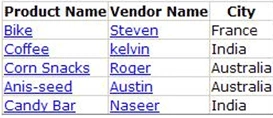
In .aspx source code page
- <asp:GridView ID="GridView1" runat="server" AutoGenerateColumns="False" OnRowCommand="GridView1_RowCommand">
- <Columns >
- <asp:TemplateField HeaderText ="Product Name">
- <ItemTemplate>
- <asp:LinkButton ID="lnkproductname" runat ="server" CommandArgument=''
- <%#Eval("productid")%>
- ' Text ='<%#Eval("productname") %>' CommandName ="selectproduct" ></asp:LinkButton>
- </ItemTemplate>
- </asp:TemplateField>
- <asp:TemplateField HeaderText ="Vendor Name">
- <ItemTemplate >
- <asp:LinkButton ID ="lnkvendorname" runat ="server" CommandArgument=''
- <%#Eval("vendorid")%>
- ' CommandName ="selectvendor" Text ='<%#Eval("vendorname") %>'></asp:LinkButton>
- </ItemTemplate>
- </asp:TemplateField>
- <asp:TemplateField HeaderText ="City">
- <ItemTemplate >
- <asp:Label ID ="lnkcity" runat ="server" Text =''
- <%#Eval("city") %>'>
- </asp:Label>
- </ItemTemplate>
- </asp:TemplateField>
- </Columns>
- </asp:GridView>
- protected void GridView1_RowCommand(object sender, GridViewCommandEventArgs e)
- {
- if (e.CommandName == "selectproduct")
- {
- textBox1.Text = Convert.ToString(e.CommandArgument.ToString());
- }
- if (e.CommandName == "selectvendor")
- {
- string vendid = Convert.ToString(e.CommandArgument.ToString());
- Response.Write("Vendorid:" + vendid);
- }
- }
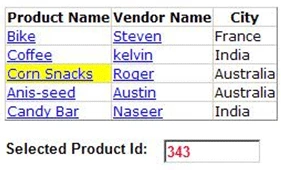
Thanks for reading my article.
Joe BomanPosted May 6, 2021, 10:44 PM
This article was extremely helpful. And as a result I was able to fix an ongoing code issue. I do want to ask why in the longer 26 line code snippet was CommandArgument='' set to no value (closed ticks)? See lines 5 and line 12. I was however able to understand from the second code snippet in this article that CommandArgument='' should actually contain the value CommandArgument='<%#Eval("productid")% Lines 5 and 12 threw me at first. This article was Way more clear than my textbook however. Thank you for posting it!
Kartik PatraPosted Sep 9, 2019, 4:23 AM
Bhala thila
Bhavesh JadavPosted Apr 24, 2018, 2:32 AM
Nice one, thanks for sharing it.
Aleena SaviourPosted Nov 17, 2016, 12:22 AM
Good article...helps well
Engr Muhammad RindPosted May 22, 2015, 1:17 AM
Good
abdulwahid khanPosted Mar 13, 2015, 11:12 AM
Good Explanation
Deepak RatanPosted Mar 13, 2015, 3:10 AM
good
jitendraPosted Nov 7, 2012, 5:33 AM
good