
Introduction
This article explains screen orientation in Android. Android Studio is used to create the sample.
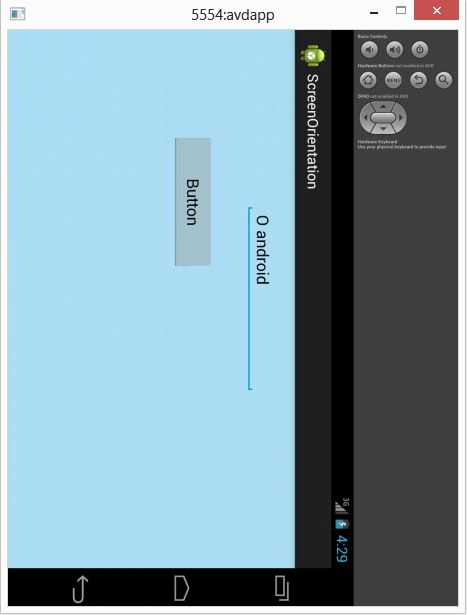
The screen orientation attribute is provided by the activity element in the Android Manifest.Xml file. The orientations provided by the activity are Portrait, Landscape, Sensor, Unspecified and so on. To perform a screen orientation activity you define the properties in the Android Manifest.Xml file.
Example
- <activity
- android:name="com.screenorientation.MainActivity"
- android:label="@string/app_name"
- android:screenOrientation="portrait">
- Portrait: In a portrait mode the screen will be taller, not wider.
- LandScape: In a landscape mode the screen will be wider, not taller.
- Sensor: This orientation will be determined depending on the device sensor.
- Unspecified: For this, the orientation will be chosen by the system.
- <RelativeLayout xmlns:android="http://schemas.android.com/apk/res/android"
- xmlns:tools="http://schemas.android.com/tools"
- android:layout_width="match_parent"
- android:layout_height="match_parent"
- android:paddingBottom="@dimen/activity_vertical_margin"
- android:paddingLeft="@dimen/activity_horizontal_margin"
- android:paddingRight="@dimen/activity_horizontal_margin"
- android:paddingTop="@dimen/activity_vertical_margin"
- android:background="#123456"
- tools:context=".MainActivity" >
- <Button
- android:id="@+id/button"
- android:layout_width="150dp"
- android:layout_height="wrap_content"
- android:layout_marginLeft="100dp"
- android:layout_marginTop="73dp"
- android:text="Button"
- android:onClick="onClick"
- />
- <EditText
- android:id="@+id/editText1"
- android:layout_width="wrap_content"
- android:layout_height="wrap_content"
- android:layout_centerHorizontal="true"
- android:ems="10" />
- </RelativeLayout>
Join the conversation! Your thoughts help the community grow.