Before reading this article, please go through the following articles:
-
Working With ListBox In Windows Phone7
-
Working With ListBox In Windows Phone (Edit Data In the ListBox) : Part 2
-
Working With ListBox In Windows Phone (Send SMS, Email and Make a Call) : Part 3
In this article, we will discuss how to search for a specified Student Name in the listBox and how to delete them. I add this feature with my previous articles.
We will first discuss how to search the data from the ListBox. To do that use the following procedure.
Step 1
First we will add two Controls (TextBlock and TextBox) in the MainPage like this:
<TextBlock FontSize="22" FontWeight="Bold" Grid.ColumnSpan="2" Height="30" HorizontalAlignment="Left" Margin="10,119,0,0" Name="txtBlkSearch" Text="Search" VerticalAlignment="Top" />
<TextBox FontSize="20" Grid.Column="1" Height="71" HorizontalAlignment="Left" Margin="14,100,0,0" Name="txtSearch" Text="" VerticalAlignment="Top" Width="334" TextChanged="txtSearch_TextChanged">
<TextBox.Background>
<LinearGradientBrush EndPoint="0.5,1" StartPoint="0.5,0">
<GradientStop Color="Black" Offset="0" />
<GradientStop Color="BurlyWood" Offset="1" />
<GradientStop Color="BurlyWood" />
</LinearGradientBrush>
</TextBox.Background>
<TextBox.BorderBrush>
<LinearGradientBrush EndPoint="0.5,1" StartPoint="0.5,0">
<GradientStop Color="Black" Offset="0" />
<GradientStop Color="#FFFFE8E8" Offset="1" />
</LinearGradientBrush>
</TextBox.BorderBrush>
</TextBox>
Now we can use the TextBox to search the particular Student Name.
The output will be:
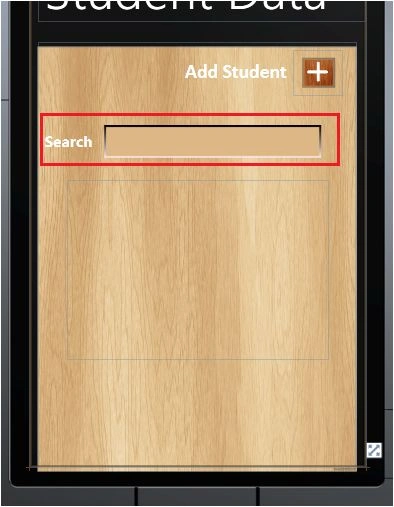
Now we will write the code; see the following:
private void txtSearch_TextChanged(object sender, TextChangedEventArgs e)
{
using (StudentdataContext StudentDB = new StudentdataContext(strConnectionString))
{
var a = from b in StudentDB.GetTable<StudentInfo>() where SqlMethods.Like(b.Extra, (txtSearch.Text + "%")) select b.Extra;
List<StudentInfo> dataSource = new List<StudentInfo>();
foreach (var x in a)
{
dataSource.Add(new StudentInfo() { Extra = x });
}
this.lstStudentname.ItemsSource = dataSource;
}
}
Now we use the Like Methods to search for the Student Name.
The output will be:
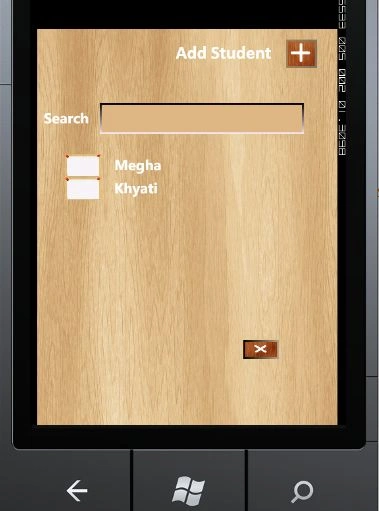
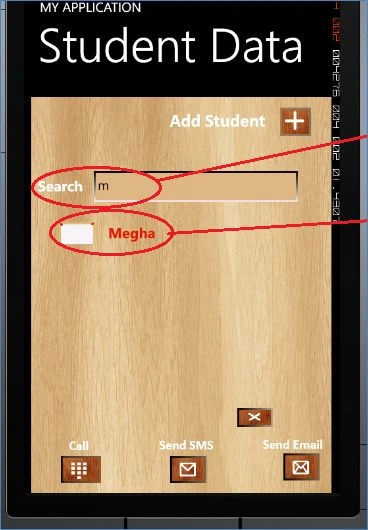
Now we will be write the code to delete the Name in the ListBox like this.
Step 1
First we create a Delete Button like this:
<Button FontSize="18" HorizontalAlignment="Left" Margin="232,459,0,95" Name="btnDelete" Visibility="Collapsed" Width="78" Grid.Column="1" Click="btnDelete_Click">
<Button.Background>
<ImageBrush ImageSource="/Contact;component/Image/Delete2.png" />
</Button.Background>
<Button.BorderBrush>
<LinearGradientBrush EndPoint="1,0.5" StartPoint="0,0.5">
<GradientStop Color="Black" Offset="0" />
<GradientStop Color="#FFB7A38A" Offset="1" />
</LinearGradientBrush>
</Button.BorderBrush>
</Button>
Now we will use an image to show the Delete button:
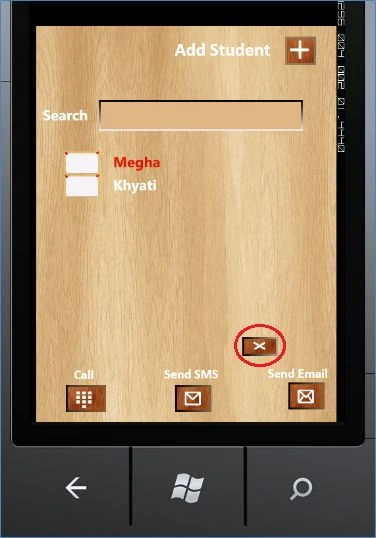
Now we will be write the following code for the Delete button:
private void btnDelete_Click(object sender, RoutedEventArgs e)
{
var listBoxItem = lstStudentname.ItemContainerGenerator.ContainerFromIndex(lstStudentname.SelectedIndex) as ListBoxItem;
var txtBlk = FindVisualChildByType<TextBlock>(listBoxItem, "txtBlkExtra");
a = txtBlk.Text;
using (StudentdataContext StudentDB = new StudentdataContext(strConnectionString))
{
var remove = (from r in StudentDB.GetTable<StudentInfo>()
where r.Extra == a.ToString()
select r).FirstOrDefault();
if (remove != null)
{
StudentDB.GetTable<StudentInfo>().DeleteOnSubmit(remove);
StudentDB.SubmitChanges();
MessageBox.Show("Delete The Data");
var c = from b in StudentDB.GetTable<StudentInfo>() select b.Extra;
//lstStudentname.ItemsSource = a;
List<StudentInfo> dataSource = new List<StudentInfo>();
foreach (var x in c)
{
dataSource.Add(new StudentInfo() { Extra = x });
}
this.lstStudentname.ItemsSource = dataSource;
txtBlkCall.Visibility = Visibility.Collapsed;
txtBlkSendEmail.Visibility = Visibility.Collapsed;
txtBlkSMS.Visibility = Visibility.Collapsed;
btnCall.Visibility = Visibility.Collapsed;
btnSMS.Visibility = Visibility.Collapsed;
btnEmail.Visibility = Visibility.Collapsed;
btnDelete.Visibility = Visibility.Collapsed;
}
}
}
So when we click on the Delete button it will remove the Name from the List.


Join the conversation! Your thoughts help the community grow.