

In this article, we will explain self-hosting a service using a Windows console application. This is referred to as a self hosting WCF service, the exact meaning of Self Hosted is that it hosts the service in an application that could be a Console Application or Windows Forms and so on. Earlier we saw what a WCF Service is in the .Net environment. We can host a WCF service in IIS and a Windows service also.
A service can also be in-process, in other words, the client and service are in the same process. Now let's create the WCF Service that is hosted in a console application. We will also look into creating a proxy using the "Client Base" class.
Step 1
First, let's start to create the Service Contract and its implementation. Create a console application and name it "WCF_NewsService". This is a simple service that returns News.

Step 2
Add the System.ServiceModel and System.runtime.serialization reference to the project.
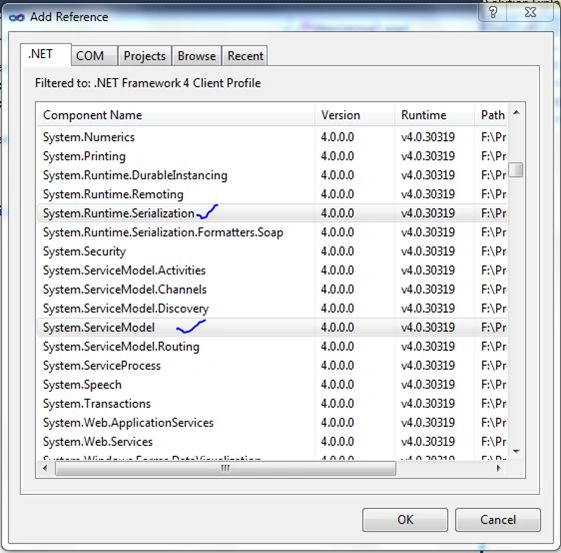
Step 3
Now right-click the project name in Solution Explorer and select "Add new item" and select "WCF Service" in the window and specify "News_Service" and click "Add".

Once you add this WCF Service, a function and class files are added to the solution.

Step 4
In the "INews_Service" interface, add "ServiceContract" and "OperationContract" attributes to the class and function as in the following. You will learn more about these contracts in a later session. These contracts will expose methods to the outside world for using this service.
- using System;
- using System.Collections.Generic;
- using System.Linq;
- using System.Runtime.Serialization;
- using System.ServiceModel;
- using System.Text;
- namespace WCF_NewsService
- {
- // NOTE: You can use the "Rename" command on the "Refactor" menu to change the interface name "INews_Service" in both code and config file together.
- [ServiceContract]
- public interface INews_Service
- {
- [OperationContract]
- TOInews Getnews(int a);
- }
- [DataContract]
- public class TOInews
- {
- private int _id;
- private string _header;
- private string _body;
- [DataMember]
- public int ID
- {
- get { return _id; }
- set { _id = value; }
- }
- [DataMember]
- public string Header
- {
- get { return _header; }
- set { _header = value; }
- }
- [DataMember]
- public string Body
- {
- get { return _body; }
- set { _body = value; }
- }
- }
- }
Step 5
Open the "New_Service" file and right-click on "INews_Service" then go to "implement Interface" and delete the DoWork() method that is not needed by us. And provide the following code:

- using System;
- using System.Collections.Generic;
- using System.Linq;
- using System.Runtime.Serialization;
- using System.ServiceModel;
- using System.Text;
- namespace WCF_NewsService
- {
- // NOTE: You can use the "Rename" command on the "Refactor" menu to change the class name "News_Service" in both code and config file together.
- public class News_Service : INews_Service
- {
- #region INews_Service Members
- public TOInews Getnews(int a)
- {
- TOInews objtoinews = new TOInews();
- switch (a)
- {
- case 1:
- {
- objtoinews.ID = 1;
- objtoinews.Header = "Mumbai News";
- objtoinews.Body = "2013 Code contest quiz orgnize by TOI";
- break;
- }
- case 2:
- {
- objtoinews.ID = 2;
- objtoinews.Header = "Pune News";
- objtoinews.Body = "commonwealth fraud in pune ";
- break;
- }
- case 3:
- {
- objtoinews.ID = 3;
- objtoinews.Header = "Solapur News";
- objtoinews.Body = "New IT hub in Solapur";
- break;
- }
- default:
- {
- break;
- }
- }
- return objtoinews;
- }
- #endregion
- }
- }
Step 6
Now after providing the code in the service we need to start our service using the console application The following code shows the implementation of the host process.
- using System;
- using System.Collections.Generic;
- using System.Linq;
- using System.Text;
- using System.ServiceModel;
- namespace WCF_NewsService
- {
- class Program
- {
- static void Main(string[] args)
- {
- ServiceHost host = new ServiceHost(typeof(News_Service));
- host.Open();
- Console.WriteLine("Host Open Sucessfully ...");
- Console.ReadLine();
- }
- }
- }
Step 7
Now open the app.config file and change some settings.
- <?xml version="1.0" encoding="utf-8" ?>
- <configuration>
- <system.serviceModel>
- <bindings>
- <basicHttpBinding>
- <binding name="Pramod"></binding>
- </basicHttpBinding>
- </bindings>
- <behaviors>
- <serviceBehaviors>
- <behavior name="">
- <serviceMetadata httpGetEnabled="true" />
- <serviceDebug includeExceptionDetailInFaults="false" />
- </behavior>
- </serviceBehaviors>
- </behaviors>
- <services>
- <service name="WCF_NewsService.News_Service">
- <endpoint address="News_Service"
- binding="basicHttpBinding"
- contract="WCF_NewsService.INews_Service"
- bindingConfiguration="Pramod">
- <identity>
- <dns value="localhost" />
- </identity>
- </endpoint>
- <endpoint address="mex" binding="mexHttpBinding" contract="IMetadataExchange" />
- <host>
- <baseAddresses>
- <add baseAddress="http://localhost:8732/Design_Time_Addresses/WCF_NewsService/News_Service/" />
- </baseAddresses>
- </host>
- </service>
- </services>
- </system.serviceModel>
- </configuration>
Run your application and see message in console screen.

Now create a consumer to consume the service. Again you need to create a new application and write the code in the Program.cs file.
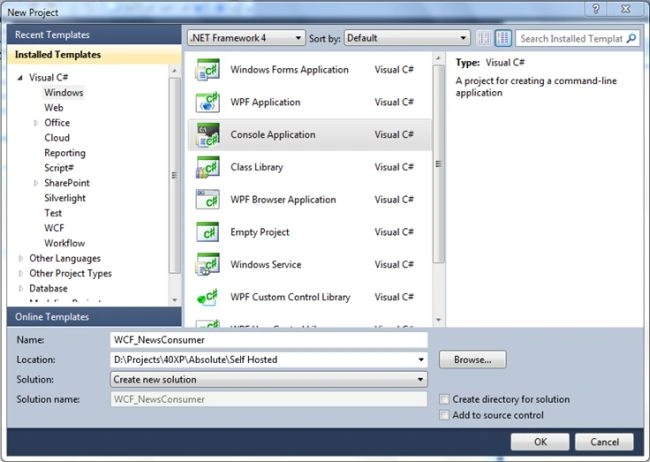
Before writing the code for these files we need to add a service reference for the NewsService Project.
For adding the service reference, right-click "WCF_NewsConsumer" in the Solution Explorer and select "Add Service reference". Copy the URL from the Service Project and paste it into the "Address location" and provide an appropriate name for the Service.
Here I am giving the name "Proxy_TOInews" for the namespace. Then click "OK".

After adding the reference, add a namespace as in "using WCF_NewsConsumer.Proxy_TOInews;".
- using System;
- using System.Collections.Generic;
- using System.Linq;
- using System.Text;
- using WCF_NewsConsumer.Proxy_TOInews;
- namespace WCF_NewsConsumer
- {
- class Program
- {
- static void Main(string[] args)
- {
- Proxy_TOInews.News_ServiceClient proxy = new News_ServiceClient("BasicHttpBinding_INews_Service");
- TOInews Tnews = new TOInews();
- Console.WriteLine("Enetr News Id :");
- string newsid = Console.ReadLine();
- Tnews = proxy.Getnews(Convert.ToInt32(newsid));
- News nws = new News();
- nws.cID = Tnews.ID;
- nws.cHeader = Tnews.Header;
- nws.cBody = Tnews.Body;
- Console.WriteLine(" News from:" + nws.cID + "\r\r \n " + nws.cHeader + "\r\r \n " + nws.cBody + "");
- Console.ReadLine();
- }
- public class News
- {
- private int _id;
- private string _header;
- private string _body;
- public int cID
- {
- get { return _id; }
- set { _id = value; }
- }
- public string cHeader
- {
- get { return _header; }
- set { _header = value; }
- }
- public string cBody
- {
- get { return _body; }
- set { _body = value; }
- }
- }
- }
- }

Devinder KumarPosted Jul 22, 2021, 4:43 PM
How to host it on server