

Introduction
Amazon Web Services (AWS) offers powerful tools to help businesses manage their cloud infrastructure. One of the most useful tools is Auto Scaling, which automatically adjusts the number of EC2 (Elastic Compute Cloud) instances based on your application’s needs. This ensures you always have the right amount of computing power without manual intervention.
In this article, we will explain how to create AWS Launch Templates and use them with an Auto Scaling Group to manage your EC2 instances.
Here are the steps.
Step 1. Creating an EC2 Launch Template.
- Log in to AWS Console and go to the EC2 Dashboard.
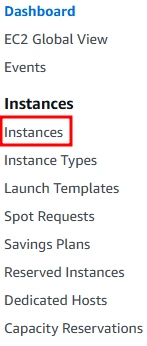
- On the left-hand side of the EC2 Dashboard, find Launch Templates and click on it.

- Click on the Create Launch template button.
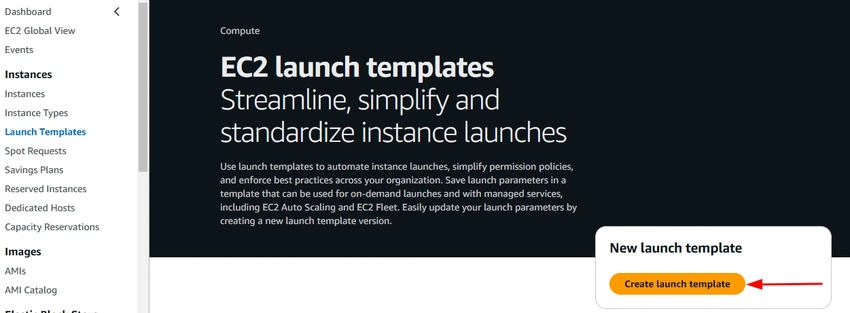
- Fill out the details for your instance.
- Template Name: Give your template a name, like MyLaunchTemplate.

- AMI (Amazon Machine Image): Select the default Amazon Linux 2 or Ubuntu.
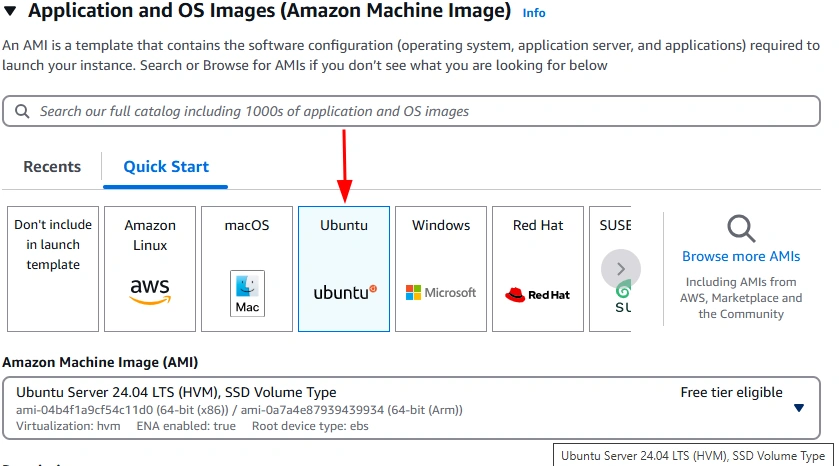
- Instance Type: Choose t2.micro (Free Tier eligible).
- Key Pair: Choose or create a key pair (used for SSH access).
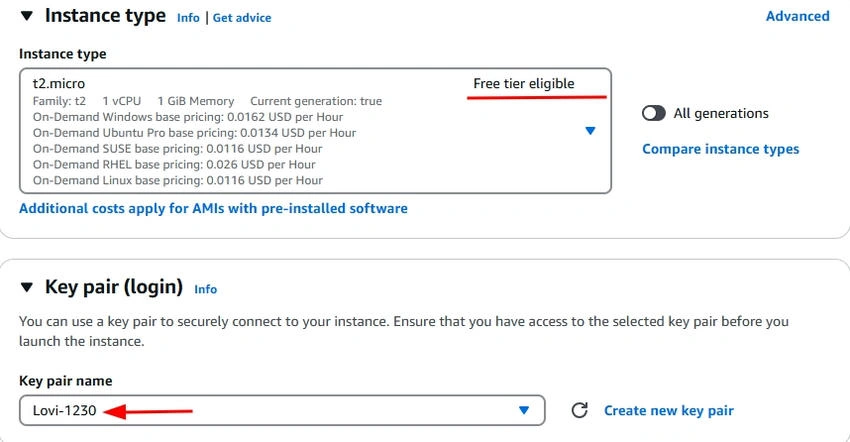
- Security Group: Set up a security group to allow SSH or HTTP access.
- Template Name: Give your template a name, like MyLaunchTemplate.
- User Data (Optional): You can provide a simple user data script, like
#!/bin/bash echo "Hello World" > /home/ec2-user/hello.txt - Save the Template Once you’ve filled out the details, click Create Launch Template.

Step 2. Setting Up Auto Scaling Group.
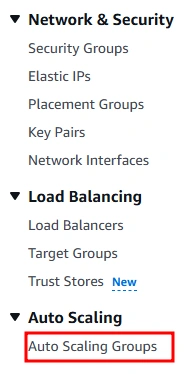
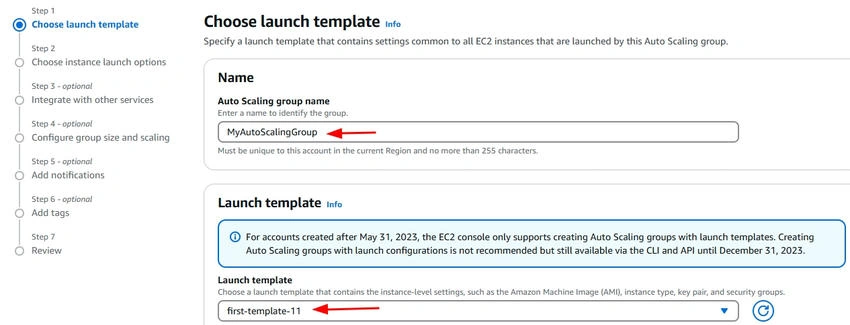
Now that you’ve created the Launch Template, it’s time to set up the Auto Scaling Group (ASG). An Auto Scaling Group automatically adjusts the number of instances based on your needs. For example, if the load increases, Auto Scaling can add more EC2 instances.






Join the conversation! Your thoughts help the community grow.