

In the previous article, we saw how to set the Welcome page in SharePoint.
What is a Wiki page?
A Wiki is a site, which is designed for groups of people to quickly capture and share ideas by creating simple pages and linking them together. Your organization can use a Wiki for a variety of uses. On a large scale, you can share large volumes of information in an Enterprise Wiki. On a smaller scale, you can use a team site as a Wiki to gather and share ideas quickly about a project.
Now, SharePoint is providing an option to set a Wiki page as a home page. Let us go through the steps to activate the feature.
Steps
Follow the listed steps given below to set Wiki page as a home page.
Feature

Step 1
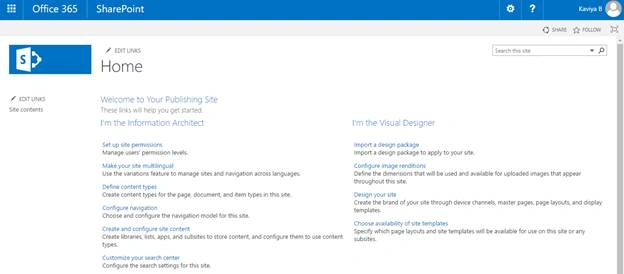
Open your SharePoint site.
Step 2
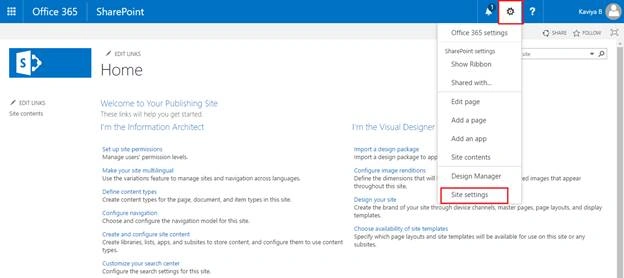
Go to site settings page by using Gear menu, as shown below.
Step 3
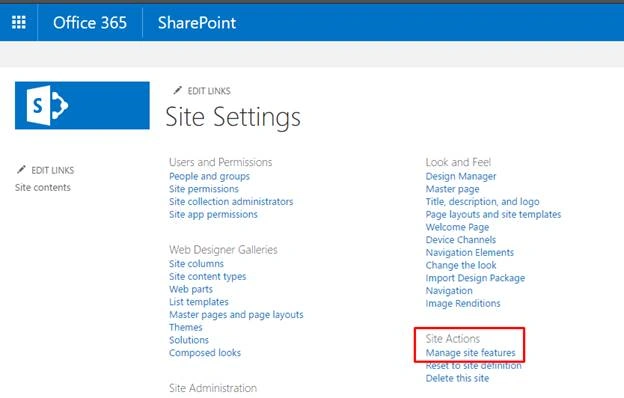
On site settings page, select Manage site features from Site Action.
Step 4
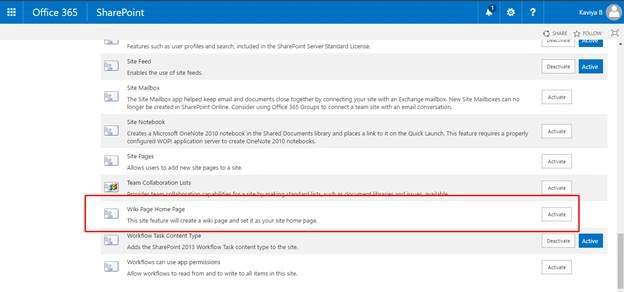
Now, scroll the page down and you can see "Wiki Page home page” feature, as shown below.
Step 5
Click Activate to set Wiki page as a home page.
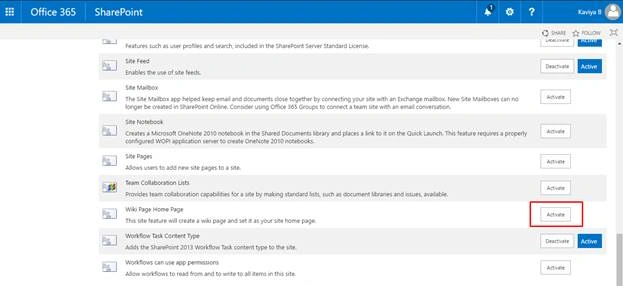
Finally the feature will be activated and Wiki page will be set as a home page.

Now, go to your home page by clicking home icon on SP site.
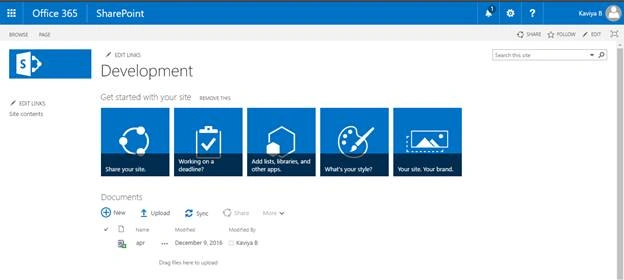
Summary
In this article, we explored how to set Wiki page as a home page in SharePoint site by activating the feature.
Kaviya BalasubramanianPosted Apr 18, 2017, 9:52 AM
Thank you Anu for your good Comment :)
Anu VPosted Apr 18, 2017, 6:47 AM
Nice article.. Thanks for sharing...