
Overview
This blog provides a comprehensive, step-by-step guide to set up CI/CD pipelines in Power Platform using Power Platform Pipelines. It walks you through creating development (SBX) and production environments, installing necessary components, and deploying solutions seamlessly between environments using the Deployment Pipeline App.
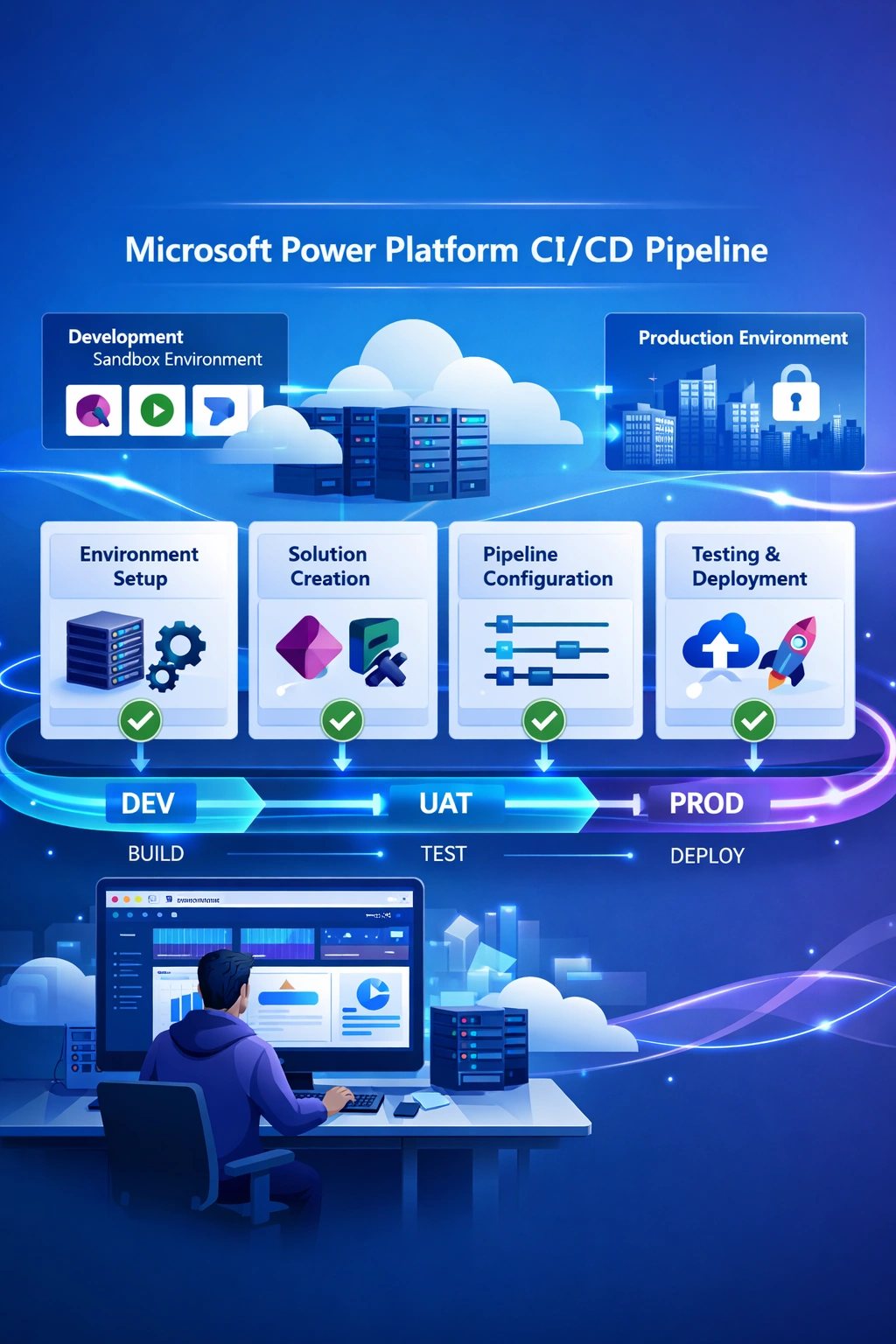
Power Platform Pipelines simplify the Application Lifecycle Management (ALM) process by automating the deployment of solutions between environments such as Development, Test (UAT), and Production. In this tutorial, you will create a solution and app in a Sandbox environment and deploy it to a Production environment using Power Platform Pipelines. All steps are outlined clearly, with supporting UI instructions and are beginner-friendly.
Step-by-Step Instructions
1. Create Two Environments – Development and Production
Environment Names: Assign meaningful names like SBX Environment (for development) and Prod Environment.
Region: Select your preferred region.
Environment Type: Choose Sandbox or Production.
Dataverse: Enable Dataverse data store → Yes → Next.
Security Group: Select None → Save.

2. Open Power Apps
Navigate to https://make.powerapps.com.
Using the environment selector in the upper right corner, switch to the SBX environment.
3. Open Power Platform Admin Center
On the left nav pane, click Power Platform, then select Power Platform Admin Center.

Go to Environments.
4. Access Dynamics 365 Apps
There are two ways to access Dynamics 365 apps:
Method 1: Choose Resources > Dynamics 365 apps after clicking the ellipsis (...) next to SBX.

Method 2: After selecting the SBX environment, select Resources > Dynamics 365 apps from the menu at the top.

5. Install Power Platform Pipelines
In the top navbar, click Install app.
In the right pane, scroll down to Power Platform Pipelines → Next.

In the next panel, check the box: "I agree to the terms of service" → Install (This will take a few minutes).

After successful installation, it will redirect to Dynamics 365 Apps.

Note: If it's already installed, you can skip this step.
6. Create a Solution and App in SBX Environment
Go to Solutions.
Create a new solution named “Pipeline Demo” → Create.

Inside the solution, click App > New App > Choose either Canvas (add data source, lists, tables) or Model-driven (use existing Dataverse tables).

Name the app: “Pipeline Demo App” → Create.

Save and Publish the app.

7. Copy Environment IDs
Go to Power Platform Admin Center.
Click on SBX and Prod environments.
Copy the Environment ID for both.

8. Open Deployment Pipeline App
Go to https://make.powerapps.com.
Select the SBX environment.
Under Apps, find Deployment Pipeline Configuration → Open it.

9. Add Environments to Pipeline App
In the app, click Environments from the left pane → New.

For the SBX Environment:
Environment Type: Development Environment.
Environment ID: Paste SBX ID from Step 7 → Save.


Repeat for Production:
Environment Type: Target Environment
Environment ID: Paste Prod ID

It may take a few minutes for the validation status to change from Pending to Ready.

10. Create a New Pipeline
Go to Pipelines in the left pane.
Click + New Pipeline, provide a Pipeline Name, and click Save.

11. Link Development Environment
Under the pipeline, go to Linked Development Environments.
Click the ellipsis (...) → Add Existing Deployment Environment.

Select the SBX record and click Add.

12. Create Deployment Stage
Click Deployment Stages → + New Deployment Stage.

Fill the form:
Name: (e.g., Deploy to Prod)
Pipeline: Select your pipeline (SBX to Prod Pipeline)
Target Deployment Environment ID: Select Prod environment ID (Prod Env) → Save.

13. Assign Permissions (Optional)
Go to Deployment Stage → click ellipsis (...) → Share.

In the right pane, search and add your team member or security group.
Assign appropriate permissions → Share.


14. Deploy Solution from SBX to Prod
Go to SBX Environment > Solutions:

Option 1: Click the ellipsis (...) on Pipeline Demo → Deploy.

Option 2: Open Pipeline Demo, then click the Pipelines icon in the left pane.

Select the pipeline → click Deploy Here.
In the deployment panel, click Next → then Deploy.


Wait for the deployment to finish. A successful run is indicated when the deployment status shows as Deploy Success.

15. Verify in Production
Go to https://make.powerapps.com.
Switch to the Prod Environment.
Go to Solutions > Managed → open Pipeline Demo.

Verify your application is available.

Conclusion
This detailed guide walks you through configuring Power Platform Pipelines from a development (Sandbox) environment to production. With the Pipeline app, ALM becomes simple, scalable, and more consistent. From environment setup to final deployment, establishing these steps will help your team manage their Power Platform solutions more efficiently.
Join the conversation! Your thoughts help the community grow.