

Introduction
Open SSL project is open-source project that maintains the Open SSL software. It is a general-purpose cryptography library that is used to implement SSL and TLS protocols. Some of the uses of the Open SSL software is to
- Generate private keys
- Install self-signed or signed SSL/TLS certificates
- Identify certificate information
In one of my projects, I need to decrypt the private key information from a signed certificate. Using OpenSSL, you can verify the private key information to check the validity and legitimacy. In this article, we will see how to set up Open SSL software on Windows 10 machine. The same steps can be performed for Windows 11 too.
Download the Official Library Repository
Below steps tells how to download the required openssl files from GitHub repo.
Step 1
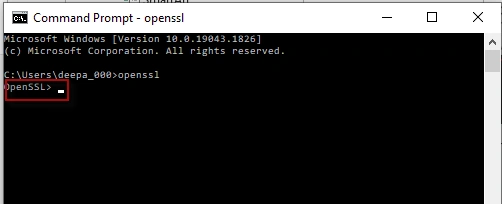
Validate if you have open SSL already configured. If there is no initial setup from the command prompt when you type in ‘OpenSSL’ you will be getting a message saying that
‘openssl’ is not recognized as an internal or external command, operable program or batch file’.
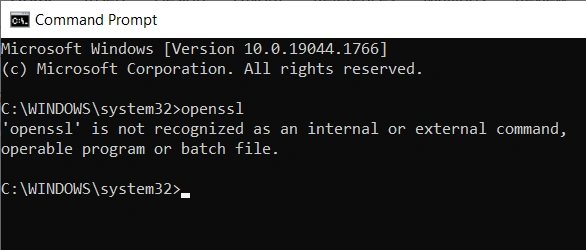
Step 2 - Create a folder for OpenSSL.
At first create a folder in local directory. In this case, I created it in C:\Install\OpenSSLLibrary. The folder can be created anywhere.
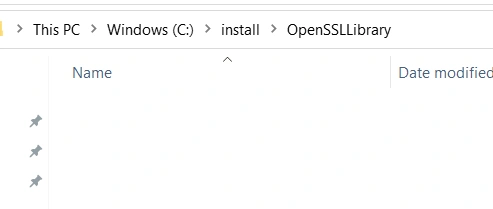
Make sure there are no files existing.
Step 3
Clone the OpenSSL folder from the official Git page maintained by the OpenSSL project team. The official open SSL library is located at git.openssl.org.
For this step you need to have git installed on your windows machine. Please check the references section on how to install ‘Git’ on Windows machines. This Git install is a straightforward process as it has binary available, and it configures the required settings during the install.
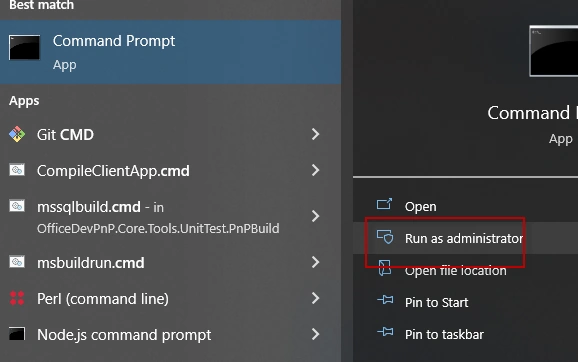
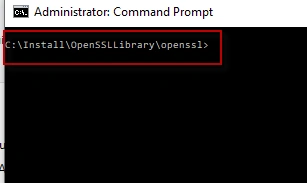
Now go to the folder from the command prompt where the openssl folder is created. In my case it is c:\Install\OpenSSLLibrary.
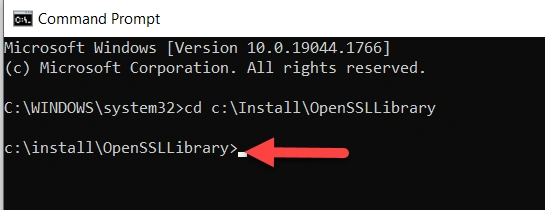
Now run the following command that copies the openssl library and files into this folder
git clone git://git.openssl.org/openssl.git
you should see message ‘Cloning into ‘openssl’ and should finish in sometime after that.
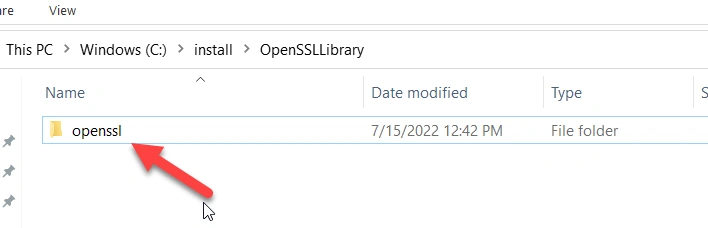
Now validate a subfolder ‘openssl’ is created and underneath it you have all the required files copied over from the git repository.
The above steps finishes downloading the required libraries to the folder.
Setup OpenSSL
Now we need to install the dependencies to configure the OpenSSL. The below steps need to be performed in following order
- Install PERL
- Install NASM
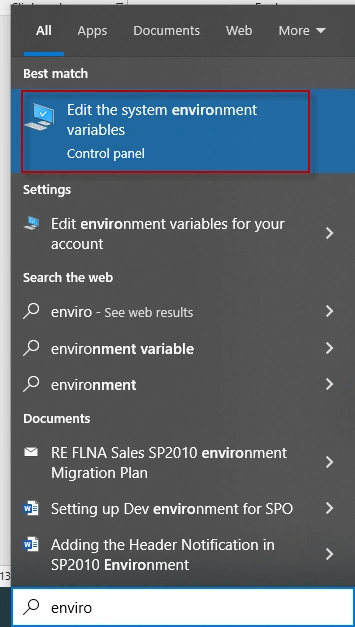
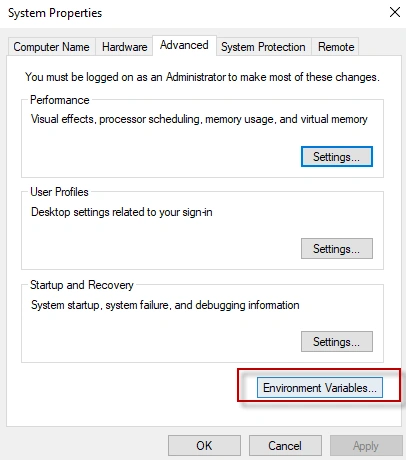
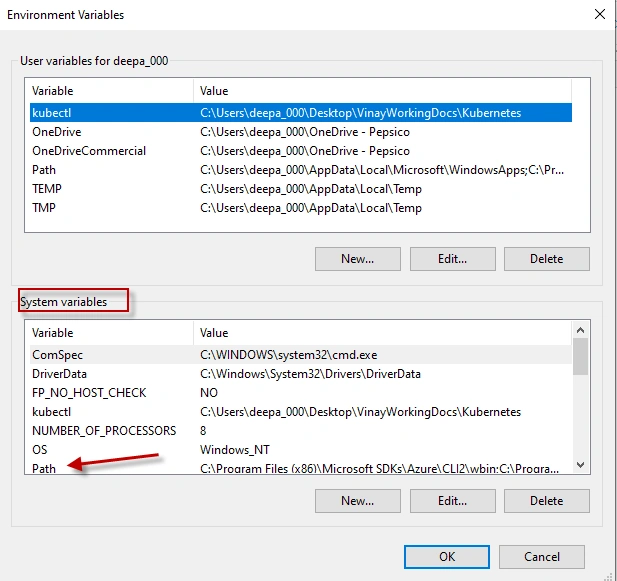
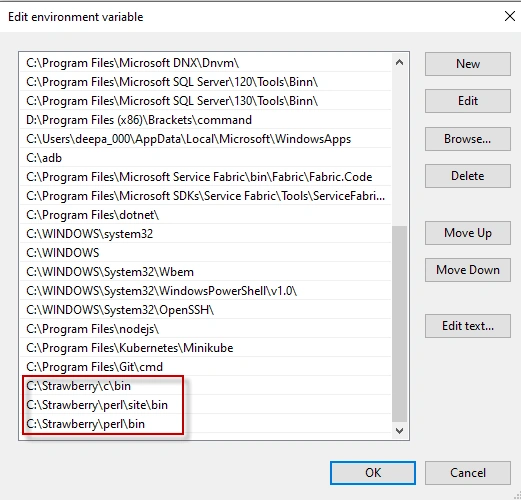
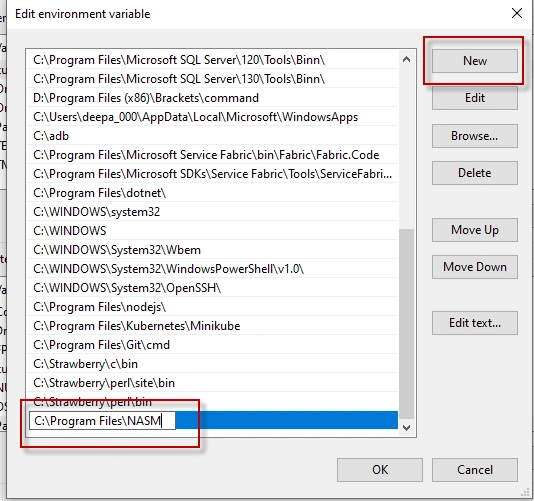
- Validating the PATH from the Environment variables.
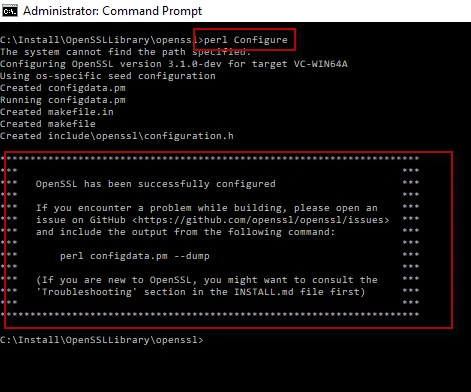
- Configuring Openssl
Now we will perform the steps.
Step 1
Install the PERL. OpenSSL recommends to install Strawberry Perl from the below link
http://strawberryperl.com/. Since my windows OS is 64-bit, I have chosen to download the 64-bit MSI
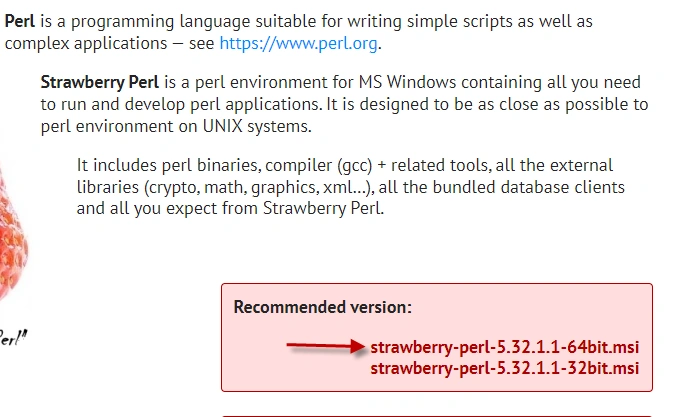
Now you should have the required setup file downloaded to the local directory. In my case, it is ‘Downloads’ folder.

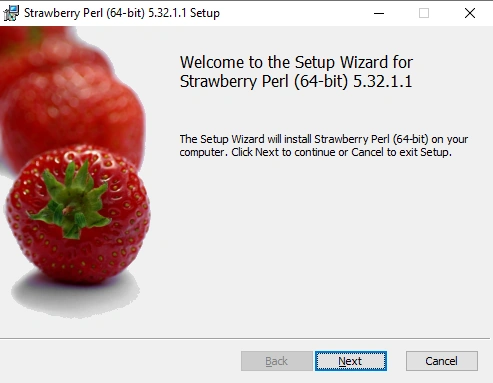
Double click on the set-up file and follow the steps. In my case, I have defaulted to the values from the install screens.
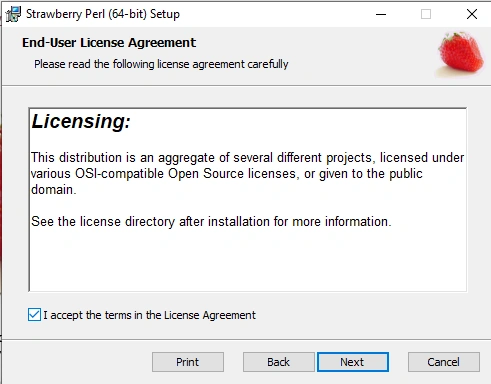
Accept the License Agreement.
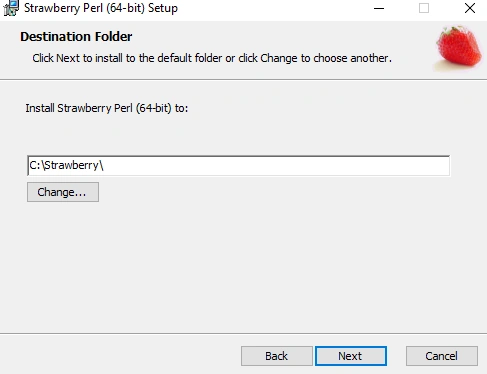
Here I left the default. You can change to required folder if needed.
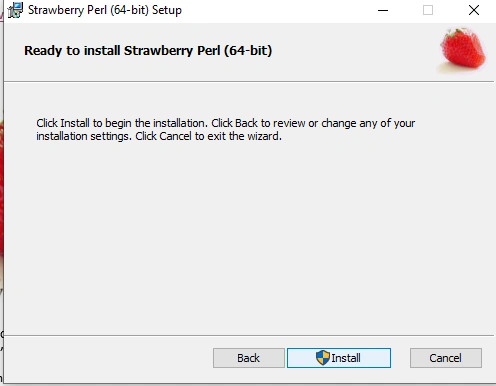
You should see below message
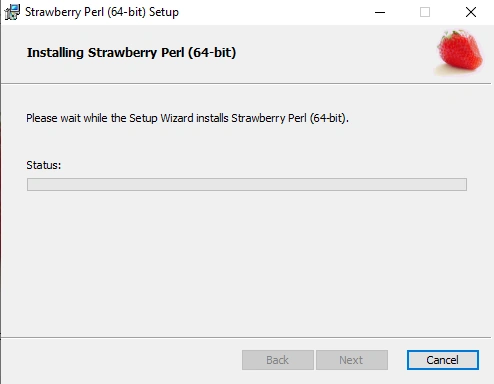
Once finished click on ‘Finish’. This confirms that PERL is downloaded and set up on your machine.
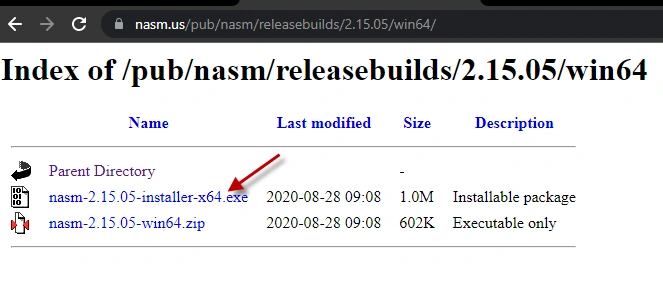
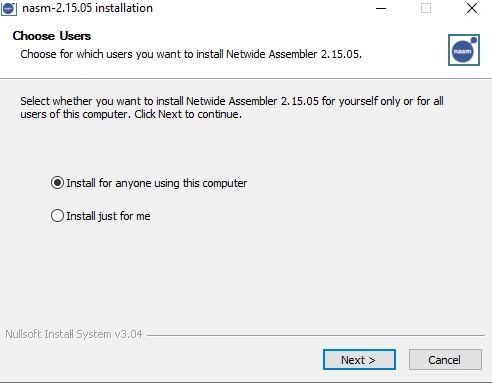
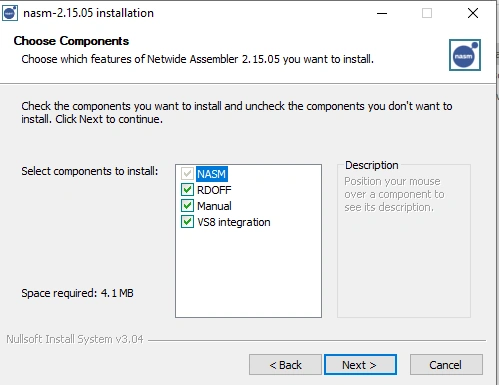
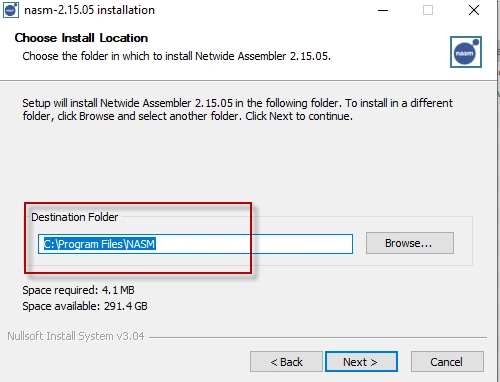
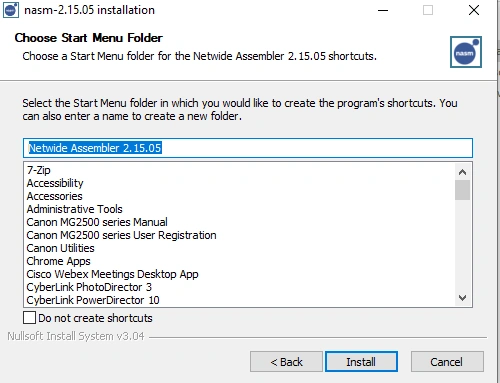
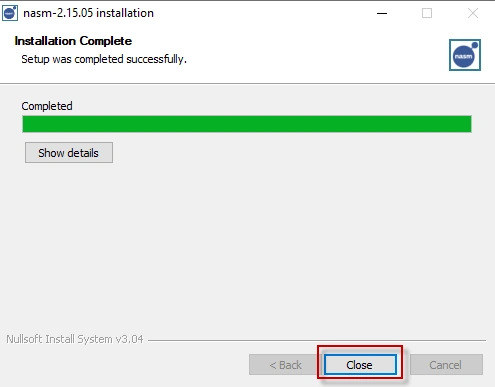
Install NASM
NASM stands for Net Assembler and is available at https://www.nasm.us/
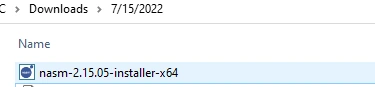
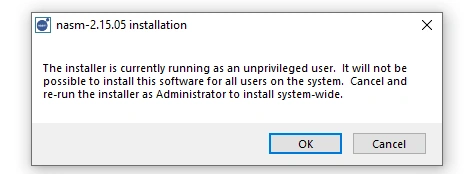
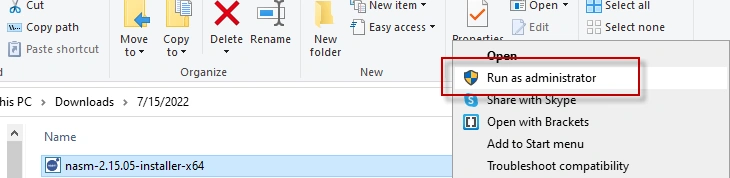
Step 1
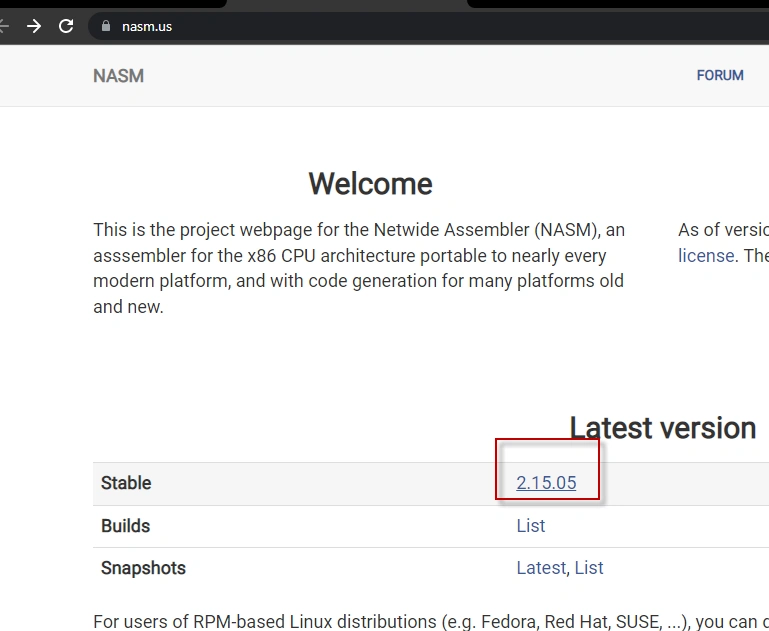
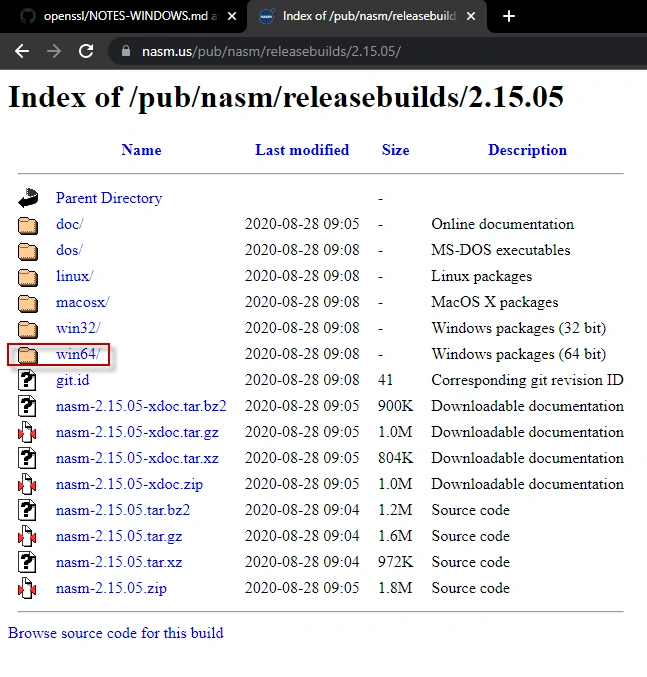
Join the conversation! Your thoughts help the community grow.