

Introduction
Use this link to download Visual Studio 2015 installer. It’s available in the following three editions: Community, Professional and Enterprise. The first one is free, whereas other two are paid versions. For checking the license cost details click here.
For this demo, I have used the community (free) edition of Visual Studio 2015.
Apart from Visual Studio 2015, we also need the Xamarin visual studio plugin. This is also a free installable. To download click here. The original Xamarin studio is not free. Important thing to note here is that, even when I had the Xamarin studio installed on my machine, I had to run the installer again, as it updates the Android SDK, the new emulators and of course the new visual studio part of it.
Creating a new Android Project:
- Click File-New Project on the Visual Studio 2015 menu.
- Once the Xamarin plugin is installed you will notice new templates appearing under the Android sections.
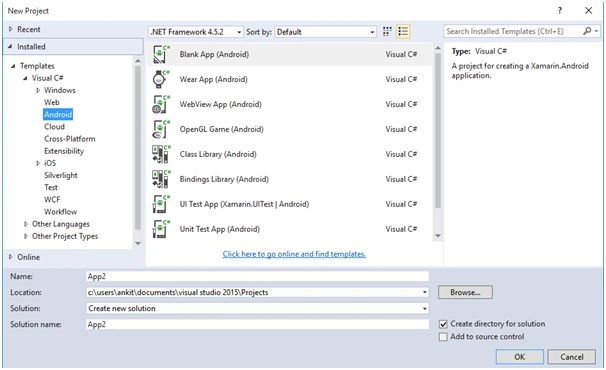
- Select the Blank App (Android) template for now.
- Once the project is created you can check that the default screen (Main.axml) is created under the folder ResourcesLayout
Note- axml stands for Android XML. This is used to define the Android app design layouts.
- For this demo, let’s add two TextView. Replace the code in the source of the Main.axml with the following code,
- <?xmlversion="1.0"encoding="utf-8"?>
- <LinearLayoutxmlns:android="http://schemas.android.com/apk/res/android"
- android:orientation="vertical"
- android:layout_width="fill_parent"
- android:layout_height="fill_parent">
- <Button
- android:id="@+id/MyButton"
- android:layout_width="fill_parent"
- android:layout_height="wrap_content"
- android:text="@string/Hello" />
- <TextView
- android:text=""
- android:layout_width="match_parent"
- android:layout_height="wrap_content"
- android:id="@+id/connectionStatus" />
- <TextView
- android:text=""
- android:layout_width="match_parent"
- android:layout_height="wrap_content"
- android:id="@+id/connectionType" />
- </LinearLayout>
- The code behind for this is in MainActivity.cs file. Replace the method in the OnCreate method with the following code.
- base.OnCreate(bundle);
- // Set our view from the "main" layout resource
- SetContentView(Resource.Layout.Main);
- // Get our button from the layout resource,
- // and attach an event to it
- Buttonbutton = FindViewById < Button > (Resource.Id.MyButton);
- TextViewconnectionStatus = FindViewById < TextView > (Resource.Id.connectionStatus);
- TextViewconnectionType = FindViewById < TextView > (Resource.Id.connectionType);
- button.Click += delegate
- { /*button.Text = string.Format("{0} clicks!", count++);*/
- ConnectivityManagerconnectivityManager = (ConnectivityManager) GetSystemService(ConnectivityService);
- NetworkInfoactiveConnection = connectivityManager.ActiveNetworkInfo;
- boolisOnline = (activeConnection != null) && activeConnection.IsConnected;
- if (isOnline)
- {
- connectionStatus.Text = "You are ONLINE";
- //check if connected on wifi
- NetworkInfowifiInfo = connectivityManager.GetNetworkInfo(ConnectivityType.Wifi);
- if (wifiInfo.IsConnected)
- {
- connectionType.Text = string.Format("{0} - {1}", activeConnection.Type, activeConnection.TypeName);
- } else {
- //check for roaming
- connectionType.Text = string.Format("{0} - {1}, Roaming:- {3}", activeConnection.Type, activeConnection.TypeName, activeConnection.IsRoaming);
- }
- } else
- {
- connectionStatus.Text = "You are OFFLINE, please check your connection";
- }
- };
- Hit F5 to test the code.
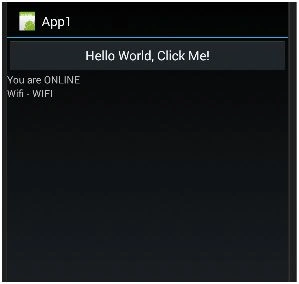 Once you start the testing of your code you may need to understand the Emulators available as well. With default installation you will get the xamarin emulator which was a little troublesome initially. I would suggest downloading the Visual Studio Emulator.I encountered some issues with the xamarin_android_api_23 emulator. It was not starting up and hence the app deployment was failing. Hence have downloaded the visual studio emulator from here.Xamarin login is required. The system may prompt you to enter the xamarin credentials when you use the xamarin emulator for debugging your application.
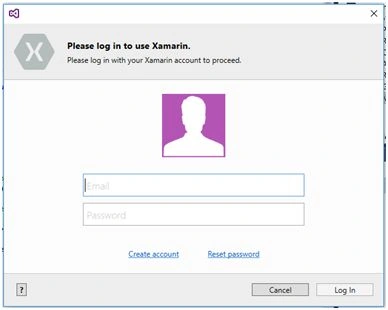 This is the xamarian emulator.
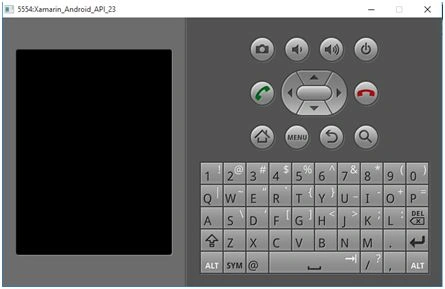 For the VS emulator please ensure that the machine has 2GB of unused RAM. You can monitor that from the task manager.The VS Emulator for Android has several device profile options, you can choose the appropriate device for testing. The VS emulator can be launched from the Start menu.Alternatively, you can launch it directly from “C:\Program Files (x86)\Microsoft Emulator Manager\1.0\emulatormgr.exe”.
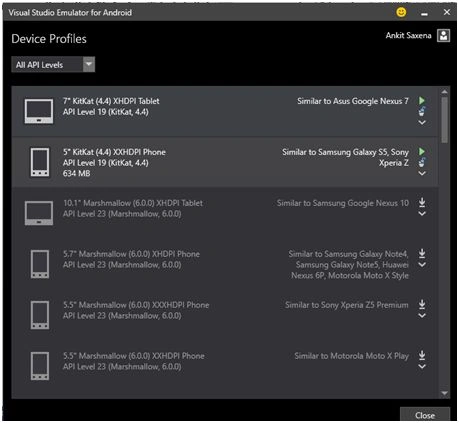 Note- If you encounter issues in launching the devices, try running XdeCleanup.exe - In my case: "C:\Program Files (x86)\Microsoft XDE\10.0.10240.0".The following is the screenshot of a 5” KitKat(4.4) XXHDPI Phone.
John KuriakosePosted Mar 6, 2016, 12:14 AM
I am getting an error while launching the android emulator. Deploy failed on Xamarin_Android_API_23. Do you know what is the error here. I have tried by changing the versions also.
Ankit SaxenaPosted Feb 3, 2016, 11:15 AM
Thanks all for posting your valuable comments.
Sabyasachi MishraPosted Jan 4, 2016, 8:13 AM
Nice share
Pankaj Kumar ChoudharyPosted Jan 2, 2016, 8:25 PM
Nice Explain........
Ankur MistryPosted Dec 30, 2015, 1:12 PM
Nice share
Santhakumar MunuswamyPosted Dec 22, 2015, 10:52 AM
Thanks for nice article
kalu singh raoPosted Dec 7, 2015, 11:01 AM
Nice one
Manoj KulkarniPosted Dec 7, 2015, 5:54 AM
Nice article. Thank you for sharing
Humayun Kabir MamunPosted Dec 7, 2015, 3:10 AM
Nice...
Bikram RautPosted Dec 7, 2015, 1:19 AM
Nice Article for starters. Keep it up Ankit.
sunny panditaPosted Dec 7, 2015, 1:17 AM
good article
Ankit BansalPosted Dec 7, 2015, 12:49 AM
nice one..thanks