
In this article, we will look at how to make your Space more visually interactive by using a 360-degree Virtual Tour Webpart.
- If you are new and want to know how to activate SharePoint Space for your site collection in SharePoint Online, look at my detailed blog, SharePoint Spaces - Blog Series 1.
- Also, if you want to know in detail about How to create a SharePoint Space, take a look at SharePoint Spaces - Blog Series 2.
- And if you want to know how to add Webparts like 3D objects and File Viewer in your Space, take a look at SharePoint Spaces - Blog Series 3.
- Also, if you want to know more about the 360-Image Webpart take a look at SharePoint Spaces - Blog Series 4.
- If you want to know more about the Document library Webpart in-depth, take a look at SharePoint Spaces - Blog Series 5.
Want to know what is Virtual Tour, and how is it helpful?
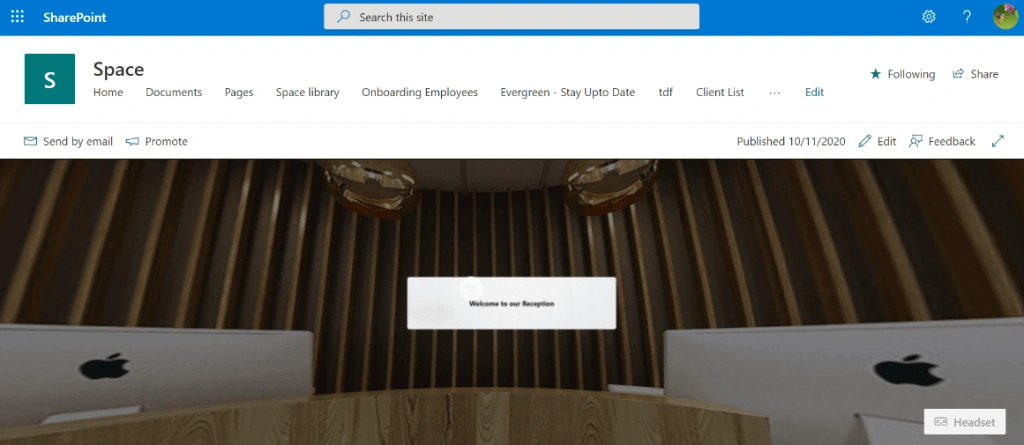
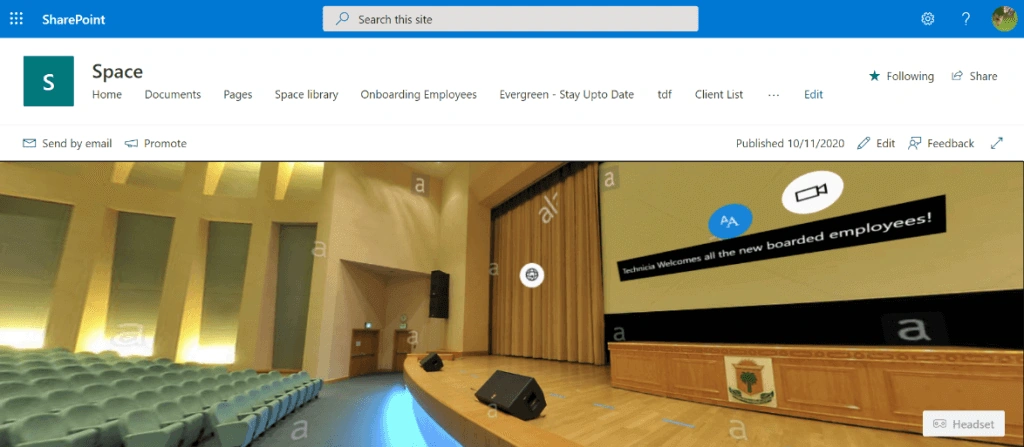
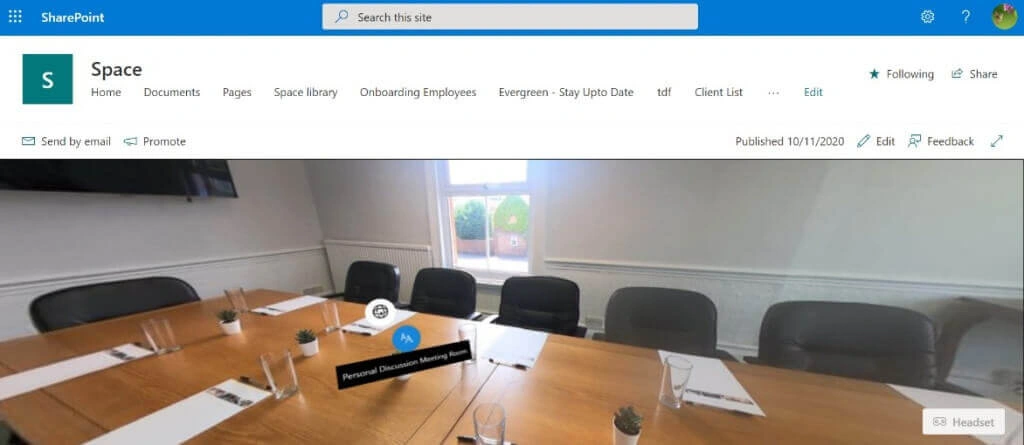
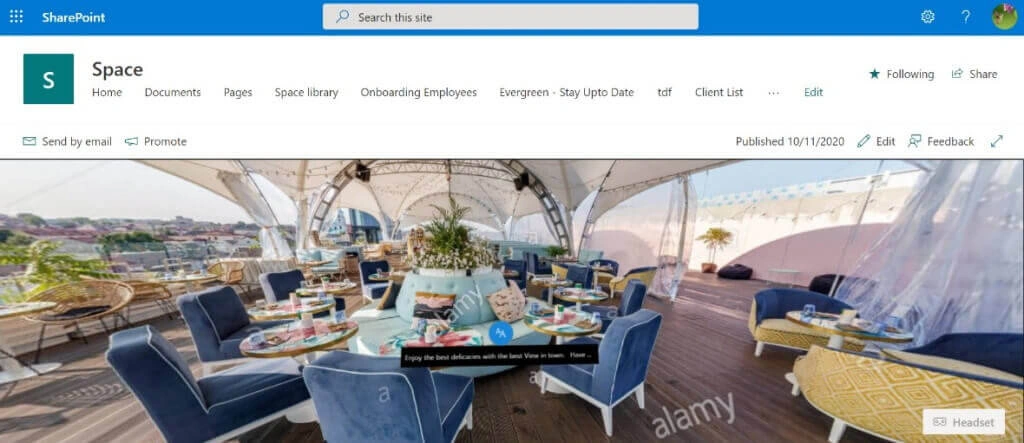
Virtual tour links together 360-degree images with annotations like text, video, images, files, and audio
With the virtual tour, you can help create a beautiful onboarding facility tour for your employees, students, etc.
Without further ado, let’s get started with creating a facility tour using SharePoint Spaces – Virtual Tour.
- Create a new Space with the appropriate name and description according to your business scenario, as shown in fig 1.1 I have created an Amphitheater type Space,
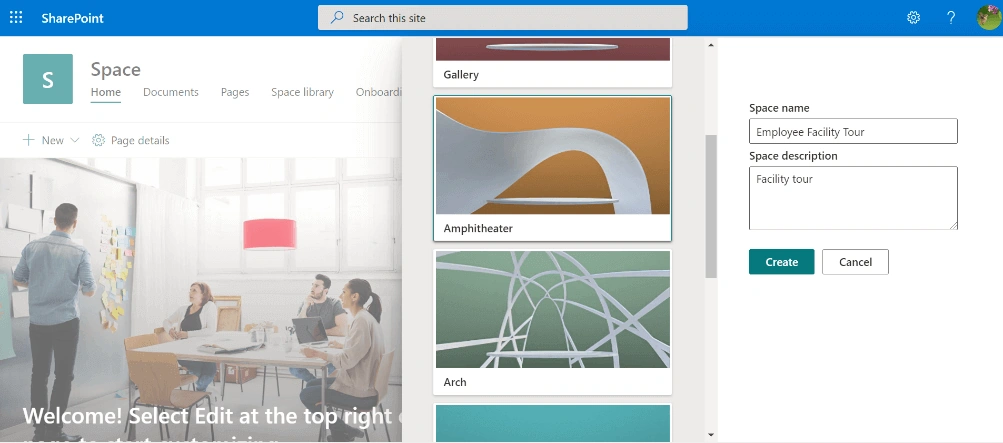
fig 1.1
- Your Space will look something like this, as shown in fig 1.2,
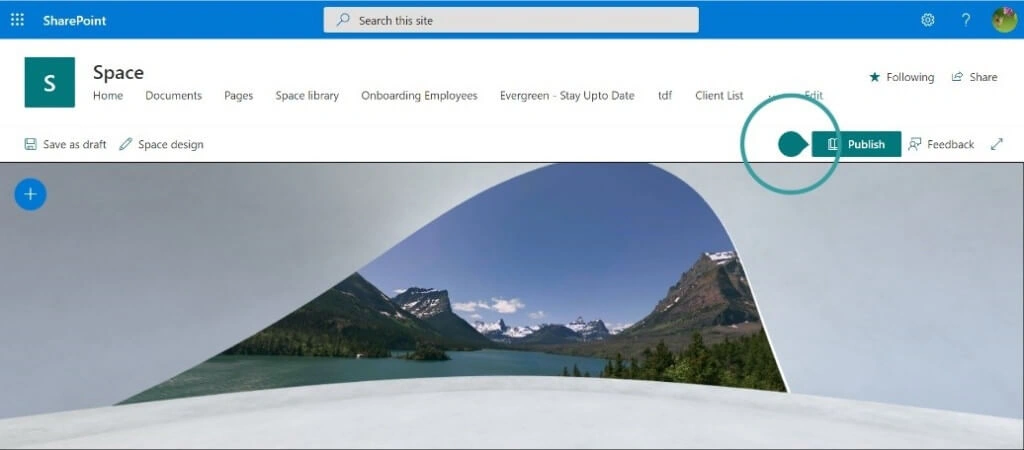
Fig 1.2
- Select + and add Virtual 360-degree tour Webpart from the Webpart toolbox. After selecting, click anywhere on the Space to add that Webpart in your created Space,
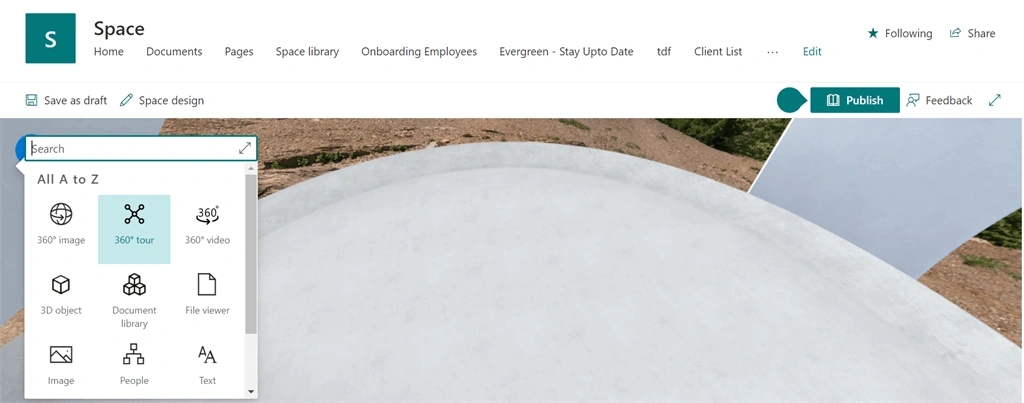
Fig 1.3
- Once the Webpart is added in the Space a panel to add your 360-degree images will open like this,
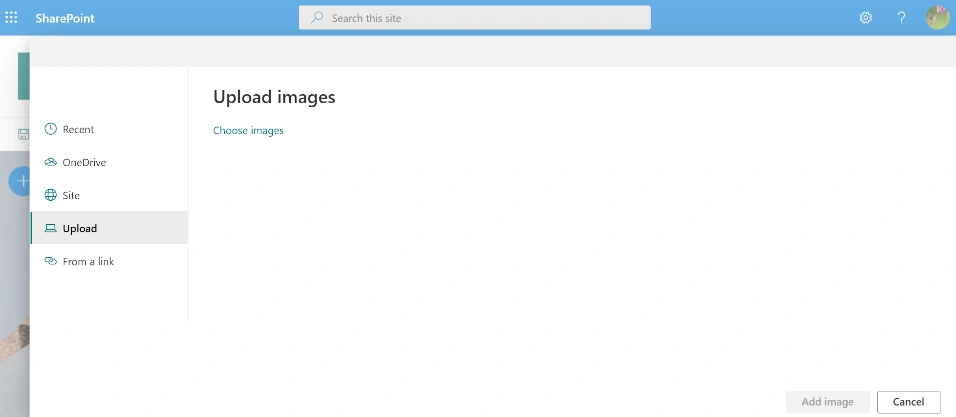
Fig 1.4
- It is preferable to add all your 360-degree images into a folder and add it to your SharePoint Document library, just like I did,
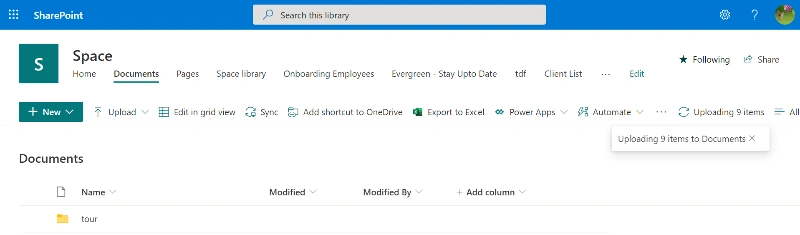
Fig 1.5
- Now in the upload panel as shown in fig 1.4. Select Site then select the folder in your Document library just like in fig 1.6, and select all the images you need click on Open as shown in fig 1.7,
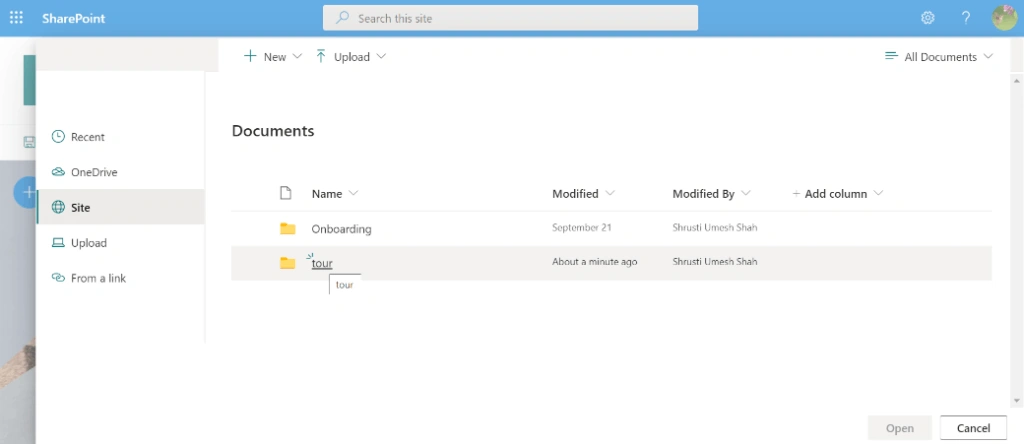
Fig 1.6
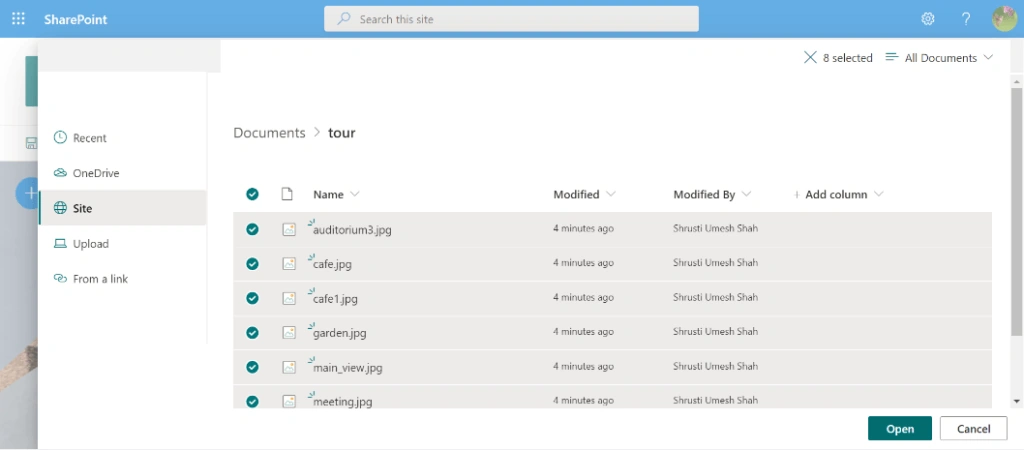
Fig 1.7
- Once you click on Open a Webpart will be added to your Space,
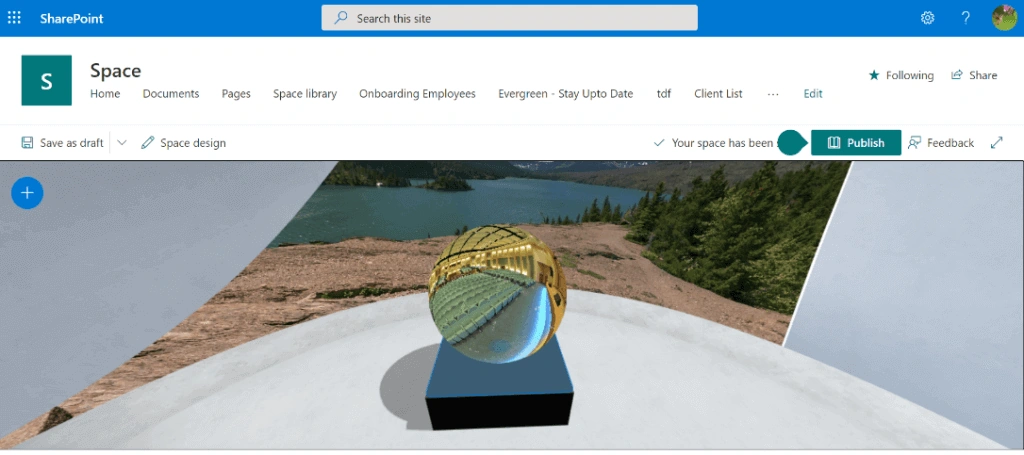
Fig 1.8
- Now let’s start customizing this virtual tour Webpart, To do so, click on the edit button of this Webpart, property pane of the virtual tour Webpart will open,
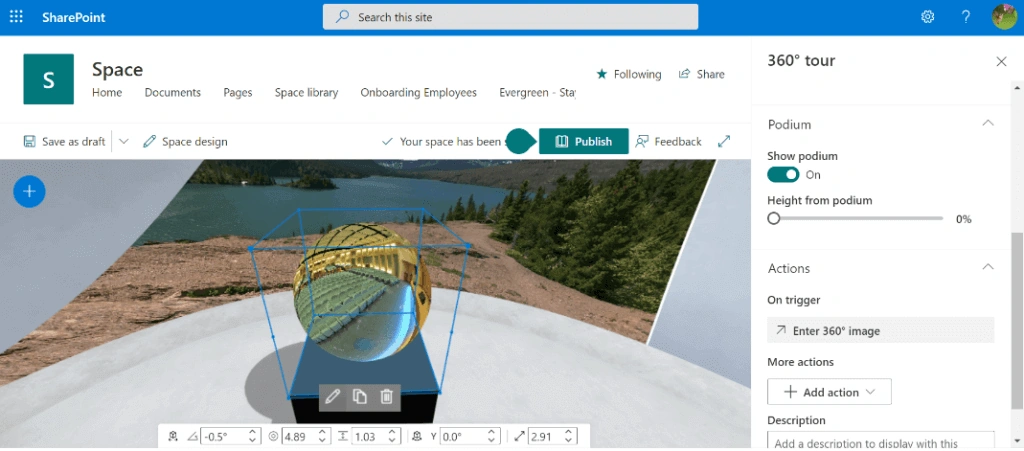
Fig 1.9
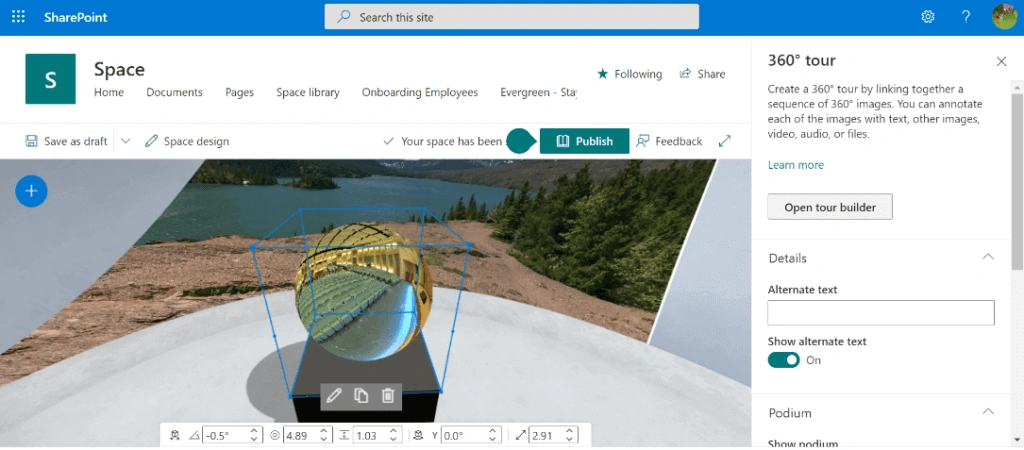
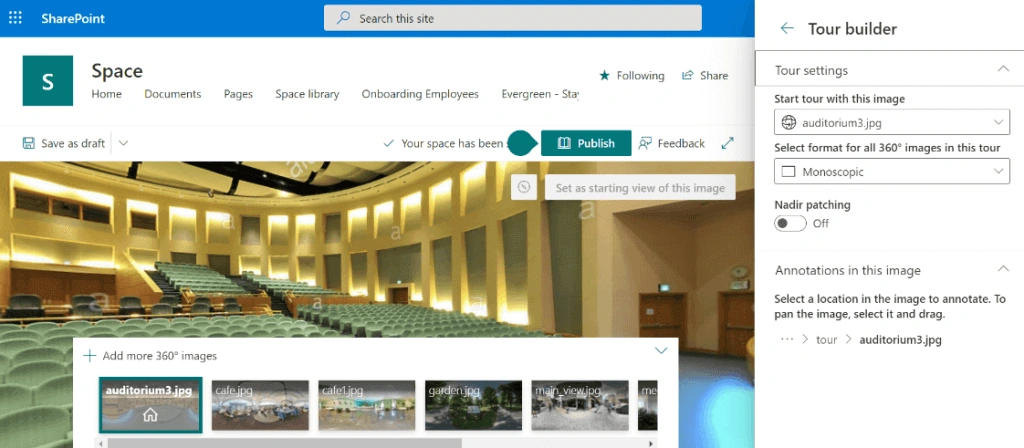
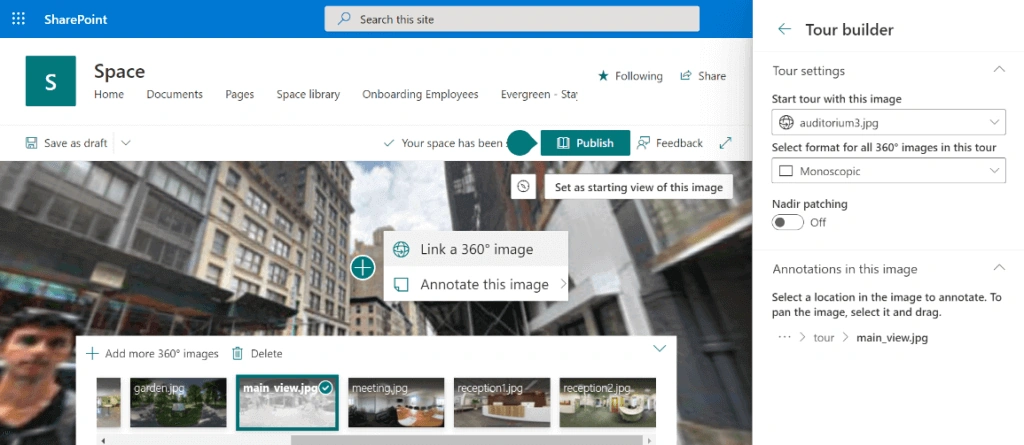
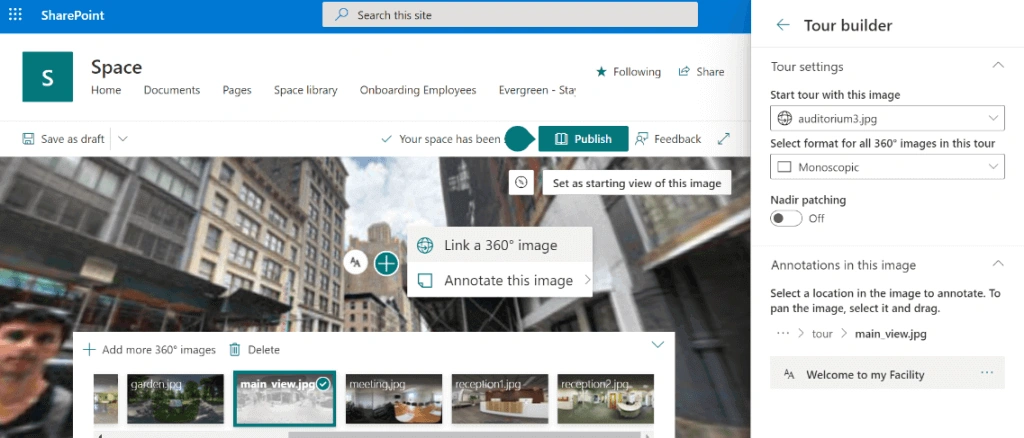
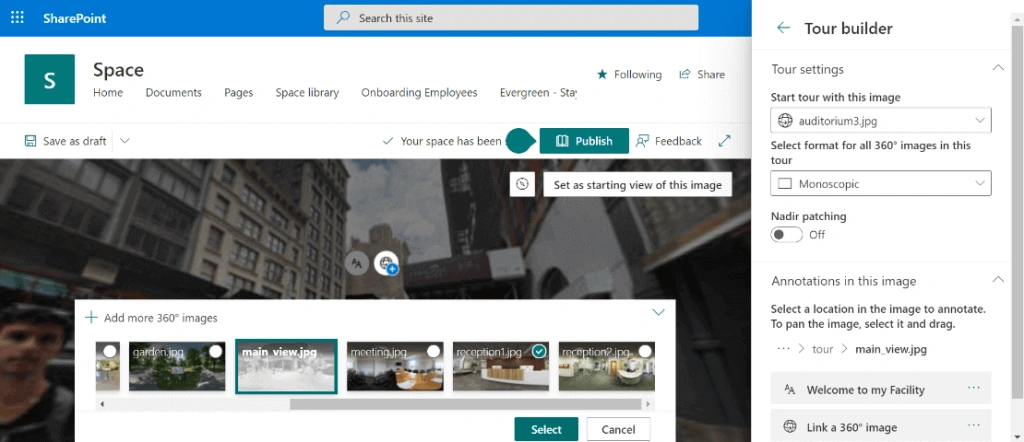
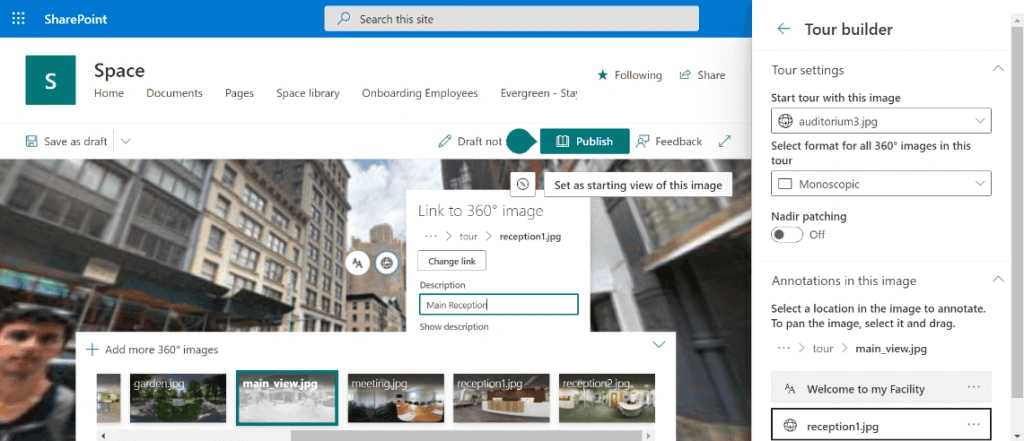
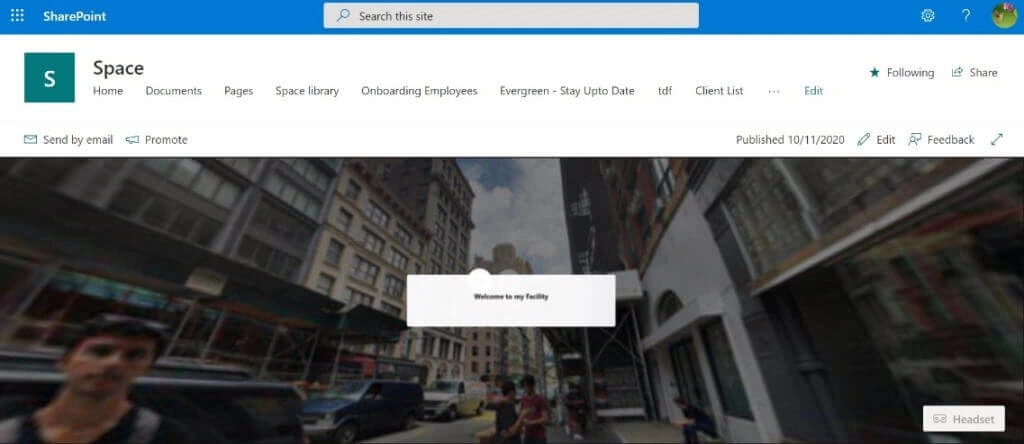
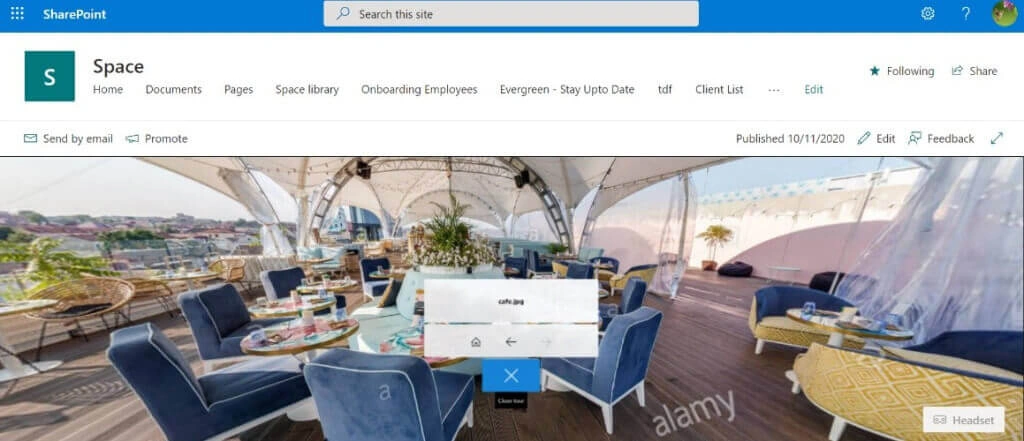
- Now click on ‘Open Tour builder’ from your property pane to start customizing your tour,
Join the conversation! Your thoughts help the community grow.