

This is my first article and I don’t know how to start. So, I think, I can start from very basic. I have taken a very basic example and will continue with advance in next article.
Console Application
A console application is one that runs in a console window and having no graphical user interface. It will have character based interface.
Create Project
Open Visual Studio [I am using Visual Studio 2010],
- Start page - New Project
You can create a new project from Start Page; there is an option to create New Project as shown or,

- File Menu, New, then project
Second way to create a new project with Visual Studio, you can go with File menu and choose New, then Project.
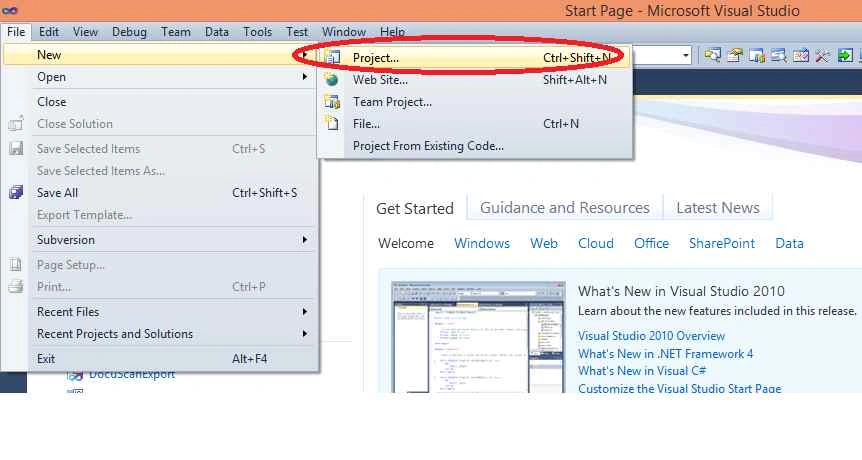
It will open a dialog for New Project.
From the Visual C# choose Windows and then choose Console Application and click OK as in the following,
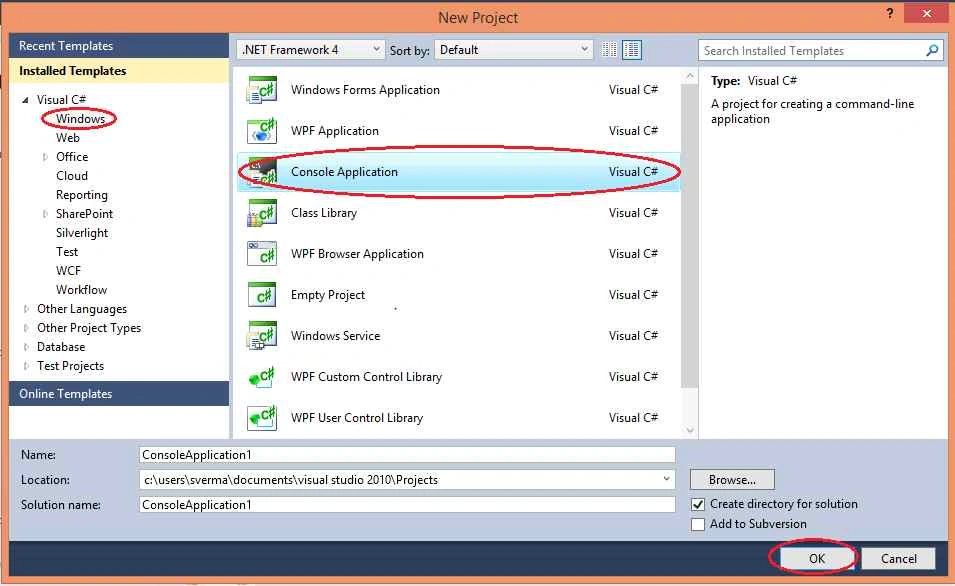
It will open the following screen [Program.cs file]

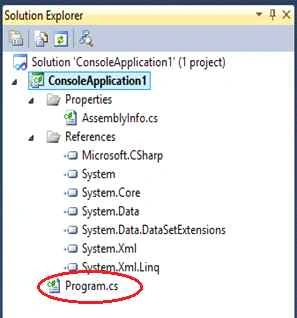
Console Class
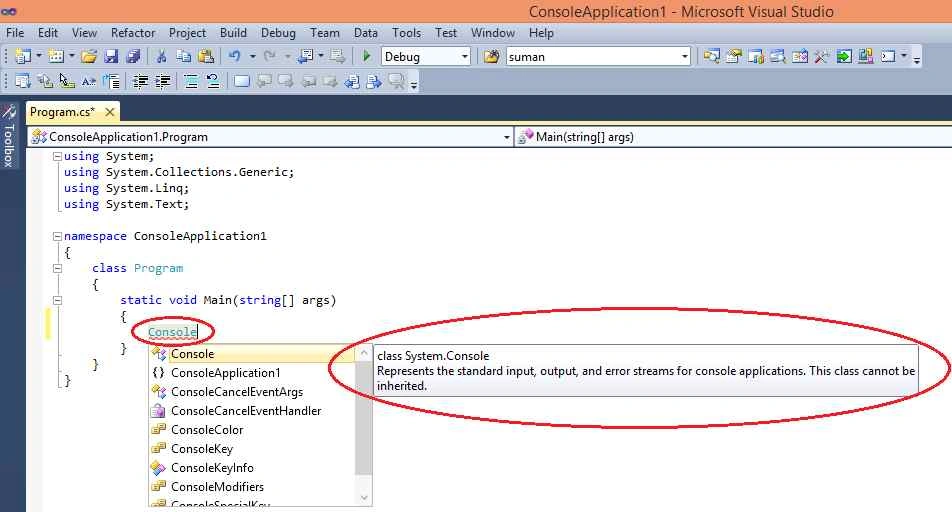
While working with Console applications in .NET, we use Console [ a Class in .net], which is contained inside System Namespace, as shown below by IntelliSense that class System.Console => represents the Standard input, Output and error streams for console applications. This class can't be inherited.
Writing to a Console
There are two methods for writing to the console, which are used extensively:
- Console.Write(): Write the specified value to the console window. Write() method has 17 overloads as shown below by intelliSense.

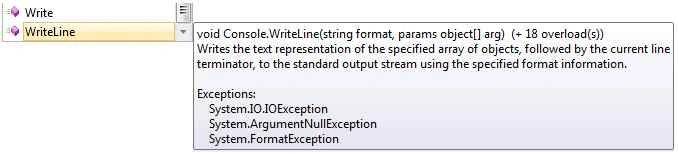
- Console.WriteLine(): This is one of the output methods of the Console class in the run-time library. This does the same, but adds a newline character at the end of the output using specified format information. WriteLine() method has 18 overloads as shown below by IntelliSense.
Reading to a Console
When we run a console application from the debugger, it automatically close the console window when the application ends, preventing you from seeing the output.
There are three methods :
- Console.Read()

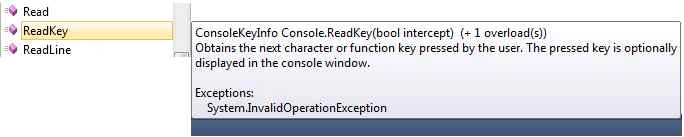
- Console.ReadKey()
- Console.ReadLine() method

Example:
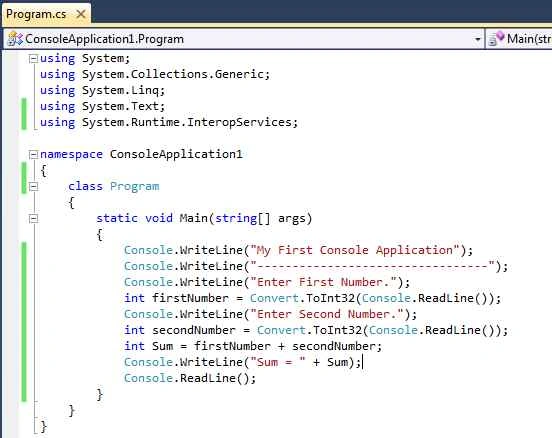
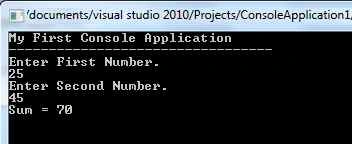
If you want to add two numbers and display their sum on a console window, then write the following code:
Output:
Aishwarya DPosted Dec 8, 2015, 12:07 AM
Thanks for sharing Suman.
Mukesh KumarPosted Dec 7, 2015, 12:21 AM
Good Start... We would like to see you next with more and more articles...
Suman VermaPosted Dec 5, 2015, 2:03 PM
Thanks santhakumar munuswamy and Ankur Mistry
Ankur MistryPosted Dec 5, 2015, 9:22 AM
Nice
Santhakumar MunuswamyPosted Dec 5, 2015, 8:54 AM
Good One