

Introduction
A tooltip is a pop-up message that is shown when the user hovers the mouse over an element such as a TextBox or Button etcetera.
In this article, I show you how to create a simple tooltip using HTML and CSS.
Observe the following table. Here we have placed the Input (Text) controls (txtUsername, txtPassword) inside the anchor tag. We have added a class name (tooltip) to the anchor tag and given some text to the alt attribute. Using an alt attribute we will display a tooltip for the Input (Text) controls.
- <html>
- <head>
- </head>
- <body>
- <table style="width: 270px;">
- <tr>
- <td>
- Username:
- </td>
- <td>
- <a href="#" alt="Please enter username" class="tooltip">
- <input id="txtUsername" type="text" /></a>
- </td>
- </tr>
- <tr>
- <td>
- Password:
- </td>
- <td>
- <a href="#" alt="Please enter password" class="tooltip">
- <input id="txtPassword" type="text" /></a>
- </td>
- </tr>
- <tr>
- <td>
- </td>
- <td>
- <input id="Button1" type="button" value="Login" />
- </td>
- </tr>
- </table>
- </body>
- </html>
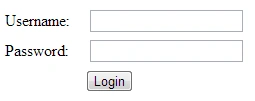
Now we will add some CSS style to the anchor tags; see:
- .tooltip
- {
- display: inline;
- position: relative;
- text-decoration: none;
- top: 0px;
- left: 4px;
- }
Now by using the anchor tags, we will display the tooltip for the Input (Text) controls.
Observe the following style of the anchor tags:
- .tooltip:hover:after
- {
- background: #333;
- background: rgba(0,0,0,.8);
- border-radius: 5px;
- top: -5px;
- color: #fff;
- content: attr(alt);
- left: 160px;
- padding: 5px 15px;
- position: absolute;
- z-index: 98;
- width: 150px;
- }
Here we are providing a style whenever the user hovers the mouse over the anchor tags.
We are specifying some style using the: after selector.
In the preceding style, we have given a border and border-radius etcetera.
Here we have set the content attribute to content: attr(alt); this property will display the tooltip by using the alt attribute of the anchor tag.
Whatever you give to the alt tag of the anchor element it will be displayed as a tooltip.
Now we will add one arrow to the tooltip as follows using the: before selector:
- .tooltip:hover:before
- {
- border: solid;
- border-color: transparent black;
- border-width: 6px 6px 6px 0;
- bottom: 20px;
- content: "";
- left: 155px;
- position: absolute;
- z-index: 99;
- top: 3px;
- }
Finally, the script of our page is:
- <html>
- <head>
- <style type="text/css">
- .tooltip
- {
- display: inline;
- position: relative;
- text-decoration: none;
- top: 0px;
- left: 4px;
- }
- .tooltip:hover:after
- {
- background: #333;
- background: rgba(0,0,0,.8);
- border-radius: 5px;
- top: -5px;
- color: #fff;
- content: attr(alt);
- left: 160px;
- padding: 5px 15px;
- position: absolute;
- z-index: 98;
- width: 150px;
- }
- .tooltip:hover:before
- {
- border: solid;
- border-color: transparent black;
- border-width: 6px 6px 6px 0;
- bottom: 20px;
- content: "";
- left: 155px;
- position: absolute;
- z-index: 99;
- top: 3px;
- }
- </style>
- </head>
- <body>
- <table style="width: 270px;">
- <tr>
- <td>
- Username:
- </td>
- <td>
- <a href="#" alt="Please enter username" class="tooltip">
- <input id="txtUsername" type="text" /></a>
- </td>
- </tr>
- <tr>
- <td>
- Password:
- </td>
- <td>
- <a href="#" alt="Please enter password" class="tooltip">
- <input id="txtPassword" type="text" /></a>
- </td>
- </tr>
- <tr>
- <td>
- </td>
- <td>
- <input id="Button1" type="button" value="Login" />
- </td>
- </tr>
- </table>
- </body>
- </html>
Save this script as .html file or download the attachment and
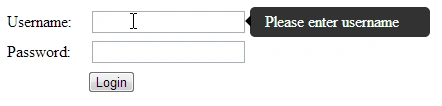
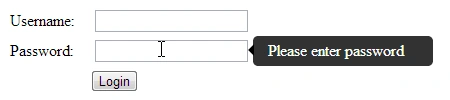
open in the browser then mouse over on to the username and password Textboxes we
will get the tooltip as follows.
Mouseover on to the Username Textbox.
Mouseover on to the Password Textbox
So this is the simple way to display the tooltip using HTML and CSS.
We can use this tooltips procedure for images also.
If you have any confusion please download the attachment and check.
hanan mustafaPosted Jul 13, 2017, 4:08 AM
Hi. when I add this code in my project, textbox disappear i use cshtml page i add style tag and table tag in the same page but I'm still can't able to see two text box (username &password) help my please, thanks
kalu singh raoPosted Jul 7, 2016, 1:44 AM
Nice...
Thiruppathi RPosted Jun 3, 2016, 11:24 AM
Nice..
Kev PatilPosted Nov 11, 2015, 5:26 PM
is it possible to show image when focused? Make div visible?
Hussain AfridiPosted Nov 26, 2014, 2:13 AM
200% nice tutoiral
Ismail Hakki SenPosted Nov 24, 2014, 7:59 PM
cool.
Lalit RaghuvanshiPosted Jun 14, 2014, 1:59 PM
Another useful solution is:Show jQuery tooltip message on mouse over on asp.net controls http://www.webcodeexpert.com/2013/11/how-to-show-jquery-tooltip-message-on.html
Srinubabu RavillaPosted May 29, 2013, 7:25 AM
Sure Ravikumar garu. Thank you for your suggestion.
Ravikumar GPosted May 29, 2013, 1:16 AM
Plz keep some screen shot for attracting the readers...Your article is too good, if screen shot will become best...