

Welcome to the 8th Site template, Basic Search Center in SharePoint 2013/Office 365. This will be the parts of my article stating Site Templates in SharePoint 2013/Office 365. Here we will see what the components available are. We will see what Basic Search Center template provides us.
Click on create a new site, the following form opens:
- Title and Description:
- Web Site Address: Here you can make it different from your default site name.
- Template Selection: Here you have an option to select the language and to choose a site from a template having many options.
Here in this article we will be seeing Basic Search Center template under the Enterprise group so select it.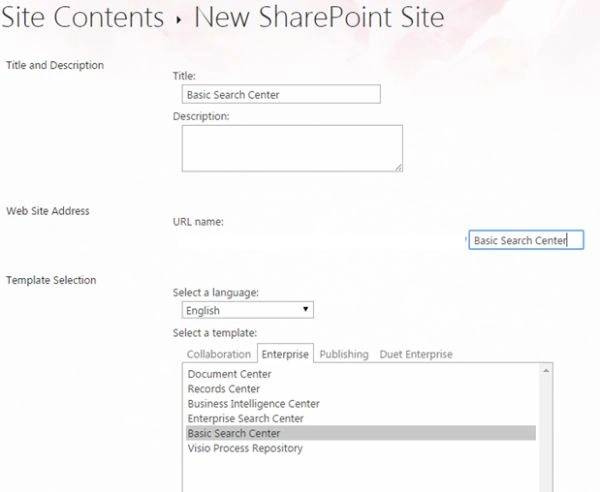
- Permissions: Here you can assign permission to the site directly either by inheriting the permissions from the parent or assigning it unique permissions.
- Navigation Inheritance: Using this option you can inherit the same navigation as your parent site.
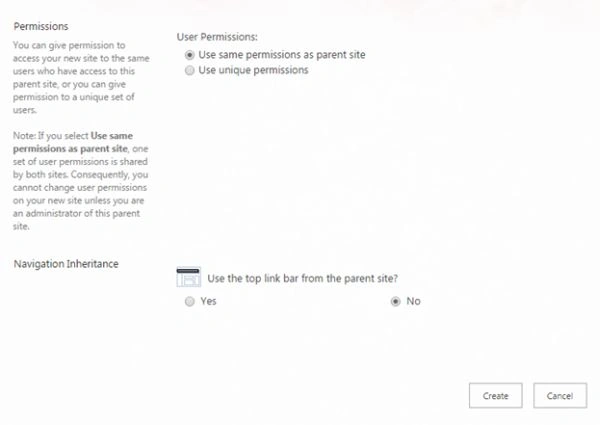
- Click on Create, It will create the site.
Welcome to the Basic Search Center, A site for presenting search content in SharePoint, as in the screen below we can see Home Page of the new site.
Let's see what it has for us.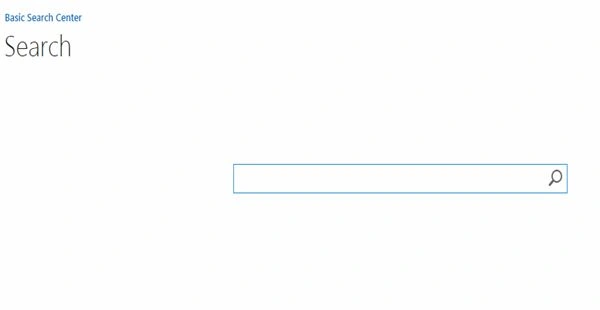
Here we can see the search tab on the Home Page to search your requirement. This is the default page of the Basic Search Center where we have a search web part on the page.
Site Contents: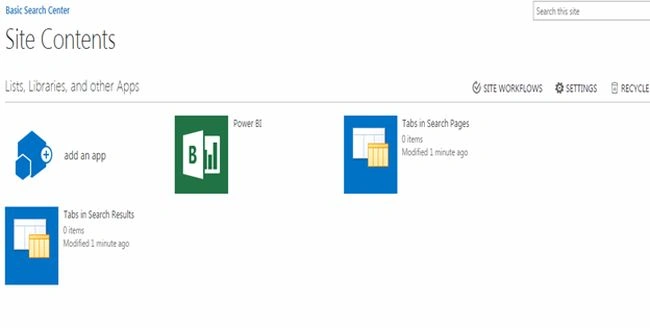
- Power BI
Microsoft provides comprehensive BI tools that is integrated across Office applications and other Microsoft technologies. These tools enable analysis, reporting, dashboards and visualizations.
- Tabs in Search Pages
Here as in the screen below you can see the list as “Tabs in Search Results” where you can configure the items to be searched from.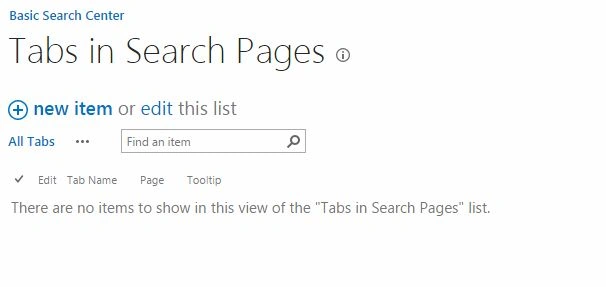
Here is the form below to configure the search results, we have.
- Tab Name: Here you can configure the name of the tab.
- Page: Here you can configure the page that should display as a web part tab.
- Tooltip: It is a tool tip text where you can see the value when a user moves the pointer over this tab.
- Publish: If you are ready to publish the search tab, click on the Publish or else click on Save as Draft.
- Tab Name: Here you can configure the name of the tab.
- Tab in Search Results
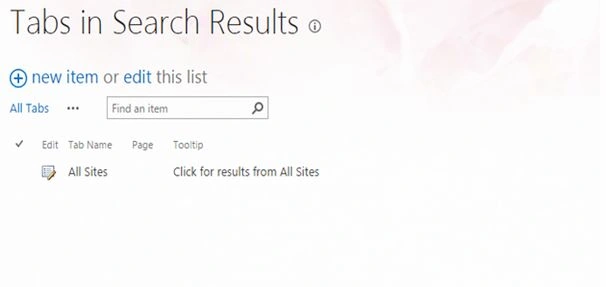
Here is the form below to configure the search results, we have.
- Tab Name: Here you can configure the name of the tab.
- Page: Here you can configure the page that should be displayed as a web part tab.
- Tooltip: It is a tool tip text where you can see the value when a user moves the pointer over this tab.
- Publish: If you are ready to publish the search tab, click on the Publish or else click on Save as Draft.
- Tab Name: Here you can configure the name of the tab.
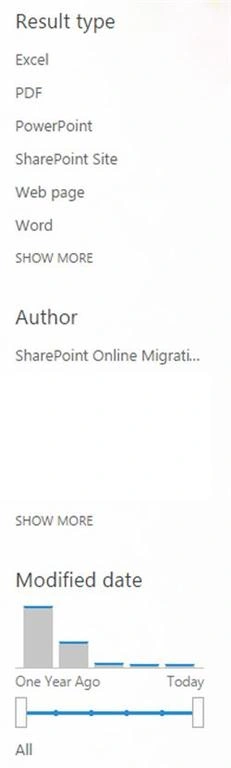
Result Type
You can narrow down the search results by clicking on the left navigation and make a selection in accordance to:
- Excel
- PowerPoint
- SharePoint Site
- Web Page
- Word
- By Author
- By Modified Date
- Lastly we can see the site settings, that you can see from the previous blogs on Site Settings in SharePoint 2013 at C# Corner.
Link: Site Settings in SharePoint 2013.
- We have new set up for search in site settings.
- This has been covered by me in my previous blog. Kindly click on the following link to see the site settings of the basic search center. Link: Site Settings in SharePoint 2013: Part 5.
Cheers.
Join the conversation! Your thoughts help the community grow.