

Speaker Coach offers personalized, private feedback on your performance during meetings or presentations. It provides live insights that are visible only to you and are not included in recorded meeting transcripts. After the session, you will also receive a summary of your speaking performance.
Note. Currently, This feature is currently only supported in the English language. The Teams app language must be set to English.
Enabling Speaker Coach During a Meeting
To turn on Speaker Coach during a meeting.
- Click on More options (the three dots).
- Select Turn on Speaker Coach.
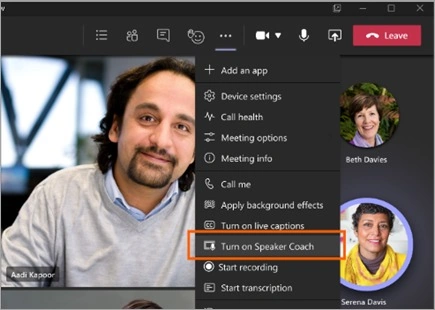
- Once Speaker Coach is activated, you can speak as you normally would to receive real-time insights.
Note. Important to note is that Speaker Coach isn't currently supported in channel meetings or meetings started from the Meet now option.
Speaker Coach Reports
After completing your meeting or presentation, the Speaker Coach provides an insightful report on your speaking performance. This report includes key metrics such as total speaking time, repetitive language usage, and various other important details to help you improve.
To access your Speaker Coach report after a meeting.
- Select the notification you receive once the meeting concludes.
- Click on the Speaker Coach tab in the meeting's chat conversation.
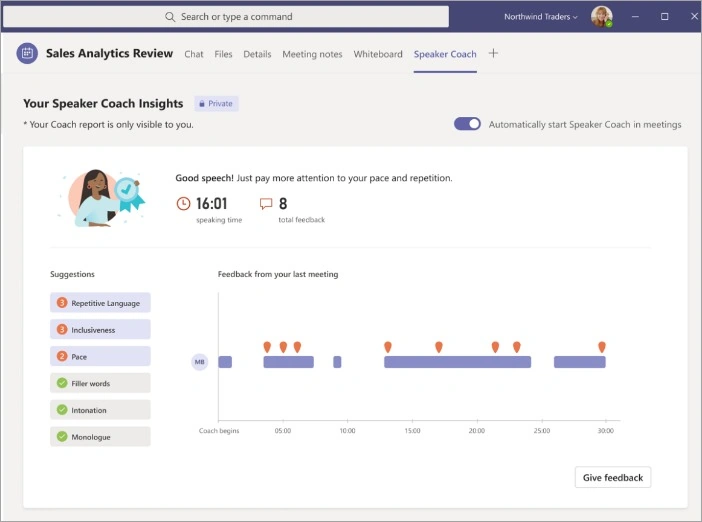
Note. The information in the Speaker Coach report is private and only visible to you, ensuring confidentiality and personal improvement
How to enable Speaker Coach for all Meetings?
To enable Speaker Coach automatically for all your meetings in Microsoft Teams, follow these steps.
- Open a Speaker Coach report from any previous meeting.
- In the report, toggle the switch labeled Automatically Start Speaker Coach in meetings.
Important Notes
- This setting is specific to the device you're using. If you want Speaker Coach to start automatically on multiple devices, you must enable this setting on each device individually.
- If you sign out of Microsoft Teams, this setting will reset, and you'll need to re-enable it when you sign back in.
For more detailed guidance, you can refer to the official Microsoft Learn page on managing Speaker Coach settings
How to enable speaker coach during a PowerPoint presentation in Microsoft Teams?
Follow these steps
- In your meeting controls, select the Share content icon (an arrow pointing up).
- Choose the PowerPoint presentation you want to display.
- Once your presentation loads, click on Turn on Coach located beneath your main slide.
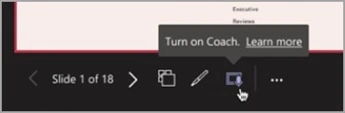
After activating Speaker Coach, simply speak as you normally would. Speaker Coach will offer real-time suggestions to improve your delivery.
This feature helps presenters by providing private, real-time tips, and enhancing their speaking skills by addressing aspects like filler words, pacing, and sensitive language.
For more detailed instructions, you can refer to the Microsoft Learn guide and Microsoft Support page.
Courtesy: Preview: Speaker Coach in Microsoft Teams meetings - Microsoft Support
Sigar DavePosted Jun 30, 2025, 8:40 AM
Microsoft has removed this feature after getting the Preview Feature feedback from the User.
Deepak TewatiaPosted Jun 20, 2024, 4:34 AM
Very nicely explained! After reading this insightful article, I rushed to turn on Speaker Coach for my meetings. I hope it will be helpful for everyone.