

Requirements
- SQL Server 2016 (Microsoft SQL Server Enterprise Evaluation (64-bit).
- Visual Studio : 2015 (Professional Edition).
- Microsoft Report Viewer control : Version 11.0.0.0.
Installation and Configuration
- We need to install SQL Server 2016. The Reporting Services should also be included.
- We need to install Visual Studio 2015 Professional Edition with SQL Server Business Intelligence Development Studio.
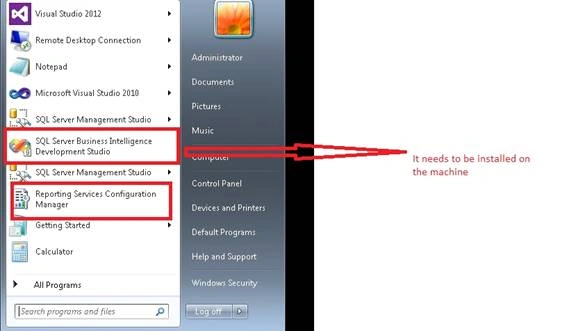
Need to configure SSRS
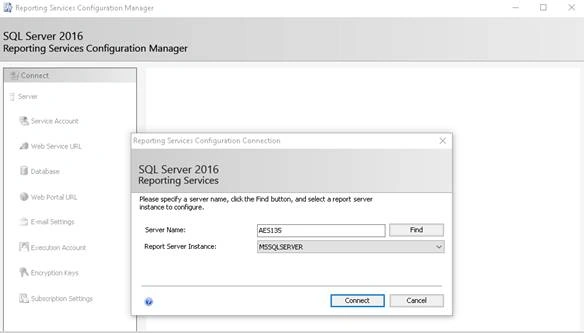
After configuring the connection,
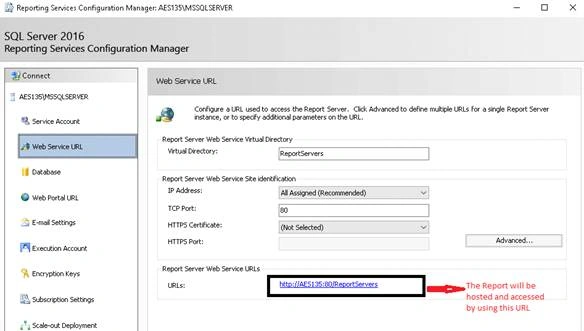
- We need to select Web Service URL and we can enter the Virtual Directory name or leave the default Virtual Directory as ReportServer.
- Subsequently, URLs display the URL with the entered Virtual Directory name.
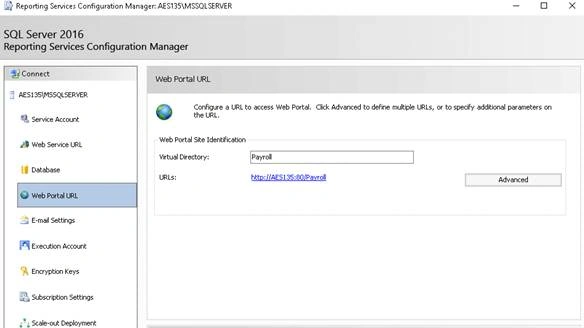
- By selecting Web portal URL, we can upload the report or create the report, using Report Builder, by clicking the URLs. We can enter the Virtual Directory name or leave the default Virtual Directory as ReportServer.
- Deploy the report, using Visual Studio, which will be shown here.
- We can manage the folders for the reports here.
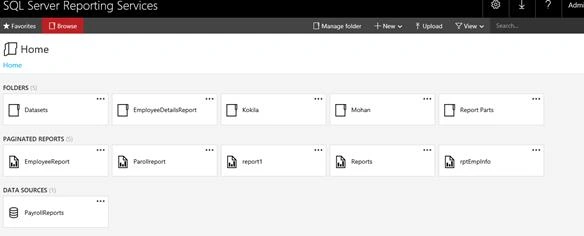
The screenshots given below help to describe creating reports on the Server. The Business Intelligence Development Studio is used to create the reports.
Step 1
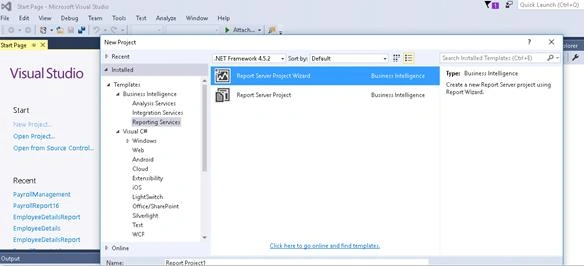
Step 2
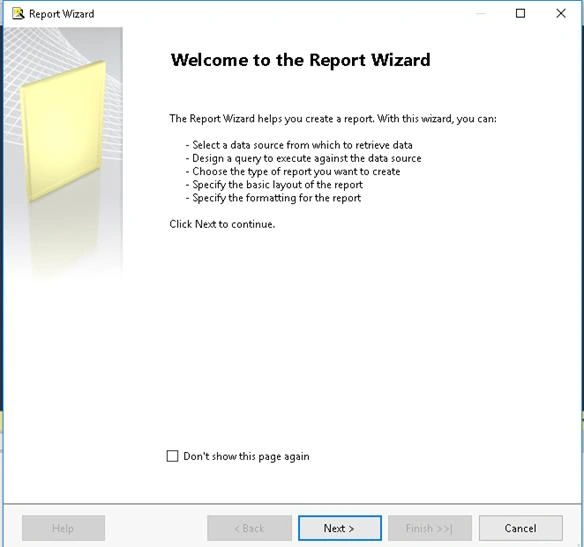
Click next.
Step 3
You see the next screen
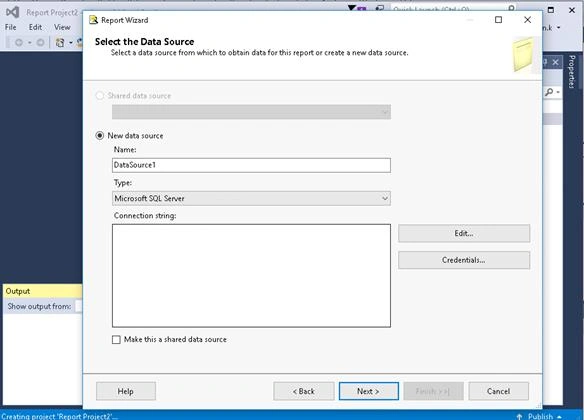
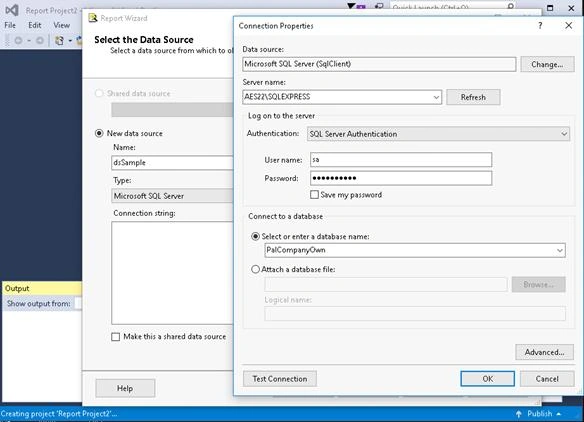
Give DataSource name and click edit.
Step 4
Choose SQL Server and database. Give the credential details by clicking Edit button.
Step 5
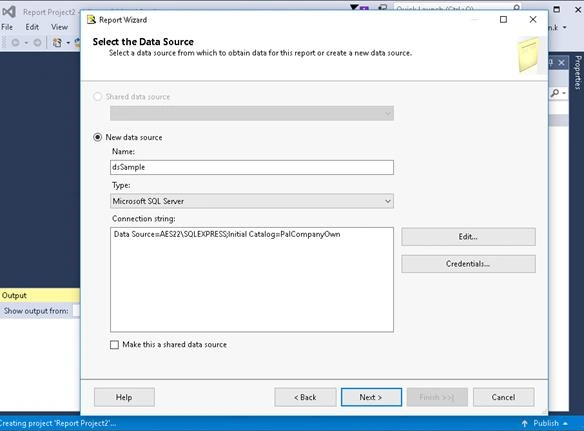
Click Next.
Step 6
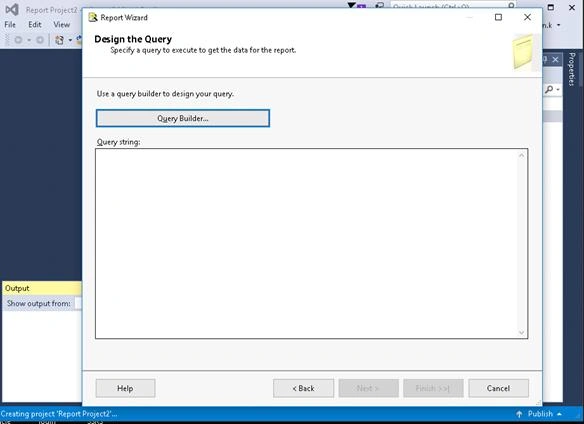
Click query builder.
Step 7
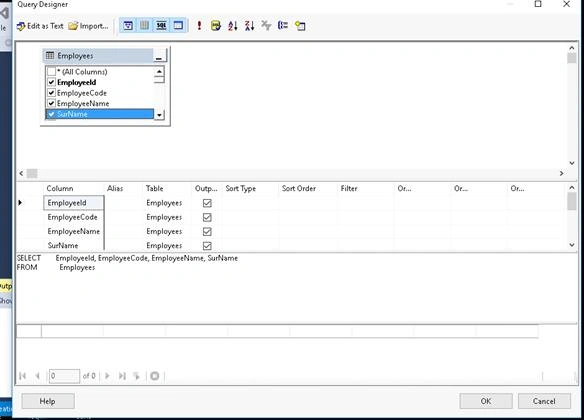
Click the symbol (add table), select and add the tables required and click close.
Select the fields required from the Table, it will form a query. Click OK.
Step 8
Click Next.
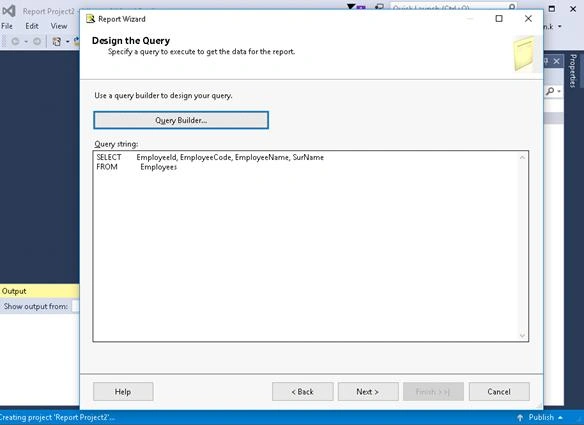
Step 9
Select report type, followed by clicking next.
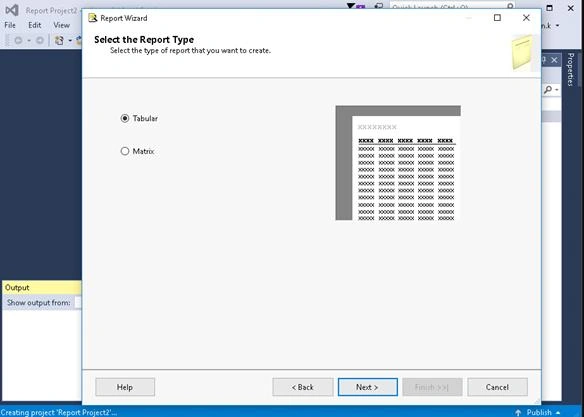
Click Next.
Step 10
Design the table.
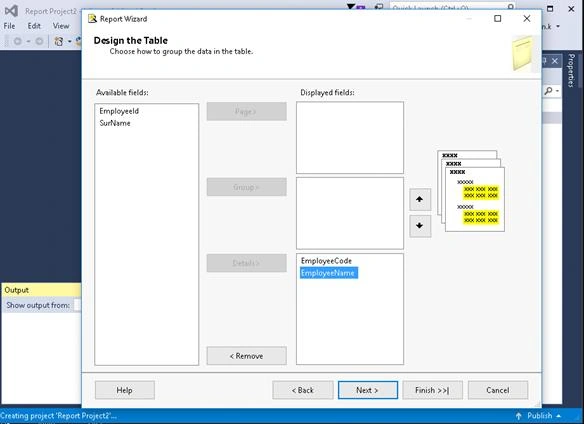
Click Next.
Step 11
Add the report name.
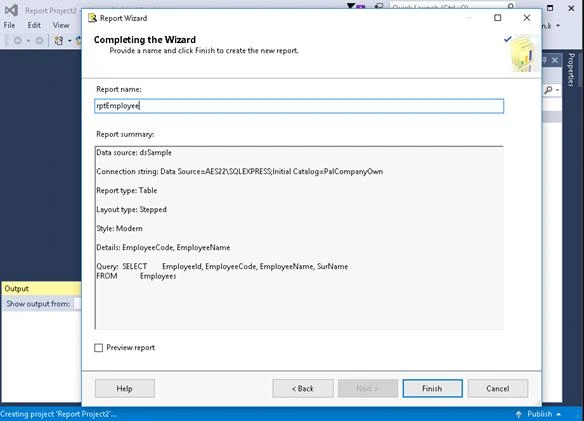
Click Finish.
Step 12
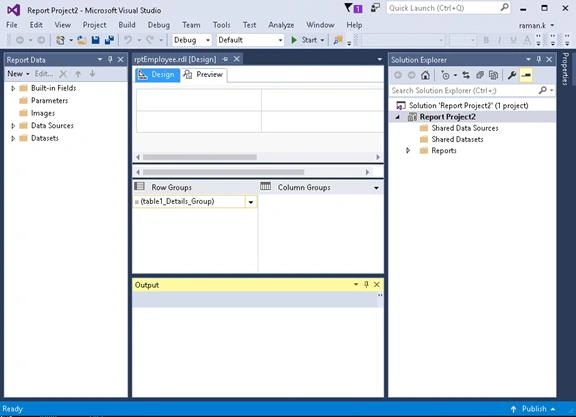
Step 13
Select the Preview Tab, give the DataSource credentials and the report will be previewed.
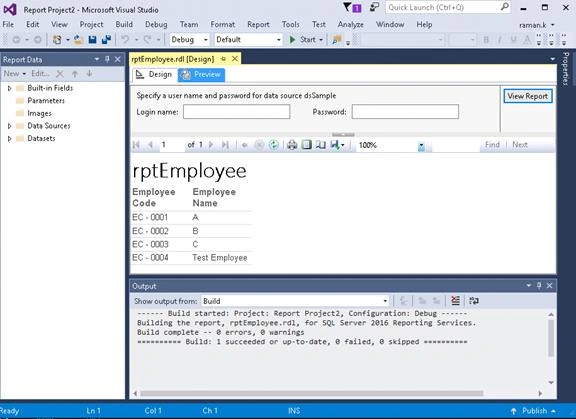
Step 14
The next two steps are important.
- Build
- Deploy
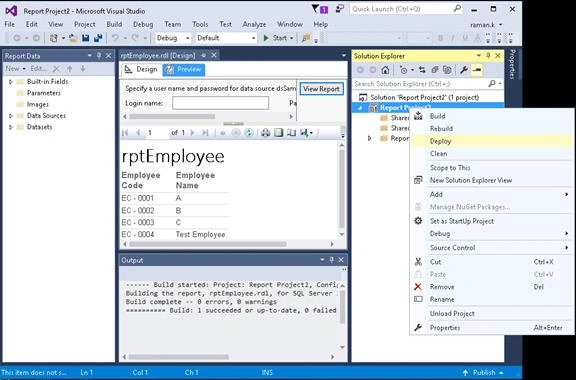
Build the report.
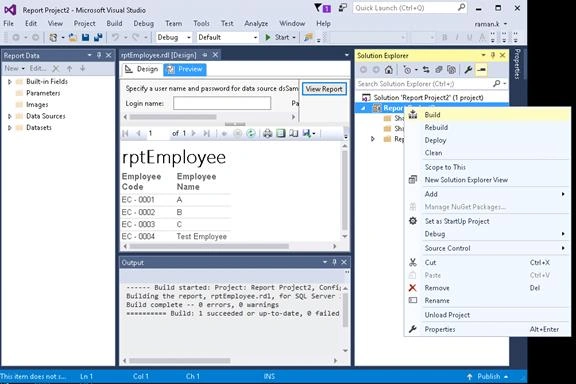
Deploy the Report
Right click on project --> Properties-->Change the TagerServerURL to the WebService URL.
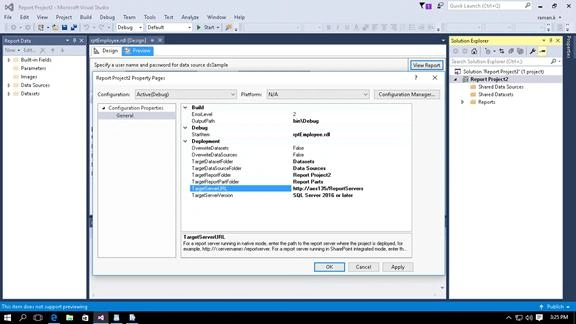
Click OK.
After deploying the report, you can see the output.
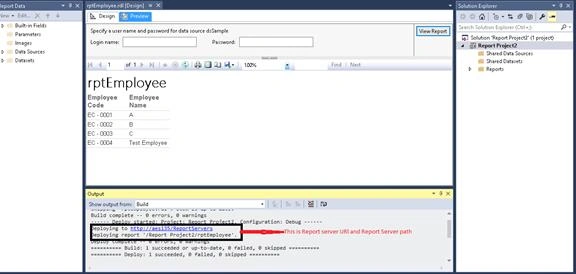
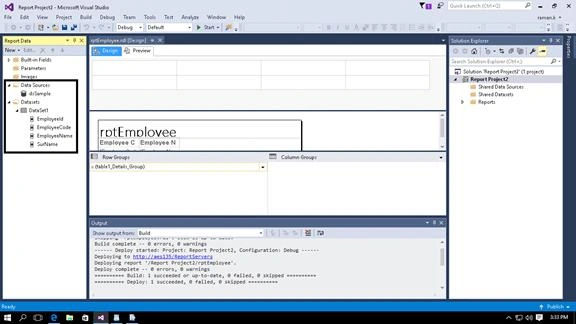
These two things will be used in the Web Application for rendering the report.
We can see the DataSource created by the given name dsSample and DataSet created for the corresponding DataSource.
Step 15
Load the ConnectionString from the Applications Web.config file.
Step 1
Create the parameter
Parameter --> Right Click --> Add Parameter --> Add the Name of the parameter
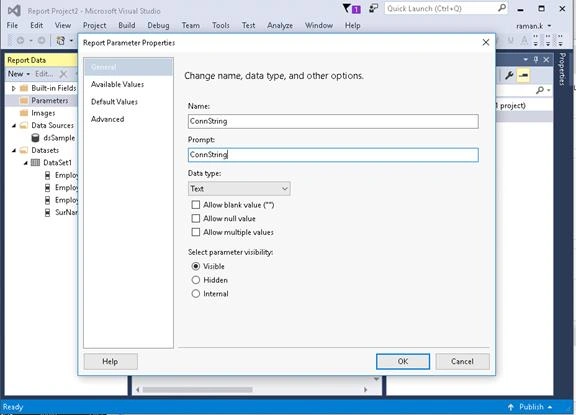
Click OK.
Step 2
We can change the properties of the Datasource by right clicking the DataSource --> Properties.
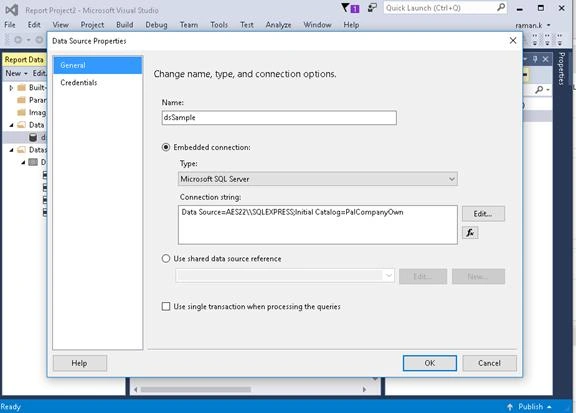
Click the Expression button (Image with fx).
Subsequently, add the parameter value as the Connection String.
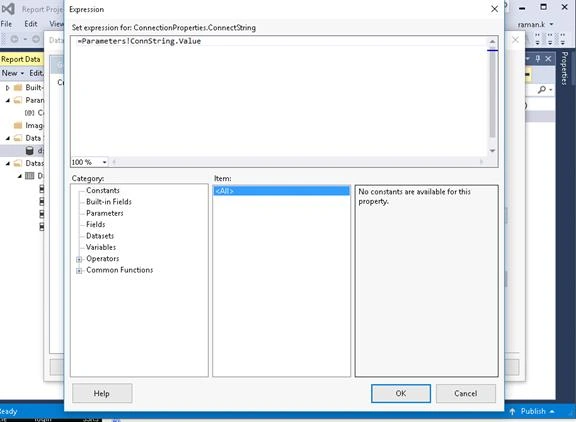
Click OK.
The connection string will be looked, as shown below.
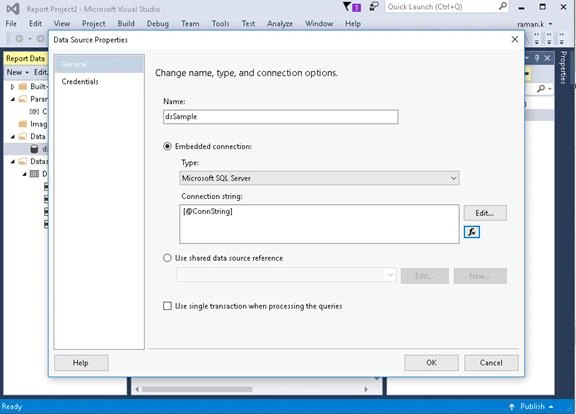
Click OK.
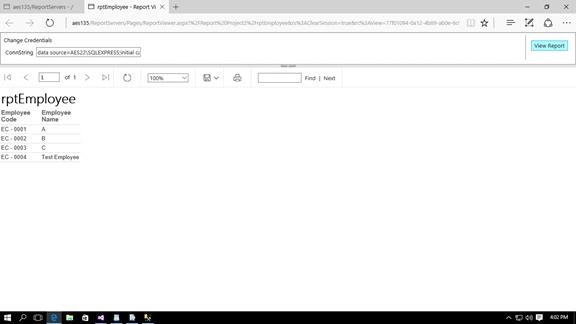
The value of the parameter will be passed from the Web Application as the report parameter.
------------------------------End--------------------------------------------
Output
Ravi MPosted Jan 4, 2017, 1:09 AM
Thank you Suthahar sir ..........
Suthahar JegatheesanPosted Dec 14, 2016, 11:34 AM
Good work Ravi ..keep it up..
Ravi MPosted Dec 13, 2016, 11:24 PM
Thank for your appreciation Prashant.....
Prashant KumarPosted Dec 13, 2016, 9:44 PM
Good start Ravi..Keep it up..