

Introduction
Before reading this article, I highly recommend reading the previous articles of the series.
This article explains
- What are Datasets?
- What are Shared Datasets?
- How to add multiple Shared Datasets?
- How do you create Shared Dataset using SQL Query?
- How to create Shared Dataset using Stored Procedure?
Dataset in SQL Server
- Dataset represents report data returned from running a query on an external data source.
Shared Datasets in SQL Server
- A shared dataset can be used by multiple reports.
- A shared dataset must be based on a shared data source.
- Shared datasets are stored on the report server.
- A shared dataset can be cached and scheduled by creating a cache refresh plan.
- Shared datasets can optimize a query result to benefit report performance.
Step 1. Create Shared Dataset (Using SQL Query).
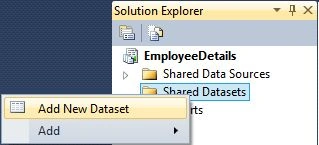
Go to Solution Explorer and right click on Shared Datasets, and click on Add New Dataset.
Or
You can create by using expand Add, then click on New Item, select Dataset from the appeared wizard, and give it to a desired name.
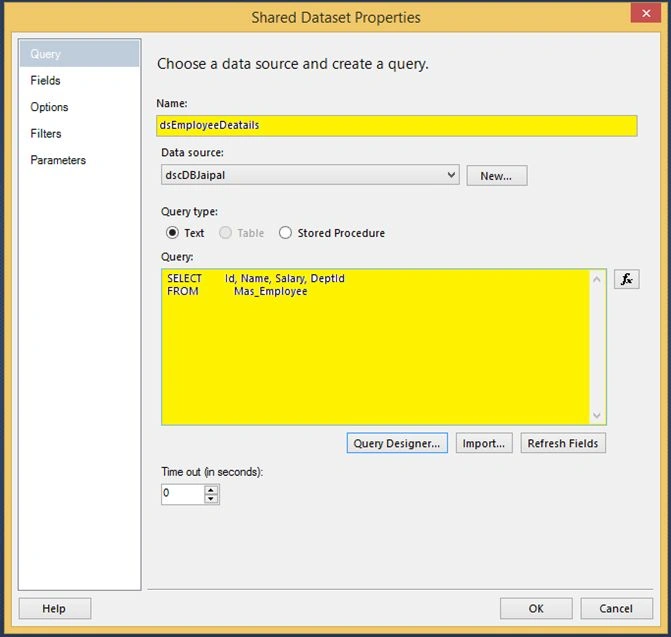
Next, the following wizard will appear.
- Provide the name of the Dataset.
- Here we will observe how shared datasets are based on a shared data source.
- Select Query type as Text.
- Write your query on the Query text field and then click OK.
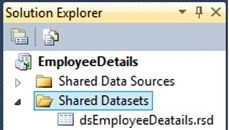
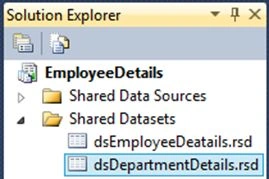
At this point, Shared Dataset was created. You can see it in Solution Explorer.
Step 2. To add multiple Shared Datasets: (Using Stored Procedure)
Go to Solution Explorer again, right, click on Shared Datasets, and click Add New Dataset.
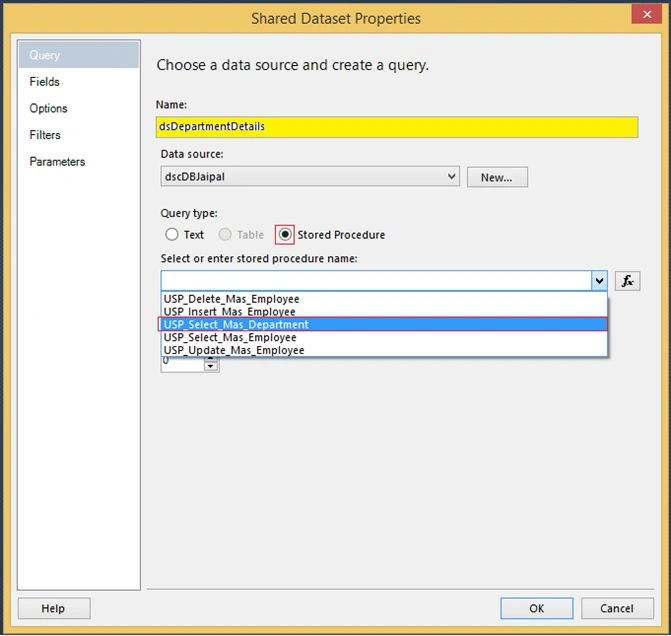
Next, the following wizard will appear.
- Provide the name of the Dataset.
- Here we will observe how shared datasets are based on a shared data source.
- Select Query type as Stored Procedure.
- Write your query on the Query text field and click OK.
At this point, the second Shared Dataset was created. You can see it in Solution Explorer.
Conclusion
This article taught us about the shared Dataset and how it is created in SQL Server.
I hope you enjoyed this article. Please provide your valuable suggestions and feedback.
Jaipal ReddyPosted Nov 28, 2015, 2:30 AM
Thank you sir.
Santhakumar MunuswamyPosted Nov 28, 2015, 2:29 AM
Nice share
Jaipal ReddyPosted Nov 26, 2015, 12:06 PM
Thank you sir
Mukesh KumarPosted Nov 26, 2015, 12:23 AM
Great Work
Jaipal ReddyPosted Nov 25, 2015, 2:25 AM
Thank you sir.
Banketeshvar NarayanPosted Nov 25, 2015, 2:17 AM
Good One
Jaipal ReddyPosted Nov 25, 2015, 1:26 AM
Thank you Raj.
Raja TPosted Nov 25, 2015, 1:12 AM
Nice, Thanks for sharing