

This is the second part of a series where I am going to explain how to create an Azure Virtual Network, Subnets, and Network Security Groups and how to associate them with Virtual Machines.
If you have missed Part 1, you can read it here.
To understand more about what Virtual Networks, Subnets, Network Security Groups are and topics around them, read my article here.
You will need an Azure Subscription to go ahead with this demo.
Step 1
Create a new Virtual Machine with Windows Server 2012 R2 Datacenter.
Create a new Virtual Machine with Windows Server 2012 R2 Datacenter.
Step 2
When you click on "Create", a new blade will be opened.
When you click on "Create", a new blade will be opened.
Step 3
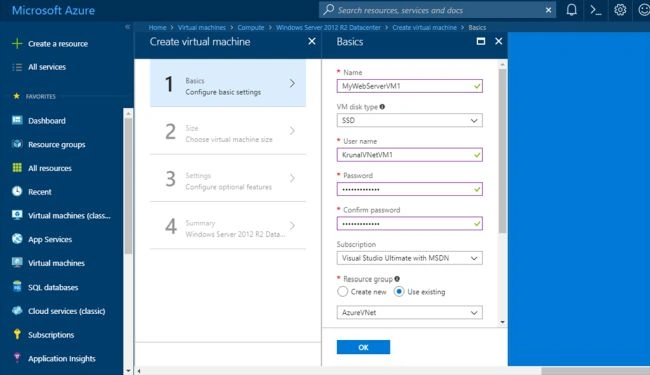
Fill out the fields in the basic settings. Use the existing resource group that you had created for the virtual network and click on OK.
Fill out the fields in the basic settings. Use the existing resource group that you had created for the virtual network and click on OK.
Step 4
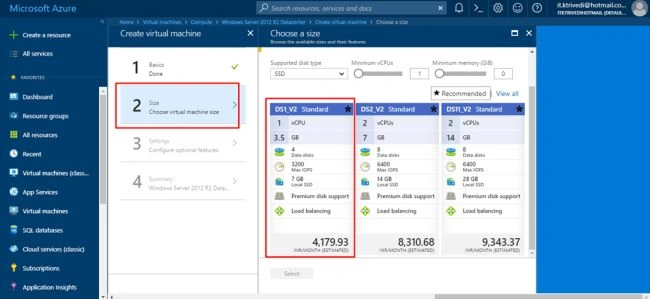
For the size and configuration, use DS1_V2 Standard type and click on Select.
For the size and configuration, use DS1_V2 Standard type and click on Select.
Step 5
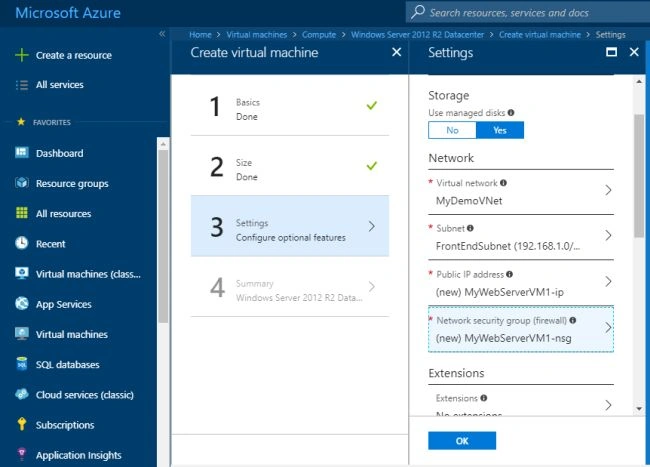
Keep yes on the managed disks. The Virtual Network would be chosen by default. Select the subnet as FrontEndSubnet and keep the public IP address as it is.
Keep yes on the managed disks. The Virtual Network would be chosen by default. Select the subnet as FrontEndSubnet and keep the public IP address as it is.
Step 6
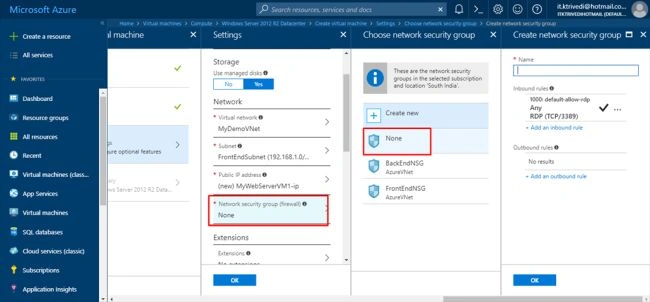
Keep the Network Security Group as none. Since we have already added NSG to our subnet, we don't need to add it here again. Basically, you can add NSG to either of the three levels i.e. at the VNet level, at the subnet level or at the VM level.
Keep the Network Security Group as none. Since we have already added NSG to our subnet, we don't need to add it here again. Basically, you can add NSG to either of the three levels i.e. at the VNet level, at the subnet level or at the VM level.
Step 7
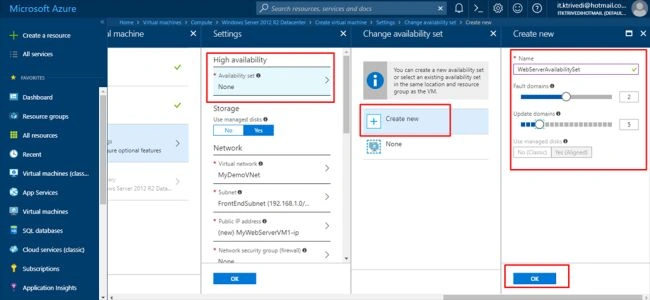
Create a new availability set and give a name to it. Keep the fault domains as 2 and keep the update domains as 5. (If you want to read about what are Availability Sets, Fault Domains and Update Domains, read my article here).
Create a new availability set and give a name to it. Keep the fault domains as 2 and keep the update domains as 5. (If you want to read about what are Availability Sets, Fault Domains and Update Domains, read my article here).
Step 8
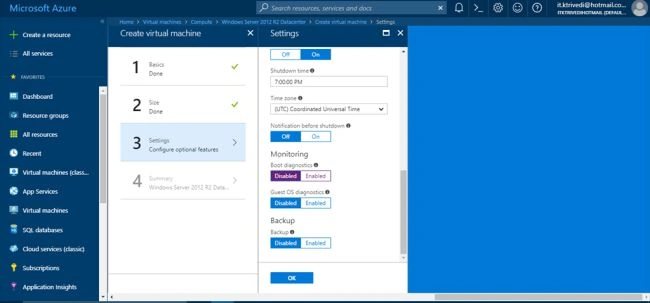
Keep the Boot Diagnosis and Guest OS Diagnosis as disabled.
Keep the Boot Diagnosis and Guest OS Diagnosis as disabled.
Step 9
Click on create.
Click on create.
Step 10
Now we need to create one more VM that will be for the SQL server.
Now we need to create one more VM that will be for the SQL server.
Step 11
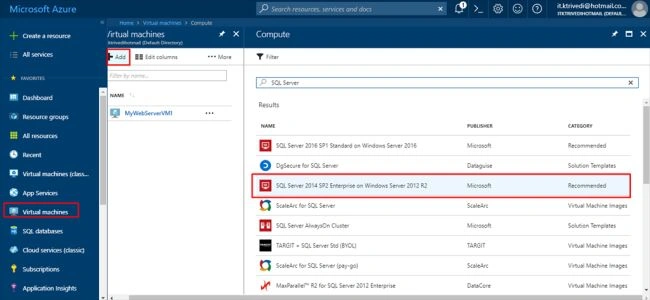
Click on Virtual Machines, click on Add and search for SQL Server. Select SQL Server 2014 SP Enterprise on Windows Server 2012 R2 and click on create.
Click on Virtual Machines, click on Add and search for SQL Server. Select SQL Server 2014 SP Enterprise on Windows Server 2012 R2 and click on create.
Step 12
Configure the basic settings and click on OK.
Configure the basic settings and click on OK.
Step 13
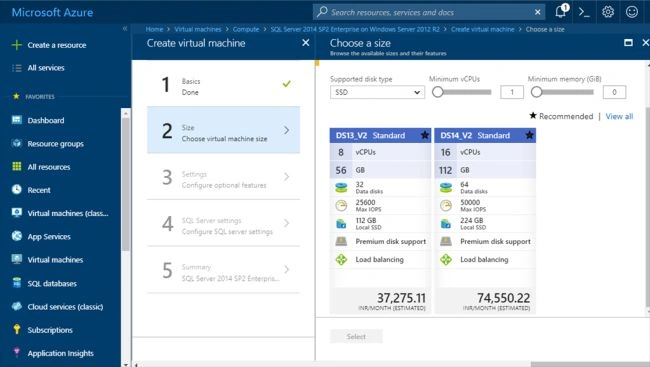
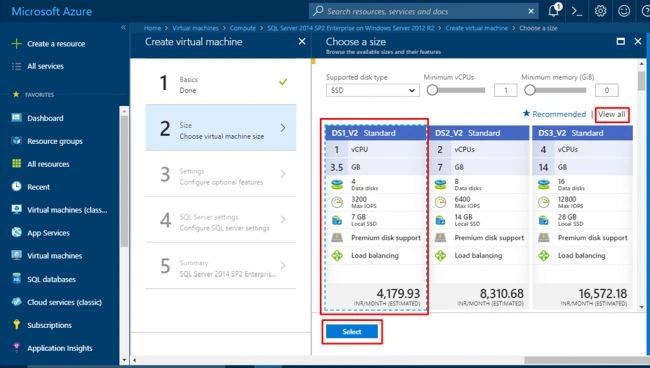
Now since it is for the database, it is going to show me a highly configured VM to choose. But since this is just for our demo purposes, we are going to choose a lower configuration one.
Now since it is for the database, it is going to show me a highly configured VM to choose. But since this is just for our demo purposes, we are going to choose a lower configuration one.
Step 14
Click on view all and select the DS1_VS2 standard configuration.
Click on view all and select the DS1_VS2 standard configuration.
Step 15
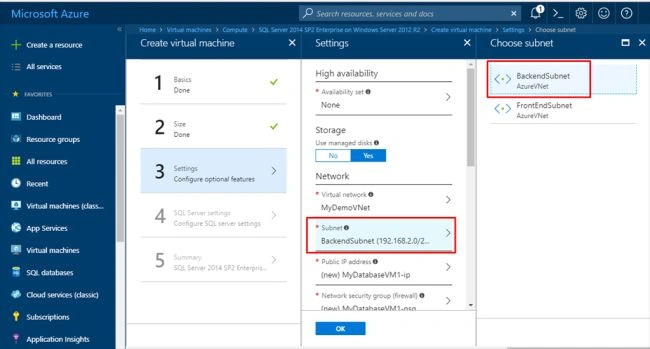
Choose the subnet as BackEndSubnet.
Choose the subnet as BackEndSubnet.
Step 16
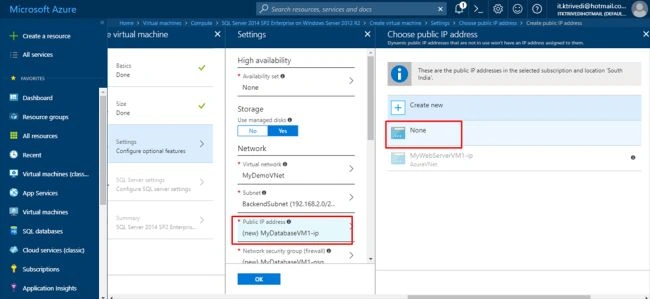
Now, since we are not going to expose this database publicly, we don't need a public IP address. So for that, choose None.
Now, since we are not going to expose this database publicly, we don't need a public IP address. So for that, choose None.
Step 17
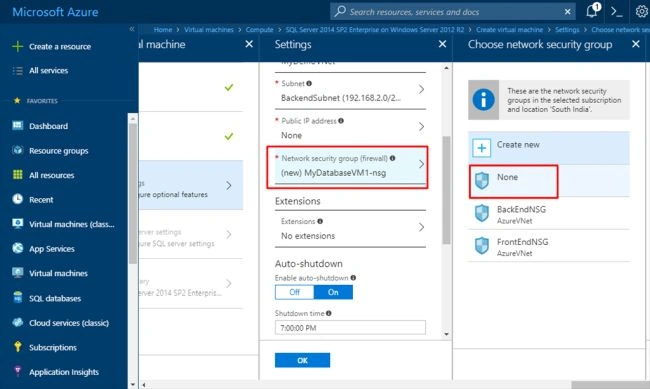
For the NSG as well, choose none because we have applied NSG at the subnet level itself. Rest as it is. Click on OK.
For the NSG as well, choose none because we have applied NSG at the subnet level itself. Rest as it is. Click on OK.
Step 18
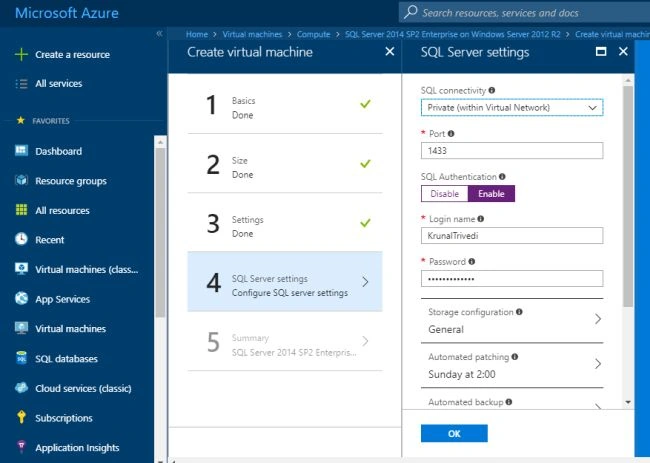
In the SQL Server settings, choose the SQL connectivity as Private where the database can be accessed from within the VNet only. Keep the port number as default. Enable SQL Authentication.
In the SQL Server settings, choose the SQL connectivity as Private where the database can be accessed from within the VNet only. Keep the port number as default. Enable SQL Authentication.
Step 19
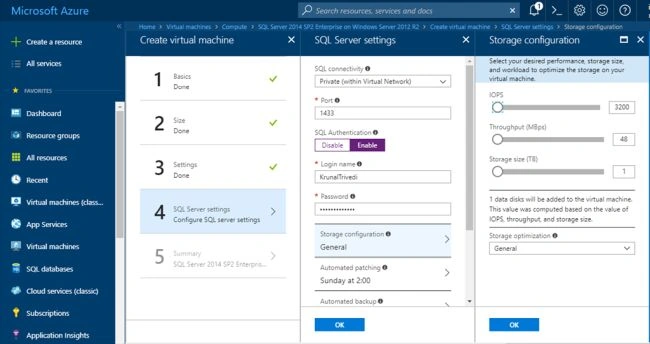
Keep the storage configuration as general where the IOPS (Input/Output Operations per second) is 3200, throughput is 48 MBps and storage size is 1TB. Now, in every VM, there would be just one dist i.e. the OS Disk. But since this is SQL Server, it is also going to add a data disk as well. Keep the storage optimization as "General" and click on OK.
Keep the storage configuration as general where the IOPS (Input/Output Operations per second) is 3200, throughput is 48 MBps and storage size is 1TB. Now, in every VM, there would be just one dist i.e. the OS Disk. But since this is SQL Server, it is also going to add a data disk as well. Keep the storage optimization as "General" and click on OK.
Step 20
Keep everything else as default and click on OK.
Keep everything else as default and click on OK.
Step 21
Once the validation gets passed, click on Create.
Once the validation gets passed, click on Create.
Step 22
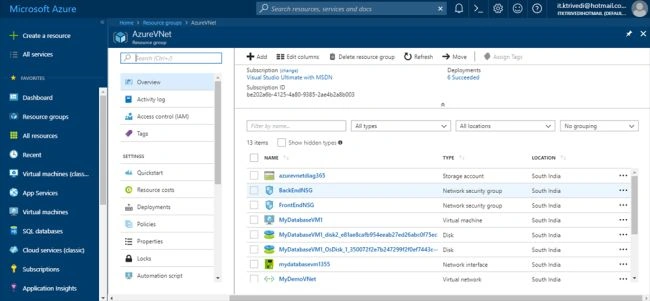
If you go to your resource group, you will able to see everything that you have created. It has also created Network Interface Cards by default for each VM. Now we are going to connect to our first VM.
If you go to your resource group, you will able to see everything that you have created. It has also created Network Interface Cards by default for each VM. Now we are going to connect to our first VM.
We will do that and more in the next and final part of this article.
The link to the third part of this article is here.
ankush jainPosted Feb 13, 2021, 7:01 PM
Article is fantastic but as I studied NSG can be applied only at Subnet or NIC level, not VNET level. So you should correct this - "Basically, you can add NSG to either of the three levels i.e. at the VNet level, at the subnet level or at the VM level."