

Introduction
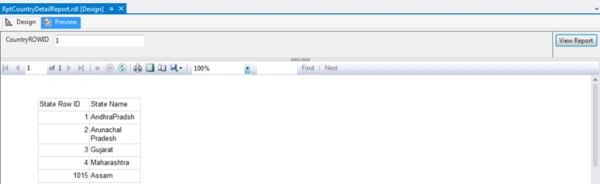
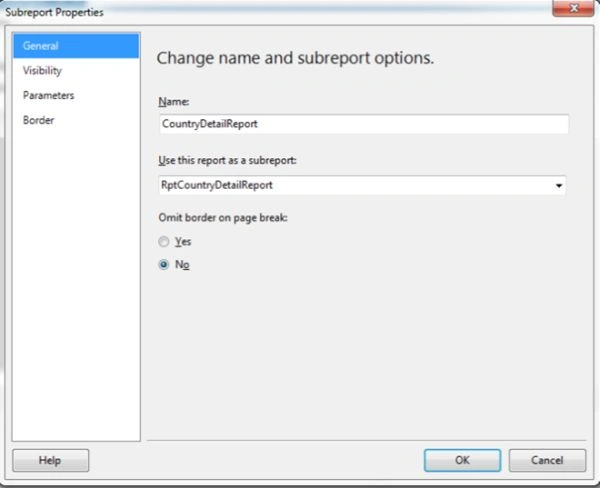
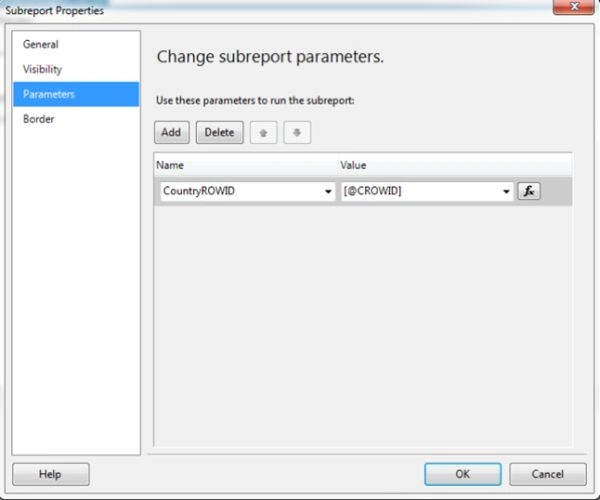
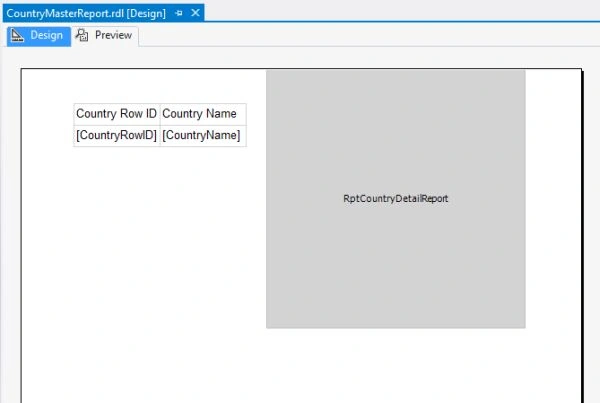
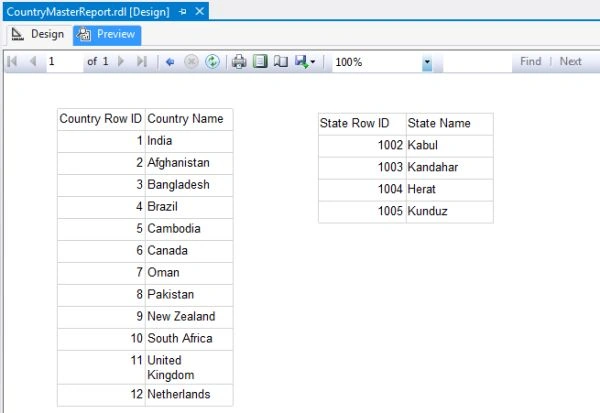
First, we create the first report with a country list then create another one for the state list based on the parameter passed, in other words, country row id and then display the state report as a sub-report.
Contents
- Hour 1: What is SSRS and determine whether it is installed
- Hour 2: Report using wizard
- Hour 3: First SSRS report
- Hour 4: Report with parameter
- Hour 5: Custom template
- Hour 6: Drill down report
- Hour 7: Sub report
- Hour 8: Report with style
- Hour 9: Report with chart
- Hour 10: Report deployment
- Hour 11: RDL file to ASP.Net
Sub Report in SSRS
Step 1
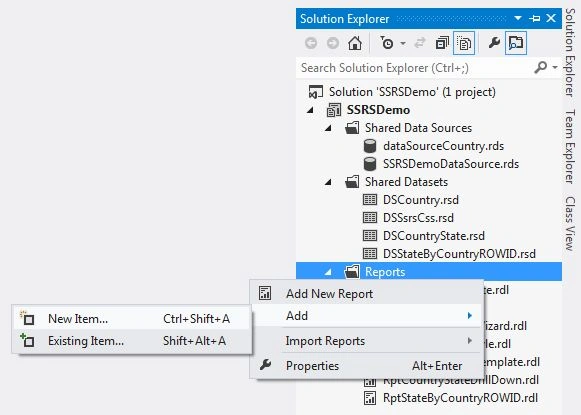
To add the report, right-click on "Reports", select "Add" and click on "New Item".
Step 2
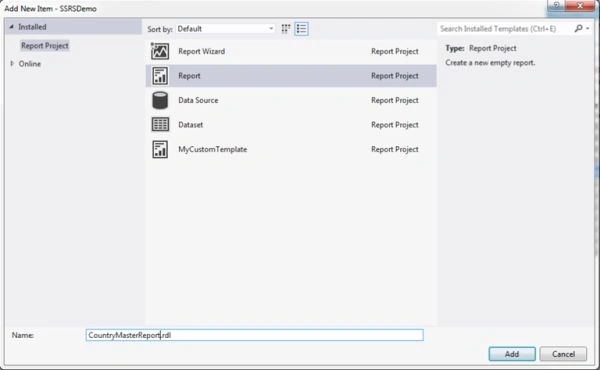
Select "Report" and provide the report name.
Step 3
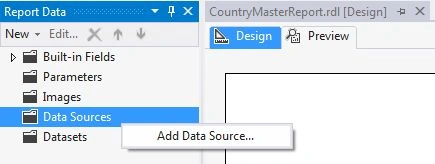
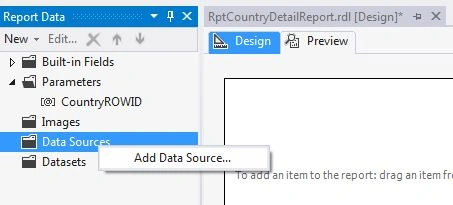
Add a data source to the report data, right-click on "Data Sources" and click on "Add Data Source".
Step 4
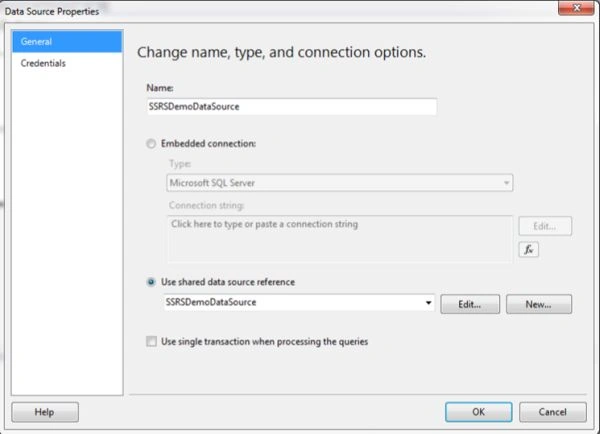
Provide a data source name and select shared data source reference.
Step 5
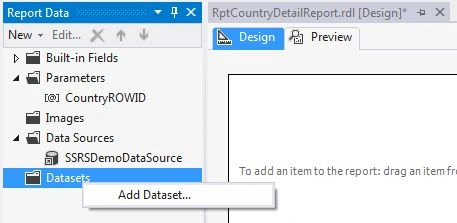
Add a dataset in the report data, right-click on "Datasets" and click on "Add Dataset".
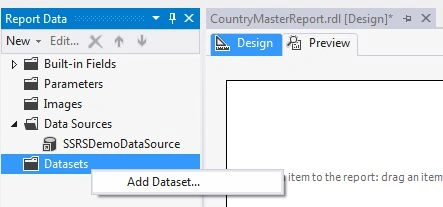
Step 6
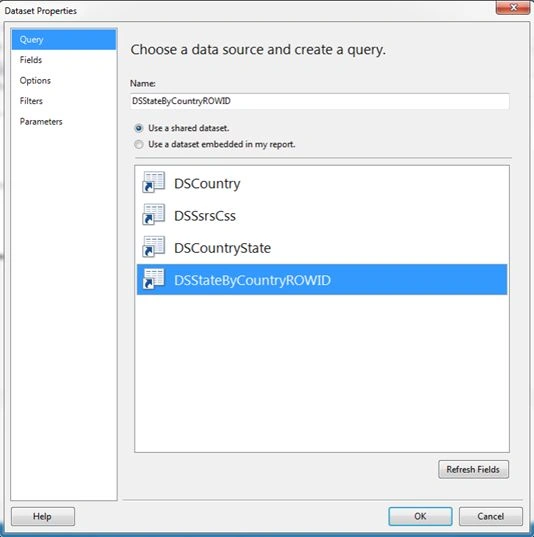
Provide a dataset name and select shared dataset.
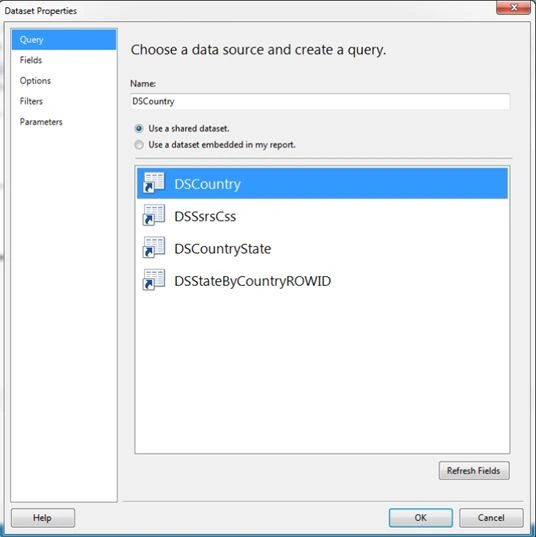
Step 7
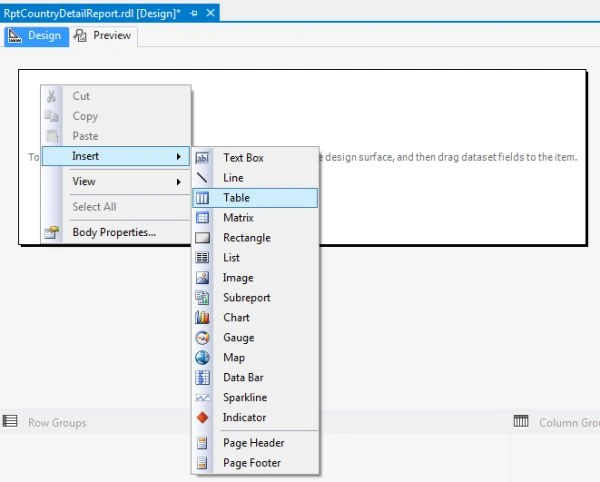
Right-click on the design surface, select "Insert" and click on "Table".
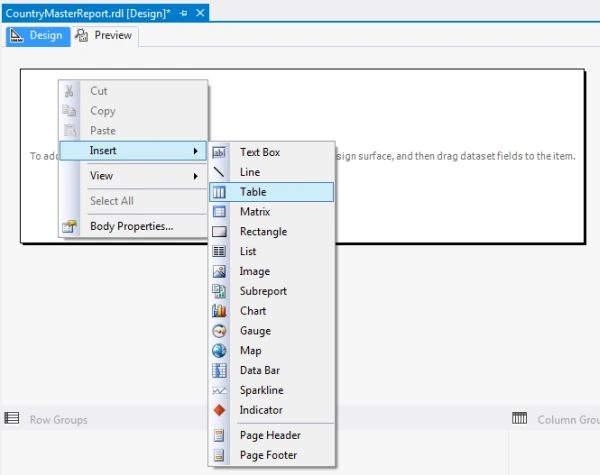
Step 8
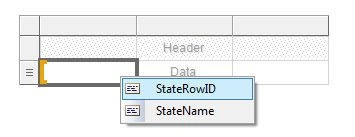
Set "Country Row ID" as the column header and map the "CountryRowID" field for that column.
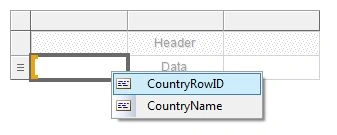
Step 9
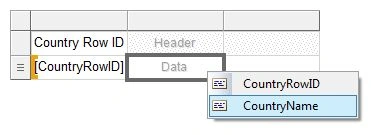
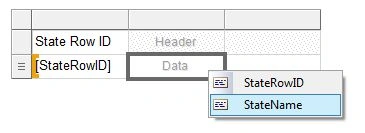
Set "Country Name" as the column header and map the "CountryName" field for that column.
Step 10
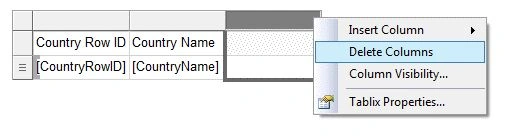
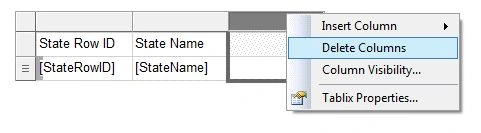
Select and delete the third column.
Step 11
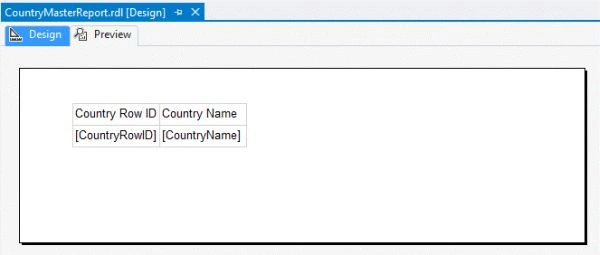
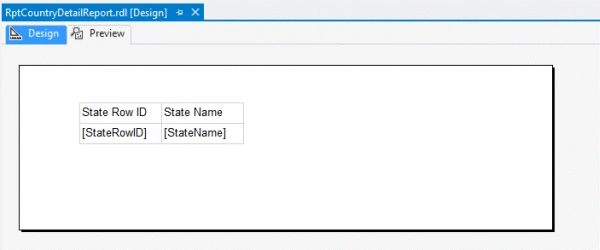
Now the design of the main report is ready with the columns "Country Row ID" and "Country Name".
Step 12
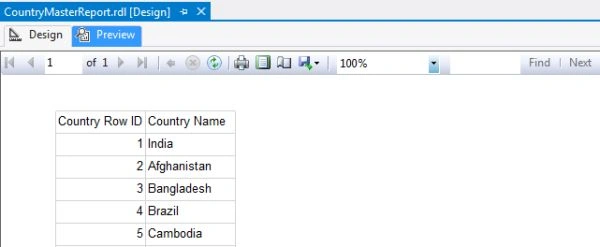
To check the report click on the "Preview" tab and we will have a country list.
Step 13
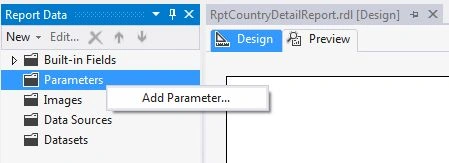
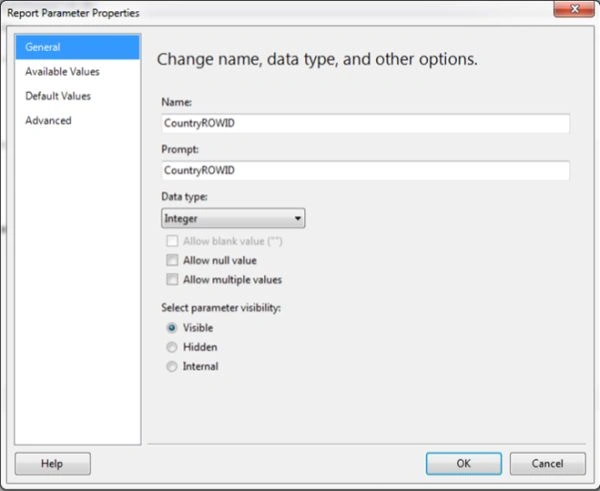
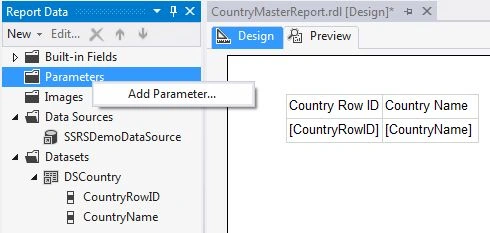
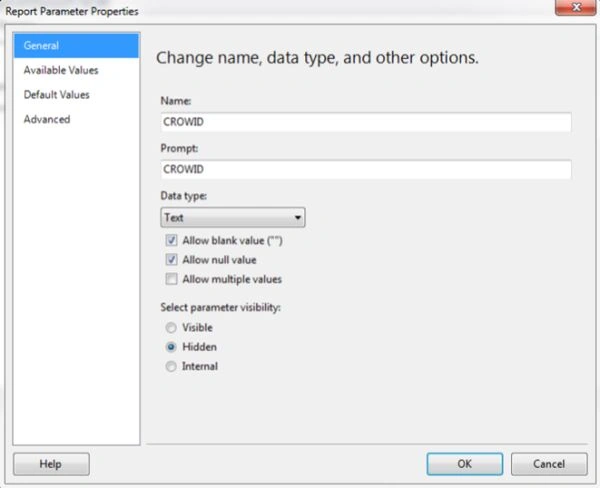
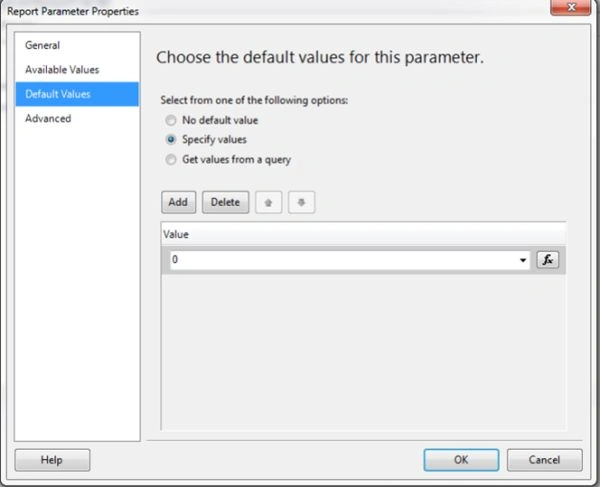
- Now let's create a state report with the parameter CountryRowID.
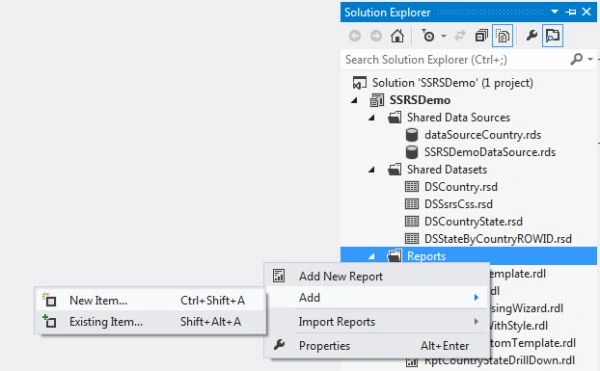
- To add a report, right-click on "Reports", select "Add" and click on "New Item".
Step 14
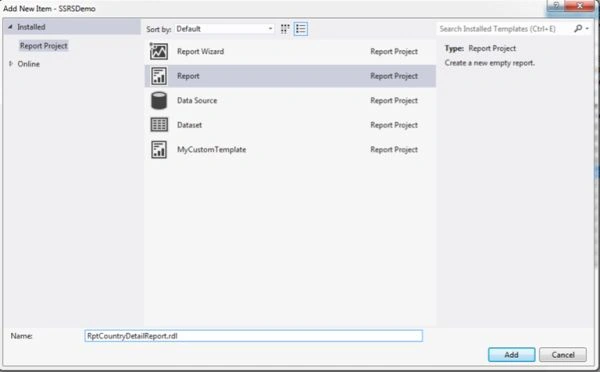
Select "Report" and provide the report a name.
Step 15


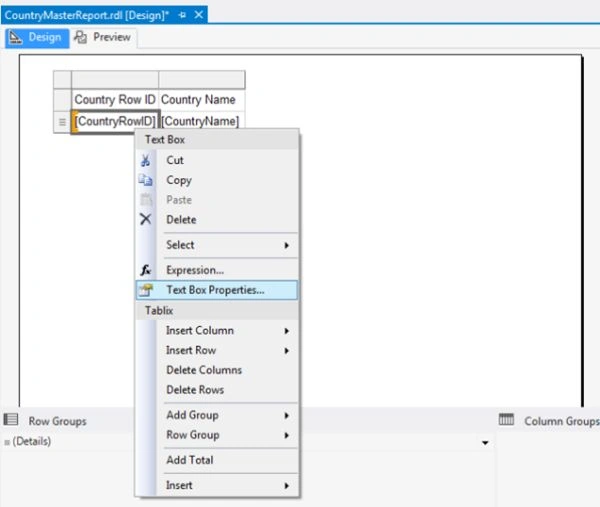
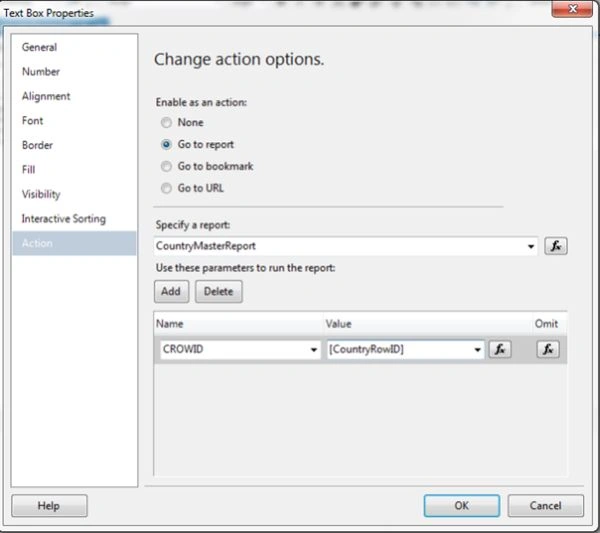
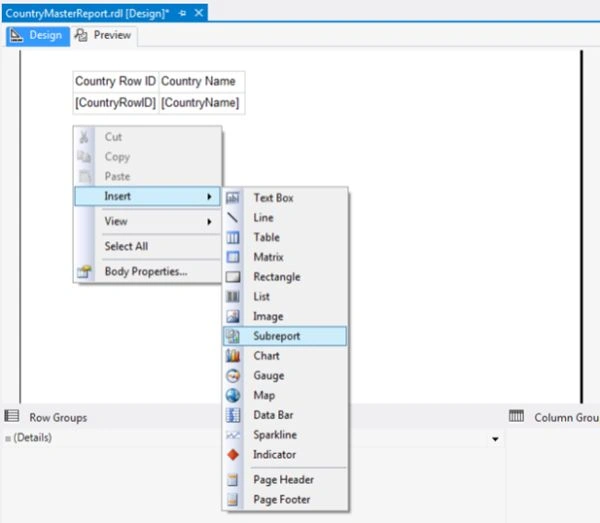
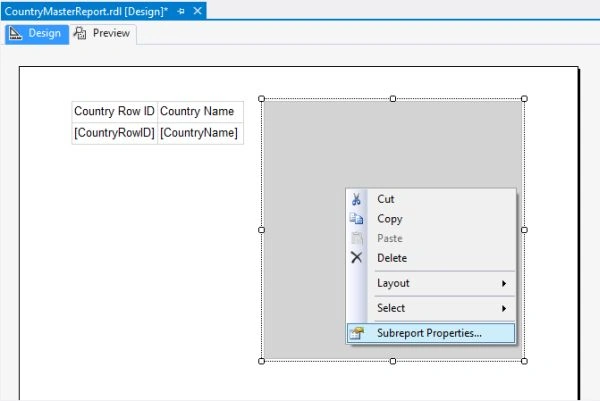
sreenivasa kPosted Mar 2, 2015, 2:33 PM
really thx
Waqar AhamdPosted Mar 1, 2015, 12:35 PM
Good Work..
Kalpesh BhadraPosted Mar 1, 2015, 7:33 AM
this is what i was looking for long time
Tom MohanPosted Mar 1, 2015, 5:49 AM
Good effort
Abhishek JaiswalPosted Mar 1, 2015, 5:45 AM
A useful series and article. :)
Joginder BangerPosted Feb 28, 2015, 1:14 PM
good one sir g
Vithal WadjePosted Feb 28, 2015, 1:02 PM
nice
Rahul Kumar SaxenaPosted Feb 28, 2015, 12:55 PM
Good work bro...
Saineshwar BageriPosted Feb 28, 2015, 11:57 AM
nice step wise tuto sir
Manish Kumar ChoudharyPosted Feb 28, 2015, 10:00 AM
Nice one.
Harpreet SinghPosted Feb 28, 2015, 9:58 AM
The wait is over...Thank you so much for sharing :)
Tom MohanPosted Feb 28, 2015, 9:52 AM
Good one.