

Follow below steps to create Internal Load balance in Azure
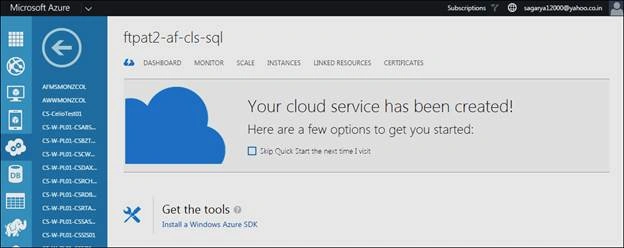
- Create cloud service from Azure portal (or you can create via PowerShell).
- Create Virtual network “<VirtualNetworkName>” and then create subnet “<SubnetName>” from Azure wizard.
(Please note that here we have static IP range 10.202.198.68 - 10.202.198.94) [Refer highlighted range in below image]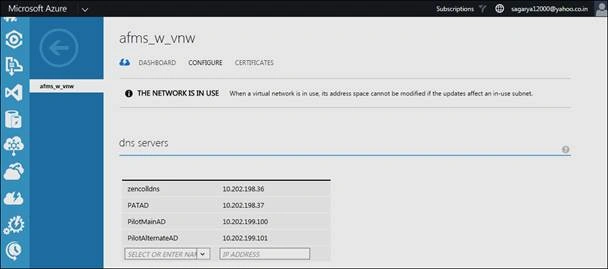

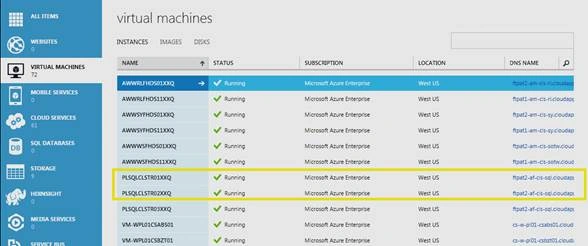
- Create two VMs in “<CloudServiceName>” service as “PLSQLCLSTR01XXQ” and “PLSQLCLSTR02XXQ”.
- Create internal load balance and add these VMs into it. Following is the script to create ILB and adding VMs into it.
Script 1: downloads the subscription file
Get-AzurePublishSettingsFile
Script 2: Import the subscription file as default in windows Azure PowerShell session.
Import-AzurePublishSettingsFile -PublishSettingsFile C:\SQLClustorPOC\<PublishSettingFileName>.publishsettings
Note
C:\SQLClustorPOC\<PublishSettingFileName>.publishsettings is path of publish setting file where it is downloaded.
Script 3: creates ILB and set the
# Define variables
$ServiceName = "<ServiceName>" # the name of the cloud service that contains the availability group nodes
$AGNodes = "<Node1>","PLSQLCLSTR02XXQ" # all availability group nodes containing replicas in the same cloud service, separated by commas
$EndpointName = "TestEndpoint" # name of the endpoint
$EndpointPort = "1433" # public port to use for the endpoint
$ILBName = "TestInternalLoadBalancer" # chosen name for the new ILB
$SubnetName = "afms_w_vnw_ptdb" # subnet name that the replicas use in the VNet
$ILBStaticIP = "10.202.198.74" # static IP address for the ILB in the subnet
Add-AzureInternalLoadBalancer -InternalLoadBalancerName $ILBName -SubnetName $SubnetName -ServiceName $ServiceName -StaticVNetIPAddress $ILBStaticIP
# Configure a load balanced endpoint for each node in $AGNodes using ILB
ForEach ($node in $AGNodes)
{
Get-AzureVM -ServiceName $ServiceName -Name $node | Add-AzureEndpoint -Name $EndpointName -LBSetName "$EndpointName-LB" -Protocol tcp -LocalPort $EndpointPort -PublicPort $EndpointPort -ProbePort 59999 -ProbeProtocol tcp -ProbeIntervalInSeconds 10 -InternalLoadBalancerName $ILBName -DirectServerReturn $true | Update-AzureVM
}
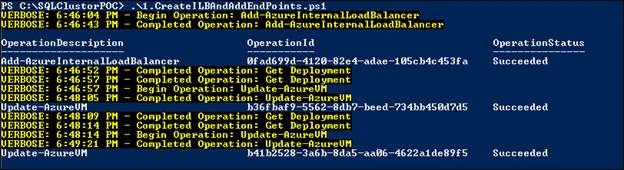
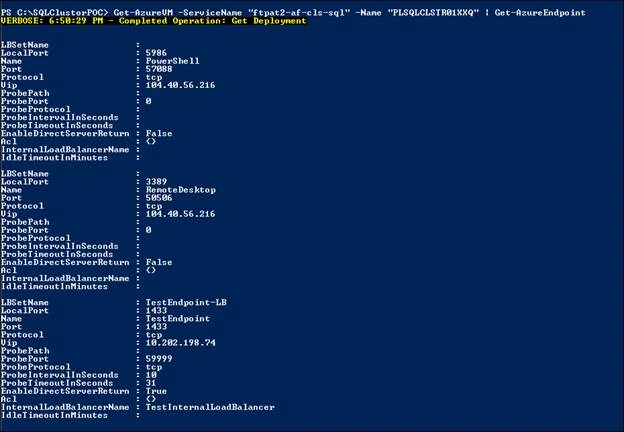
- Once ILB gets created and ILB Endpoints are configured to those VMs, you can see below output:
- The Azure Management Portal is not showing the Internal Load Balancer configuration, so you will not be able to check ILB or the endpoints. However, Get-AzureEndpoint command returns an internal IP address if the Load Balancer is configured and running on it. Otherwise, it returns null.
Get-AzureVM -ServiceName "<CloudServiceName>" -Name "<VMName>" | Get-AzureEndpoint
Below is the output of this command (Note that TestEndPoint-LB is created for VM “PLSQLCLSTR02XXQ”) :
Steps to remove ILB
Step 1
First remove all the endpoints of VMs which are pointing to ILB. Below is the script to remove Endpoint of VM (run this script for all the VMs in that Load Balancer which contains End Points):
Get-AzureVM -ServiceName "<CloudServiceName>" -Name "<VMName>" | Remove-AzureEndpoint -Name "TestEndpoint"| Update-AzureVM

Step 2
Now check If that EndPoint is removed or not, to do this use below script, it displays all the endpoints except for the EndPoint which we have removed in Step 1.
Get-AzureVM -ServiceName "<CloudServiceName>" -Name "<VMName>" | Get-AzureEndpoint
Step 3
Next Step is to remove the Internal Load Balance, Use below script:
Remove-AzureInternalLoadBalancer -ServiceName "<CloudServiceName>"

This will successfully remove Internal Load Balance.
Jayant KulkarniPosted May 30, 2016, 1:03 AM
Nice one...
Sagar BalapurePosted May 29, 2016, 11:58 PM
thanks all..
Guest UserPosted May 28, 2016, 3:25 AM
cool. I always ask my network team to setup LB but now I know how to set it up. thnx
Ajay MalikPosted May 28, 2016, 1:33 AM
nice sharing..
Vignesh ManiPosted May 27, 2016, 4:21 PM
nice
Sonu ChaudharyPosted May 27, 2016, 4:11 PM
good one
Thiruppathi RPosted May 27, 2016, 2:15 PM
Nice..
Munesh SharmaPosted May 27, 2016, 2:01 PM
good one
Prasanna MuraliPosted May 27, 2016, 11:46 AM
Nice