
How to configure reports on SQL Server?
-
Open reports project in Visual Studio.
-
Click on "View" => "Solution Explorer."
-
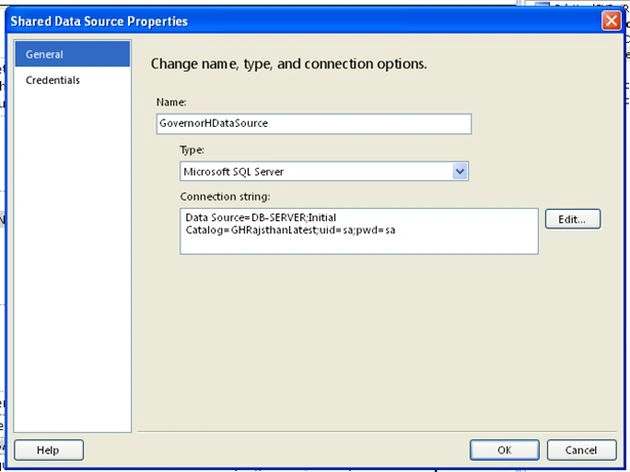
When we double-click on Datasource.rds, a window will be opened as follows.
-
Change the connection string according to Server details.
-
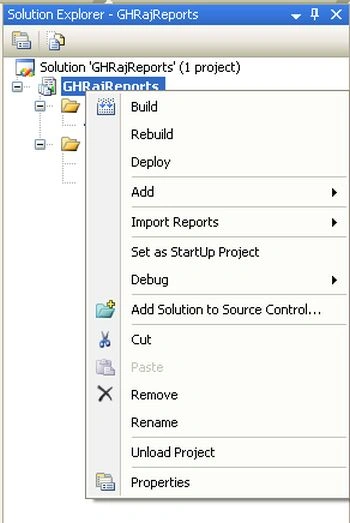
Right-click on the report project in Solution Explorer as follows.
-
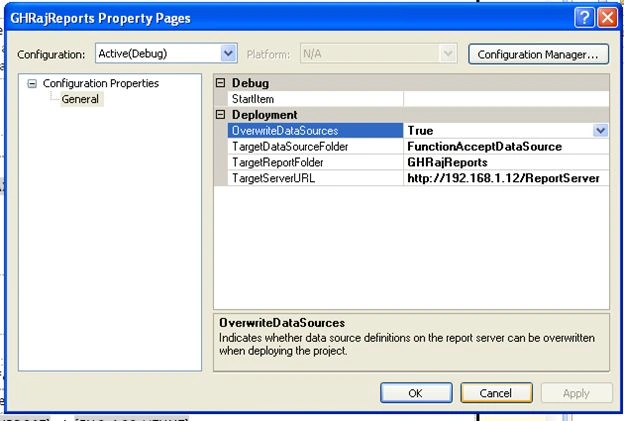
Click on the property; a window will be opened as follows.
-
Change TargetServerURL according to server details.
-
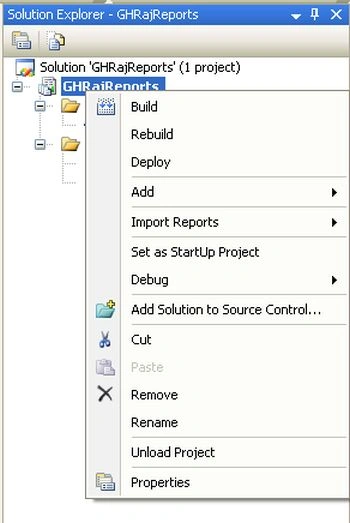
Now again, right-click on the report project in Solution Explorer as follows.
-
Click on deploy, and the report(s) will be deployed on the server successfully.
-
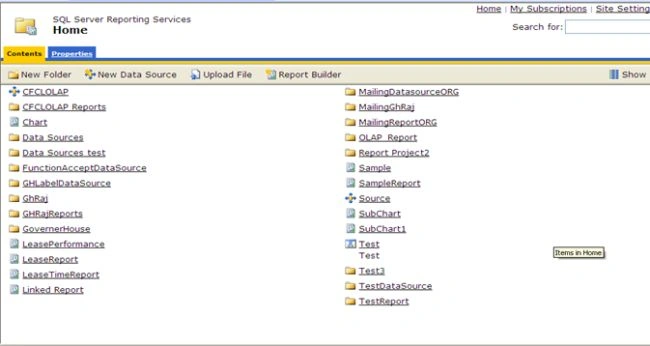
For testing, please type the Reports server URL into the browser.
-
For example: "http://192.168.1.12/Reports"; a window will be opened as follows.
-
Here we can test the report (s) by clicking on the report folder.
How to configure reports with ASP.NET?
-
Change the server details in the Web.config file correspondingly.
<appSettings>
    <addkey ="ReportServerURL"value ="http://192.168.1.12/ReportServer"/>
    <addkey ="UID"value ="serveradmin"/>
    <addkey ="PWD"value ="admin123"/>
    <addkey ="Domain"value ="dibonchd"/>
    <addkey ="ReportPathORG"value="/MailingReportORGSize/LebelORG"/>
    <addkey ="ReportPathPerson"value ="/MailingGHRajSize/GHRajLabel"/>
    <addkey ="ReportPathFunction"value ="/GHRajReports/FunctionAcceptLetter"/>
    <addkey ="ReportPathRejFunction"value ="/GHRajReports/FunctionRejectLetter"/>

  </appSettings>
Join the conversation! Your thoughts help the community grow.