

This article shows how to read a XML document and store the XML data to a Microsoft Excel spreadsheet using VBScript and HTML 5.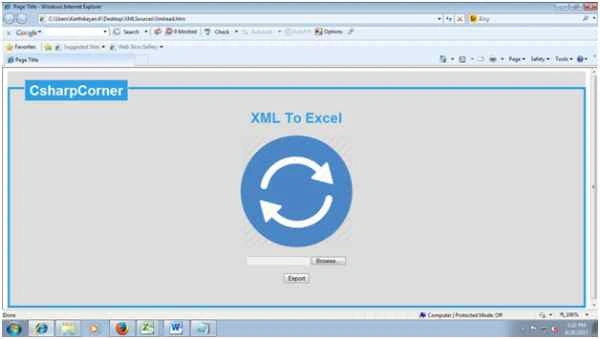
Figure 1: XML to Excel
Step 1
- Start the Excel Application.
- Save the empty workbook with the extension “xlsx”.
- Close the workbook.
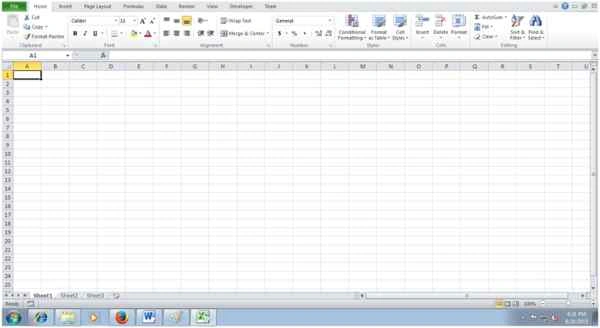
Figure 2: Excel application
Step 2
- Open Notepad.
- Add the following code.
- <?xml version="1.0"?>
- <catalog>
- <book id="bk101">
- <author>Gambardella, Matthew</author>
- <title>XML Developer's Guide</title>
- <genre>Computer</genre>
- <price>44.95</price>
- <publish_date>2000-10-01</publish_date>
- <description>An in-depth look at creating applications
- with XML.</description>
- </book>
- <book id="bk102">
- <author>Ralls, Kim</author>
- <title>Midnight Rain</title>
- <genre>Fantasy</genre>
- <price>5.95</price>
- <publish_date>2000-12-16</publish_date>
- <description>A former architect battles corporate zombies,
- an evil sorceress, and her own childhood to become queen
- of the world.</description>
- </book>
- <book id="bk103">
- <author>Corets, Eva</author>
- <title>Maeve Ascendant</title>
- <genre>Fantasy</genre>
- <price>5.95</price>
- <publish_date>2000-11-17</publish_date>
- <description>After the collapse of a nanotechnology
- society in England, the young survivors lay the
- foundation for a new society.</description>
- </book>
- <book id="bk104">
- <author>Corets, Eva</author>
- <title>Oberon's Legacy</title>
- <genre>Fantasy</genre>
- <price>5.95</price>
- <publish_date>2001-03-10</publish_date>
- <description>In post-apocalypse England, the mysterious
- agent known only as Oberon helps to create a new life
- for the inhabitants of London. Sequel to Maeve
- Ascendant.</description>
- </book>
- <book id="bk105">
- <author>Corets, Eva</author>
- <title>The Sundered Grail</title>
- <genre>Fantasy</genre>
- <price>5.95</price>
- <publish_date>2001-09-10</publish_date>
- <description>The two daughters of Maeve, half-sisters,
- battle one another for control of England. Sequel to
- Oberon's Legacy.</description>
- </book>
- <book id="bk106">
- <author>Randall, Cynthia</author>
- <title>Lover Birds</title>
- <genre>Romance</genre>
- <price>4.95</price>
- <publish_date>2000-09-02</publish_date>
- <description>When Carla meets Paul at an ornithology
- conference, tempers fly as feathers get ruffled.</description>
- </book>
- <book id="bk107">
- <author>Thurman, Paula</author>
- <title>Splish Splash</title>
- <genre>Romance</genre>
- <price>4.95</price>
- <publish_date>2000-11-02</publish_date>
- <description>A deep sea diver finds true love twenty
- thousand leagues beneath the sea.</description>
- </book>
- <book id="bk108">
- <author>Knorr, Stefan</author>
- <title>Creepy Crawlies</title>
- <genre>Horror</genre>
- <price>4.95</price>
- <publish_date>2000-12-06</publish_date>
- <description>An anthology of horror stories about roaches,
- centipedes, scorpions and other insects.</description>
- </book>
- <book id="bk109">
- <author>Kress, Peter</author>
- <title>Paradox Lost</title>
- <genre>Science Fiction</genre>
- <price>6.95</price>
- <publish_date>2000-11-02</publish_date>
- <description>After an inadvertant trip through a Heisenberg
- Uncertainty Device, James Salway discovers the problems
- of being quantum.</description>
- </book>
- <book id="bk110">
- <author>O'Brien, Tim</author>
- <title>Microsoft .NET: The Programming Bible</title>
- <genre>Computer</genre>
- <price>36.95</price>
- <publish_date>2000-12-09</publish_date>
- <description>Microsoft's .NET initiative is explored in
- detail in this deep programmer's reference.</description>
- </book>
- <book id="bk111">
- <author>O'Brien, Tim</author>
- <title>MSXML3: A Comprehensive Guide</title>
- <genre>Computer</genre>
- <price>36.95</price>
- <publish_date>2000-12-01</publish_date>
- <description>The Microsoft MSXML3 parser is covered in
- detail, with attention to XML DOM interfaces, XSLT processing,
- SAX and more.</description>
- </book>
- <book id="bk112">
- <author>Galos, Mike</author>
- <title>Visual Studio 7: A Comprehensive Guide</title>
- <genre>Computer</genre>
- <price>49.95</price>
- <publish_date>2001-04-16</publish_date>
- <description>Microsoft Visual Studio 7 is explored in depth,
- looking at how Visual Basic, Visual C++, C#, and ASP+ are
- integrated into a comprehensive development
- environment.</description>
- </book>
- </catalog>
- Save the file with the extension “.xml”.
Step 3
- Open the new file in Notepad.
- Add the following code.
- <! DOCTYPE html>
- <html>
- <head>
- <title>Page Title</title>
- <style>
- h1
- {
- color: #2C9EE6;
- }
- fieldset {
- font-family: sans-serif;
- border: 5px solid #2C9EE6;
- background: #ddd;
- border-radius: 5px;
- padding: 15px;
- }
- fieldset legend {
- background: #2C9EE6;
- color: #fff;
- padding: 5px 10px ;
- font-size: 32px;
- border-radius: 5px;
- box-shadow: 0 0 0 5px #ddd;
- margin-left: 20px;
- }
- </style>
- <script language="vbscript" type="text/vbscript">
- Sub Handlechange()
- MsgBox "File Imported Successfully”, vbInformation
- End Sub
- Sub ExportXML
- Dim ObjXML
- Dim fileinput
- Dim PriceNode
- Dim NodeList
- Dim Title
- Dim Price
- Dim Nodes_Attribute
- Dim i
- Dim iRow
- Count=0
- Set ObjXML = CreateObject ("Microsoft.XMLDOM")
- ObjXML.async = False
- Set objExcel = CreateObject ("Excel. Application")
- Set objWorkbook =
- objExcel.Workbooks.Open ("C:\Users\Karthikeyan.K\Desktop\DataBook.xlsx")
- objExcel.Application.Visible = True
- objWorkbook.Windows(1).Visible = True
- Set XlSheet =objWorkbook.Sheets(1)
- XlSheet.Activate
- fileinput = Document.getElementById ("browse").Value
- ObjXML.load(fileinput)
- Set TitleNodes = ObjXML.SelectNodes("/catalog/book/title/text()")
- Set PriceNodes = ObjXML.SelectNodes("/catalog/book/price/text()")
- XlSheet.Range ("A1, B1, C1").Interior.ColorIndex =3
- XlSheet.Range ("A1, B1, C1").Borders. Value = 1
- XlSheet.Range ("A" & 1).Value = "Book ID"
- XlSheet.Range ("B" & 1).Value = "Book Titles"
- XlSheet.Range ("C" & 1).Value = "Price"
- For i = 0 To (TitleNodes.Length - 1)
- Title = TitleNodes(i).NodeValue
- Price = PriceNodes(i).NodeValue
- XlSheet.Range("B" & i + 2).Borders.Value = 1
- XlSheet.Range("C" & i + 2).Borders.Value = 1
- XlSheet.Range("B" & i + 2).Value = Title
- XlSheet.Range("C" & i + 2).Value = Price
- Next
- Set Nodes_Attribute = ObjXML.SelectNodes ("/catalog/book")
- For i = 0 To (Nodes_Attribute. Length - 1)
- Attributes = Nodes_Attribute(i).getAttribute("id")
- XlSheet.Range ("A" & i + 2).Borders.Value = 1
- XlSheet.Range ("A" & i + 2).Value = Attributes
- Next
- objWorkbook.save
- objWorkbook.close
- Set objWorkbook = Nothing
- Set objExcel = Nothing
- MsgBox "Data Read Successfully”, vbInformation
- End Sub
- </script>
- </head>
- <body>
- <form>
- <section style="margin: 10px;">
- <fieldset style="min-height:100px;">
- <legend>
- <b>CsharpCorner </b>
- </legend>
- <center>
- <h1>XML To Excel</h1>
- <img src="C:\Users\Karthikeyan.K\Desktop\sync-circle-blue-256.png" alt="View" style="width: 256px; height: 256px ;">
- <br>
- <br>
- <input type="file" id="browse" name="fileupload" onChange="Handlechange()" />
- <br>
- <br>
- <input type="button" value="Export" id="Export" onclick="ExportXML ()" />
- </center>
- <label>
- <br/>
- </label>
- <label>
- <br/>
- </label>
- </fieldset>
- </form>
- </body>
- </html>
- Save the file with the extension “htm”.
Output
- Open the HTML document.
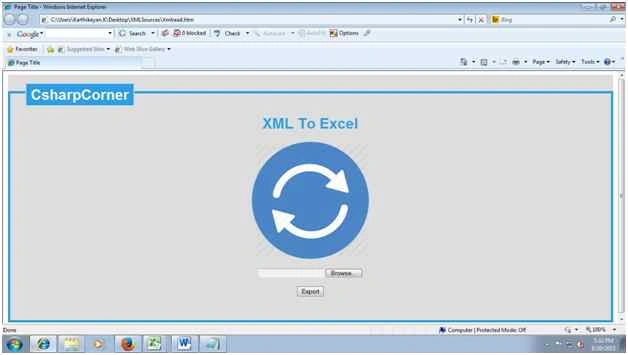
Figure 3: XML to Excel - Click the Browse button then choose the XML document.
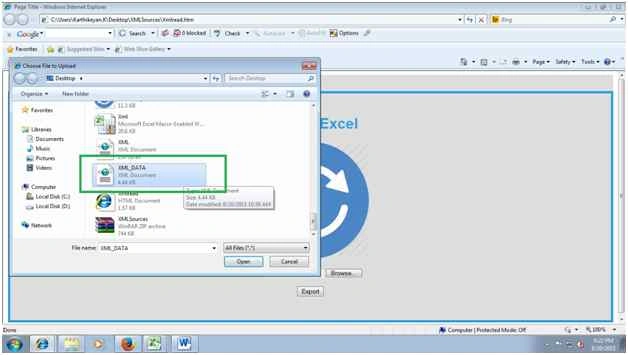
Figure 4: Choose the XML document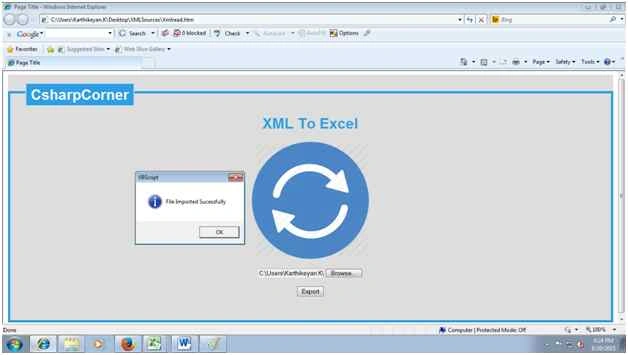
Figure 5: File Imported successfully - Press the Export button.
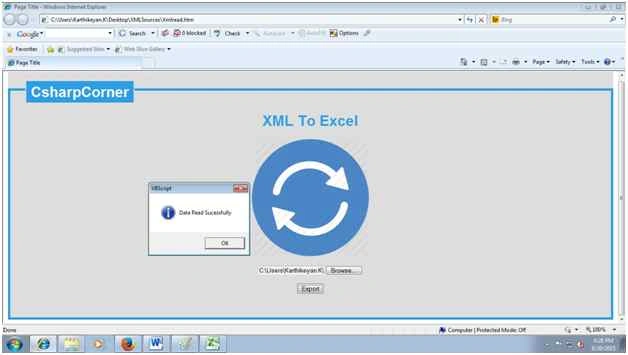
Figure 6: Data read successfully - Open the Excel workbook to check the spreadsheet.
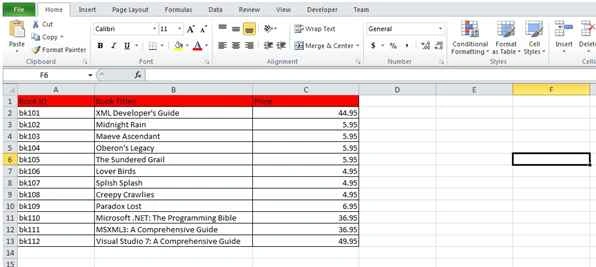
Figure 7: Final result
Conclusion
Thanks for reading. I hope you liked this article. Please provide your valuable suggestions.
Karthikeyan KPosted Aug 22, 2015, 9:26 PM
Thank you Santhakumar Munuswamy sir
Santhakumar MunuswamyPosted Aug 22, 2015, 7:16 AM
Good Article. Thanks for sharing
Karthikeyan KPosted Aug 21, 2015, 11:30 AM
Thank you Nilesh Jadav sir
Nilesh JadavPosted Aug 21, 2015, 9:48 AM
Good one sir !
Karthikeyan KPosted Aug 21, 2015, 4:40 AM
Thank you Ankit Bansal sir
Ankit BansalPosted Aug 21, 2015, 4:37 AM
good share...
Karthikeyan KPosted Aug 21, 2015, 12:27 AM
Thank you Rajeesh Menoth sir
Karthikeyan KPosted Aug 21, 2015, 12:24 AM
Thank you Mohammed Ibrahim sir
Karthikeyan KPosted Aug 21, 2015, 12:24 AM
Thank you Rakesh Chavda
Rajeesh MenothPosted Aug 21, 2015, 12:23 AM
Good One
Karthikeyan KPosted Aug 21, 2015, 12:22 AM
Thank you Vaikesh K P sir
Vaikesh K PPosted Aug 21, 2015, 12:14 AM
Nice
RakeshPosted Aug 21, 2015, 12:12 AM
Good one
Mohammed IbrahimPosted Aug 21, 2015, 12:07 AM
nice