

Hi folks! Today, I will be showing how to sync up an EC2 instance with S3 bucket.
Steps to be covered
- Step 1: Create an IAM user
- Step 2: Create EC2 instance and Login to the created instance
- Step 3: Create an S3 Bucket
- Step 4: Start Syncing up with S3 bucket from EC2 instance
Create an IAM User
- Log in to your AWS account and search for IAM in services or use the URL -> https://console.aws.amazon.com/iam/
- In the navigation pane, choose Users and then choose "Add User".
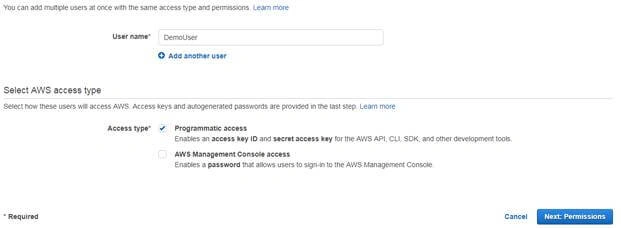
- Provide a username (Here, I named it ‘Demo User’) and selected the Programmatic access and clicked on "Next".
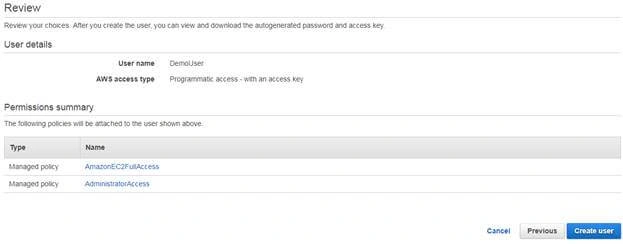
- Now, select the option ‘Attach existing policy’ and search for ‘AdministratorAccess and AmazonEC2FullAccess’ and click "Next".
- This page will show you the type of Policy and Username which was created by you and reviewed. Click on "Create User".
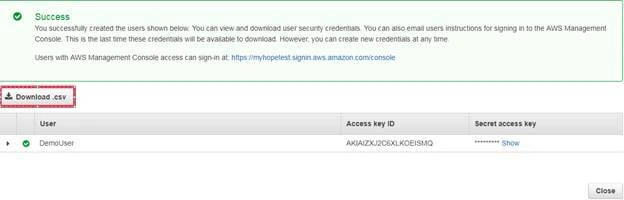
- Now, download the CSV file and save in your local path.
Create an EC2 Instance and Login to Instance
- Now, we will create an EC2 instance.
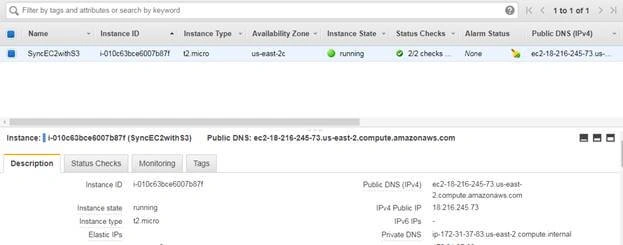
- Here, I have chosen Amazon Linux Machine and log on to the machine once the instance is up.
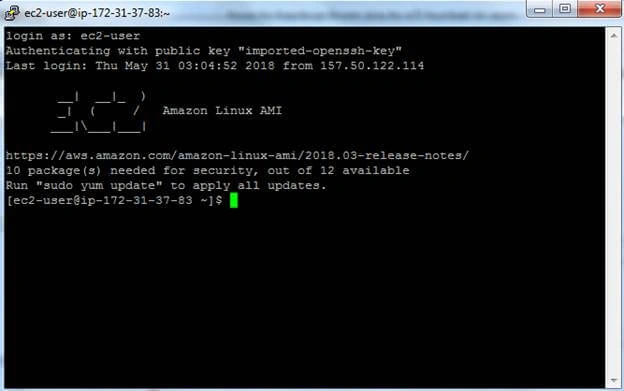
- Now, type the command aws configure where it will ask for AccessKey and Secret Key. Provide the necessary information from the CSV file which we downloaded in step 6 under "Create IAM user".
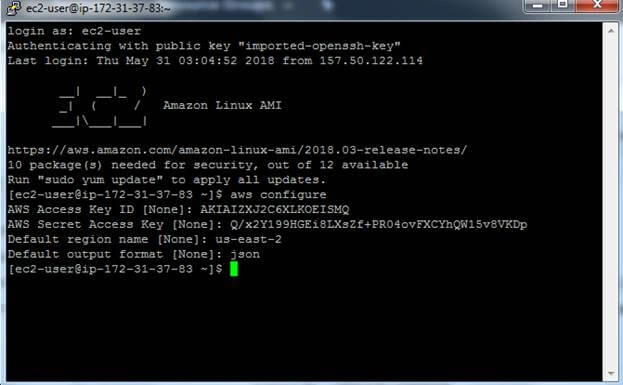
- I have used the region as US-East-2 (Provide the region name depends upon our EC2 instance runs) and output format as JSON file and hit Enter.
- Install the HTTPD service in our EC2 instance and make sure you are in the root account to install any services.
- sudo -i - Change to the root account from the normal user.
- yum install httpd - To install the HTTPD service.
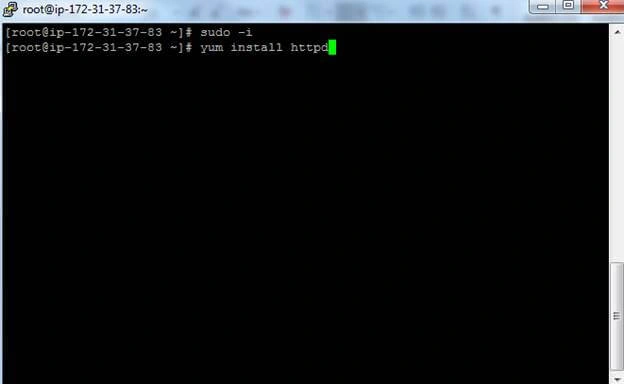
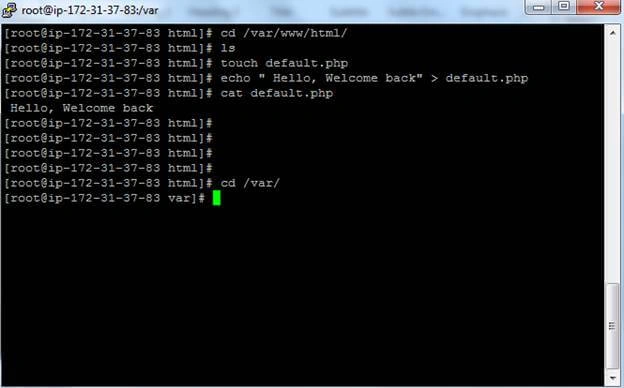
- Once the execution is successful, create a PHP file with the following HTML.
cd /var/www/html - Traverse to this path
touch default.php - Create an php file
echo “Hello, Welcome back” > default.php - Print a string and save to file
cat default.php - Display the content inside the file
Create an S3 Bucket
- Under Storage & Content Delivery, choose S3 to open the Amazon S3 console.
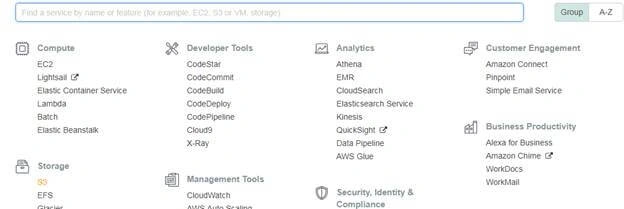
- From the Amazon S3 console dashboard, choose "Create Bucket".
- In "Create a Bucket", type a bucket name in the Bucket Name field.
The bucket name you choose must be globally unique across all the existing bucket names in Amazon S3 (that is, across all AWS customers).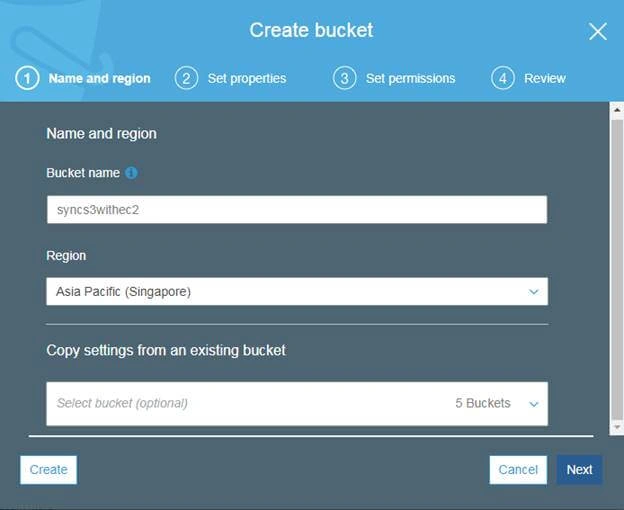
- In Region, I have chosen Singapore.
- Choose "Create".
When Amazon S3 successfully creates your bucket, the console displays your empty bucket in the Buckets pane.
- Now, create a folder under the created bucket and click on Save.
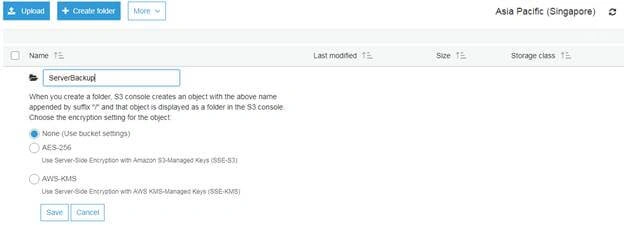
- Once you save the folder, it looks like this.
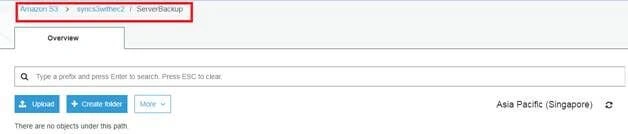
Sync up S3 bucket with EC2 instance
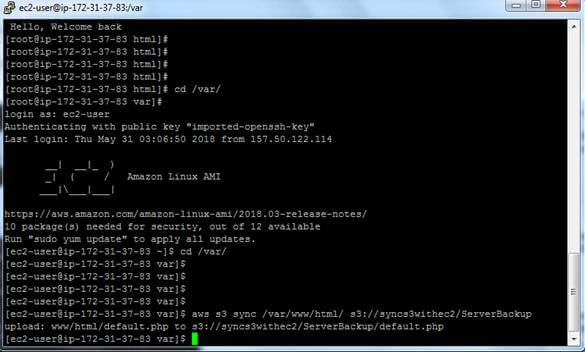
- Sync EC2 instance with S3 bucket as per above picture.
aws s3 sync /var/www/html/ s3://syncs3withec2/ServerBackup
aws s3 sync - To sync
/var/www/html/ - Path where our actual php file is placed in EC2
s3://syncs3withec2/ServerBackup - Path where to Sync in S3 bucket
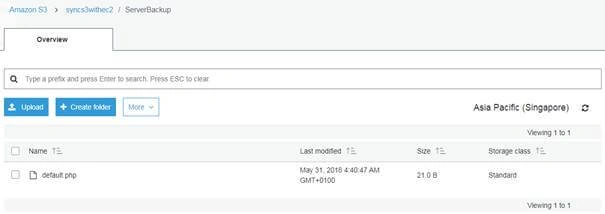
- Now, check the bucket which we created. We can see the file where the sync is done from EC2.
Join the conversation! Your thoughts help the community grow.