

Introduction
In this article, we are giving you all the steps of
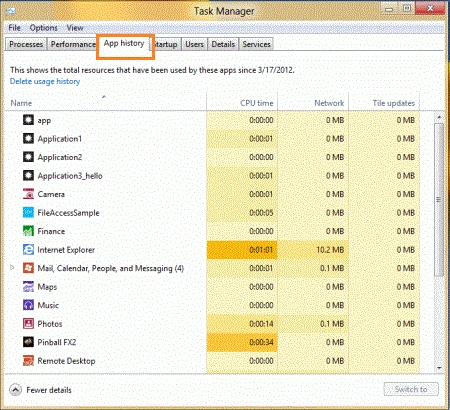
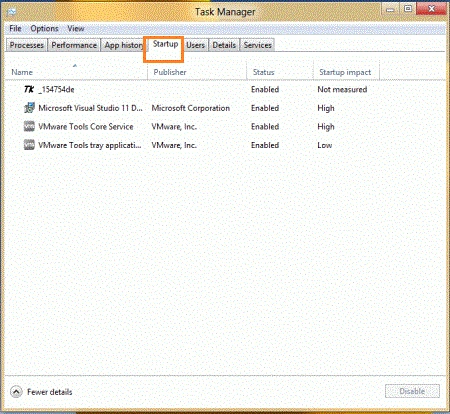
the Windows 8 Task Manager. The Task Manager shows all the information about your computers such as Processes, Performance, App History, Users and other details.
The Windows Task Manager shows running applications, processes, CPU usage,
network activity, and System Services. The Windows Task Manager is a Task Manager
application that shows you all running applications and in this, you can close
the running application. With the help of Task Manager, you can show the
Computer's performance. You can open the Task Manager with the help of the
search box. You can move the cursor to the right-bottom and click on the search
box and type the Task Manager in the search box. The Task Manager is a feature
of Windows.
The Windows 8 Task Manager provides you Windows
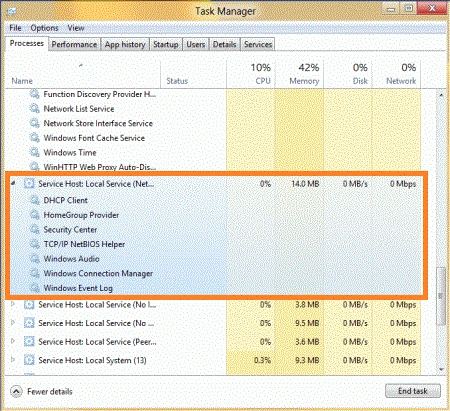
related information. In the Task Manager, the Processes tab shows a list of all
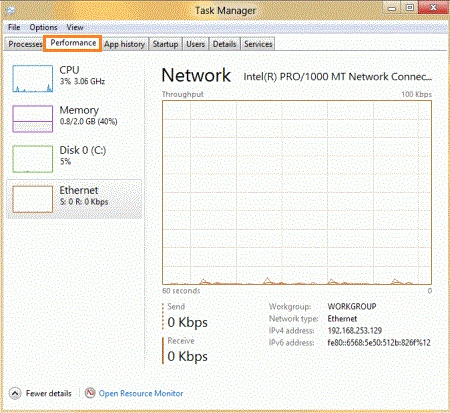
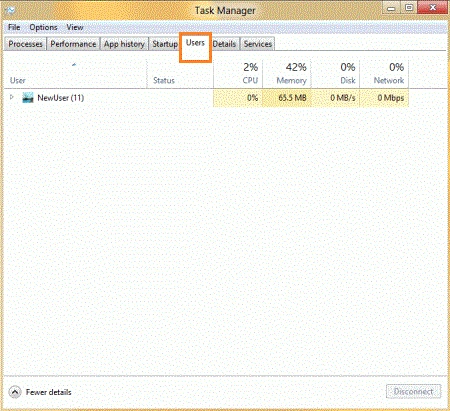
running programs and end task, it is used to terminate an application. The performance tab shows the Computer Performance. The User tab shows all the Users
that have a session on the system. In the Processes tab, right-click on any
process and choose the end process so the Window immediately ends the process.
The Performance tab shows CPU, Memory, Disk, and Ethernet. In the new Task
Manager, you can not remove the functionality. In the Process tab, you can search
the application and close the application. So that is the main goal of the new
Task Manager.
The goal of the new Windows 8 Task
Manager
- In the Processes tab, you can show applications, background processes and Windows processes.
- In the Processes tab, you can search the application and close the application.
- In this, you can not remove the functionality.
Steps to Show Task Manager in Windows
8
Step 1
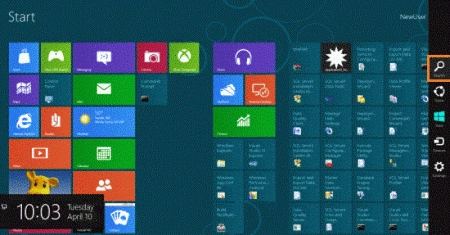
You can move the cursor to the
right-bottom and click on search.
Step 2
After the previous step, you can
type Task Manager in the search box and click on the Task Manager.

Step 3
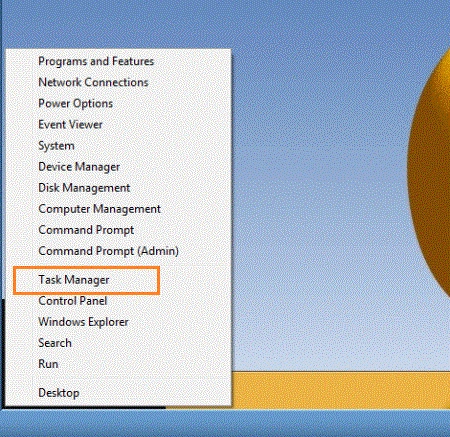
Another way to can find the task a manager is to right-click on the left-bottom in the Start Menu and choose the
Task Manager on the Windows 8 Desktop.
Step 4
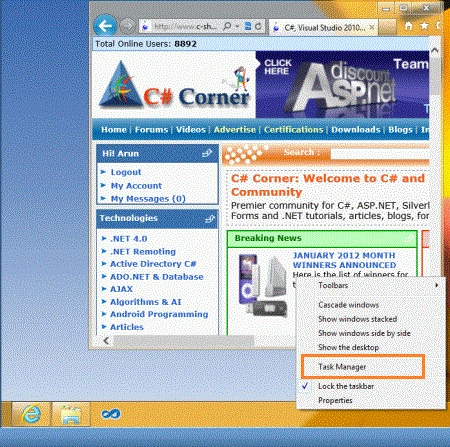
Another way to can find the task a manager is to right-click on the Taskbar and choose the Task
Manager.
Step 5
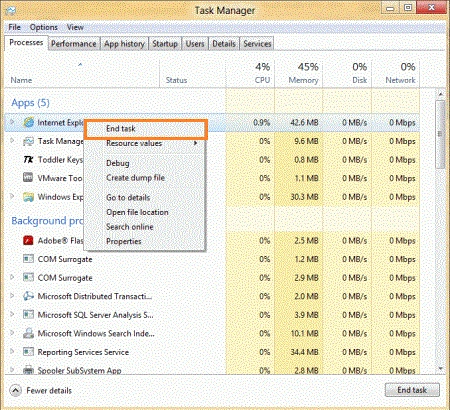
After opening the Task Manager, you
can show the Processes, Performance, Users Tab and another tab. In the Processes
tab see all the running applications and search the application and close the
application. The Processes tab shows applications, background processes and
Windows processes.


Join the conversation! Your thoughts help the community grow.