In this article, we will learn how to create a Text to Speech Converter in a C# Windows Forms application using the SpeechSynthesizer class.
Let's Begin
Step 1
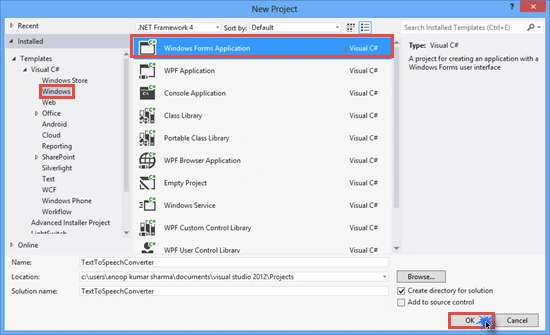
Create a new project then select Windows Forms application in C# and give it a name.
Step 2
Drop a RichTextBox and four Button Controls from the ToolBox.

Step 3
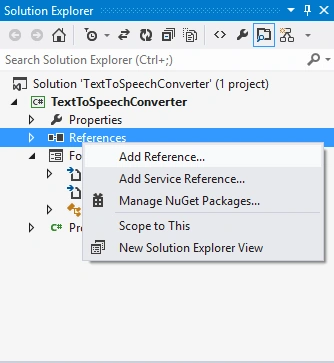
Right-click on the References Folder then click on Add Reference.
Step 4
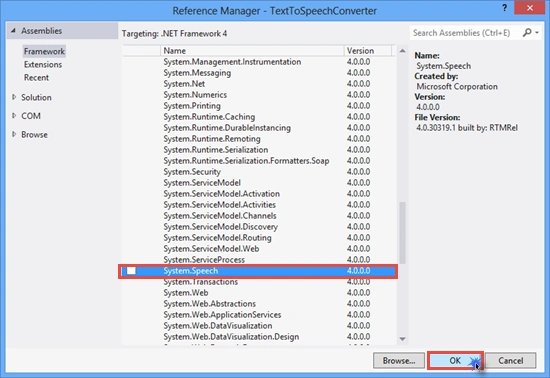
Select the System.Speech Assembly and click on OK.
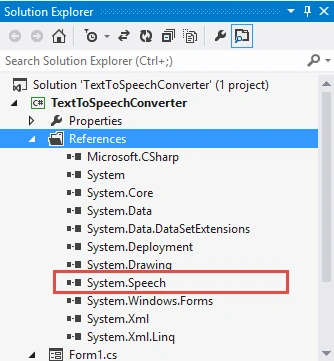
After adding it, you will see System.Speech assembly under the References folder.
Step 5
Go to Form1.cs (code behind .cs file) and add System.Speech (the System.Speech namespace contains types that support speech recognition) and System.Speech.Synthesis namespace (the System.Speech.Synthesis namespace contains classes for initializing and configuring a speech synthesis engine and for generating speech and so on).
- using System;
- using System.Windows.Forms;
- using System.Speech;
- using System.Speech.Synthesis;
-
- namespace TextToSpeechConverter
- {
- public partial class Form1 : Form
- {
- public Form1()
- {
- InitializeComponent();
- }
-
- SpeechSynthesizer speechSynthesizerObj;
- private void Form1_Load(object sender, EventArgs e)
- {
- speechSynthesizerObj = new SpeechSynthesizer();
- btn_Resume.Enabled = false;
- btn_Pause.Enabled = false;
- btn_Stop.Enabled = false;
- }
-
-
- private void btn_Speak_Click(object sender, EventArgs e)
- {
-
- speechSynthesizerObj.Dispose();
- if(richTextBox1.Text!="")
- {
- speechSynthesizerObj = new SpeechSynthesizer();
-
- speechSynthesizerObj.SpeakAsync(richTextBox1.Text);
- btn_Pause.Enabled = true;
- btn_Stop.Enabled = true;
- }
- }
-
- private void btn_Pause_Click(object sender, EventArgs e)
- {
- if(speechSynthesizerObj!=null)
- {
-
- if(speechSynthesizerObj.State==SynthesizerState.Speaking)
- {
-
- speechSynthesizerObj.Pause();
- btn_Resume.Enabled = true;
- btn_Speak.Enabled = false;
- }
- }
- }
-
- private void btn_Resume_Click(object sender, EventArgs e)
- {
- if (speechSynthesizerObj != null)
- {
- if (speechSynthesizerObj.State == SynthesizerState.Paused)
- {
-
- speechSynthesizerObj.Resume();
- btn_Resume.Enabled = false;
- btn_Speak.Enabled = true;
- }
- }
- }
-
- private void btn_Stop_Click(object sender, EventArgs e)
- {
- if(speechSynthesizerObj!=null)
- {
-
- speechSynthesizerObj.Dispose();
- btn_Speak.Enabled = true;
- btn_Resume.Enabled = false;
- btn_Pause.Enabled = false;
- btn_Stop.Enabled = false;
- }
- }
- }
- }
Final Preview
I hope you like this. Thanks.


Richard LiPosted Feb 21, 2023, 9:57 PM
Very cool coding! It worked well for me, Thank you, Anoop! Appreciate your sharing.
Bjorn RettigPosted Oct 23, 2022, 6:23 AM
My project doesn't show a References Folder. How do I get it?
Kaynat RaheePosted Oct 24, 2021, 5:29 AM
How to download the speech in mp3 format?
mls ldnPosted Feb 5, 2021, 5:21 PM
Hello how to use Speech classes in the wind form. Example when the created Voice command class and Voice Manager class after to call in a Windows form and use it. As like inheritance
GC BorntoshinePosted Apr 14, 2020, 9:23 PM
Sir i want change some text in between like 20/02/2019 into 20 feb 2019
Manoj MauryaPosted Jul 17, 2018, 8:08 AM
Hello Anoop Great job
Amal AugustinePosted Apr 9, 2018, 12:16 AM
I wanted to try it for a web application
Manu JosePosted Jan 16, 2018, 3:11 AM
Hello Anoop, well this is working just fine now. But 30 not working.
arman gorjipoorPosted Feb 3, 2017, 5:02 AM
How to use this for other language like persian
Vaibhav SharmaPosted Dec 8, 2016, 4:04 AM
Great boss,,but the speaking person is a female(voice), what to do to get male voice?
Thantzin ooPosted Dec 21, 2015, 9:55 AM
Thanks sir.
lv prasadPosted Apr 14, 2015, 5:46 AM
great job MR Sharma....Need full article...for me...
Anoop Kumar SharmaPosted Apr 5, 2015, 2:07 PM
Thanks Erkan ARSLAN..!!
Erkan ARSLANPosted Apr 5, 2015, 1:15 PM
nice!
Anoop Kumar SharmaPosted Mar 25, 2015, 10:23 PM
Thanks sajjad taati..!!
sajjad taatiPosted Mar 25, 2015, 5:40 PM
GREAT..thanks for share
Sanju SinghPosted Jan 17, 2015, 11:45 PM
hello Anoop, well this is working just fine now. I wanted the speaker voice to be Indian (i think its given the name "heera") not default American voice. I installed "Heera" but it is not shown in voices Installed list. can you help me on this?Are there alternatives available ?
Sanju SinghPosted Dec 23, 2014, 10:24 PM
well, then this is what i wish to implement. i have some queries to make. i don't have an in build speaker on my pc . how do i play it (through speakers)?Also, does this method follow the rules of the language grammar ? for example : the statement "wow !" is spoken with excitement and not just as plain text.
Sanju SinghPosted Dec 23, 2014, 12:32 AM
means, i write some text in text box and it can be played as speech through speaker !?
Guest UserPosted Dec 17, 2014, 7:25 AM
this is cool!
Manish Kumar ChoudharyPosted Dec 17, 2014, 4:01 AM
Nice one..
Sachin PatilPosted Dec 17, 2014, 2:35 AM
its great and very easy.....................thanks
Michal HabalcikPosted Dec 17, 2014, 1:30 AM
one of the funniest class to play with, thanks for sharing
Vithal WadjePosted Dec 16, 2014, 9:54 PM
good work keep it up
Del WoodcockPosted Dec 16, 2014, 10:28 AM
Cool stuff!