

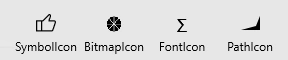
There are different types of menuitem icons: Symbol, Bitmap(picture), Font and Path.
The following code snippet demonstrates how to set these different types of menu items.
The CommandBar control can have a collection of AppBarButton controls. The BitmapIcon, FontIcon, and PathIcon attributes are used to set the values.
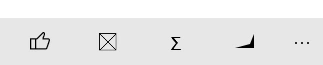
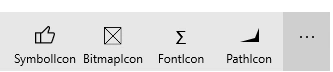
When you try the above code, it shall show you the AppBarButtons at the bottom of the AppBar.
AppBarButton is useful, if you're planning on giving user extra settings, social media links that look like anti-UX when put in the UI screen.
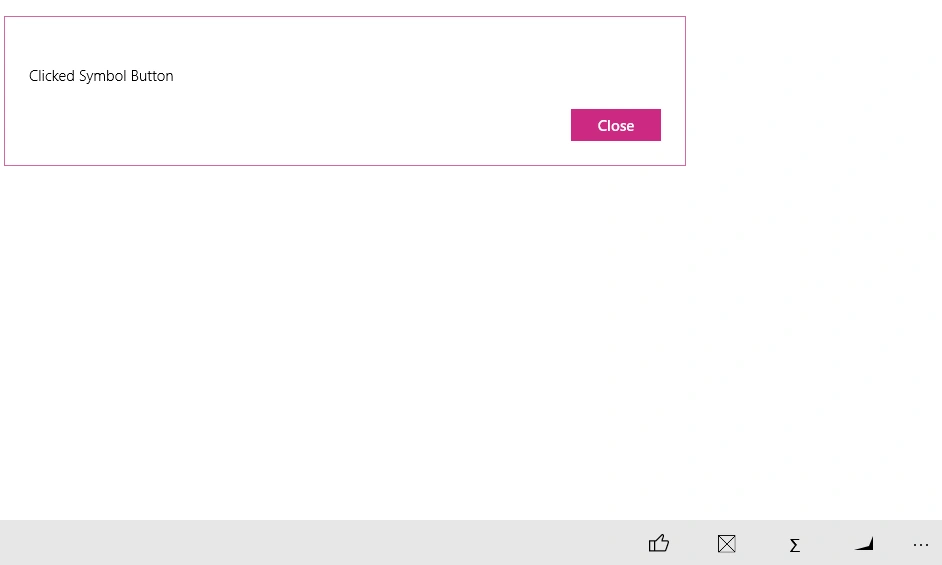
As its derived from the Button class, the AppBarButton control has the Click event.Lets make an example how to declare click event.
I'd like to show users a Messagebox once they click the AppBarButton's declared in xaml,but before that give every button a name so that we can access them from code:
Then,open up your MainPage.xaml.cs file,and create a new method to show MessageBox:
- <Page.BottomAppBar>
- <CommandBar>
- <AppBarButton Icon="Like" Label="SymbolIcon" />
- <!-- App bar button with bitmap icon. -->
- <AppBarButton Label="BitmapIcon" >
- <AppBarButton.Icon>
- <BitmapIcon UriSource="ms-appx:///Assets/StoreLogo.png"/>
- </AppBarButton.Icon>
- </AppBarButton>
- <!-- App bar button with font icon. -->
- <AppBarButton Label="FontIcon" >
- <AppBarButton.Icon>
- <FontIcon FontFamily="Candara" Glyph="Σ"/>
- </AppBarButton.Icon>
- </AppBarButton>
- <!-- App bar button with path icon. -->
- <AppBarButton Label="PathIcon" >
- <AppBarButton.Icon>
- <PathIcon Data="F1 M 16,12 20,2L 20,16 1,16" HorizontalAlignment="Center"/>
- </AppBarButton.Icon>
- </AppBarButton>
- </CommandBar>
- </Page.BottomAppBar>
AppBarButton is useful, if you're planning on giving user extra settings, social media links that look like anti-UX when put in the UI screen.
As its derived from the Button class, the AppBarButton control has the Click event.Lets make an example how to declare click event.
I'd like to show users a Messagebox once they click the AppBarButton's declared in xaml,but before that give every button a name so that we can access them from code:
- <AppBarButton Name="btnSymbol" Icon="Like" Label="SymbolIcon" />
- <!-- App bar button with bitmap icon. -->
- <AppBarButton Name="btnBitmap" Label="BitmapIcon" >
- <AppBarButton.Icon>
- <BitmapIcon UriSource="ms-appx:///Assets/StoreLogo.png"/>
- </AppBarButton.Icon>
- </AppBarButton>
- <!-- App bar button with font icon. -->
- <AppBarButton Name="btnFont" Label="FontIcon" >
- <AppBarButton.Icon>
- <FontIcon FontFamily="Candara" Glyph="Σ"/>
- </AppBarButton.Icon>
- </AppBarButton>
- <!-- App bar button with path icon. -->
- <AppBarButton Name="btnPath" Label="PathIcon" >
- <AppBarButton.Icon>
- <PathIcon Data="F1 M 16,12 20,2L 20,16 1,16" HorizontalAlignment="Center"/>
- </AppBarButton.Icon>
- </AppBarButton>
- public async void ShowMessage(string message)
- {
- var msg = new Windows.UI.Popups.MessageDialog(message);
- msg.DefaultCommandIndex = 1;
- await msg.ShowAsync();
- }
Finally add these delegates in your constuctor or Page Load event:
- public MainPage()
- {
- this.InitializeComponent();
- btnBitmap.Click += (e, f) => { ShowMessage("Clicked BitMap Button"); };
- btnFont.Click += (e, f) => { ShowMessage("Clicked Font Button"); };
- btnPath.Click += (e, f) => { ShowMessage("Clicked Path Button"); };
- btnSymbol.Click += (e, f) => { ShowMessage("Clicked Symbol Button"); };
- }
Thats It!
Santhakumar MunuswamyPosted Oct 18, 2015, 4:58 AM
Good one
RakeshPosted Oct 16, 2015, 12:27 AM
Good share sir
Priyaranjan K SPosted Oct 15, 2015, 2:30 PM
Thanks for the share
Mukesh KumarPosted Oct 15, 2015, 6:43 AM
Great Job
Sibeesh VenuPosted Oct 9, 2015, 5:16 AM
Nice Share
Charwaka ThupiliPosted Oct 9, 2015, 4:24 AM
Simply Perfect !
Harshad PansuriyaPosted Oct 8, 2015, 4:25 AM
Nice one
Rajeesh MenothPosted Oct 8, 2015, 1:06 AM
Nice!
Nilesh JadavPosted Oct 8, 2015, 1:05 AM
Good One !!
Ankit BansalPosted Oct 8, 2015, 12:49 AM
nice one..