

Introduction
Today, in this article let's play around with one of the interesting and most useful concepts in SharePoint 2010.
Question: What is update list data with wcf service?
In simple terms "It enables to update data in SharePoint custom list using a client side environment via WCF service".
Step 1: Open SharePoint 2010 Central Administration and navigate to a specific site.
Step 2: Open up Visual Studio 2012 and create an "ASP.Net Web Forms Application" project, as in: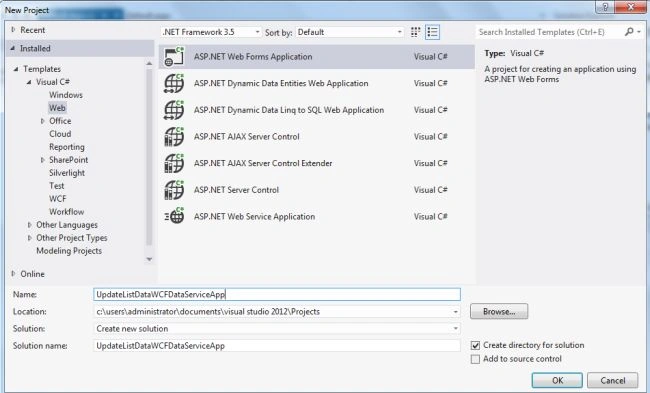
Step 3: Remove the following reference for the project:
System.Data.Services.Client
Step 4: Add a new reference to the project (for this you need to install ADO.NET Data Services.exe file from here).
After installation, browse to the specific location at:
C:\Program Files (x86)\ADO.NET Data Services V1.5 CTP2\bin
Add this reference to the project: Microsoft.Data.Services.Client.dll
Step 5: Add the service reference to the project, this should come up from the following link. (So here the site URL is http://win-5c3g1lanj3k:29782/ . This might be different based on your custom site URL. Another part is _vti_bin/ListData.svc which should be common to access the service reference for any site.)
http://win-5c3g1lanj3k:29782/_vti_bin/ListData.svc
Step 6: The complete code of WebForm1.aspx looks like this:
<%@ Page Language="C#" AutoEventWireup="true" CodeBehind="Default.aspx.cs" Inherits="UpdateListDataWCFDataServiceApp._Default" %>
<!DOCTYPE html PUBLIC "-//W3C//DTD XHTML 1.0 Transitional//EN" "http://www.w3.org/TR/xhtml1/DTD/xhtml1-transitional.dtd">
<html xmlns="http://www.w3.org/1999/xhtml">
<head id="Head1" runat="server">
<title></title>
</head>
<body>
<form id="form1" runat="server">
<center>
<div>
<table>
<tr>
<td colspan="2">
<asp:Label ID="Label1" runat="server" Text="Update List Data - WCF Data in SharePoint 2010 using VS 2012 "
Font-Bold="true" Font-Size="Large" Font-Names="Verdana" ForeColor="Maroon"></asp:Label>
</td>
</tr>
<tr>
<td>
<asp:Label ID="Label6" runat="server" Text="Please Enter Student Id" Font-Size="Large"
Font-Names="Verdana" Font-Italic="true"></asp:Label>
</td>
<td>
<asp:TextBox ID="TextBox4" runat="server"></asp:TextBox>
</td>
</tr>
<tr>
<td>
<asp:Label ID="Label2" runat="server" Text="Please Enter FirstName" Font-Size="Large"
Font-Names="Verdana" Font-Italic="true"></asp:Label>
</td>
<td>
<asp:TextBox ID="TextBox1" runat="server"></asp:TextBox>
</td>
</tr>
<tr>
<td>
<asp:Label ID="Label3" runat="server" Text="Please Enter LastName" Font-Size="Large"
Font-Names="Verdana" Font-Italic="true"></asp:Label>
</td>
<td>
<asp:TextBox ID="TextBox2" runat="server"></asp:TextBox>
</td>
</tr>
<tr>
<td>
<asp:Label ID="Label4" runat="server" Text="Please Enter Age" Font-Size="Large" Font-Names="Verdana"
Font-Italic="true"></asp:Label>
</td>
<td>
<asp:TextBox ID="TextBox3" runat="server"></asp:TextBox>
</td>
</tr>
<tr>
<td colspan="2" align="center">
<asp:Button ID="Button2" runat="server" Text="Update List Data" Font-Names="Verdana"
Width="166px" BackColor="Orange" Font-Bold="True" OnClick="Button2_Click" />
</td>
</tr>
<tr>
<td colspan="2" align="center">
<asp:Label ID="Label5" runat="server" Font-Bold="true" Font-Names="Verdana" ForeColor="Maroon"></asp:Label>
</td>
</tr>
</table>
</div>
</center>
</form>
</body>
</html>
Step 7: The complete code of WebForm1.aspx.cs looks like this:
using System;
using System.Collections.Generic;
using System.Linq;
using System.Web;
using System.Web.UI;
using System.Web.UI.WebControls;
using UpdateListDataWCFDataServiceApp.ServiceReference1;
namespace UpdateListDataWCFDataServiceApp
{
public partial class _Default : System.Web.UI.Page
{
protected void Page_Load(object sender, EventArgs e)
{
TextBox4.Focus();
}
protected void Button2_Click(object sender, EventArgs e)
{
if (string.IsNullOrEmpty(TextBox1.Text) || string.IsNullOrEmpty(TextBox2.Text) || string.IsNullOrEmpty(TextBox3.Text) || string.IsNullOrEmpty(TextBox4.Text))
{
Label5.Text = "Please Enter Some Values";
Label5.ForeColor = System.Drawing.Color.Red;
}
else
{
MainSiteDataContext objContext = new MainSiteDataContext(new Uri("http://win-5c3g1lanj3k:29782/_vti_bin/ListData.svc"));
objContext.Credentials = System.Net.CredentialCache.DefaultCredentials;
var updateQuery = (from r in objContext.Students where r.Id == int.Parse(TextBox4.Text) select r).Single();
updateQuery.FirstName = TextBox1.Text;
updateQuery.LastName = TextBox2.Text;
updateQuery.Age = int.Parse(TextBox3.Text);
objContext.UpdateObject(updateQuery);
objContext.SaveChanges();
Label5.Text = "Data Updated Successfully";
Label5.ForeColor = System.Drawing.Color.Green;
TextBox1.Text = string.Empty;
TextBox2.Text = string.Empty;
TextBox3.Text = string.Empty;
TextBox4.Text = string.Empty;
}
}
}
}
Step 8: The output of the application before updating data looks like this:

Step 9: The output of the application looks like this:

Step 10: The data entering output of the application looks like this:
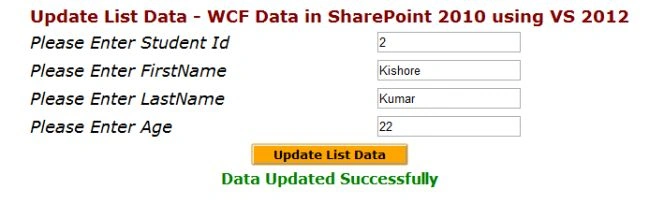
Step 11: The data updated in custom list (Students) output of the application looks like this:

I hope this article is useful for you.
Deepak MiddhaPosted Sep 19, 2012, 11:55 PM
Hi vjay! Excellent demonstration. How to update and delete data in repeater using WCF service in Sharepoint?
Rohatash KumarPosted Sep 19, 2012, 11:26 PM
This is good Vijay. how to perform add, update, and delete operations with GridView using WCF Service in SharePoint.