Note: This article is published on 09/30/2024.
These two articles are to upgrade .Net Core Web App from lower version (5.0 and 3.1) to 8.0. There are two ways to go, one is manually, another one following MS Upgrade Assistant.
A - Introduction
This article will discuss the Upgrading from .Net 5.0, 7.0 or 3.1 to .Net 8.0. We use the Microsoft Visual Studio extension, Upgrade Assistant, to do the task and compare the result with the reault from manual method, introduced from the part 1 of this series of article: Upgrade .Net Core Web App from .Net 5.0 (3.1) to 8.0 --- Manually.
The content of the article includes:
- A - Introduction
- B - Install the Visual Studio extension --- Upgrade Assistant
- C - Upgrade Assistant Features
- D - Upgrade with the Visual Studio extension
- E - Evaluation of the Upgrade Assistant Method
B - Install the Visual Studio extension --- Upgrade Assistant
The .NET Upgrade Assistant can be installed as a Visual Studio extension, which lets you upgrade an opened project. Use the following steps to install the .NET Upgrade Assistant from inside Visual Studio. Alternatively, you can download and install the extension from the Visual Studio Marketplace.
-
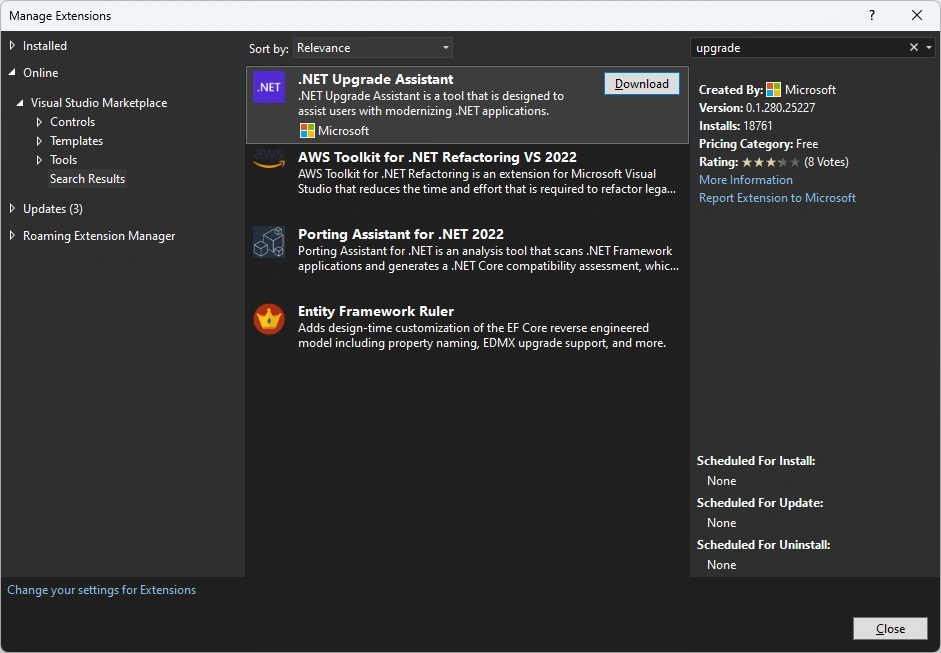
With Visual Studio opened, press the Extensions > Manage Extensions menu item, which opens the Manage Extensions window.
-
In the Manage Extensions window, enter upgrade into the search input box.
-
Select the .NET Upgrade Assistant item, and then select Download.
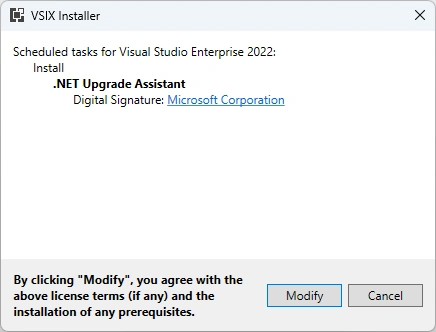
- Once the extension has been downloaded, close Visual Studio. This starts the installation of the extension:
C - Upgrade Assistant Features
Supported languages
Supported projects
- ASP.NET
- Azure Functions
- Windows Presentation Foundation
- Windows Forms
- Class libraries
- Console apps
- .NET Native UWP
- Xamarin Forms
- .NET MAUI
Upgrade paths
- .NET Framework to .NET
- .NET Core to .NET
- UWP to WinUI 3
- Previous .NET version to the latest .NET version
- Azure Functions v1-v3 to v4 isolated
- Xamarin Forms to .NET MAUI
- XAML file transformations only support upgrading namespaces. For more comprehensive transformations, use Visual Studio 2022 version 17.6 or later.
D - Upgrade with the Visual Studio extension
After you've installed the .NET Upgrade Assistant extension, right-click on the project in the Solution Explorer window, and select Upgrade.
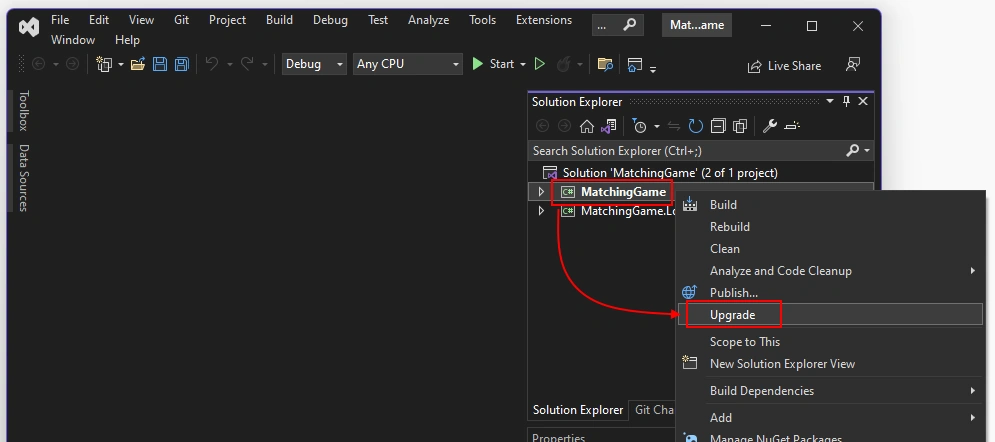
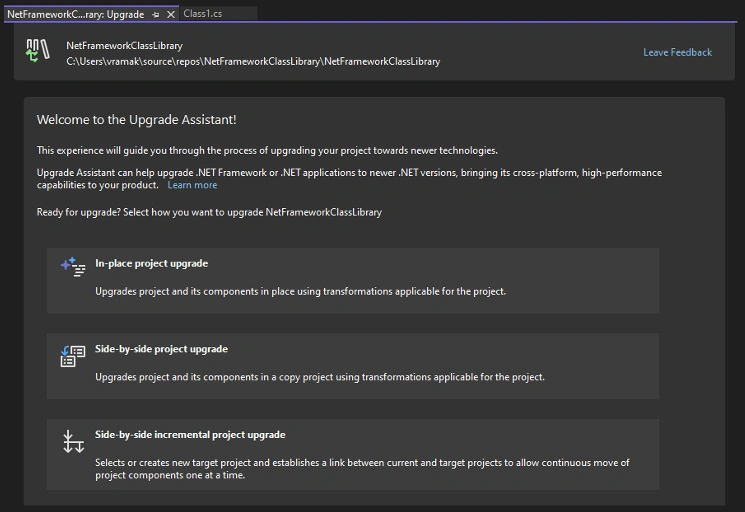
A tab is opened which provides, based on your project type, different styles of upgrade:
-
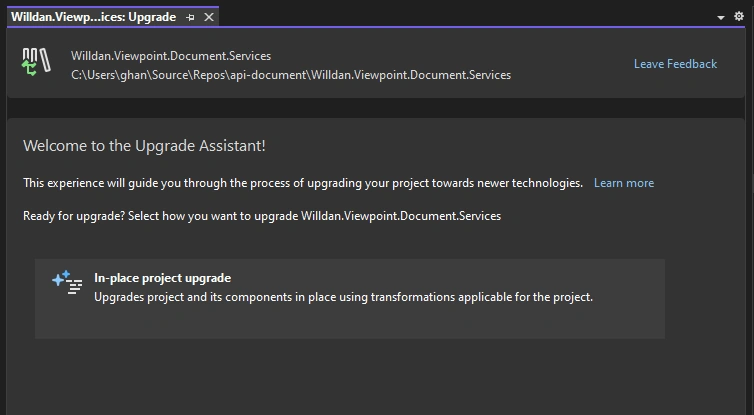
In-place project upgrade
This option upgrades your project without making a copy.
-
Side-by-side project upgrade
Copies your project and upgrades the copy, leaving your original project alone.
-
Side-by-side incremental
A good choice for complicated web apps. Upgrading from ASP.NET to ASP.NET Core requires quite a bit of work and at times manual refactoring. This mode puts a .NET project next to your existing .NET Framework project, and routes endpoints that are implemented in the .NET project, while all other calls are sent to .NET Framework application.
This mode lets you slowly upgrade your ASP.NET or Library app piece-by-piece.
In our case, we use Git to manage different versions and different branches, so we just choose the In-Place Project upgrade:
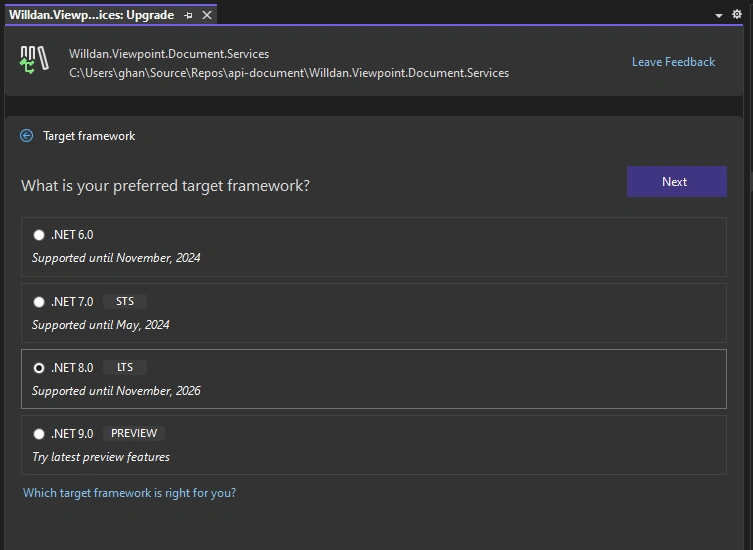
The next, we choose the version we will upgrade to. Now, it it version 8 as current:
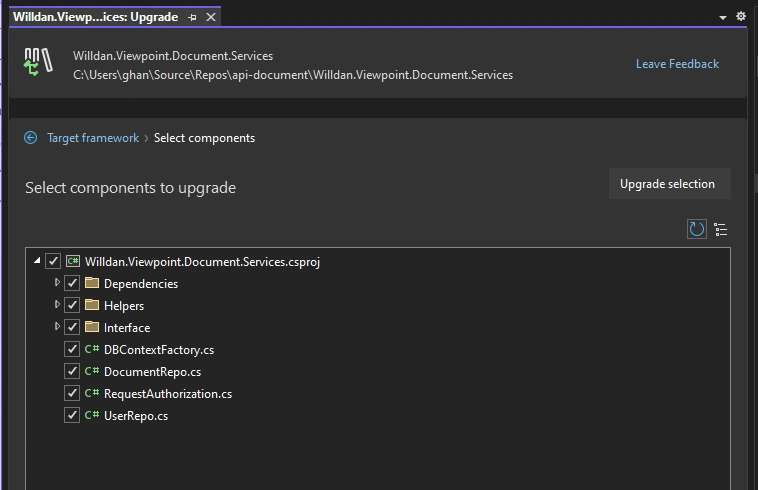
The next, choose components to upgrade, this seems does not make any sense, we usually choose all of them => Click Update selection to start to update:
Once your app has been upgraded, a status screen is displayed which shows all of the artifacts related to your project that were associated with the upgrade. Each upgrade artifact can be expanded to read more information about the status. Such as, in our case:
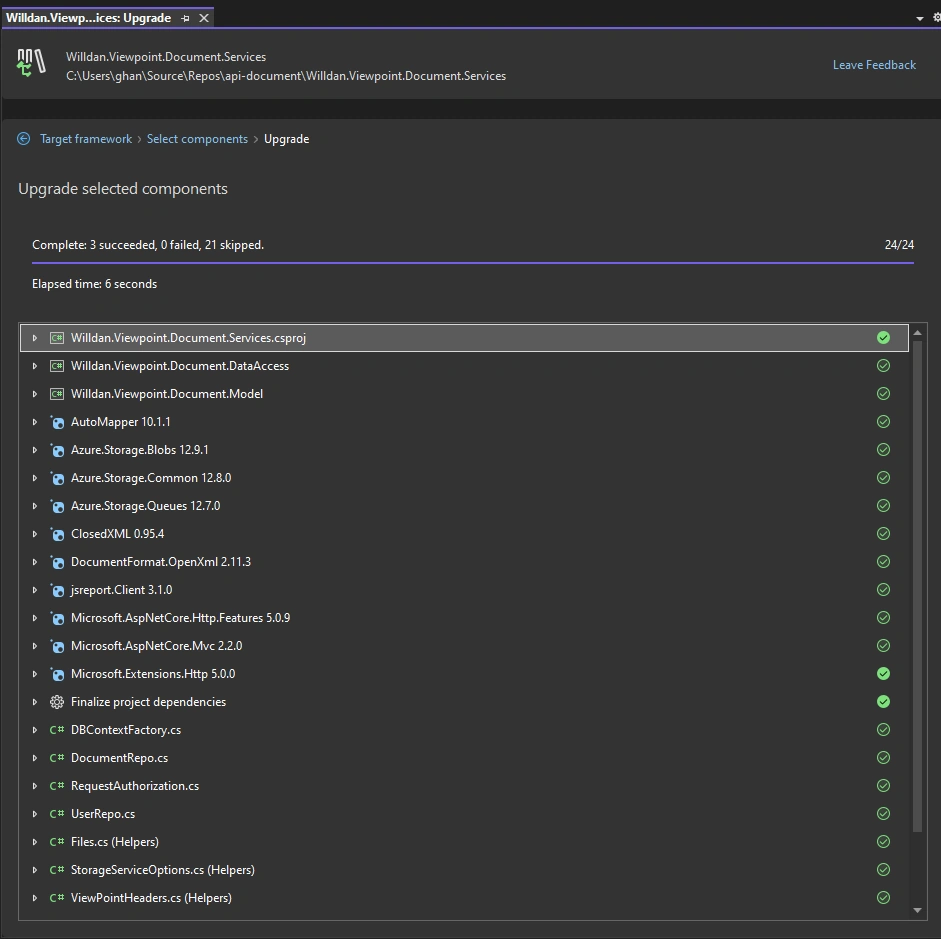
The following list describes the status icons:
- Filled green checkmark: The artifact was upgraded and completed successfully.
- Unfilled green checkmark: The tool didn't find anything about the artifact to upgrade.
- Yellow warning sign: The artifact was upgraded, but there's important information you should consider.
- Red X: The artifact was to be upgraded, but the upgrade failed.
In our case, there are three Filled green checkmark:
- Willdan.Viewpoint.Document.Service.csproj
- Microsoft.Extension.Http.500
- Finalize.project dependencies
Those indicates the artifact was upgraded and completed successfully, while the others are all Unfilled green checkmark: The tool didn't find anything about the artifact to upgrade.
The upgrade is done, and successful --- compilable, at least for this case.
E - Evaluation of the Upgrade Assistant Method
In this evaluation, we will evaluate the effects and correctness of the Upgrade Assistant Method, and compare it with the manual method, introduced from article: Upgrade .Net Core Web App from .Net 5.0 (3.1) to 8.0 --- Manually.
Sample 1: --- diff
For the case above, we got the changed files from Git:
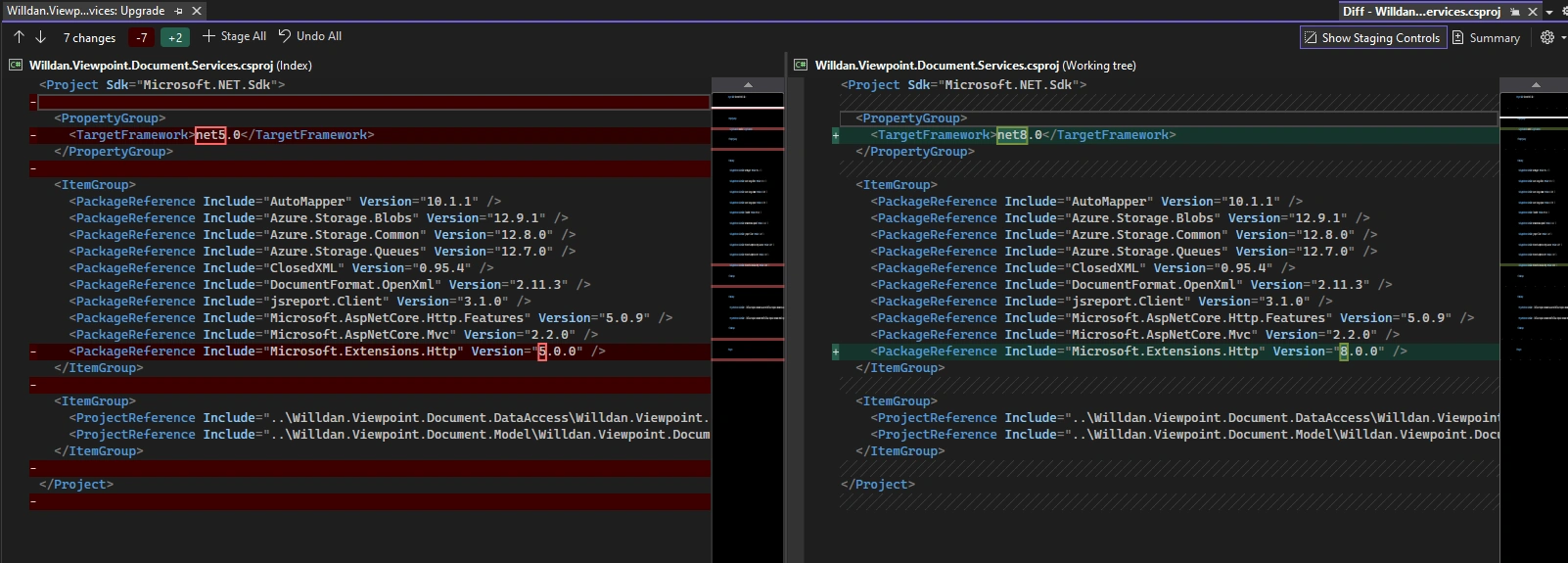
We can see, the only upgrade is the
- TargetFramework version, plus
- Microsoft.Extension.Http
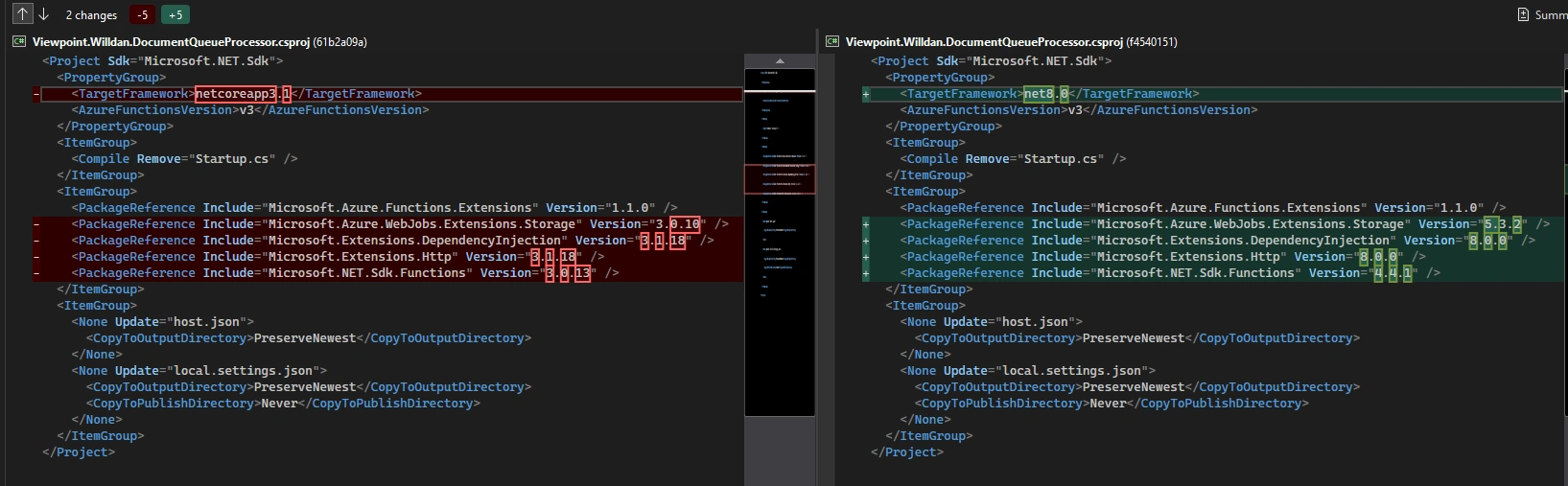
while the same app, if we use the manual method to upgrade, which will upgrade both TargetFramework and Package references, the result is
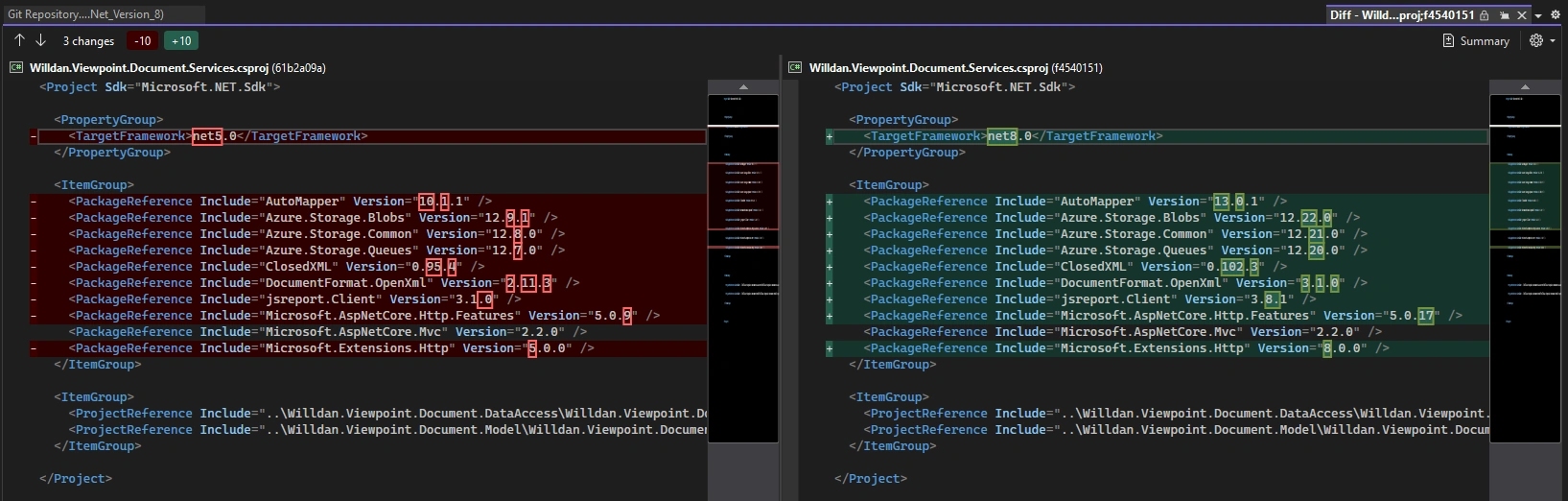
Compared, we can see, the Upgrade Assistant method is only equivalent to the manual method the first step: Upgrade the .Net Version, or the TargetFramework, without updating the Package References.
Sample 2: --- same, good
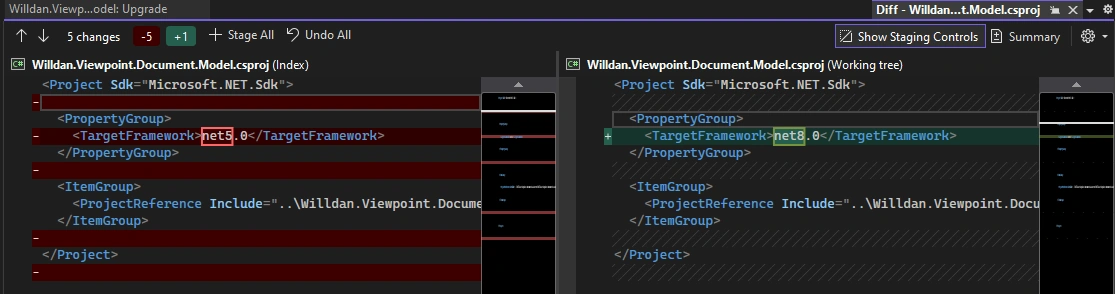
The following two cases, they are exactly the same by both Upgrade Assistant or manual method.
Upgrade Assistant:
Manually:
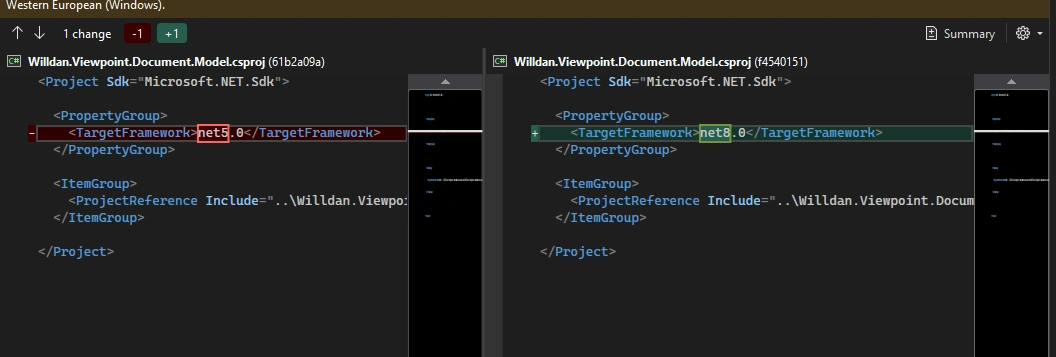
This is a very simple sample, only TargetFrame needs to be upgraded, so they are the same.
Sample 3: --- same, good
Upgrade Assistant:
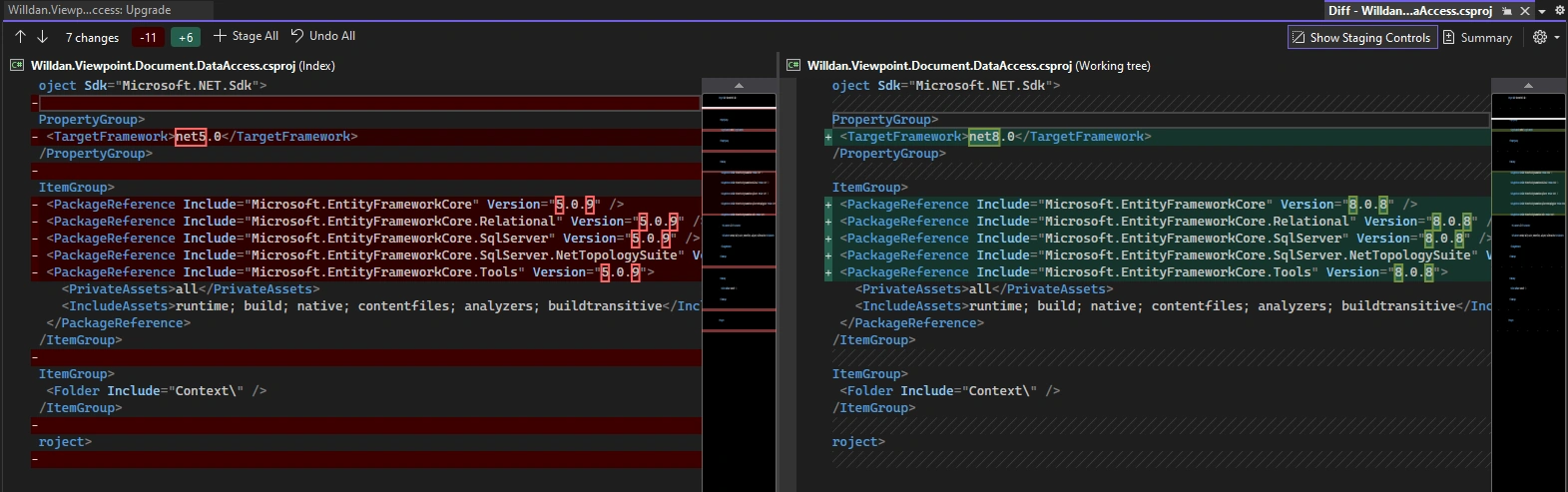
Manually:
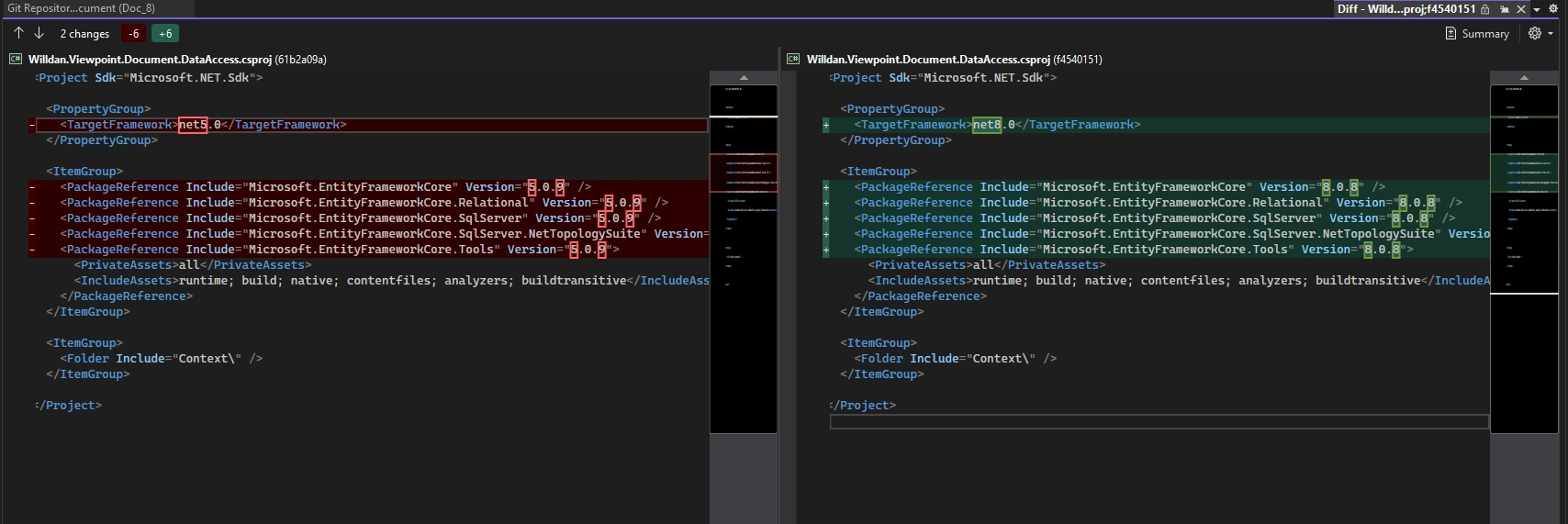
This sample, only involved for upgrading are Microsoft Entity Framework, besides the TargetFramework. So, Upgrade Assistant can handle correctly.
Sample 4: diff
Upgrade Assistant:
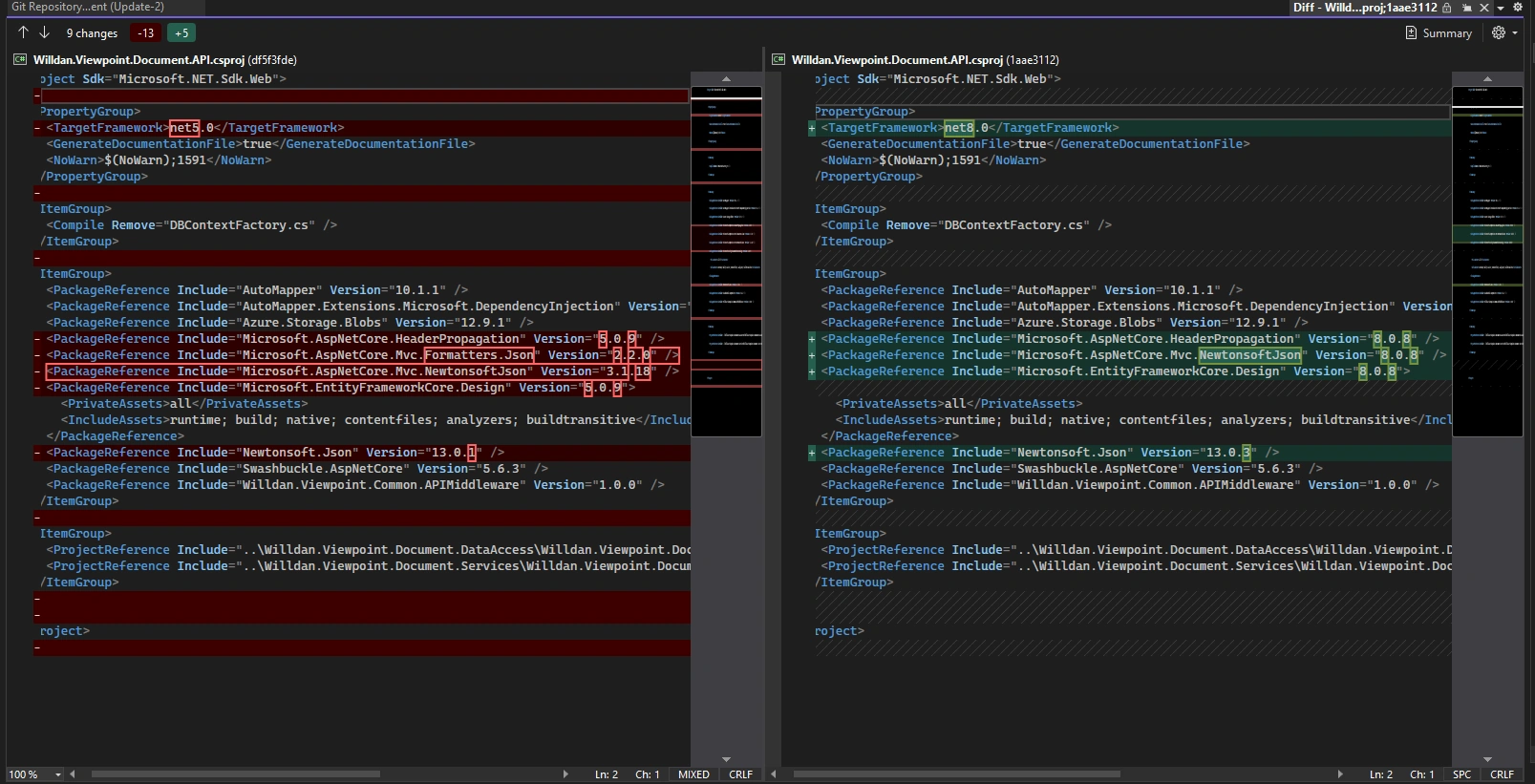
Manually
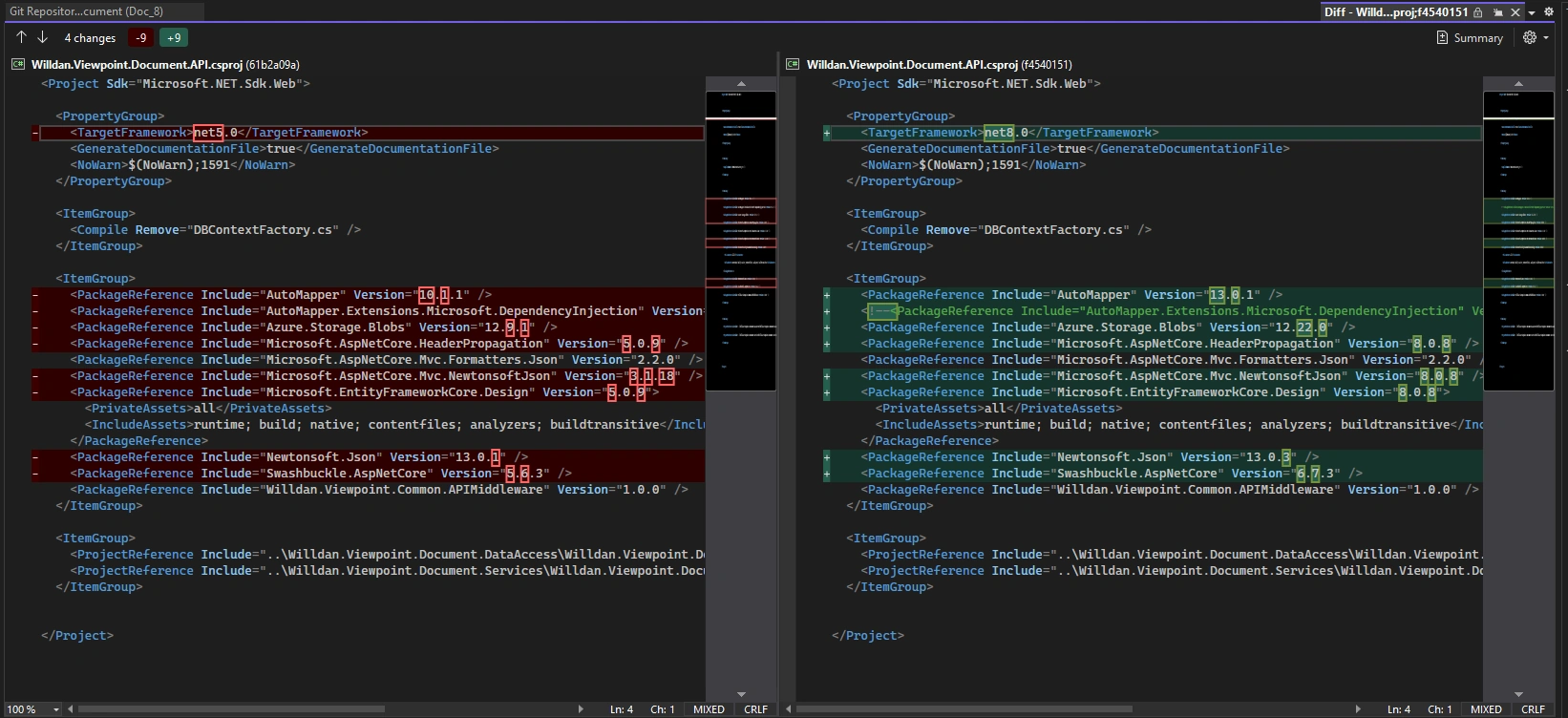
Sample 5: diff, Assistant changes more
Upgrade Assistant:
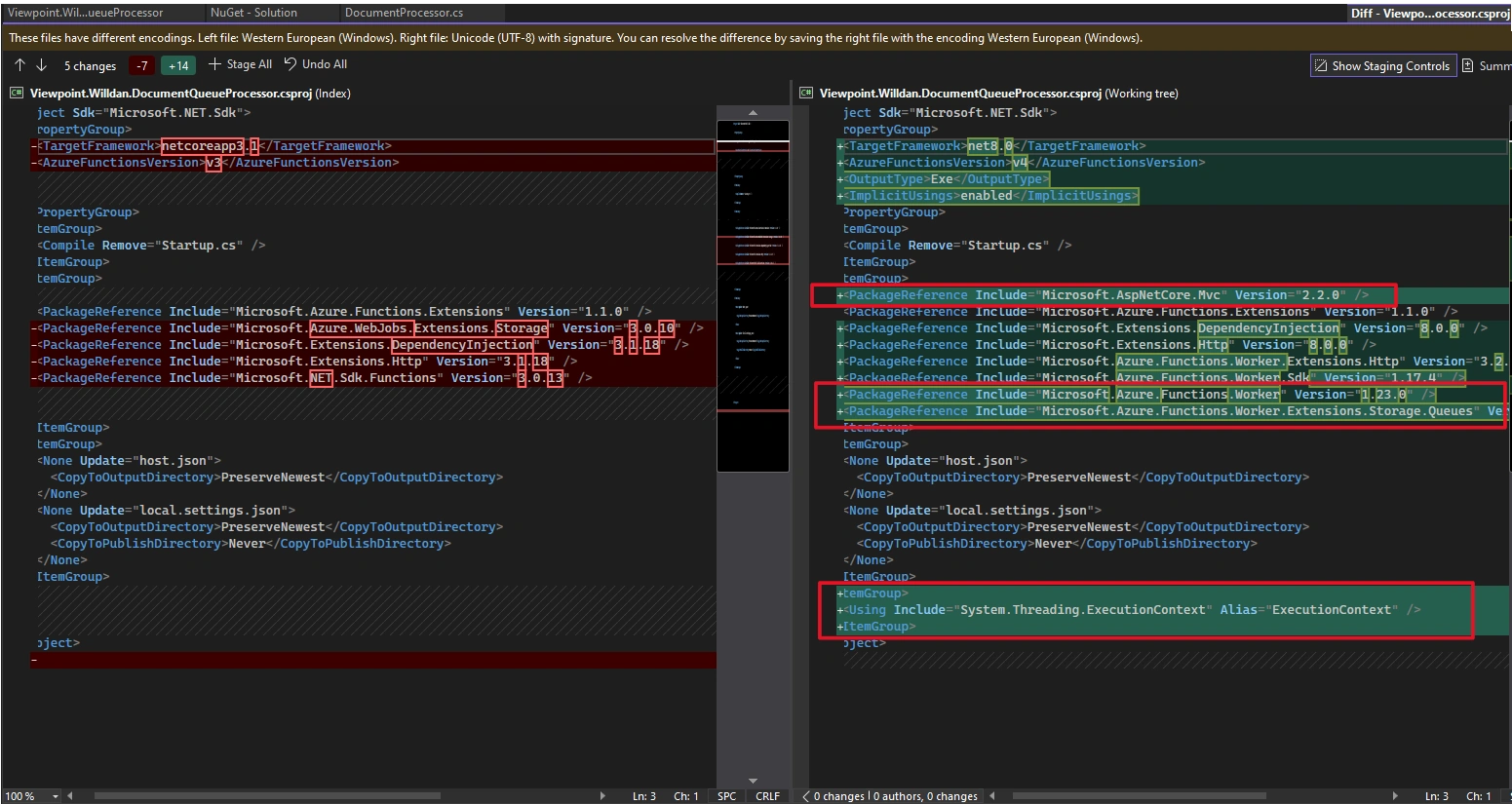
Manually
In this case, Upgrade Assistant made more modifications shown in the graph above in red frames, further more, it changed some code: added code:
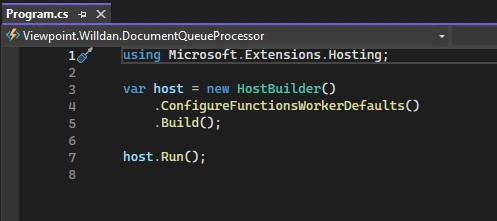
However, it will causes more errors, even not happened in the Manually Method, such as
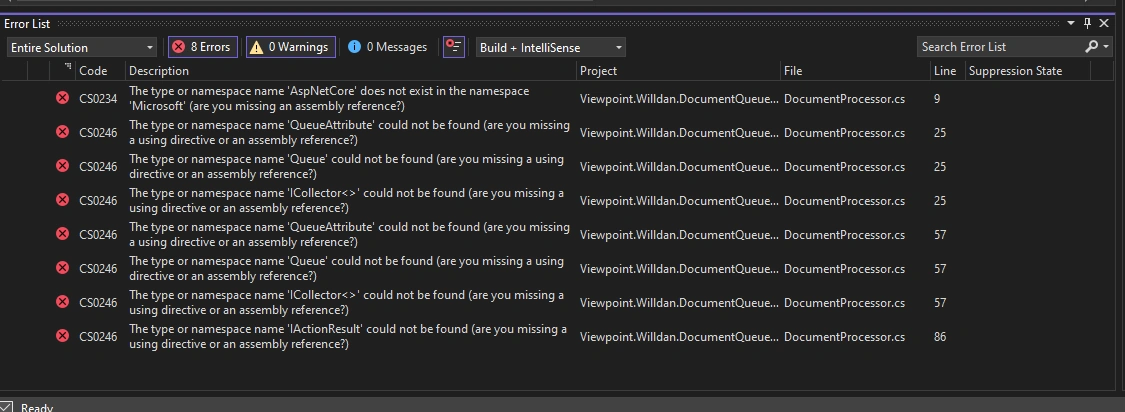
Summary of E, the comparisons between Manual Upgrade Method and the Upgrade Assistant.
- Most situations, the Upgrade Assistant is only quivalent to the Manual Method the first step: Upgrade the .Net version or the TargetFramework, without updating the Pachkage References
- In very simple situations, without much or any pachage used, such as the Model Project, these two methods are eiquivalent.
- in few situation, the Assistant may change more than Manual method.
Conclusion:
These two ways are almost equivalent,
- Using Upgrade Assistant, you cannot complete your Upgrading task, you have to make the second step like what Manual Method does, to upgrade the package references.
- Using manual method is OK, but might miss some feature that Upgrade Assistant caught.
They may be used independently, or used together to make a better solution.
References:


Tuhin PaulPosted Jan 26, 2025, 5:38 PM
Thank you for sharing this informative article about upgrading a .Net Core Web App from lower versions to 8.0. I had a question regarding the Upgrade Assistant's limitations. You mentioned that the Upgrade Assistant method only upgrades the .Net version (TargetFramework) without updating the Package References. Are there any plans to enhance the Upgrade Assistant to include Package Reference updates in future releases, or will this remain a manual step?