

Introduction
Blob Storage is a feature in Microsoft Azure that lets developers store unstructured data in Microsoft's cloud platform. This data can be accessed from anywhere in the world and can include audio, video, and text files. Blobs are grouped into "containers" that are tied to user accounts. Blobs can be manipulated with .NET or .NET Core code.
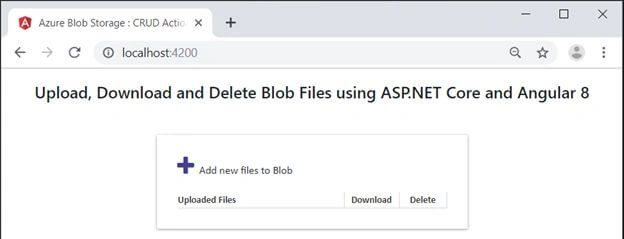
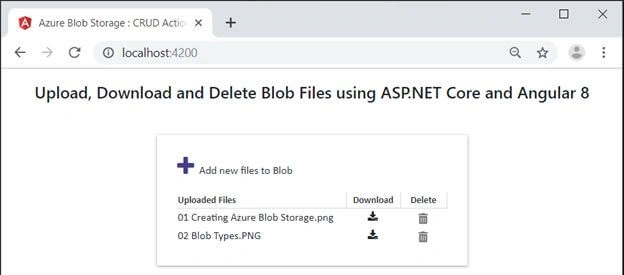
In this article, we will see how to create Azure Blob Storage and create services in ASP.NET Core Web API to upload, list, download, and delete files from Azure Blob Storage. We will create an Angular 8 application to perform these operations from the client side.
Create Blob storage in Azure portal
It is easy to create a blob storage in Azure portal. Choose “Storage account” and give the required information. Choose a unique name for the storage account.

Click the “Review + create” button to validate and then, click the “Create” button to proceed.
Currently, there are four types of services available in the storage account.
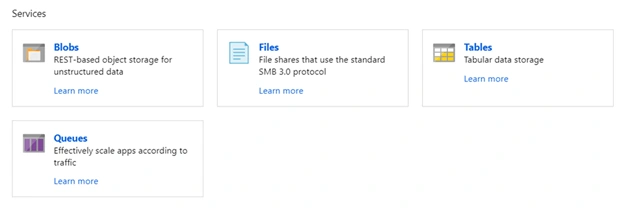
We can choose “Blobs” and create a container to store our unstructured data.
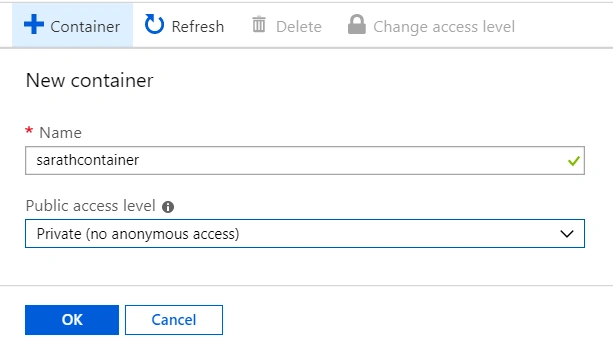
We can choose the access level as “Private” so that nobody will access without enough privileges. You can click “Access keys” tab and choose connection string and keep that in a secure place for future usage. We will use this connection string in our ASP.NET Core project later.
Create a Web API service in ASP.NET Core project
We can create a new ASP.NET Web API project in Visual Studio and create all services for file operations.
Please choose "API" template.
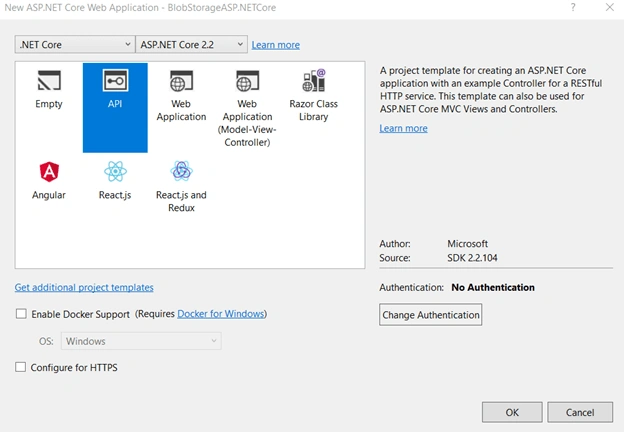
Our project will be ready in a few moments.
We can keep the blob storage connection string and container name in the appsettings.js file. We will fetch these values from the settings file using a configuration class file. We can create a config file “MyConfig.cs” to access these configuration values.
MyConfig.cs
- namespace BlobStorageASP.NETCore
- {
- public class MyConfig
- {
- public string StorageConnection { get; set; }
- public string Container { get; set; }
- }
- }
I have created two properties for connection string and container name respectively inside this class file.
We can add storage connection string and container name in the appsettings.js file as well.
appsettings.js
- {
- "Logging": {
- "LogLevel": {
- "Default": "Warning"
- }
- },
- "MyConfig": {
- "StorageConnection": "DefaultEndpointsProtocol=https;AccountName=sarathstorageaccount;AccountKey=G176lDXKsN1joI6yL9G/JuC4MCMdMSZNEJBzIYZnhcQsjkRd8MCfoxREiqguuo5kON2BcIpSHXSqnVDZ9+7OAQ==;EndpointSuffix=core.windows.net",
- "Container": "sarathcontainer"
- },
- "AllowedHosts": "*"
- }
Modify the Startup.cs class with below changes. We have added dependency for MyConfig class. We have enabled CORS in this class too because we will consume these Web API services in Angular 8 application.
Startup.cs
- using Microsoft.AspNetCore.Builder;
- using Microsoft.AspNetCore.Hosting;
- using Microsoft.AspNetCore.Mvc;
- using Microsoft.Extensions.Configuration;
- using Microsoft.Extensions.DependencyInjection;
- namespace BlobStorageASP.NETCore
- {
- public class Startup
- {
- public Startup(IConfiguration configuration)
- {
- Configuration = configuration;
- }
- public IConfiguration Configuration { get; }
- public void ConfigureServices(IServiceCollection services)
- {
- services.AddMvc().SetCompatibilityVersion(CompatibilityVersion.Version_2_2);
- services.AddCors(c =>
- {
- c.AddPolicy("AllowOrigin", options => options.WithOrigins("http://localhost:4200"));
- });
- services.Configure<MyConfig>(Configuration.GetSection("MyConfig"));
- }
- public void Configure(IApplicationBuilder app, IHostingEnvironment env)
- {
- if (env.IsDevelopment())
- {
- app.UseDeveloperExceptionPage();
- }
- app.UseCors(options => options.WithOrigins("http://localhost:4200"));
- app.UseMvc();
- }
- }
- }
We can create “BlobStorage” controller now. We will use scaffolding template for creating this Web API controller.
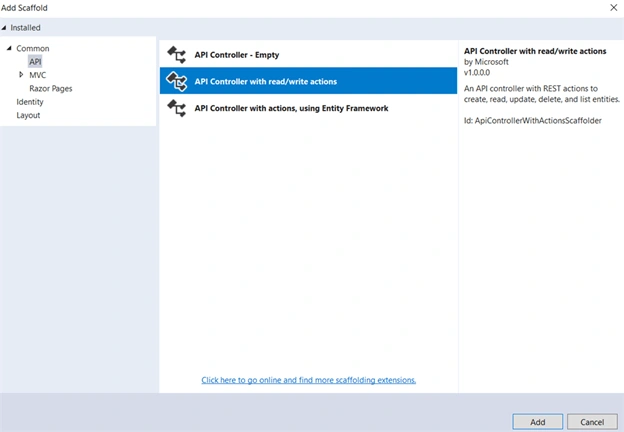
Right-click the Controllers folder and choose “Add New Scaffolded Item”.
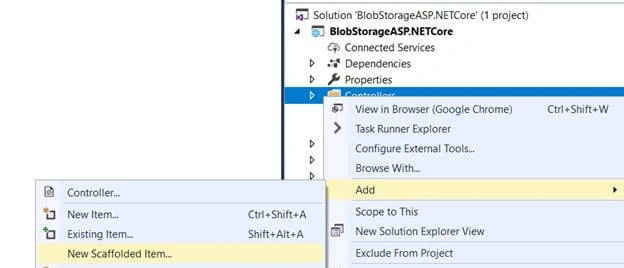
Choose the “API” tab and select “API Controller with read/write actions” option.
Install “WindowsAzure.Storage” NuGet package in the project.

Copy the below code and paste inside this Controller class.
BlobStorageController.cs
- using Microsoft.AspNetCore.Http;
- using Microsoft.AspNetCore.Mvc;
- using Microsoft.Extensions.Options;
- using Microsoft.WindowsAzure.Storage;
- using Microsoft.WindowsAzure.Storage.Blob;
- using System.Collections.Generic;
- using System.IO;
- using System.Threading.Tasks;
- namespace BlobStorageASP.NETCore.Controllers
- {
- [Route("api/[controller]")]
- [ApiController]
- public class BlobStorageController : ControllerBase
- {
- private readonly IOptions<MyConfig> config;
- public BlobStorageController(IOptions<MyConfig> config)
- {
- this.config = config;
- }
- [HttpGet("ListFiles")]
- public async Task<List<string>> ListFiles()
- {
- List<string> blobs = new List<string>();
- try
- {
- if (CloudStorageAccount.TryParse(config.Value.StorageConnection, out CloudStorageAccount storageAccount))
- {
- CloudBlobClient blobClient = storageAccount.CreateCloudBlobClient();
- CloudBlobContainer container = blobClient.GetContainerReference(config.Value.Container);
- BlobResultSegment resultSegment = await container.ListBlobsSegmentedAsync(null);
- foreach (IListBlobItem item in resultSegment.Results)
- {
- if (item.GetType() == typeof(CloudBlockBlob))
- {
- CloudBlockBlob blob = (CloudBlockBlob)item;
- blobs.Add(blob.Name);
- }
- else if (item.GetType() == typeof(CloudPageBlob))
- {
- CloudPageBlob blob = (CloudPageBlob)item;
- blobs.Add(blob.Name);
- }
- else if (item.GetType() == typeof(CloudBlobDirectory))
- {
- CloudBlobDirectory dir = (CloudBlobDirectory)item;
- blobs.Add(dir.Uri.ToString());
- }
- }
- }
- }
- catch
- {
- }
- return blobs;
- }
- [HttpPost("InsertFile")]
- public async Task<bool> InsertFile(IFormFile asset)
- {
- try
- {
- if (CloudStorageAccount.TryParse(config.Value.StorageConnection, out CloudStorageAccount storageAccount))
- {
- CloudBlobClient blobClient = storageAccount.CreateCloudBlobClient();
- CloudBlobContainer container = blobClient.GetContainerReference(config.Value.Container);
- CloudBlockBlob blockBlob = container.GetBlockBlobReference(asset.FileName);
- await blockBlob.UploadFromStreamAsync(asset.OpenReadStream());
- return true;
- }
- else
- {
- return false;
- }
- }
- catch
- {
- return false;
- }
- }
- [HttpGet("DownloadFile/{fileName}")]
- public async Task<IActionResult> DownloadFile(string fileName)
- {
- MemoryStream ms = new MemoryStream();
- if (CloudStorageAccount.TryParse(config.Value.StorageConnection, out CloudStorageAccount storageAccount))
- {
- CloudBlobClient BlobClient = storageAccount.CreateCloudBlobClient();
- CloudBlobContainer container = BlobClient.GetContainerReference(config.Value.Container);
- if (await container.ExistsAsync())
- {
- CloudBlob file = container.GetBlobReference(fileName);
- if (await file.ExistsAsync())
- {
- await file.DownloadToStreamAsync(ms);
- Stream blobStream = file.OpenReadAsync().Result;
- return File(blobStream, file.Properties.ContentType, file.Name);
- }
- else
- {
- return Content("File does not exist");
- }
- }
- else
- {
- return Content("Container does not exist");
- }
- }
- else
- {
- return Content("Error opening storage");
- }
- }
- [Route("DeleteFile/{fileName}")]
- [HttpGet]
- public async Task<bool> DeleteFile(string fileName)
- {
- try
- {
- if (CloudStorageAccount.TryParse(config.Value.StorageConnection, out CloudStorageAccount storageAccount))
- {
- CloudBlobClient BlobClient = storageAccount.CreateCloudBlobClient();
- CloudBlobContainer container = BlobClient.GetContainerReference(config.Value.Container);
- if (await container.ExistsAsync())
- {
- CloudBlob file = container.GetBlobReference(fileName);
- if (await file.ExistsAsync())
- {
- await file.DeleteAsync();
- }
- }
- }
- return true;
- }
- catch
- {
- return false;
- }
- }
- }
- }
haytham hegabPosted Nov 4, 2020, 8:17 PM
Hi Sarath,Both Actions DownloadFile and DeleteFile gave me 404 page not found while testing them by postman
Priya SrivastavaPosted Aug 26, 2020, 11:38 AM
Hi Sarath, Could you please let me know how could we read file from blob api in angular. I have one requirement where I need to browse file from azure blob storage location and have to upload and show in UI using angular. Please help me. Thanks in advance.
Priya SrivastavaPosted Aug 26, 2020, 11:36 AM
Hi Sarath,
VISHAL ALOKPosted Jun 8, 2020, 9:05 AM
Hi Sarath , I am a beginner here and trying to implement the same what you did here with various types of file types (Video , Photo and Text) for uploads, download and Delete operations, But all my images are getting downloaded in .txt format (mp4 and text files working fine.). Also , Is there any way that i can control/filter each download and delete operation on blob by using SAS token ?Or SAS token is used only where we are directly accessing the blob file using the exact blob file path
Narayana Reddy TalakolaPosted May 18, 2020, 2:29 PM
I think you should remove your storage account key from the settings file.
Priya KPosted Apr 29, 2020, 11:33 PM
I keep getting this error: GET /localhost:4000/api/BlobStorage/ListFiles - Err_connection_Refused.
salem beejayPosted Apr 29, 2020, 12:10 PM
Brilliant, So I needed to ask, is it possible to create a user specific files and fetch only user specific files when they logon to the aspnetcore application. And yet be able to perform the CRUD actions with additional fields.
Juan GarcíaPosted Feb 26, 2020, 11:48 PM
Hello, I download the aspnetcore example, but it didnt works, do you have another example with aspnetcore?
abhisek sinhaPosted Feb 24, 2020, 7:37 PM
Hi, I am able to upload/download the file in azure container locally from postman. But when the same code(web api) is deployed in azure app service both upload & download not working. Do I need to give specific access of container to app service.
irfan mahalPosted Feb 7, 2020, 3:04 PM
Hello Sarathlal, Can you share code for streaming videos on angular page. This should be on click of each video in the list.
f yPosted Sep 27, 2019, 1:44 PM
I keep getting this error: GET /localhost:4200/api/BlobStorage/ListFiles 404 (Not Found)
Muhammad TalhaPosted Aug 22, 2019, 6:41 PM
I have created 2 projects under same solution. One for Angular and one for Api for upload/download. When I run both together, I am getting this error for angular: cannot get
Uma PlPosted Aug 22, 2019, 9:20 AM
Sir, May I know your email, having some doubts
Adeel OfficialPosted Jun 29, 2019, 4:47 AM
If i want to preview any of added image what I have to do?
Gajendra JangidPosted Jun 22, 2019, 1:18 AM
Thanks for sharing..such a nice article