

Earlier working with ASP.NET Web Forms we had File Upload control but in MVC we don't have Event Driven Programming or server side control.
For that I have created 1 table Products as in the following screen.
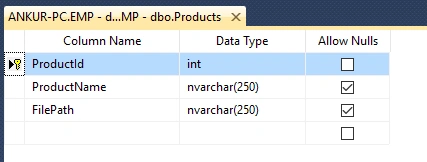
You can also create a table by running below script in SQL.
- /****** Object: Table [dbo].[Products] Script Date: 20-03-2016 15:11:31 ******/
- SET ANSI_NULLS ON
- GO
- SET QUOTED_IDENTIFIER ON
- GO
- CREATE TABLE [dbo].[Products](
- [ProductId] [int] IDENTITY(1,1) NOT NULL,
- [ProductName] [nvarchar](250) NULL,
- [FilePath] [nvarchar](250) NULL,
- CONSTRAINT [PK_Products] PRIMARY KEY CLUSTERED
- (
- [ProductId] ASC
- )WITH (PAD_INDEX = OFF, STATISTICS_NORECOMPUTE = OFF, IGNORE_DUP_KEY = OFF, ALLOW_ROW_LOCKS = ON, ALLOW_PAGE_LOCKS = ON) ON [PRIMARY]
- ) ON [PRIMARY]
- GO
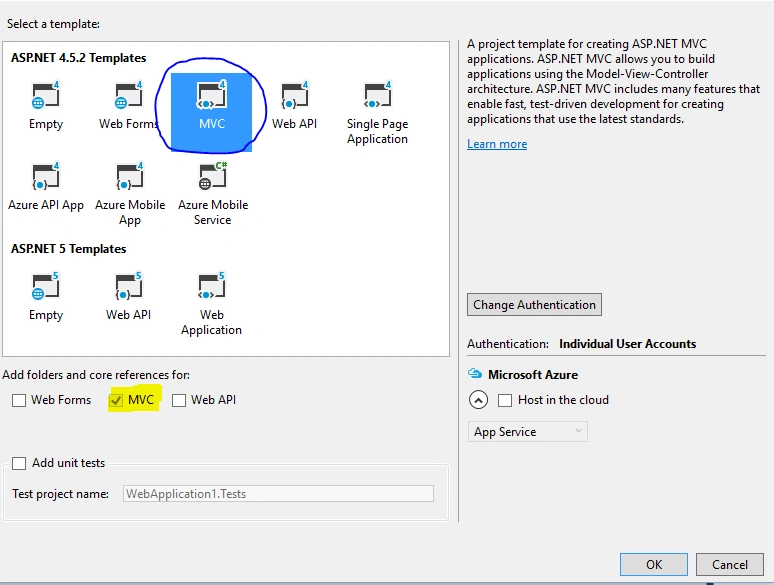
Step 1: Create a MVC Application, select MVC Template and click on Ok.
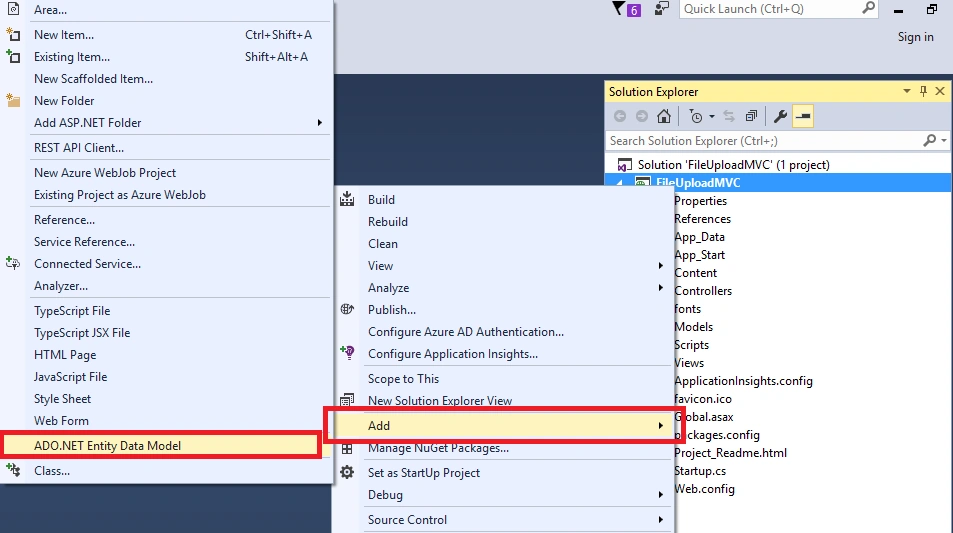
Step 2: Bind with Model, for that right click on project, Add, then ADO.NET Entity Data Model.
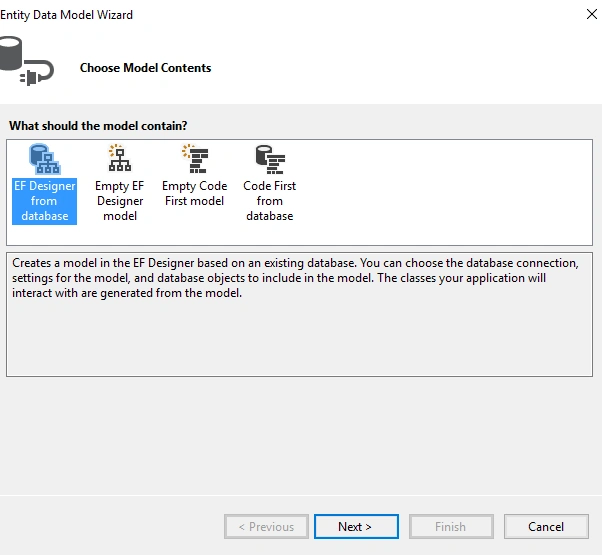
Choose EF Designer from database, here we are choosing Model Contents and click on OK.
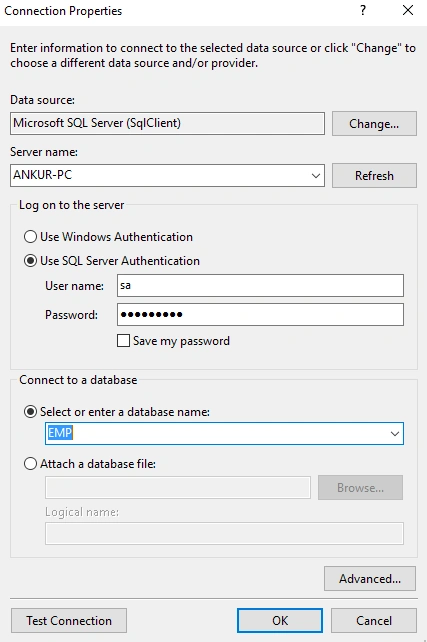
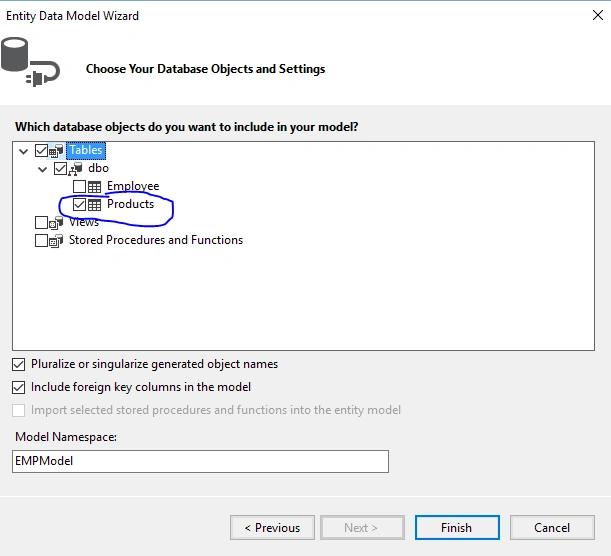
Connect with your SQL Server, just enter the SQL Server credentials and choose your table from the list and click OK. it will create a connection string in web.config file.
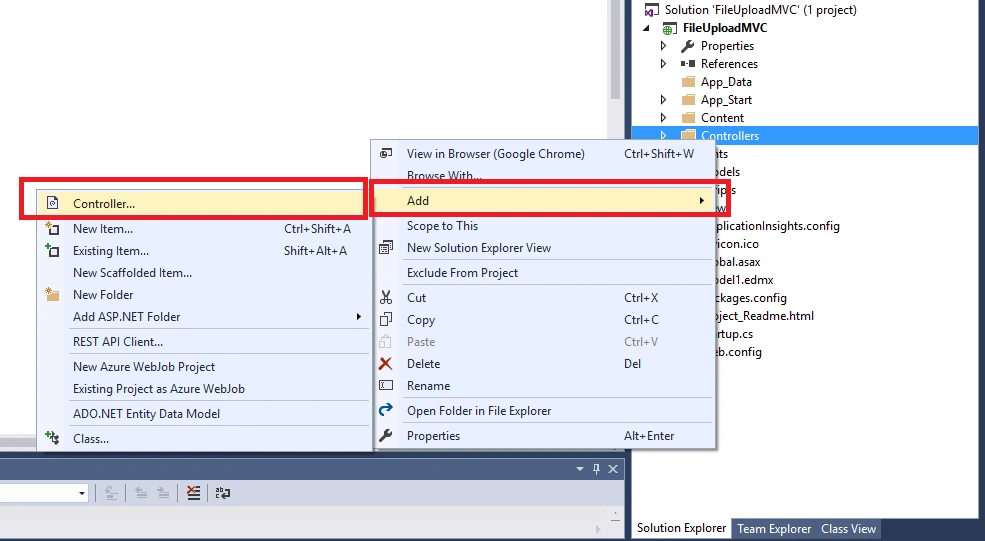
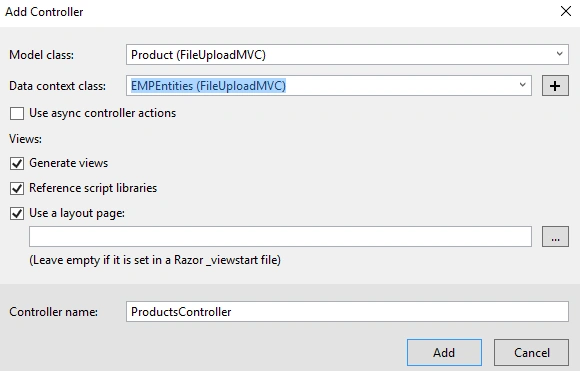
Step 3: Build your application now, and go to Controller and add new controller.
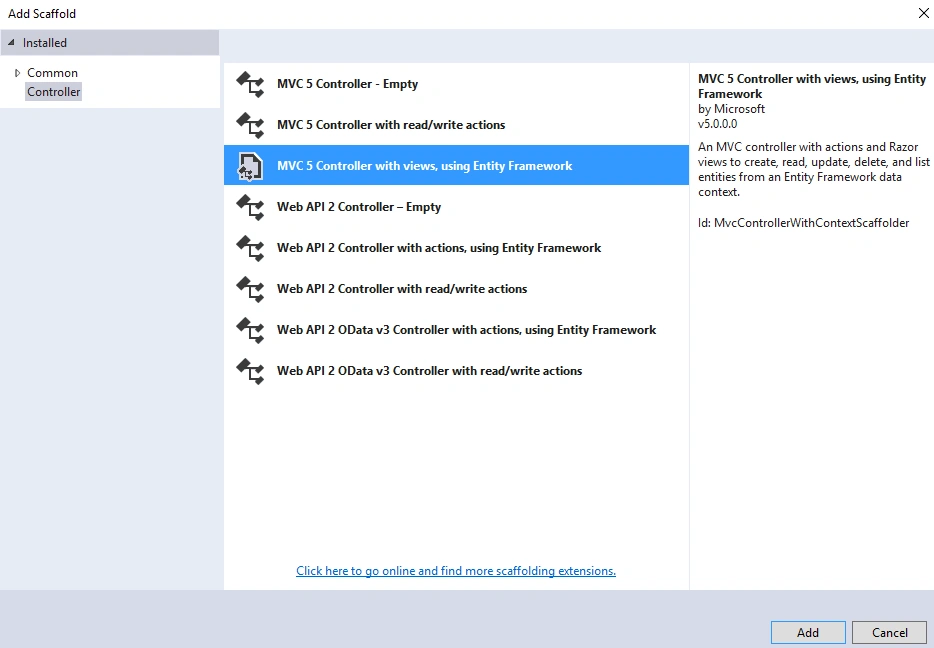
Choose MVC 5 Controller with view using Entity framework.
Select Product as Model Class and EMPEntities as a Data Context class and click on Ok.
Step 4 : This will create a Products folder in Views. Let's open Create.cshtml file and add the following code in Html.BeginForm section.
Here we are providing Parameter like Method name, Controller name, Method = Post and for File Uplaod enctype = "multipart/form-data"
The important thing here is additional form attributes 'multipart/form-data. This will send your additional form data (Ex. :file data) and make sure your file got uploaded when you post the page.
The important thing here is additional form attributes 'multipart/form-data. This will send your additional form data (Ex. :file data) and make sure your file got uploaded when you post the page.
- @using (Html.BeginForm("Create",
- "Products",
- FormMethod.Post,
- new { enctype = "multipart/form-data" }))
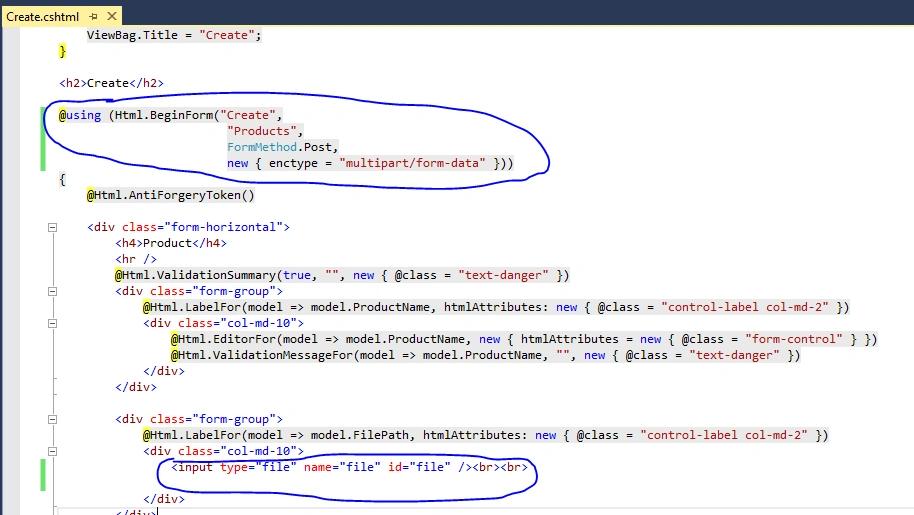
For file upload control make sure you have input box and set type ="file" just shown in above screen.
- <input type="file" name="file" id="file" /><br><br>
Step 5: All set in View, now open your ProductController and make the changes in Create Method,
Remove Bind Parameter and for file upload just add HttpPostedFileBase file.
Remove Bind Parameter and for file upload just add HttpPostedFileBase file.
- public ActionResult Create([Bind(Include = "ProductId,ProductName,FilePath")] Product product)
Replace above line with the following code.
- public ActionResult Create(Product product, HttpPostedFileBase file)
- string path = Path.Combine(Server.MapPath("~/Images"), Path.GetFileName(file.FileName));
- file.SaveAs(path);
And then db.Products.Add change the parameter shown as per the following code snippet. Basically, we are storing the file path and upload the selected file in to Images folder. Please don't forget to create 'Images' folder in your application.
- if (ModelState.IsValid)
- {
- string path = Path.Combine(Server.MapPath("~/Images"), Path.GetFileName(file.FileName));
- file.SaveAs(path);
- db.Products.Add(new Product
- {
- ProductId = product.ProductId, ProductName = product.ProductName, FilePath = "~/Images/" + file.FileName
- });
- db.SaveChanges();
- return RedirectToAction("Index");
- }
Also you have to include the following reference in your controller.
- using System.IO;
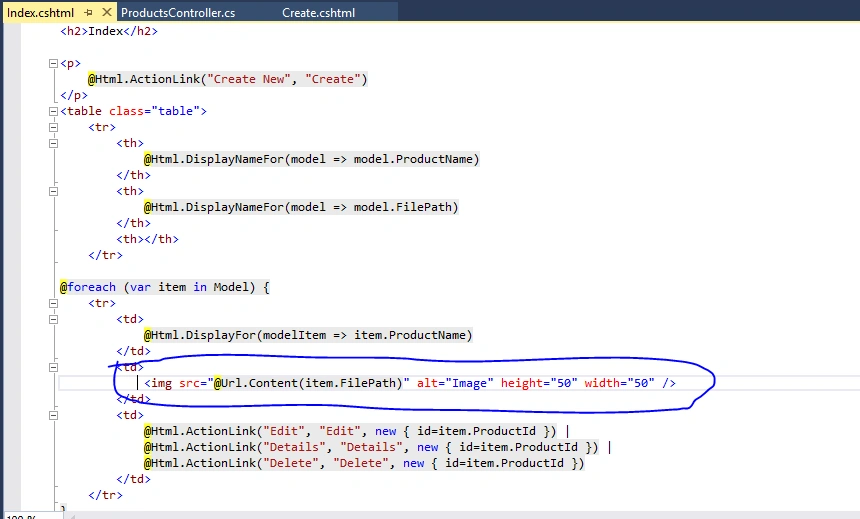
Step 6: To display the image in your Index List view, just add image tag as:
- <img src="@Url.Content(item.FilePath)" alt="Image" height="50" width="50" />
@Url.Content(item.FilePath) will display the uploaded file.
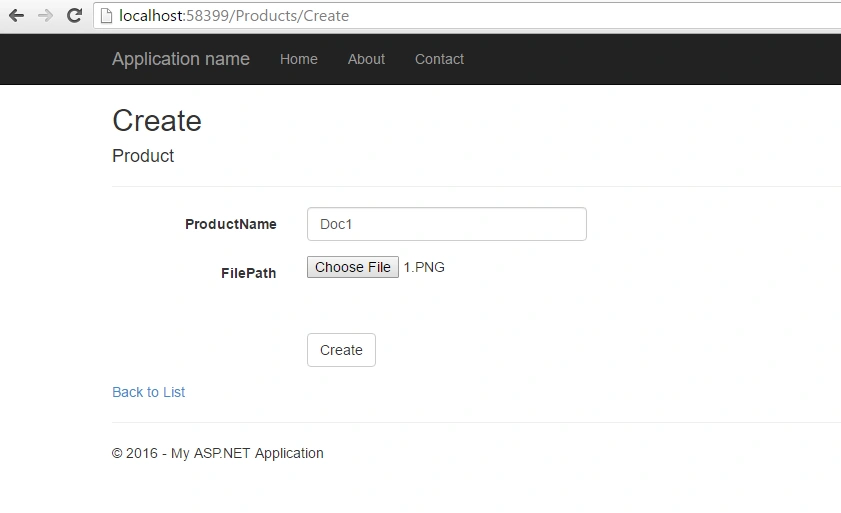
That's it! Now run your application and add a new product and upload image.
Go to Index page and check the file, which you have uploaded it displays here.
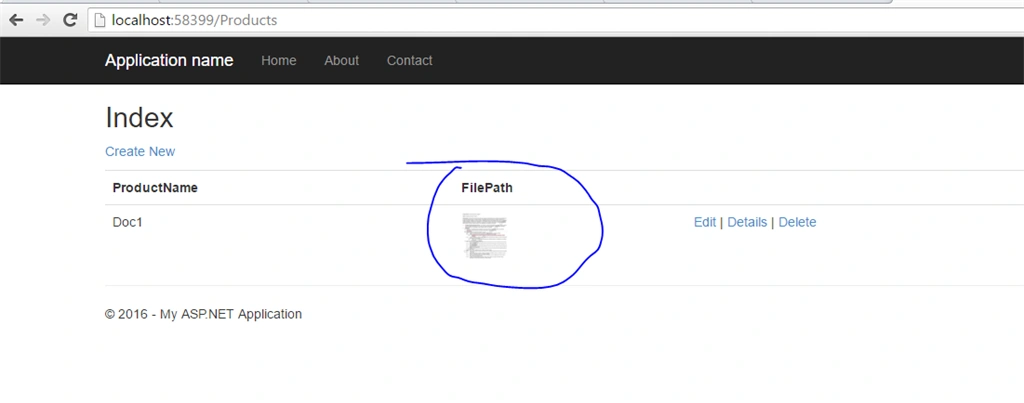
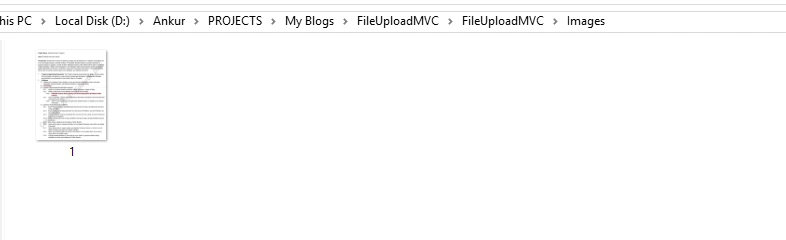
And this file you can check in your Images folder in your application.
Hope you like this article on how to upload files in MVC, in the next article we will learn how to store images or files in database as a binary data in MVC.
Read more articles on ASP.NET:
Thabo HappyPosted Sep 27, 2018, 9:50 AM
Can this method work if i am doing code first?
Gamaliel ReyesPosted Sep 24, 2018, 3:24 PM
In my model, the "FilePath" can be null, but i got an error on the index: "Value cannot be null or empty. Parameter name: contentPath at" , the other is that only shows a simbol and says "Image" and it doesn't show the actual image. Hope you can guide me. Thanks a lot.
Pradipta PatraPosted Nov 27, 2017, 4:28 AM
Can u show me how to update uploded image
Sally PepinPosted Jun 27, 2017, 5:27 PM
Can i upload pdf files as well?
Manav PandyaPosted Feb 2, 2017, 2:17 PM
Thanks for sharing this article sir Ankur Mistry
SHAN KMPosted Nov 18, 2016, 12:54 PM
Thanks bro, it really helped me
Kumaresh RajalingamPosted Mar 23, 2016, 9:18 PM
Nice one
Roshan MulePosted Mar 23, 2016, 2:12 PM
Very Nice!
Shaili DashoraPosted Mar 23, 2016, 5:57 AM
Nice one..
Vivek KumarPosted Mar 22, 2016, 12:24 PM
Nice share
Sibeesh VenuPosted Mar 22, 2016, 6:37 AM
Nice Share
Shridhar SharmaPosted Mar 22, 2016, 6:25 AM
good one sir
Kashif SohailPosted Mar 21, 2016, 10:48 PM
Awesome, Very nice
Vignesh ManiPosted Mar 21, 2016, 9:26 AM
Nice
Ankur MistryPosted Mar 21, 2016, 7:43 AM
thank you
Jaipal ReddyPosted Mar 21, 2016, 7:33 AM
Nice share sir. .
Mohammed IbrahimPosted Mar 21, 2016, 5:19 AM
nice
Debasis SahaPosted Mar 21, 2016, 4:02 AM
Good One..
Raja TPosted Mar 21, 2016, 12:18 AM
Nice, Thanks for sharing
Pradeep SahooPosted Mar 21, 2016, 12:08 AM
Thanks for sharing .How to check file length and size of the file before uploading and do a multiple file uploading .
Ankur MistryPosted Mar 20, 2016, 11:50 PM
Thank you
Humayun Kabir MamunPosted Mar 20, 2016, 11:47 PM
Nice...
Saillesh PawarPosted Mar 20, 2016, 11:01 PM
Nice share ankur sir
Bhadresh SukharamwalaPosted Mar 20, 2016, 2:13 PM
Nice boss