

Hey folks, today we’ll learn to upload an image to a web server using ASP.NET Web API which will be hosted on Microsoft Azure. We can also say that, we’ll use Microsoft Azure App Service to upload the image.
In this article, we’ll create an ASP.Net Web Application using Web API Project Template and host the web application as Azure App Service in the Microsoft Azure. So, let’s create an application with the following procedure:
- Creating Web Application
- Adding Controller
- Hosting API to Azure
- Azure APP Deployment
- Using Azure APP Service
Prerequisites
These are the following prerequisites before creating the application:
- Visual Studio 2012 or later
- Account on Microsoft Azure Portal
Note
I am using Visual Studio 2017 to create the application.
Creating Web Application
In this section, we’ll create the ASP.NET Web Application using Web API project template. Start with the following steps:
Step 1
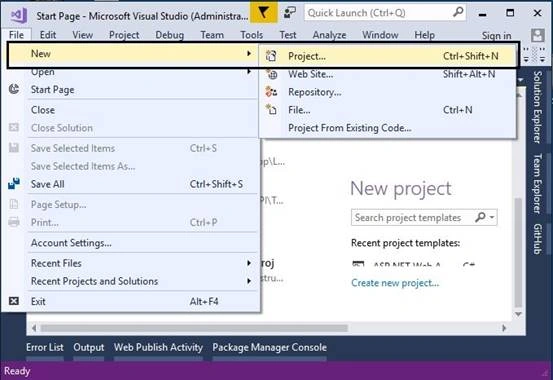
Open Visual Studio and click on File-> New->Project
Step 2
In the next wizard, select the “Web” from the left pane and select the “ASP.Net Web Application” and enter the name as “ImagePool”. Click on OK.

Step 3
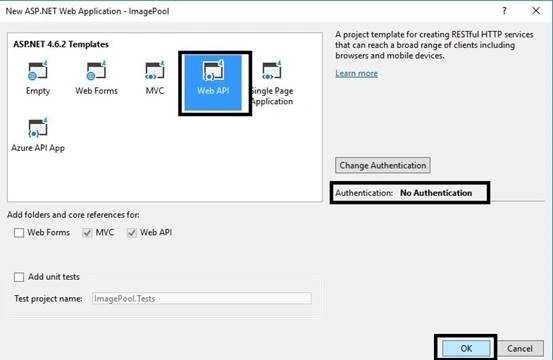
In the next “One ASP.Net” wizard, select the “Web API” Project Template to create the ASP.Net Web API application. Authentication for the application will remain as “No Authentication”. If you want to use ASP.Net Identity for registration purpose then you can select “Individual Authentication”. Click on OK.
That’s it. Visual Studio will create the application structure.
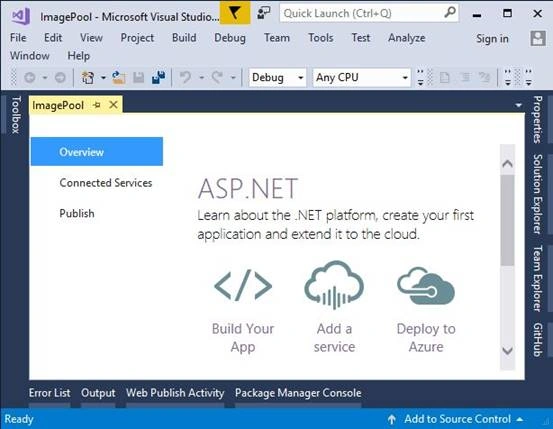
Build the application and now let’s move to the next section.
Adding Controller
In this section, we’ll add a Web API controller and create a method to upload the image into the server. Follow the procedure below:
Step 1
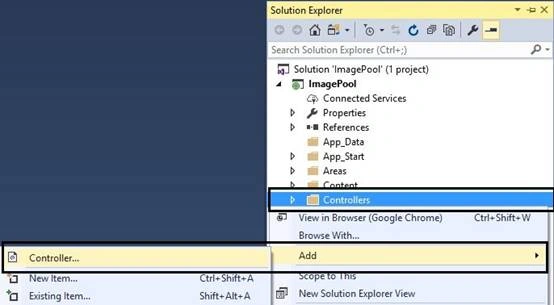
In Solution Explorer, Right click on the Controllers and go to Add-> Controller.
Step 2
In the next “Add Scaffold” wizard, select the “Web API 2 Controller- Empty” and click on “Add”
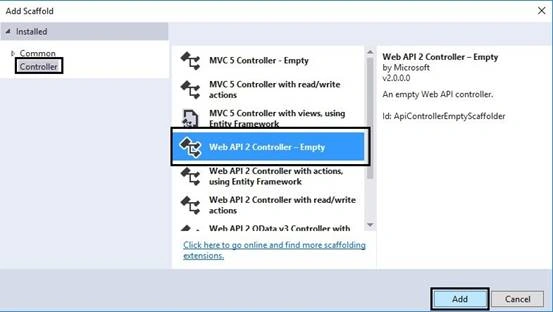
Step 3
Enter the controller name as “ImageServiceController”

Step 4
Add a “New Folder” named “Uploads” into the solution as shown below,
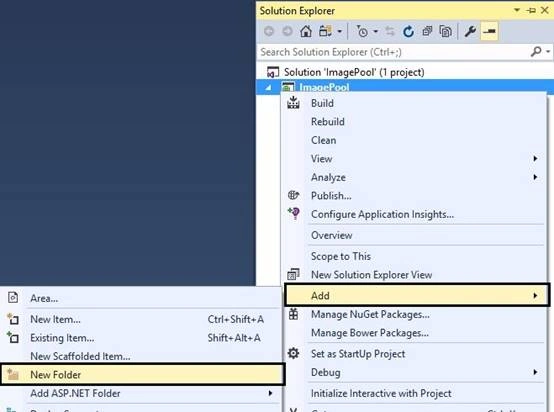
Step 5
Add the following code in the “ImageService” controller,
- using System;
- using System.Collections.Generic;
- using System.Drawing;
- using System.Drawing.Drawing2D;
- using System.IO;
- using System.Linq;
- using System.Net;
- using System.Net.Http;
- using System.Threading.Tasks;
- using System.Web.Hosting;
- using System.Web.Http;
- namespace ImagePool.Controllers
- {
- public class ImageServiceController : ApiController
- {
- #region Variables
- HttpResponseMessage response = new HttpResponseMessage();
- #endregion
- #region Public Methods
- /// <summary>
- /// This method is created to upload the image.
- /// </summary>
- /// <returns></returns>
- [HttpPost, ActionName("UploadImage")]
- public async Task<HttpResponseMessage> UploadImage()
- {
- string sub = string.Empty;
- int ImageResult = 0;
- if (!Request.Content.IsMimeMultipartContent())
- {
- return Request.CreateResponse<string>(HttpStatusCode.BadRequest, "This is not Mime Multipart Content");
- }
- //This is the static path for user images
- string rootPath = HostingEnvironment.MapPath("~/Uploads/");
- //get the path where content of MIME multipart body parts are written to
- var provider = new MultipartFormDataStreamProvider(HostingEnvironment.MapPath("~/Uploads/"));
- try
- {
- //read multi part data
- await Request.Content.ReadAsMultipartAsync(provider);
- //get the file name from returned data
- string uploadedFileName = provider.FileData.First().Headers.ContentDisposition.FileName;
- if (uploadedFileName.Length == 0)
- {
- return Request.CreateResponse<string>(HttpStatusCode.BadRequest, "Image file not found");
- }
- string uploadedFileNameWithBackSlash = uploadedFileName.LastIndexOf("\\").ToString();
- int position = uploadedFileName.LastIndexOf('\\');
- string fileNameext = string.Empty;
- var fileName = uploadedFileName.Substring(uploadedFileName.LastIndexOf(("\\")) + 1);
- int fileExtPos = fileName.LastIndexOf(".");
- if (fileExtPos >= 0)
- fileNameext = (fileName.Substring(fileExtPos, (fileName.Length - fileExtPos))).Replace("\"", "");
- sub = fileNameext;
- //check file is image type
- string[] extensionArray = { ".jpg,.png,.JPG,.PNG,.bmp,.gif" };
- List<string> extentions = extensionArray.FirstOrDefault().Split(',').Where(c => c.Equals(sub.ToLower())).ToList();
- if (extentions.Count == 0)
- {
- return Request.CreateResponse<string>(HttpStatusCode.BadRequest, "file not supported");
- }
- String strFinalFileName = string.Empty;
- strFinalFileName = Guid.NewGuid().ToString().Trim().Replace(" ", "").Replace("-", "") + sub;
- String strDatabaseFilePath = string.Empty;
- rootPath = rootPath + "\\Images\\";
- strDatabaseFilePath = "/Uploads/" + "/Images/" + strFinalFileName;
- if (!System.IO.Directory.Exists(rootPath))
- {
- System.IO.Directory.CreateDirectory(rootPath);
- }
- //do stuff to save the file path into the datbase
- //{
- // save the file path to the database
- //}
- // After saving image compress it and save image to the directory.
- var fullFilePath = provider.FileData.First().LocalFileName + sub;
- var copyToPath = rootPath + strFinalFileName;
- FileStream stream = File.OpenRead(provider.FileData.First().LocalFileName);
- byte[] fileBytes = new byte[stream.Length];
- stream.Read(fileBytes, 0, fileBytes.Length);
- double fileSizeKB = stream.Length / 1024;
- ImageResult = await NewCompressImageWithNewDimensions(stream, copyToPath, provider.FileData.First().Headers.ContentDisposition.Size.HasValue ? Convert.ToDouble(provider.FileData.First().Headers.ContentDisposition.Size) : 0);
- stream.Close();
- //delete temp file
- if (File.Exists(provider.FileData.First().LocalFileName))
- {
- File.Delete(provider.FileData.First().LocalFileName);
- }
- response = Request.CreateResponse(HttpStatusCode.OK, "Image Uploaded Successfully!");
- }
- catch (Exception ex)
- {
- response = Request.CreateResponse(HttpStatusCode.InternalServerError, ex.Message);
- }
- return response;
- }
- #endregion
- #region Private Methods
- /// <summary>
- /// This method is created to compress the image.
- /// </summary>
- /// <param name="stream">file stream</param>
- /// <param name="copyToPath">target path</param>
- /// <param name="fileSizeKB">file size</param>
- /// <returns></returns>
- private async Task<int> NewCompressImageWithNewDimensions(FileStream stream, string copyToPath, double fileSizeKB)
- {
- int result = 0;
- try
- {
- using (var image = Image.FromStream(stream))
- {
- double scaleFactor;
- if (fileSizeKB <= 900)
- {
- scaleFactor = 0.9;
- }
- else if (fileSizeKB <= 1500)
- {
- scaleFactor = 0.8;
- }
- else if (fileSizeKB <= 2000)
- {
- scaleFactor = 0.7;
- }
- else
- {
- scaleFactor = 0.3;
- }
- var newWidth = (int)(image.Width * scaleFactor);
- var newHeight = (int)(image.Height * scaleFactor);
- var CompressImage = new Bitmap(newWidth, newHeight);
- var CompressImageGraph = Graphics.FromImage(CompressImage);
- CompressImageGraph.CompositingQuality = CompositingQuality.HighQuality;
- CompressImageGraph.SmoothingMode = SmoothingMode.HighQuality;
- CompressImageGraph.InterpolationMode = InterpolationMode.HighQualityBicubic;
- var imageRectangle = new Rectangle(0, 0, newWidth, newHeight);
- CompressImageGraph.DrawImage(image, imageRectangle);
- CompressImage.Save(copyToPath, image.RawFormat);
- if (File.Exists(copyToPath))
- {
- result = 1;
- }
- else
- {
- result = 2;
- }
- }
- return result;
- }
- catch (Exception)
- {
- return result;
- }
- }
- #endregion
- }
- }

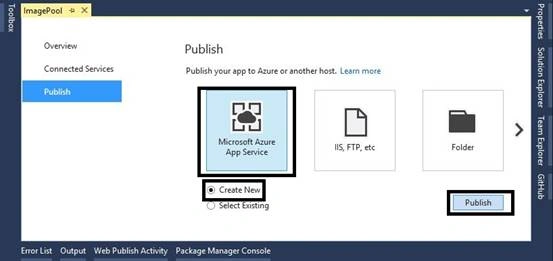
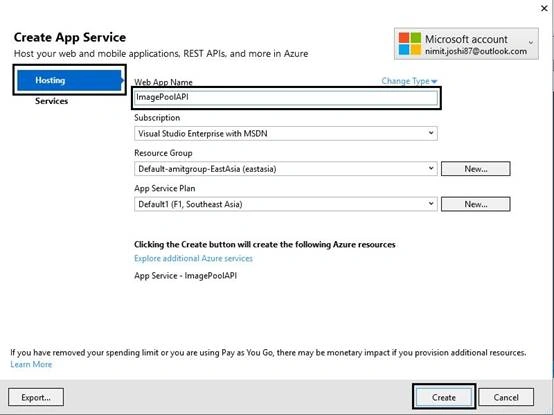


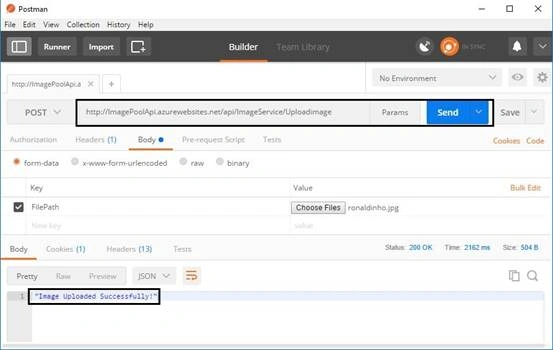
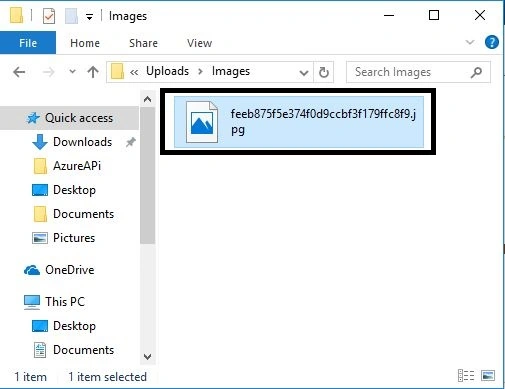
saurabh jainPosted Nov 13, 2018, 2:34 AM
Hi Nimit, Can you suggest how to upload video from Android native application to Azure Blob. I will appreciate your quick suggestion. Thanks
Ankit BansalPosted Jul 14, 2017, 3:12 AM
Nice explanation...Good one..Thanks..