

This article explains how to use a content query webpart and view the content dynamically using custom XSL Templates.
Create a team site in SharePoint 2013.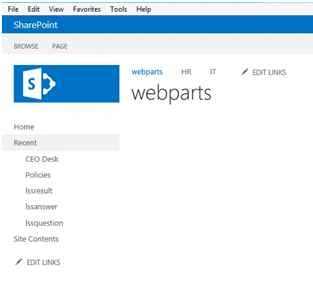
Open a site in SharePoint designer to add a new XSL style template.
Click on All Files.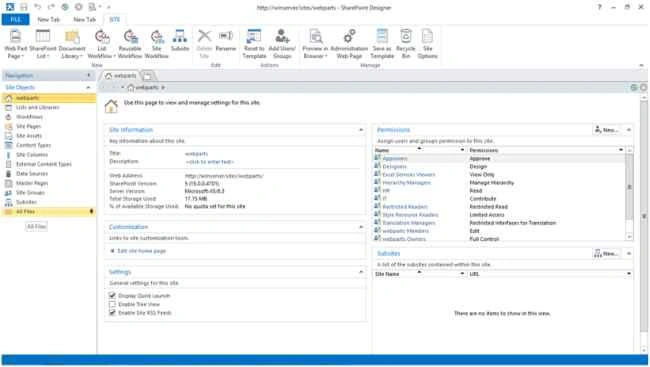
Just navigate to the Style library.
Click on the XSL Style Sheet folder.
Right-click on the itemstyle.xsl to “Check Out”.
Now we will add our own custom style to the content query webpart.
Add the following code to the bottom.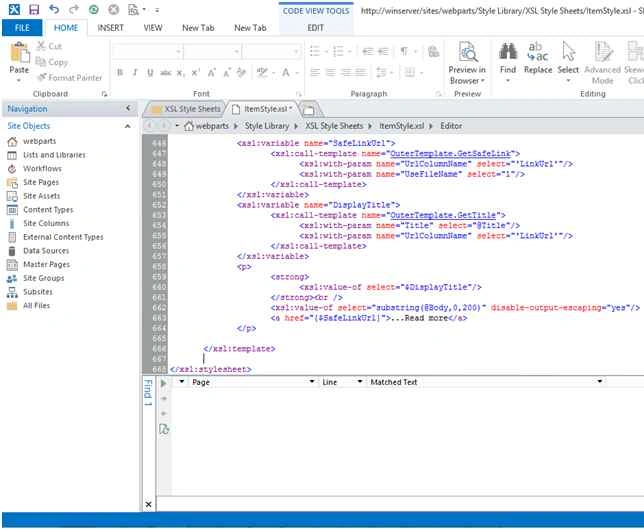
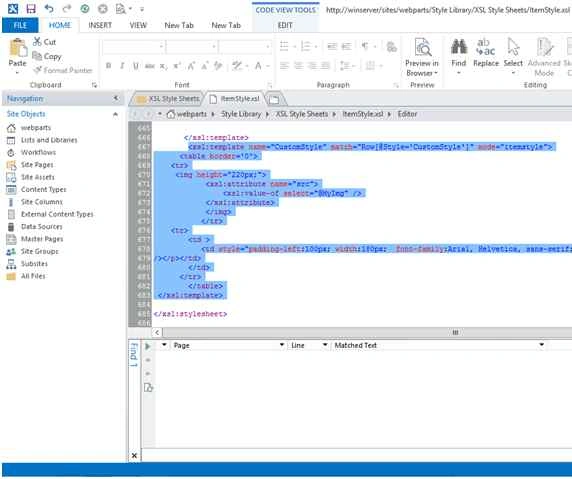
The following is the code (in this code I am just adding the image and content):
- <xsl:template name="CustomStyle" match="Row[@Style='CustomStyle']" mode="itemstyle">
- <table border='0'>
- <tr>
- <img height="220px;">
- <xsl:attribute name="src">
- <xsl:value-of select="@MyImg" />
- </xsl:attribute>
- </img>
- </tr>
- <tr>
- <td >
- <td style="padding-left:10px; width:1300px; font-family:Arial, Helvetica, sans-serif; font-size:16px;"><p style="text-align:justify" ><xsl:value-of select="@MyContent"
- /></p></td>
- </td>
- </tr>
- </table>
- </xsl:template>
Here I will create the new list for displaying the data dynamically using a content query webpart.
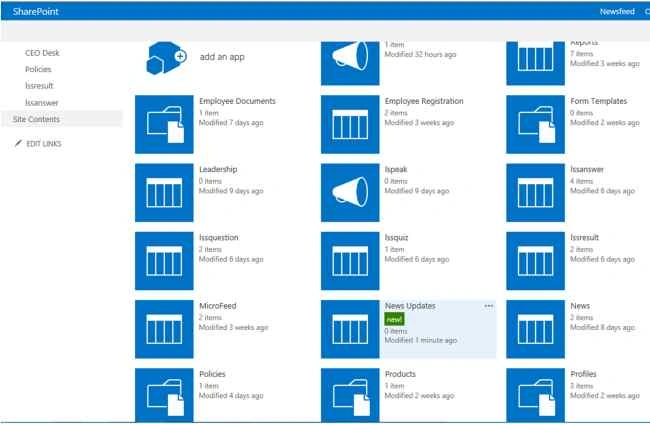
Click Add an app.
Create a custom list named new updates.
Here I will create a columns named Image and Content.
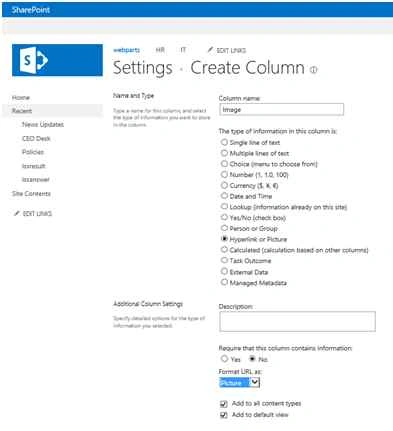
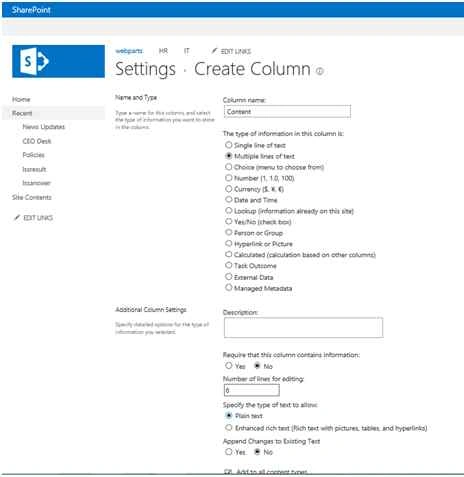
Now the list looks like this.
Click on new item to add an image and the content.
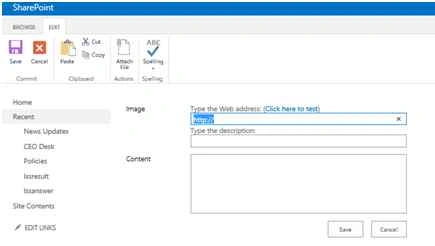

Click Save. Now it look likes this.

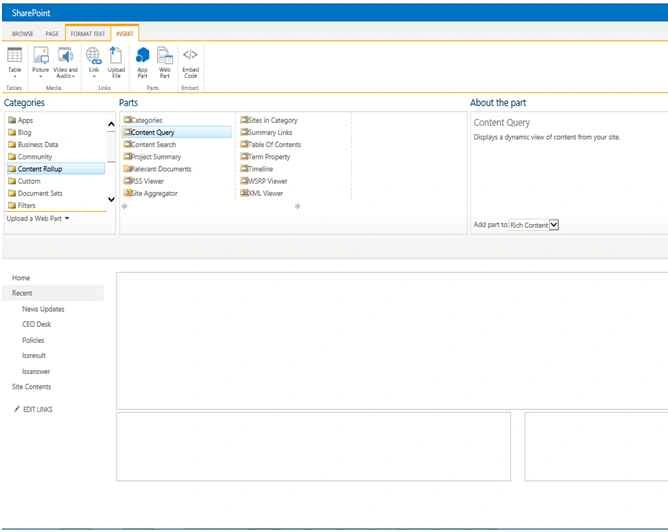
Now add a content query webpart to the page.
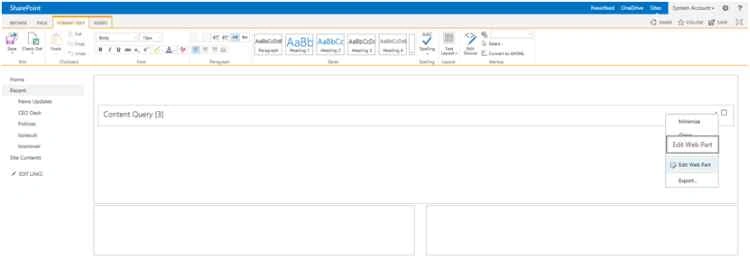
Click Edit webpart.
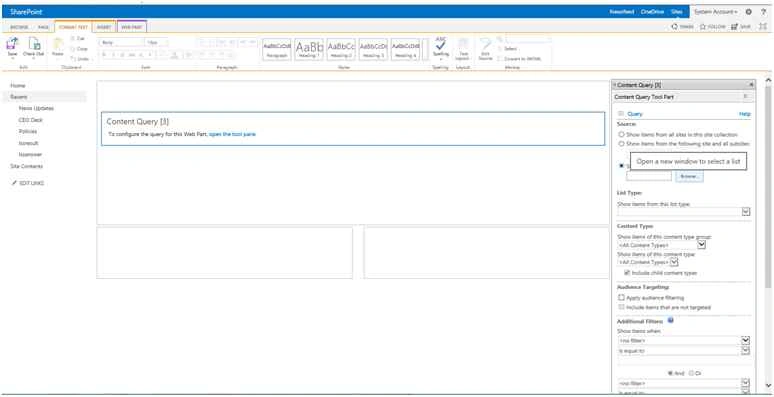
In the query section, select list or libraries to display the items dynamically.
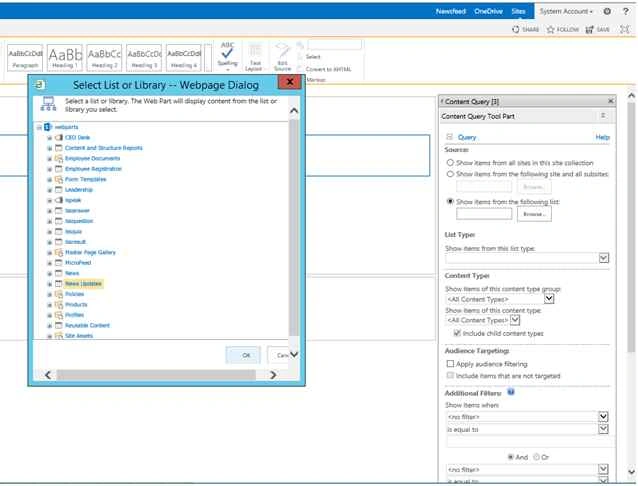
Just select New updates lists then click Save.
Now Select Presentation to apply the styles.

Here you are able to see the custom style create on XSL Template.
Just select it.
In the image field just pass the column name from the list.

Now it looks like this.
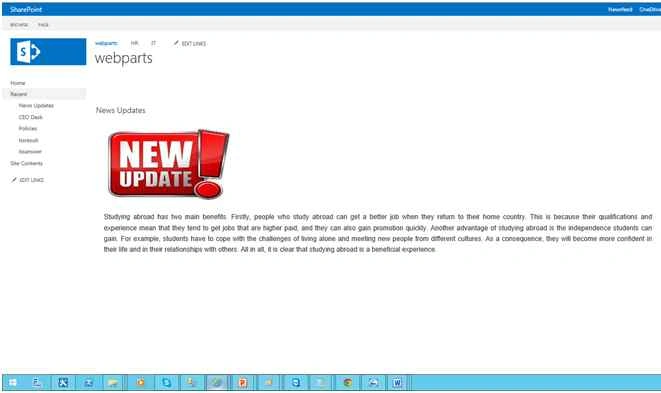
Here now I will change the image in the table.
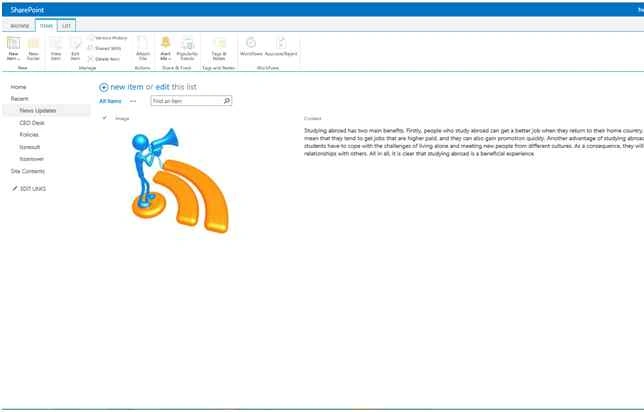
Now it has been updated and viewed in a custom style.
This will help you to dynamically view the content in SharePoint without writing code.
Happy SharePoint.
Chervine BhiwooPosted Aug 8, 2015, 2:20 AM
Good job!
Sibeesh VenuPosted Aug 7, 2015, 8:22 AM
Nice Share!.
Vinodh NarayananPosted Aug 7, 2015, 2:09 AM
Thanks
Ankit BansalPosted Aug 7, 2015, 2:09 AM
nice...thanks for share..
Vinodh NarayananPosted Aug 7, 2015, 12:51 AM
Thank u guys
Rajeesh MenothPosted Aug 7, 2015, 12:27 AM
Good One
Gopi ChandPosted Aug 6, 2015, 11:55 PM
Good work
Gowtham RajamanickamPosted Aug 6, 2015, 9:43 AM
good one..
Vinodh NarayananPosted Aug 6, 2015, 9:29 AM
Thank u
Sibeesh VenuPosted Aug 6, 2015, 8:34 AM
Nice Share
Vinodh NarayananPosted Aug 6, 2015, 1:14 AM
Thanks sir
Debasis SahaPosted Aug 6, 2015, 12:52 AM
Nice article..
Vinodh NarayananPosted Aug 6, 2015, 12:30 AM
Thank u guys
Vinodh NarayananPosted Aug 6, 2015, 12:30 AM
Santhakumar Munuswamy Thank u sir
Nilesh JadavPosted Aug 6, 2015, 12:10 AM
Nice article sir
Santhakumar MunuswamyPosted Aug 5, 2015, 11:40 PM
Good Article. Thanks for sharing
Neeraj KumarPosted Aug 5, 2015, 5:41 PM
Good One