

Introduction
In this arcticle you will learn about the ToolStrip button and properties of the BindingNavigator class in a Windows Forms Application. The main purpose of this article is to explain how to use the navigation buttons for a DataTable.
Properties of BindingNavigator Class
The BindingNavigator class navigates and manipulates the user data in the form they are in; The following are some properties of the bindingnavigator class:
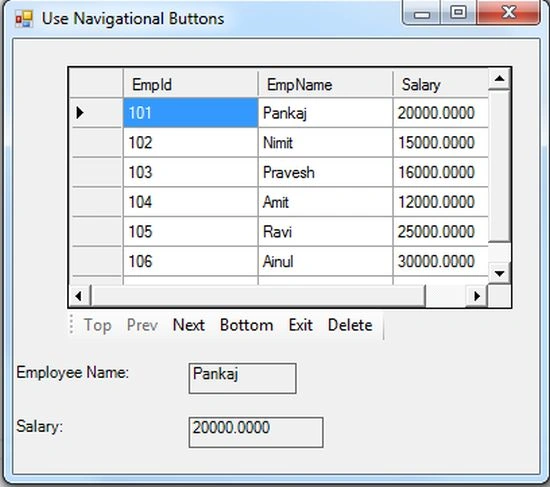
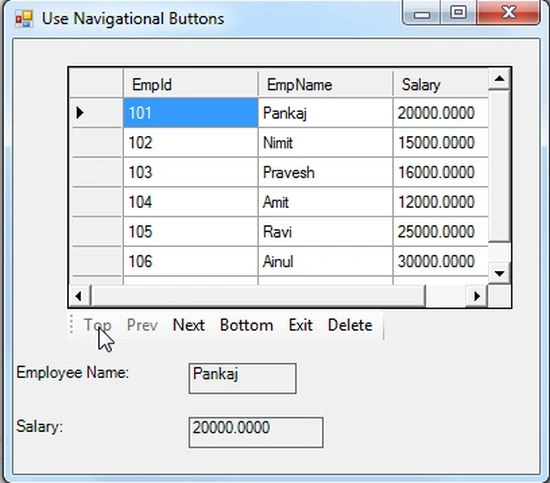
- Top: Top click gets the first record of the table field.
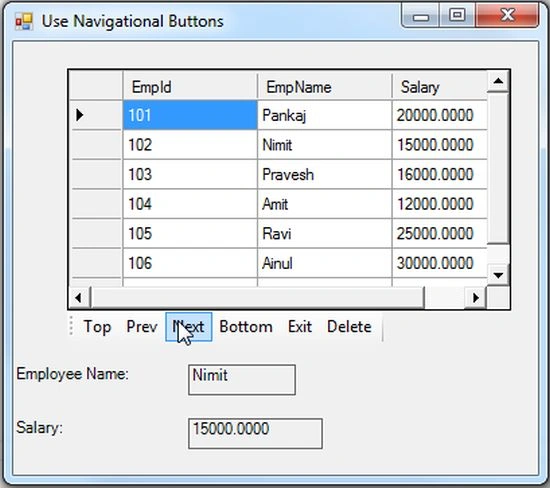
- Next: Next click gets the next record of the table field.
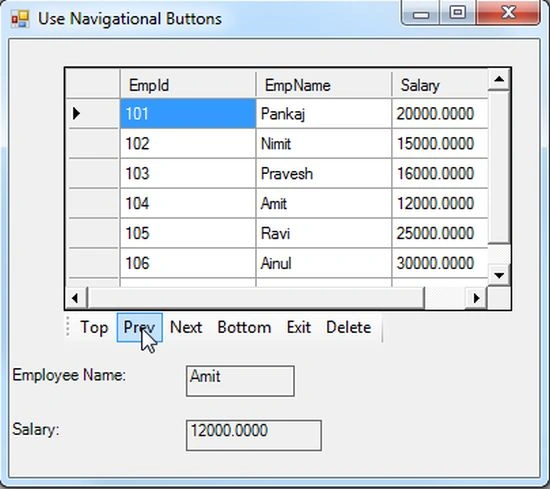
- Prev: Previous click gets the previous record of the table field.
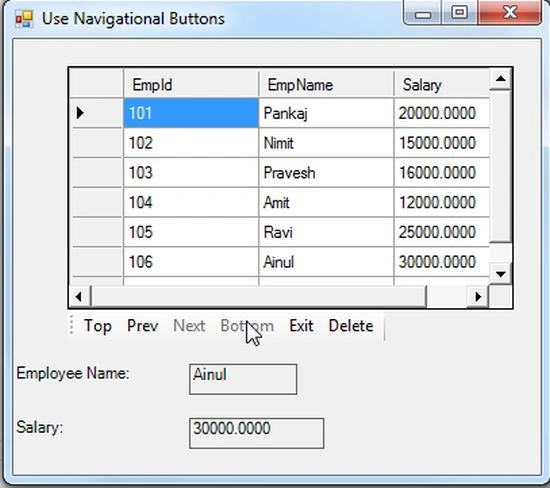
- Bottom: Bottom click gets the last record of the table field.
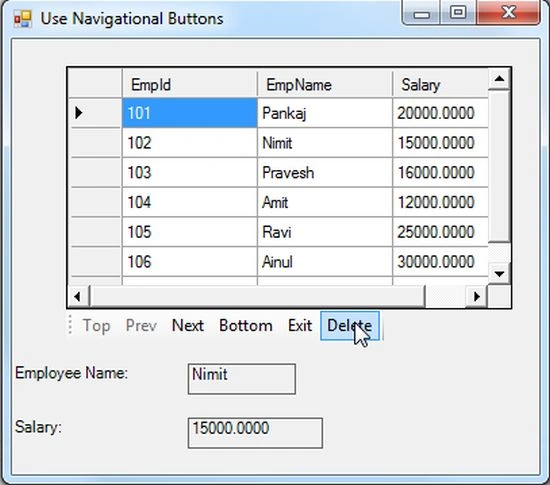
- Delete: Delete click deletes the selected item of the table field.
ToolStrip Button
The ToolStrip Button is a toggle button that has the two states of an ordinary state and a selected state. When you select the toggle button it remains highlighted until the mouse is not hovering over it. The user can change the state of the toggle button by clicking on it once.
Syntax: let movefirst=new ToolStripButton(Text="Top"), initializes a new instance of the ToolStripButton class that displays the specified text.
Use the following procedure to create the database and table in SQL Server:
Create Database Employee
use Employee
create table EmployeeSalary
(
EmpId int primary key,
EmpName varchar(max),
Salary money
)
Use the following procedure to insert the values in the database table in SQL Server:
insert into EmployeeSalary values(101,'Pankaj',20000)
insert into EmployeeSalary values(102,'Nimit',15000)
insert into EmployeeSalary values(103,'Pravesh',16000)
insert into EmployeeSalary values(104,'Amit',12000)
insert into EmployeeSalary values(105,'Ravi',25000)
insert into EmployeeSalary values(106,'Ainul',30000)
Use the following procedure to execute the query in the database table in SQL Server:
select * from EmployeeSalary

Now I will show you how to use navigational buttons in a Windows Forms application. Let's use the following procedure.
Step 1:
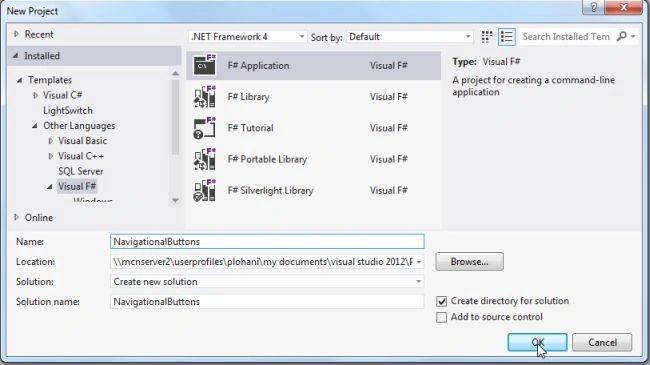
Open Visual Studio, then select "Create New Project" --> "F# Console Application".
Step 2:
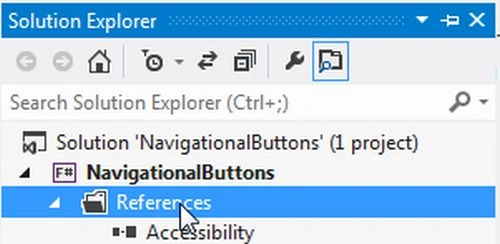
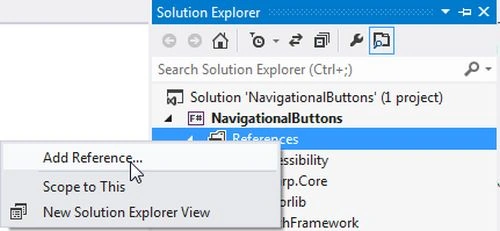
Now go the Solution Explorer, on the right side of the application. Right-click on "References" and select "Add references".
Step 3:
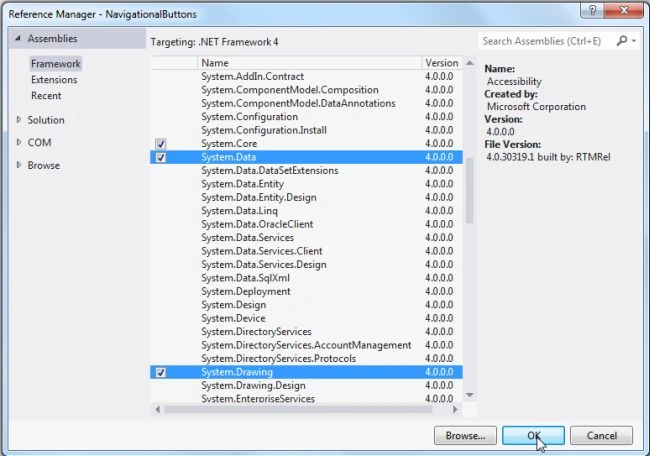
After selecting "Add References", in the framework template you need to select "System.Windows.Forms", "System.Drawing" and "System.Data" while holding down the Ctrl key and click on "Ok".
Step 4:
Use the following code to add navigation buttons to the Windows Forms Application.
Join the conversation! Your thoughts help the community grow.