

Introduction
There are various types of External Authentication services like Google, Facebook, Twitter and Microsoft available to provide membership in ASP.NET Web Pages 2. These OAuth and OpenID providers are also available in the ASP.NET Web Application and I've already explained it in External Authentication in MVC.
In that context, I am describing here to authenticate the website by using these external providers in the WebMatrix using ASP.NET Web Pages 2. You'll learn to enable the OpenID and OAuth provider in the WebMatrix here. So, let's proceed with the following sections:
- Create Starter Site in WebMatrix
- Enable Google Provider
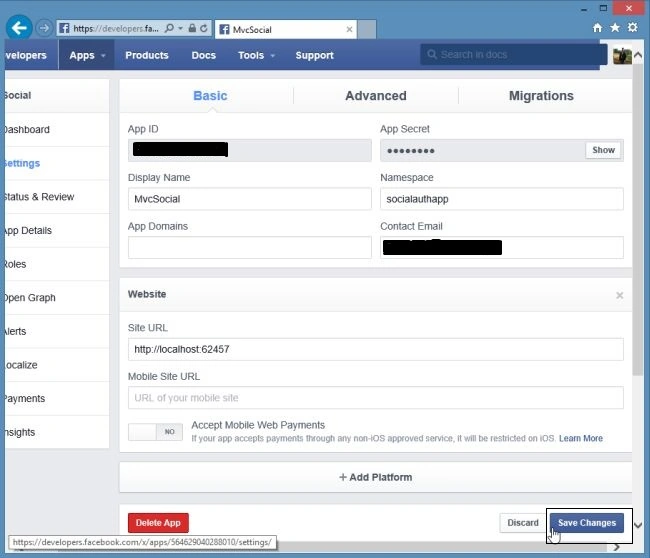
- Enable Facebook Provider
Create Starter Site in WebMatrix
At first we need to have a Starter Site in the WebMatrix to authorize and work with the external providers. Use the following procedure to do that.
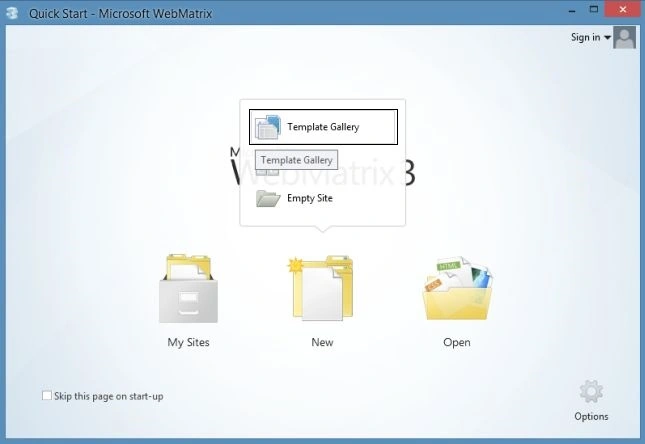
Step 1: Open the Microsoft WebMatrix and click on "New" to select a Template Gallery.
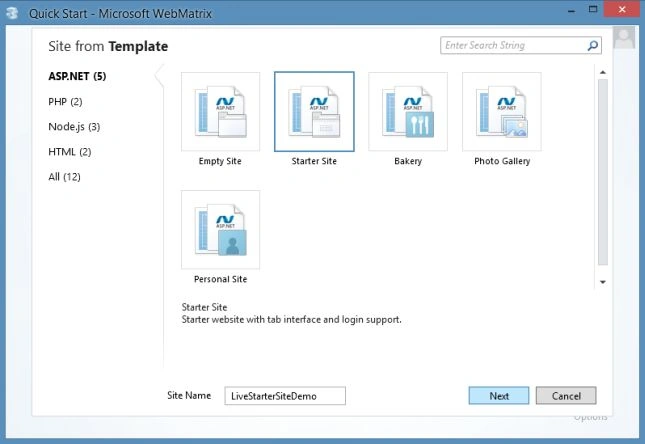
Step 2: Select the "Starter Site" and enter the site name.
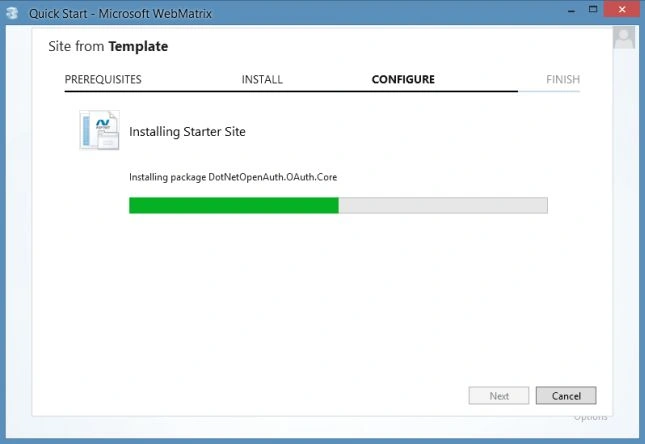
It automatically creates the starter site and installs the DotNetAuth services with its default settings and you can see the newly added files and folders in your WebMatrix.
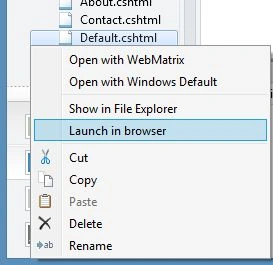
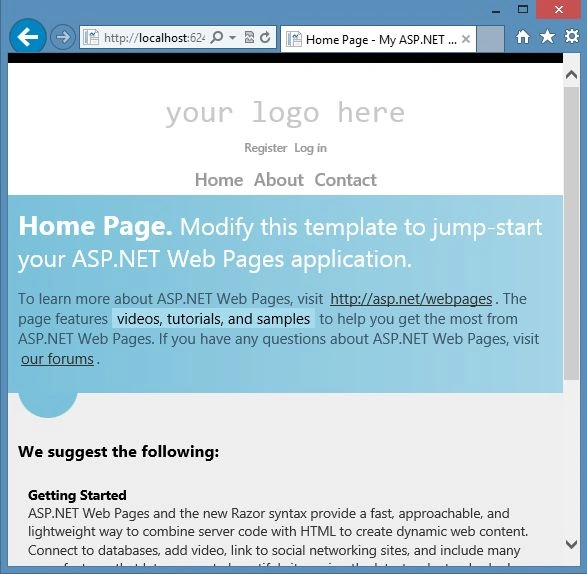
Step 3: Now launch the Default.cshtml page in the browser.
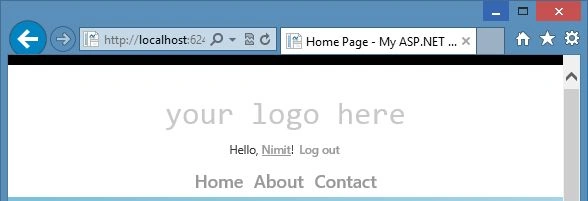
The home page of your website will open and it'll look like this:
Enable Google Provider
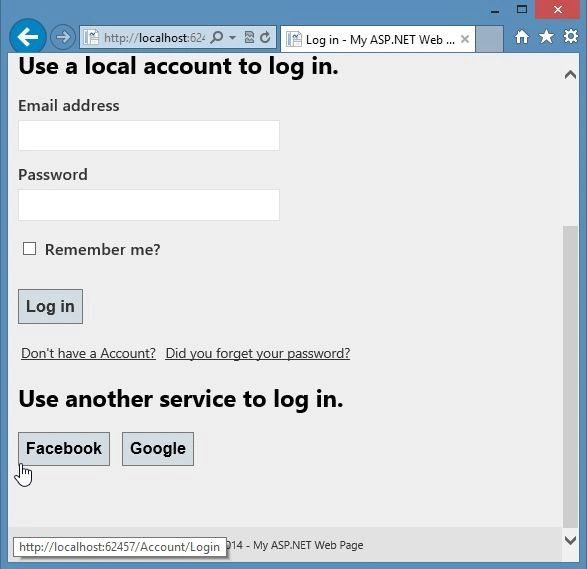
There are no external login services provided in the website until now. You can login with your local account. Have a look at the following screenshot:
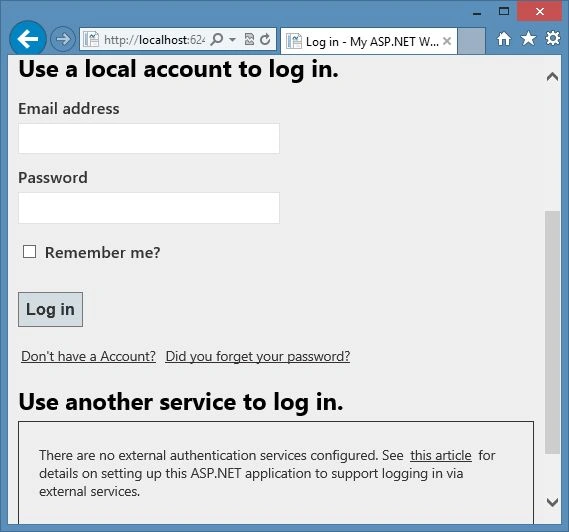
You can enable the OAuth and OpenID external providers in the application with some editing in the code. It is recommended by Microsoft to use the Starter Site Template to get started with the external providers. It includes a full membership infrastructure, complete with a login page and a membership database.
So, let's work with Google which is the OpenID provider. You do not have to worry about creating an app on Google and Yahoo. Use the following procedure.
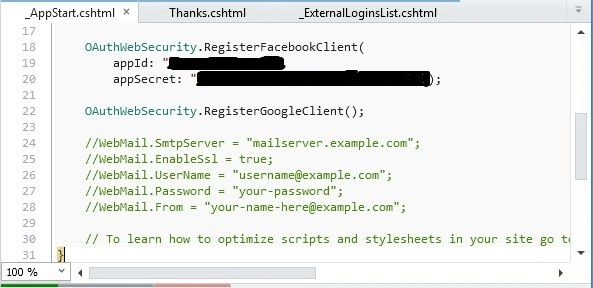
Step 1: Open the _AppStart.cshtml page and enable the Google provider exist at the end:
- OAuthWebSecurity.RegisterGoogleClient();
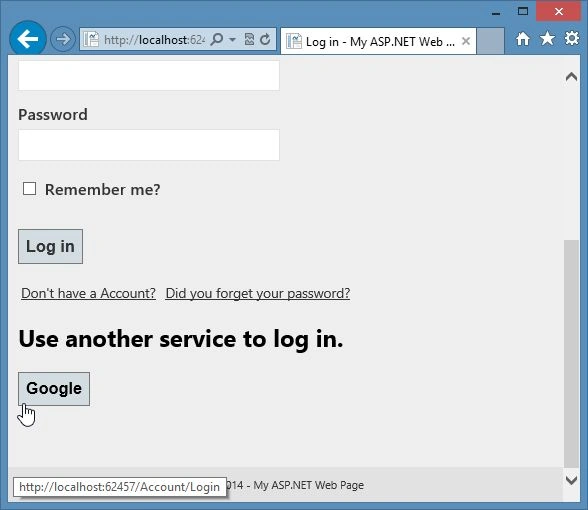
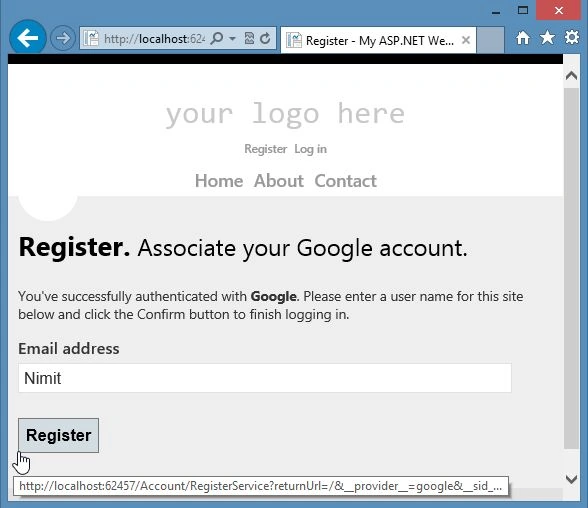
Step 2: Run the Default.cshtml page in the browser and click on "Login".



Guest UserPosted Jun 22, 2017, 5:03 AM
Https://www.youtube.com/watch?v=BxgFeZeVvsQ&t=5s