

You can create a virtual machine in Azure using one of the following methods:
- Use Quick Create when you need only one virtual machine for your solution, or when you need to connect it to a virtual network.
- Use From Gallery when you need a solution that requires multiple virtual machines or a virtual machine with advanced settings.
- A virtual machine is a server in the cloud that you can control and manage. After you create a virtual machine in Azure, you can stop and restart it whenever you need to.
- When you create a virtual machine, it is automatically started for you. You’ll know when a virtual machine is running because its status is Running. You can stop and restart a virtual machine at any time.
- Before you stop a virtual machine, you should make sure that applications running on the virtual machine are shut down appropriately. The applications that are running on a virtual machine are automatically shut down when the virtual machine is stopped.
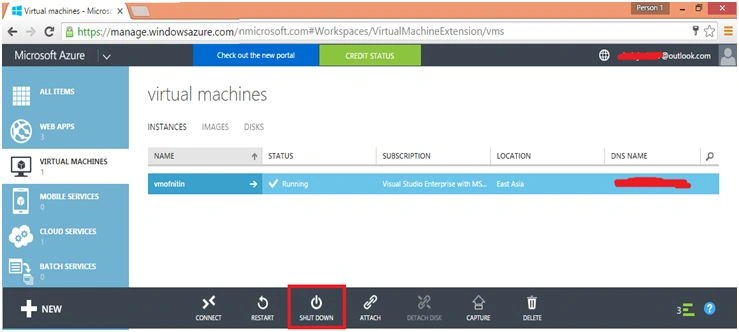
- To stop a virtual machine, click its name, and then click Shutdown. When you stop the virtual machine, it shuts down just as your server in your office shuts down when you stop it. While the virtual machine is shutting down, its status is Stopping. When the virtual machine is stopped, its status is Stopped. If you set up load balancing for your cloud service, you should consider how stopping the virtual machine will affect your application.
- When a virtual machine is running and you want to restart it, click its name, and then click Restart. While the virtual machine is restarting, its status is Restarting. When the virtual machine is ready for you to use, its status is Running.
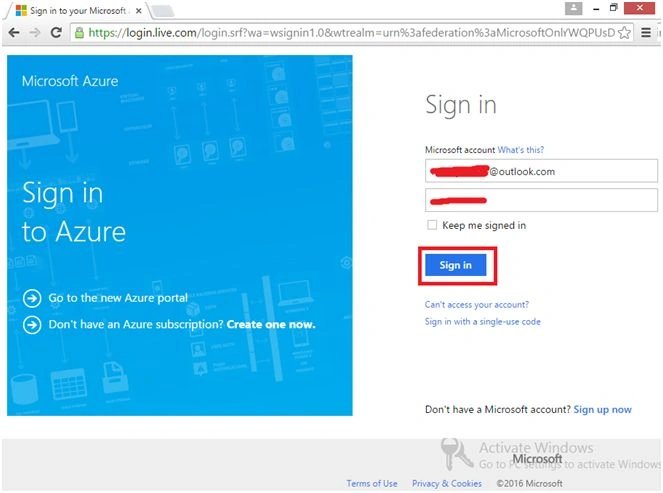
Step 1: Login to Windows Azure.
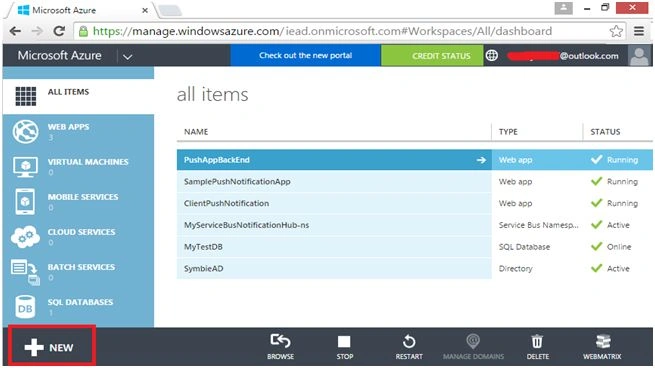
Step 2: By login in to Windows Azure, select "NEW” at the bottom of the window.
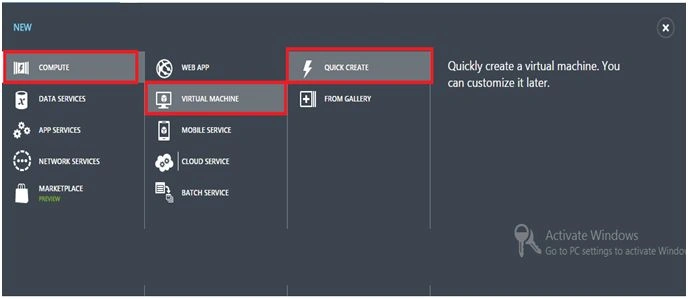
Step 3: Under "COMPUTE”, select "Virtual Machine” and select "Quick Create”.
Here, I am going to create Quick Create when we need only one virtual machine for our solution.
You will see the following figure,
DNS: The DNS name must contain between 3 and 15 characters. The name can contain only letters, numbers, and hyphens. The name must start with a letter and must end with a letter or a number.
Image: Choose an Operating System image from the drop down menu; here I want to show "Windows Server 2012 R2 Datacenter."
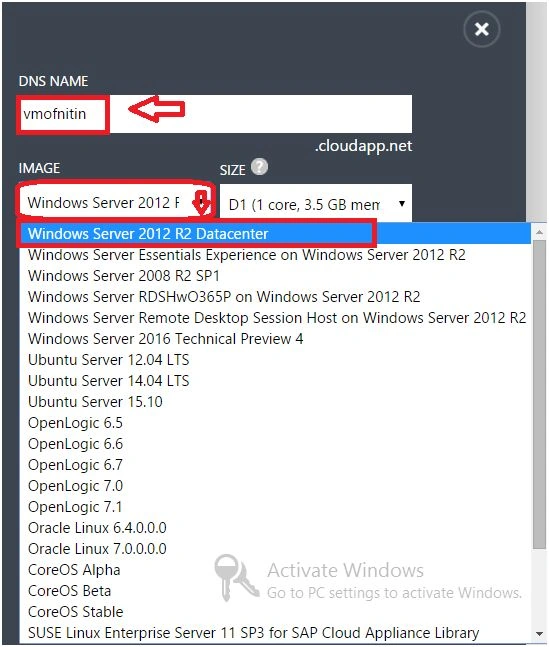
Size: In size, you can give a size to your virtual machine from different sizes in the dropdown menu.
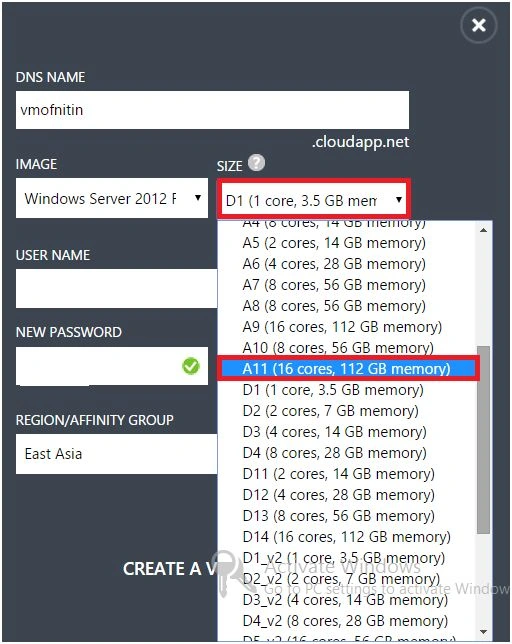
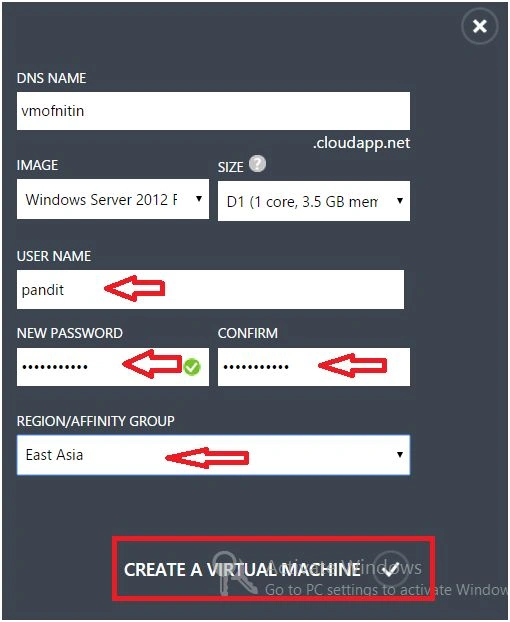
User Name: User Name is mandatory for the VM, it would be used at the time of credentials. Here I gave "pandit.”
Password: Give the password for logging in to the virtual machine.
Region: I’m from India, so I am going to select "East Asia.”
Hit on check mark to create a virtual machine (shown in the rectangle).
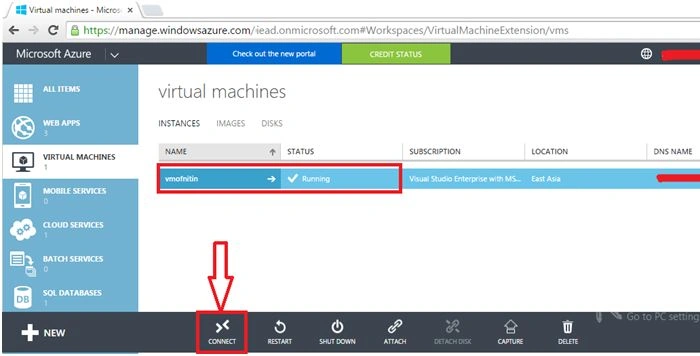
After the creation of the virtual machine, we need to connect it where we can access it remotely. Select your virtual machine and click on "Connect” button.
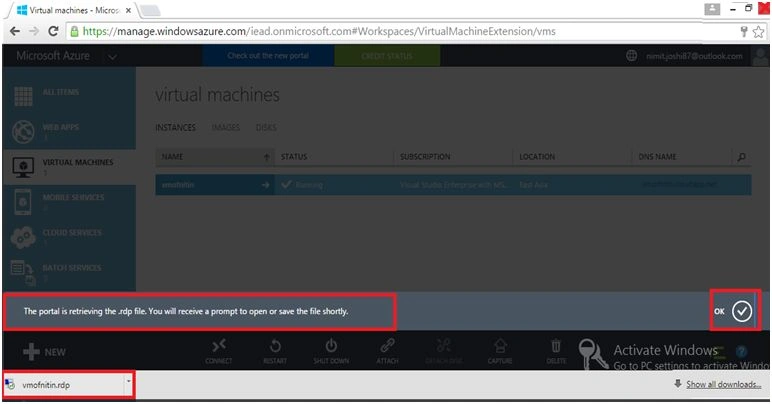
A file with extension ".rdp” will be downloaded.
It will display a message for the file.
Open the downloaded RDP file.
Go to the downloaded RDP file and open it. Remote Desktop is enabled by default.
Click on "Connect” button.
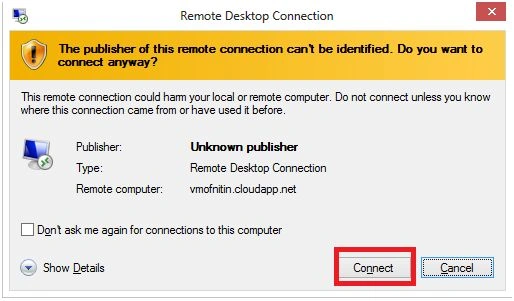
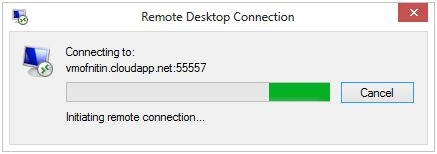
After clicking on connect button it will start the remote connection.
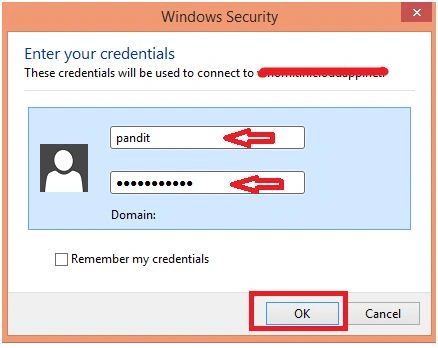
Now, we need to complete security by entering credentials, user name and password which we setup during creation of the virtual machine.
Click on "OK” button.
Click on "Yes” button.
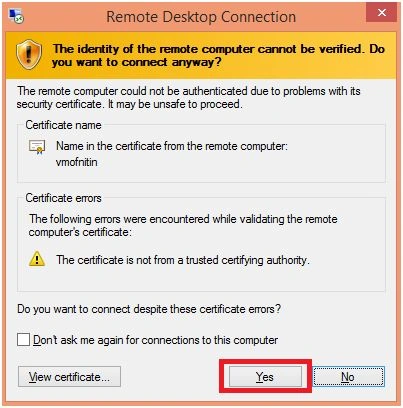
After entering your credentials click on "yes" and you will be connected with your Virtual Machine.
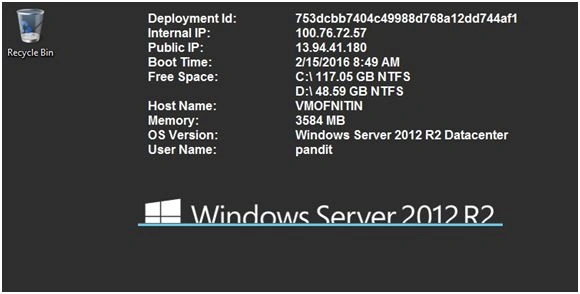
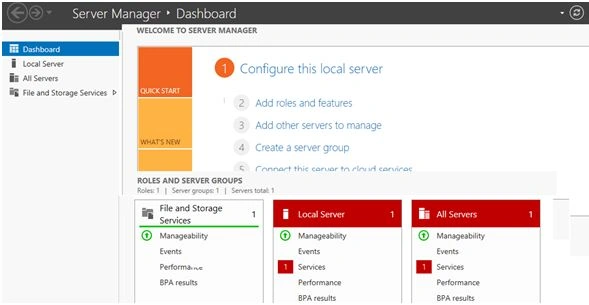
Here is the Dashboard.
Make sure you don't forget to shut down your VM after completing your work. You can shut down it from shutdown option as in the following:
I hope you enjoyed this article. Stay tuned for part two of the article series.
Thanks for reading.
Kuppurasu NagarajPosted Apr 8, 2016, 2:41 PM
Nice
Abhishek KumarPosted Mar 11, 2016, 7:12 AM
Nice article sr..
Nitin PanditPosted Mar 7, 2016, 10:46 PM
Thanks to all :)
Sonu ChaudharyPosted Mar 7, 2016, 7:18 AM
Thanks
Pramod ThakurPosted Feb 25, 2016, 3:00 AM
thanks for sharing..
Mohammed IbrahimPosted Feb 24, 2016, 7:14 PM
nice
Gowtham KPosted Feb 24, 2016, 2:52 AM
Good One, Thanks for sharing:)
Amit Kumar SinghPosted Feb 24, 2016, 12:13 AM
Nice one
Kumaresh RajalingamPosted Feb 23, 2016, 8:13 PM
Good one sir
Vignesh ManiPosted Feb 23, 2016, 4:44 PM
Nice one
Santhakumar MunuswamyPosted Feb 23, 2016, 1:59 PM
Thanks for nice article
Oommen KuruvillaPosted Feb 23, 2016, 11:57 AM
well explained.
Sibeesh VenuPosted Feb 23, 2016, 9:12 AM
Nice Share
Amit MishraPosted Feb 23, 2016, 7:31 AM
nice share
Humayun Kabir MamunPosted Feb 23, 2016, 7:03 AM
Nice...
Shubham KumarPosted Feb 23, 2016, 5:55 AM
Nice share sir !! plzz provide step by step article on AWS