

Visusl Studio 2015 Download Link : https://www.visualstudio.com/?Wt.mc_id=DX_MVP5000564
Abstract
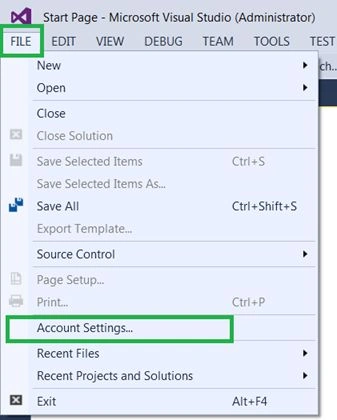
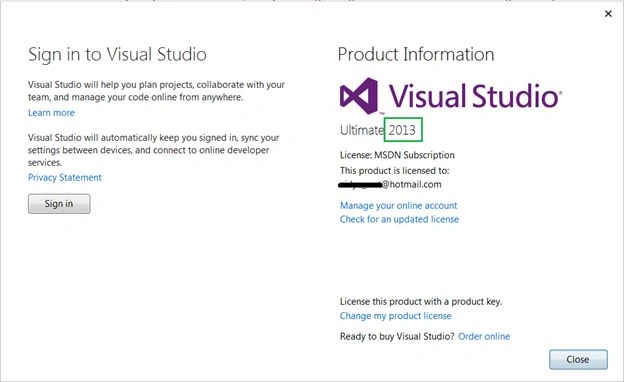
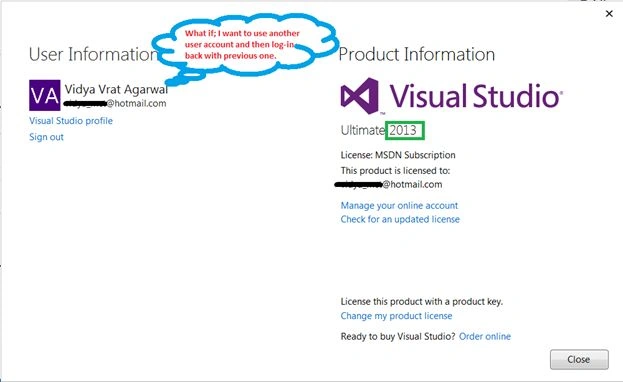
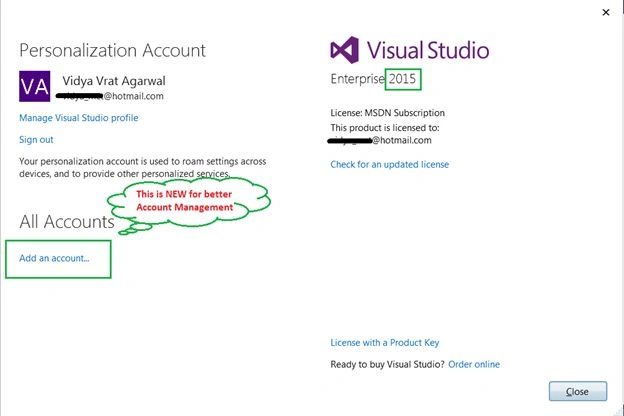
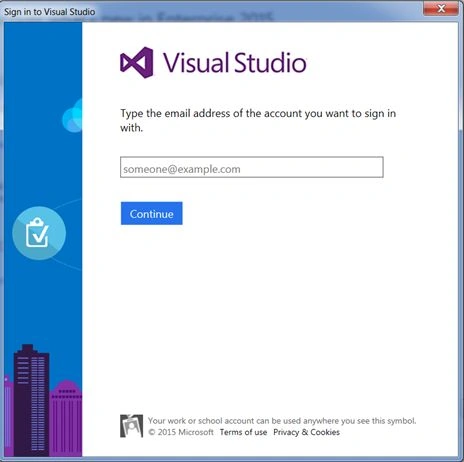
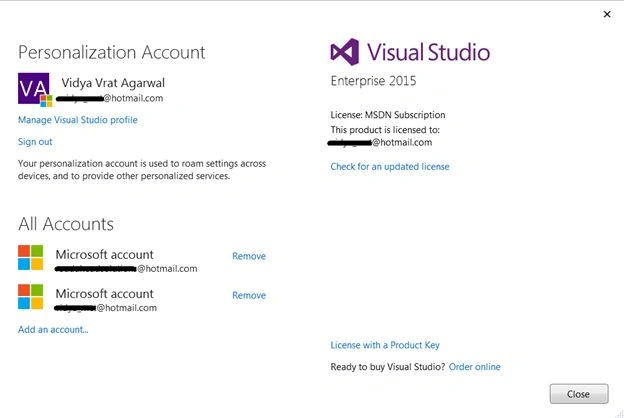
Account Management is related to the Sign-in feature that was first time introduced with Visual Studio 2013. This feature has been helpful by various means, but Visual Studio 2015 even extends this experience with some enhancements.
Introduction
Account Management turned out to be a very helpful feature, here are some points:
Account Management is related to the Sign-in feature that was first time introduced with Visual Studio 2013. This feature has been helpful by various means, but Visual Studio 2015 even extends this experience with some enhancements.
Introduction
Account Management turned out to be a very helpful feature, here are some points:
- Associate a profile (for example web development, C# or general) and synchronize your settings with the development environment once you are logged into another workstation.
- Ability to select graphic themes (Light, Dark, Blue) for the appearance of the IDE, code and code editor windows.
- Get direct benefits of the MSDN subscription associated with the ID used to sign into Visual Studio. For example unlocking Visual Studio or manage licenses associated with Visual Studio.
- Automatic login to a TFS Service account if subscribed to one. TFS Service is a Microsoft cloud based version of TFS.
Synchronized Settings
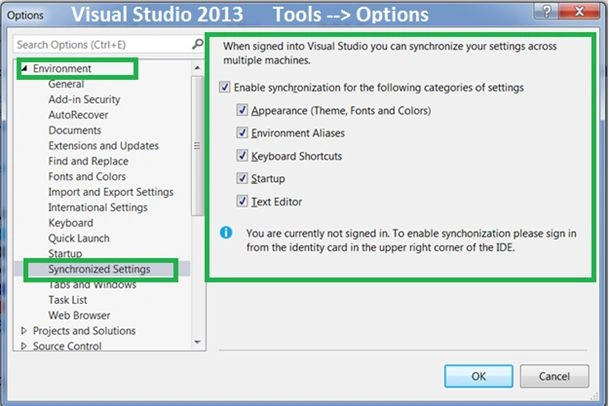
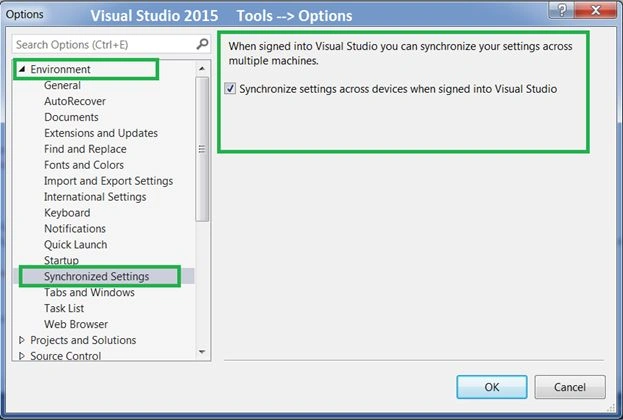
Visual Studio 2013 and 2015 allows the users to choose which settings to synchronize. Let's first understand which Visual Studio settings are a candidate for Synchronization.
- Appearance, in other words Themes, Colors and Fonts.
- Environment Aliases
- Keyboard Shortcuts
- Startup
- Text Editor

Dinesh GabhanePosted Nov 8, 2019, 1:21 AM
Thanks for sharing
Sr KarthigaPosted May 6, 2016, 9:09 PM
good one sir
Hari ShankerPosted Feb 5, 2016, 4:51 AM
Thanks for sharing
Sumit JoshiPosted Aug 13, 2015, 9:06 AM
Thanks for sharing
Vidya Vrat AgarwalPosted Aug 3, 2015, 4:00 PM
Thanks to all those who has liked and commented here and each reader of my work on C # Corner.
Nitesh KejriwalPosted Jul 29, 2015, 8:12 AM
Great start with this series Vidya Vrat Agarwal :)
Santhakumar MunuswamyPosted Jul 28, 2015, 3:05 PM
Good. Thanks for sharing sir
Shridhar SharmaPosted Jul 28, 2015, 10:49 AM
nice share sir.
Sibeesh VenuPosted Jul 28, 2015, 7:53 AM
Nice Share
Nilesh JadavPosted Jul 28, 2015, 6:24 AM
Nice one sir Thank you for sharing
Debasis SahaPosted Jul 28, 2015, 4:50 AM
Thanks for sharing..
Gopi ChandPosted Jul 28, 2015, 4:01 AM
Great one sir
Rahul Kumar SaxenaPosted Jul 28, 2015, 3:52 AM
Knowledgeable..
Neeraj KumarPosted Jul 28, 2015, 3:44 AM
Nice Article
Jacob RobinsonPosted Jul 28, 2015, 3:30 AM
Thanks for sharing sir..
Vipul MalhotraPosted Jul 28, 2015, 3:26 AM
nice Article Sir
Rajeesh MenothPosted Jul 28, 2015, 3:25 AM
Good One sir..
RakeshPosted Jul 28, 2015, 3:13 AM
Good sharing sir
Mahesh ChandPosted Jul 28, 2015, 2:55 AM
Nice Vidya.
Jaipal ReddyPosted Jul 28, 2015, 2:04 AM
Thank you for sharing sir.
Jeetendra GundPosted Jul 28, 2015, 1:16 AM
Good one sir
Manoj KulkarniPosted Jul 28, 2015, 12:56 AM
Nice article. Thank you for sharing