

Before reading this article, I highly recommend reading the following previous parts of the series:
- Visual Studio 2015 Feature Series #1 Account Management
- Visual Studio 2015 Feature Series #2 Window Layouts
Abstract
An IDE’s Code Editor is every developer’s playground. Being a developer requires a lot of seeing, thinking and coding of course. This is the place where most of our time is spent in various activities. I learned that small things make big difference. This article will explain some of the code editor enhancements made in Visual Studio 2015 to improve developer’s productivity; which will help the developers to code better, to see better and even have better touch support if you are working on a touch enabled device.
Colored Tool Tips
Tool tip is a useful feature when a developer want to look at preview of a code segment; by placing mouse pointer over the collapsed construct such as class definitions, structure definitions, and method bodies. Visual Studio 2015 enhances the too tip view by showing colors as per the usage of code, keywords and types, etc.
If you hover mouse on a type and observe the preview generated then you will notice that the code is hard to read and figure out the type, keywords and code, etc. are in plain black color as in the following Figure 1.
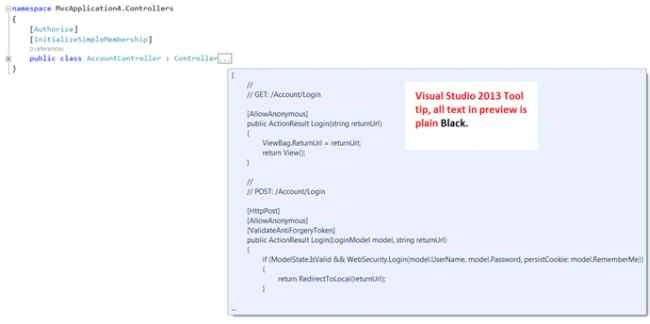
Figure 1: Plain Black Tool tip preview in Visual Studio 2013
This has served the purpose for many years but it doesn’t give proper visual clues on types, keywords and code used. Now let’s have a look at Visual Studio 2015 Tool tip as in the following Figure-2:
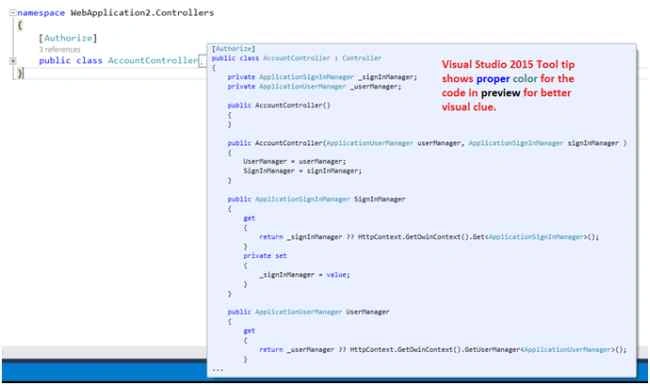
Figure 2: Colored Tool tip preview in Visual Studio 2015
Light Bulb and Quick Actions
Writing code is not easy and at times, some small productivity enhancement tips have big impact and give you some free time and take you away from thinking through of everything in terms of solving every error. What if Visual Studio code editor can itself suggest some actions; to resolve the issue?
For instance, have a look at the following Figure-3 in which Visual Studio 2013 is showing an error when used ITest; which requires to explore some possible options to fix the issue on your own.

Figure 3: Visual Studio 2013
Now, consider the same scenario in Visual Studio 2015, when you hover mouse on ITest then you will see a “Light Bulb” which will lead you to possible solutions, and this is really productive way of programming.

Figure 4: Visual Studio 2015, Light Bulb
Removing Un-used Using
One of the best coding practice is to remove all un-used using statements from your code. The easiest way for a developer has always been to use the option “Organize Usings” because Visual Studio code editor was not telling you while coding; that which using is not being used. i.e. as the following Figure-5 shows that all using are being used until a developer try to invoke “Organize Usings”.

Figure 5: using in Visual Studio 2013
Visual Studio 2015 made this using business very institutive and developer friendly, so as soon as you start adding using statements you will know immediately if that is being used or not and you can remove those very quickly with fewer steps in comparison to prior Visual Studio code editors.
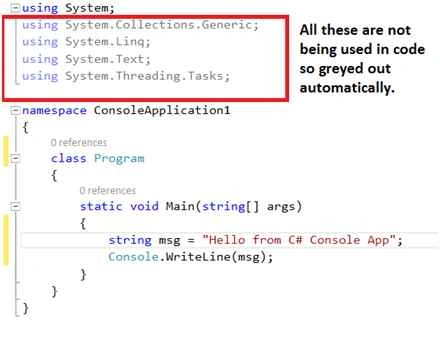
Figure 6: Greyed out using statements in Visual Studio 2015
Now, it’s also easy to remove un-used using statements. Just hover mouse on using statements and click on the “Light Bulb”.
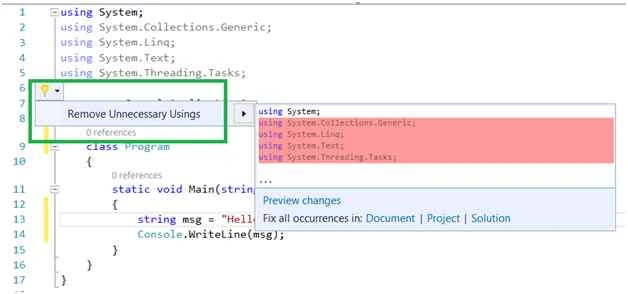
Figure 7: Using Light Bulb to remove un-used using statements
Inline Rename
I have personally found that “Rename” is the most widely used Refactoring option as many times you want to rename something in your code either due to self-realization or to address a code reviewer comment.
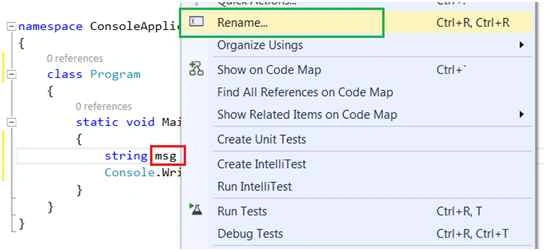
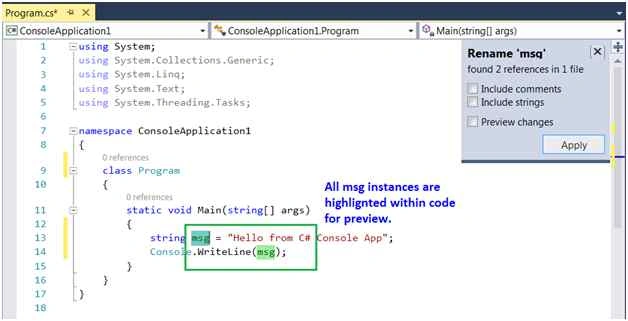
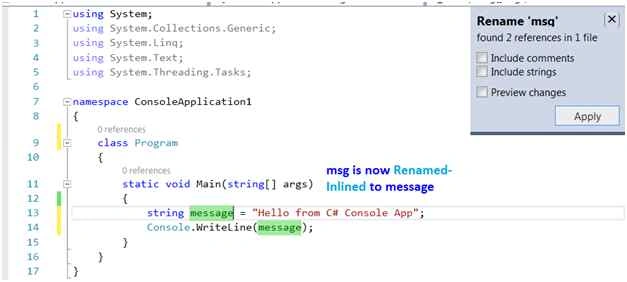
Before Visual Studio 2015, the “Rename Workflow” was quite tedious and lengthy workflow, let’s quickly have a look via Visual Studio 2013.
Let’s say in the following code; we want to rename msg variable to message and preview the changes before it’s applied on the code.


Sr KarthigaPosted May 6, 2016, 9:09 PM
good one sir
Santhakumar MunuswamyPosted Sep 5, 2015, 4:20 AM
Good one. Thanks for sharing
Mohammed IbrahimPosted Sep 4, 2015, 5:30 PM
nice
sreenivasa kPosted Sep 4, 2015, 2:10 PM
excellent
Sumit JoshiPosted Sep 4, 2015, 11:56 AM
Thanks For Sharing sir.
Pankaj Kumar ChoudharyPosted Sep 4, 2015, 6:53 AM
Nice Information Sir Thanks for share this.....
Ankit BansalPosted Sep 4, 2015, 5:04 AM
thanks for sharing...
Manas MohapatraPosted Sep 4, 2015, 4:37 AM
Very informative..
Rajeesh MenothPosted Sep 4, 2015, 2:24 AM
Thank you for sharing sir
Karthikeyan KPosted Sep 4, 2015, 2:20 AM
Good one sir..Thanks for sharing