

WCF Introduction
Windows Communication Foundation (WCF) is a framework for building service-oriented applications. Using WCF, you can send data as asynchronous messages from one service endpoint to another. A service endpoint can be part of a continuously available service hosted by IIS, or it can be a service hosted in an application.
WCF = WebService + .Net Remoting + MSMQ + COM+
Scenarios where WCF must be used:
- A secure service to process business transactions.
- A service that supplies current data to others, such as a traffic report or other monitoring service.
- A chat service that allows two people to communicate or exchange data in real time.
- A dashboard application that polls one or more services for data and presents it in a logical presentation.
- Exposing a workflow implemented using Windows Workflow Foundation as a WCF service.
- A Silverlight application to poll a service for the latest data feeds.
Features of WCF
- Service Orientation
- Interoperability
- Multiple Message Patterns
- Service Metadata
- Data Contracts
- Security
- Multiple Transports and Encodings
- Reliable and Queued Messages
- Durable Messages
- Transactions
- AJAX and REST Support
- Extensibility
The advantages of WCF
- WCF can be configured to work independently of SOAP and use RSS instead.
- WCF is one of the fastest communication technologies and offers excellent performance compared to other Microsoft specifications.
- To improve communication, transmission speed needs to be optimized. This is done by transmitting binary-coded XML data instead of plain text to decrease latency.
- Object life-cycle management and distributed transaction management are applicable to any application developed using WCF.
- WCF uses WS specifications to provide reliability, security and transaction management.
- Messages can be queued using persistence queuing. As a result, no delays occur, even under high traffic conditions.
Now we will learn the basics of WCF:
- The following are the ABCs of Windows Communication Foundation:
"A" stands for Address: Where is the service?
"B" stands for Binding: How do I talk to the service?
"C" stands for Contract: What can the service do for me? - "A" stands for Address: as expressed in the wsdl:service section and links wsdl:binding to a concrete service endpoint address.
- "B" stands for Binding: as expressed in the wsdl:binding section and binds a wsdl:portType contract description to a concrete transport, an envelope format and associated policies.
- "C" stands for Contract: as expressed in the wsdl:portType, wsdl:message and wsdl:type sections and describes types, messages, message exchange patterns and operations.
Address
The address specifies the location of the service that will be exposed for clients that will use it to communicate with the service. The address's protocol that WCF can provide:
- HTTP
- TCP
- NamedPipe
- Peer2Peer
- MSMQ
Binding
Specifies how a service is accessible. In other words, how the two parties will communicate in terms of transport (HTTP, TCP, NamedPipe, Peer2Peer, MSMQ), encoding (text, binary and so on) and protocols (like transactional support or reliable messaging).
The following are the Bindings supported by WCF 4.0:
- basicHttpBinding
- wsHttpBinding
- wsDualHttpBinding
- wsFederationHttpBinding
- netTcpBinding
- netNamedPipeBinding
- netMsmqBinding
- netPeerTcpBinding
- msmqIntegrationBinding
- basicHttpContextBinding
- netTcpContextBinding
- webHttpBinding
- wsHttpContextBinding
Contract
A contract is an agreement between two parties. It defines how a client should communicate with your service.
The following are the possible types of contracts in WCF:
- Service Contract
- Data Contract
- Fault Contract
- Message Contract
Now we will learn this by creating a simple HelloWCF program.
Open Visual Studio and select "File" -> "New" -> "Project...".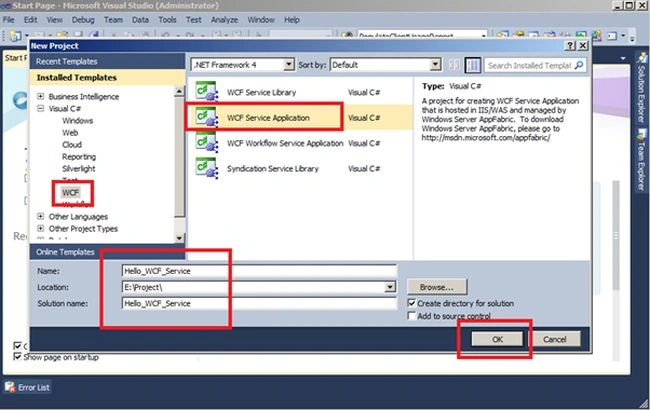
Image 1.
Select WCF Service Application. Give it a name.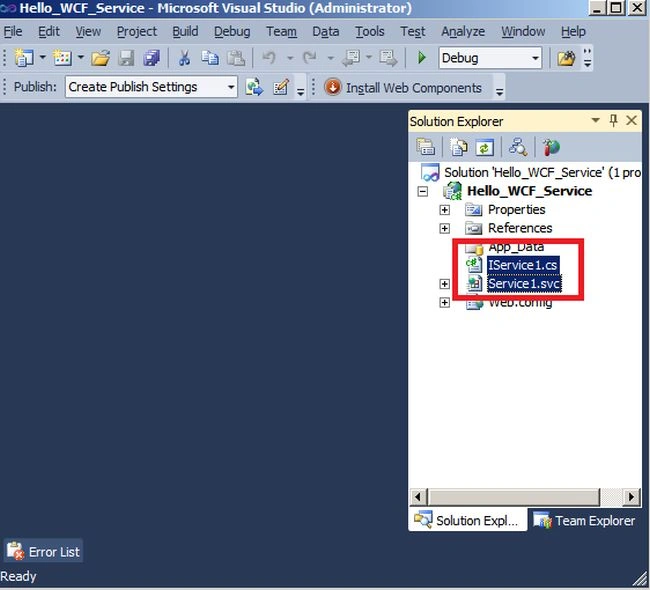
Image 2.
Remove IService1.cs and Service1.svc file from here. Now right-click on Solution Explorer and select Add new item.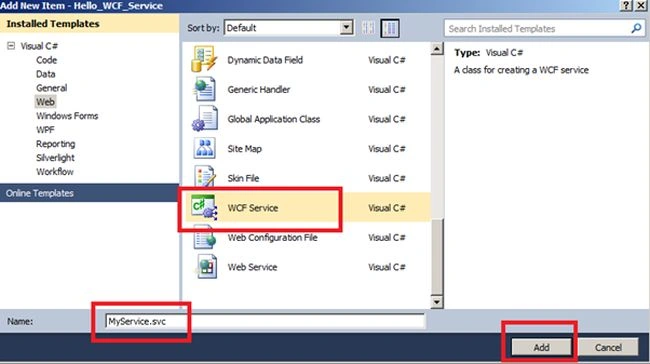
Image 3.
Now open IMyService.cs and add the following method:
- using System;
- using System.Collections.Generic;
- using System.Linq;
- using System.Runtime.Serialization;
- using System.ServiceModel;
- using System.Text;
- namespace Hello_WCF_Service
- {
- // NOTE: You can use the "Rename" command on the "Refactor" menu to change the interface name "IMyService" in both code and config file together.
- [ServiceContract]
- public interface IMyService
- {
- [OperationContract]
- string AddText(string Name);
- }
- }
- using System;
- using System.Collections.Generic;
- using System.Linq;
- using System.Runtime.Serialization;
- using System.ServiceModel;
- using System.Text;
- namespace Hello_WCF_Service
- {
- // NOTE: You can use the "Rename" command on the "Refactor" menu to change the class name "MyService" in code, svc and config file together.
- // NOTE: In order to launch WCF Test Client for testing this service, please select MyService.svc or MyService.svc.cs at the Solution Explorer and start debugging.
- public class MyService : IMyService
- {
- public string AddText(string Name)
- {
- return "Welcome " + Name;
- }
- }
- }
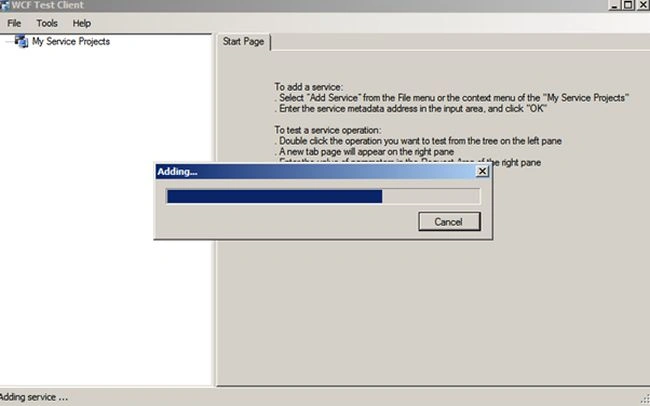
Image 4.
You can test your method.
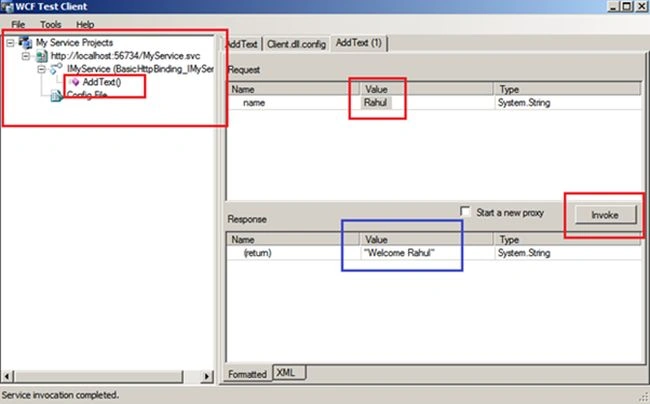
Image 5.
You can view the config file like the following.
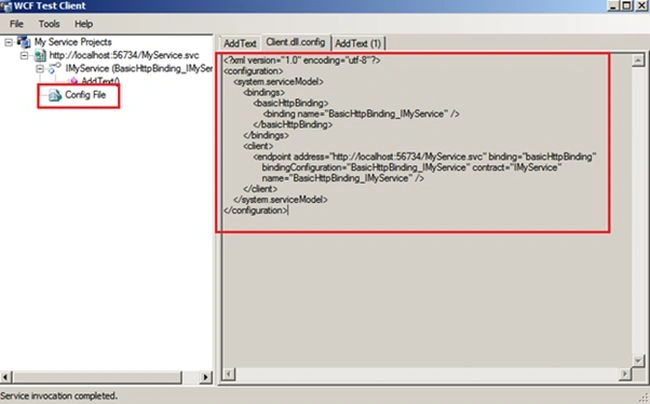
Image 6.
See your service in the browser.
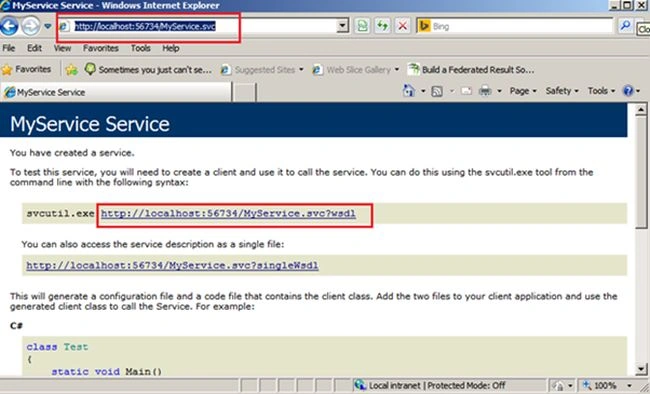
Image 7.
Now we will consume this service in our web application. So right-click on Solution Explorer and Add a new project.
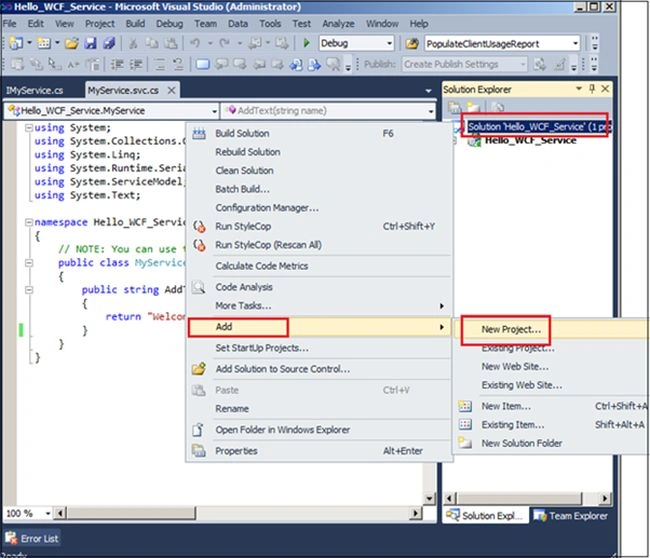
Image 8.
Select Web -> ASP.NET Web Application.
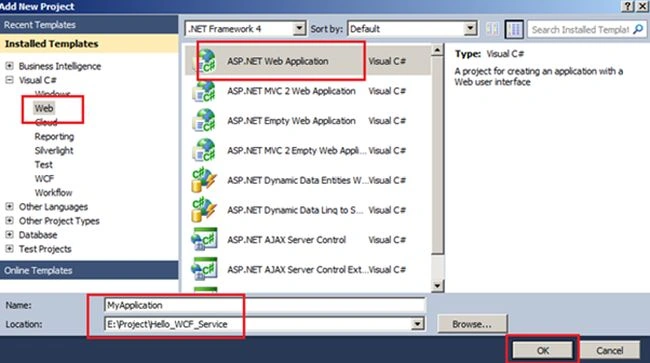
Image 9.
Now add the WCF Service reference. Right-click on your project then seelct Add Service reference.
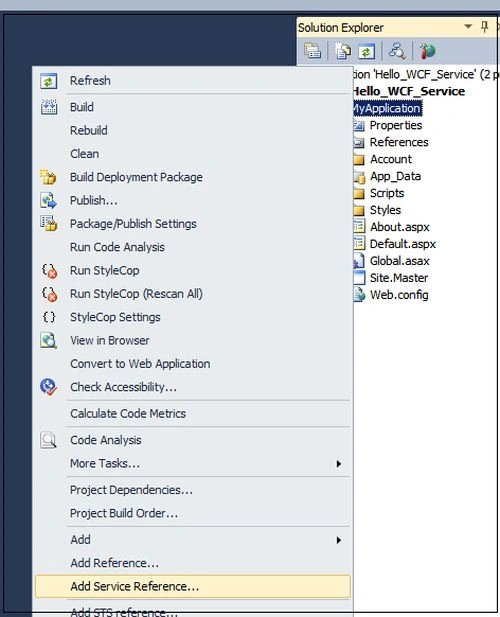
Image 10.
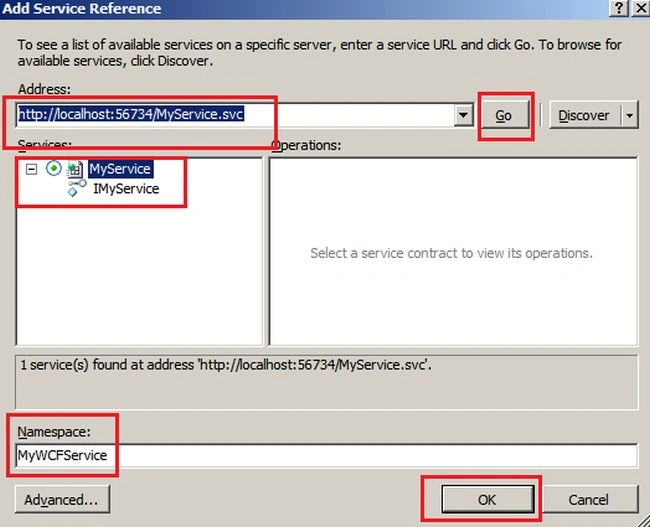
Image 11.
Now open your Default.aspx page:
- <table cellpadding="10" cellspacing="10" width="90%" style="border: solid 4px green;">
- <tr>
- <td>Enter Name #
- </td>
- <td>
- <asp:TextBox ID="txtName" runat="server" Width="250px"></asp:TextBox>
- </td>
- </tr>
- <tr>
- <td></td>
- <td>
- <asp:Button ID="btnCallService" runat="server" Text="Click Me" OnClick="btnCallService_Click" />
- </td>
- </tr>
- <tr>
- <td></td>
- <td>
- <asp:Label ID="lblMessage" runat="server" Font-Bold="true" Font-Size="16pt" ForeColor="Red"></asp:Label>
- </td>
- </tr>
- </table>
- using System;
- using System.Collections.Generic;
- using System.Linq;
- using System.Web;
- using System.Web.UI;
- using System.Web.UI.WebControls;
- namespace MyProject
- {
- public partial class WebForm1 : System.Web.UI.Page
- {
- protected void Page_Load(object sender, EventArgs e)
- {
- }
- protected void btnCallService_Click(object sender, EventArgs e)
- {
- MyWCFService.MyServiceClient myService = new MyWCFService.MyServiceClient();
- lblMessage.Text = myService.AddText(txtName.Text);
- }
- }
- }
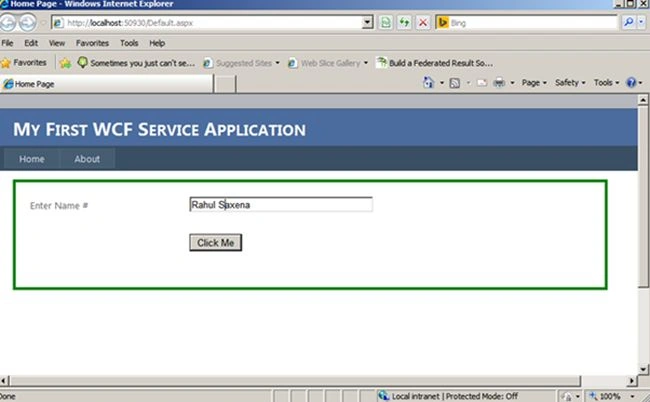
Image 12.
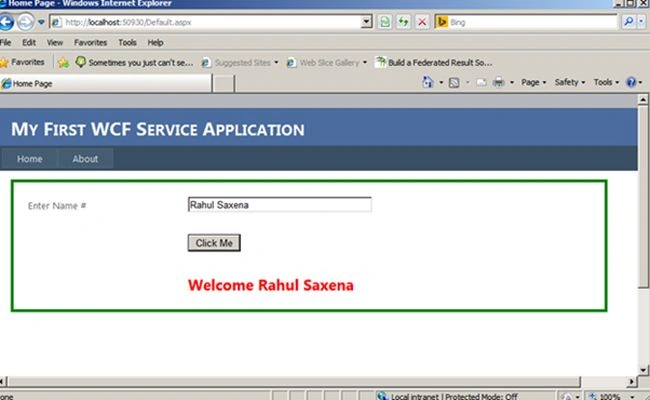
Image 13.
bhavana naiduPosted Jan 10, 2015, 4:31 PM
Thank you. Its really helful.
Bobby CoolPosted Dec 30, 2014, 5:53 AM
superb article
Rajeev RanjanPosted Dec 18, 2014, 3:00 AM
nice article