

To make a weekdays calender in MVC, firstly, we need to enter a few fields such as dates ,starting time, end time and duration between slots.
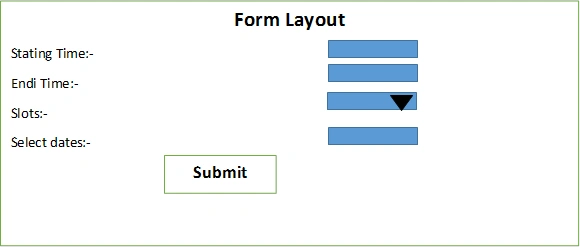
Let's start doing coding part for this design. I am making this form in mvc with entity Framework.
Here I am showing Code of Create.cshtml Page,
- @model RecruitingOutboundScheduler.Domain.recr_recruiterShift
- @{
- ViewBag.Title = "Create";
- }
- <h2>Create</h2>
- @using (Html.BeginForm()) {
- @Html.AntiForgeryToken()
- @Html.ValidationSummary(true)
- <fieldset>
- <legend>Recruiter Schedular</legend>
- <table align="center" >
- <tr>
- <td>
- <div class="form-group">
- @Html.Label("Site Name: ", htmlAttributes: new { @class = "control-label col-md-2" })
- </div>
- </td>
- <td>
- <div class="col-md-10">
- @Html.DropDownList("SiteList", null, htmlAttributes: new { @class = "w250p h30p bdrno" })
- </div>
- </td>
- </tr>
- <tr>
- <td>
- <div class="form-group">
- @Html.LabelFor(model => model.recruiterID, "Recruiter Name: ", htmlAttributes: new { @class = "w250p h30p bdrno" })
- </div>
- </td>
- <td>
- <div class="col-md-10">
- @Html.DropDownList("recruiterID", (IEnumerable<SelectListItem>)ViewBag.recruiterID, "--Select Recruiter--", new { @class = "w250p h30p bdrno" })
- @Html.ValidationMessageFor(model => model.recruiterID)
- </div>
- </td>
- </tr>
- <tr>
- <td>
- <div class="editor-label">
- @Html.LabelFor(model => model.startDate,"Shift Start Time")
- </div>
- </td>
- <td>
- @Html.DropDownList("startHoursList", (IEnumerable<SelectListItem>)ViewBag.startHoursList, "HH", new { @class = "w50p h30p bdrno" })
- @Html.DropDownList("startMinutesList", (IEnumerable<SelectListItem>)ViewBag.startMinutesList, "MM", new { @class = "w50p h30p bdrno" })
- </td>
- </tr>
- <tr>
- <td>
- <div class="editor-label">
- @Html.LabelFor(model => model.endDate,"Shift End Time")
- </div>
- </td>
- <td>
- @Html.DropDownList("endHoursList", (IEnumerable<SelectListItem>)ViewBag.endHoursList, "HH", new { @class = "w50p h30p bdrno" })
- @Html.DropDownList("endMinutesList", (IEnumerable<SelectListItem>)ViewBag.endMinutesList, "MM", new { @class = "w50p h30p bdrno" })
- </td>
- </tr>
- <tr>
- <td>@Html.LabelFor(model => model.recurrencePattern,"Pattern")</td>
- <td>
- @Html.DropDownList("recurrencePattern", (IEnumerable<SelectListItem>)ViewBag.Pattern, "--Select Pattern--", new { @class = "w250p h30p bdrno" })
- @Html.ValidationMessageFor(model => model.recurrencePattern)
- </td>
- </tr>
- <tr>
- <td>
- <div class="editor-label">
- @Html.Label("Selected Dates")
- </div>
- </td>
- <td>
- <div id="celenderForMultiple" class="celender">
- <div data-role="calendar" data-week-start="1" data-multi-select="true" id="c1"></div>
- <br />
- <div class="align-center">
- <input name="getDates" type="button" value="Create Schedule" onclick="get_dates()"/>
- </div>
- </div>
- </td>
- </tr>
- <tr>
- <td colspan="2">
- <div>
- <div id="wrapper"></div>
- </div>
- </td>
- </tr>
- </table>
- <p>
- @*<input type="hidden" id="setdateTime" value="" />*@
- @Html.Hidden("setStartDateTime")
- @Html.Hidden("setEndDateTime")
- @Html.Hidden("shiftStartTime")
- @Html.Hidden("shiftEndTime")
- <input type="button" value="Clear Schedule" onclick="cleardateTimeValue();" />
- <input type="submit" value="Save Schedule" onclick="setdateTimeValue();" />
- </p>
- </fieldset>
Output Layout When you Run Page
(let's say my model name is home and action name is Shift)
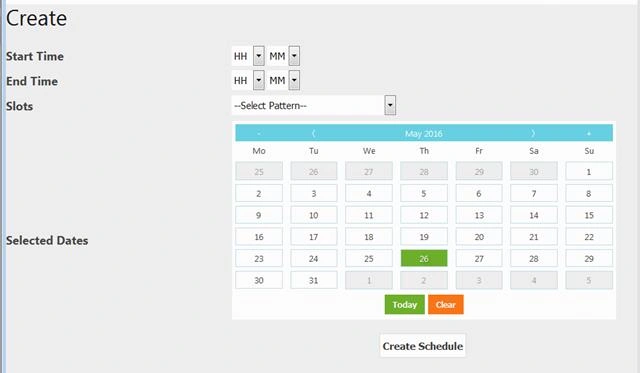
In this I am taking dropdown for time (HH:MM) and selecting Slots as 30 minutes, 60 minutes etc.Then for date I am using Datepicker of MetroUi. Create Schedule is a Button on which I am calling javascript function to make Weekly table based on time.
Let's say starting time is 9:00 and End time is 3:00. And I need slots of 1 hour to make my schedule for selected dates.
Select Value and see output of Generated Weekly schedule.Total slots I want i.e, 18
From 9-10,10-11,……………………………………….1-2.
And I select day on which I want to show my calendar i.e, 27-may,28-may……..…10-may.
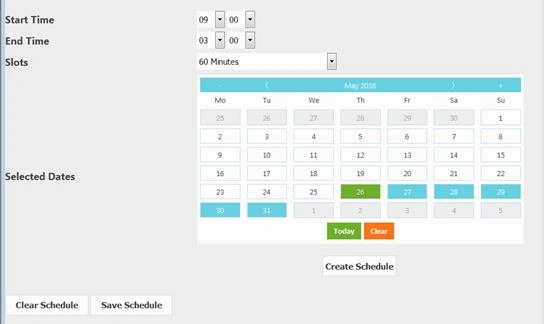
Here based on selected Value weekly schedule is drawn by very simple Javascript logic.
On create Schedule Button I call simple javascript function i.e, createTable()
Code
- function createTable() {
- var num_rows = row;
- var num_cols = time.length;// result.length
- var theader = '<table id="tableID" style="border:1px solid black;">\n';
- var thead = '';
- var tbody = '';
- for (var h = 0; h < 1; h++) {
- thead += '<tr style="border:2px solid black;">';
- for (var j = 0; j < num_cols; j++) {
- if (j == 0) {
- thead += '<td class="head" style="border:1px solid black;">';
- thead += "";
- thead += '</td>'
- }
- else {
- thead += '<td class="head" style="border:1px solid black;">';
- thead += time[j - 1];
- thead += '</td>'
- }
- }
- thead += '</tr>\n';
- }
- for (var i = 0; i < num_rows; i++) {
- tbody += '<tr style="border:2px solid black;">';
- for (var j = 0; j < num_cols; j++) {
- if (j == 0) {
- tbody += '<td class="head" style="border:1px solid black;">';
- tbody += date[i];
- tbody += '</td>'
- }
- else {
- tbody += '<td class="rid" style="border:1px solid black;color:white;"> ';
- tbody += i +","+ j;
- tbody += '</td>'
- }
- }
- tbody += '</tr>\n';
- }
- var tfooter = '</table>';
- document.getElementById('wrapper').innerHTML = theader + thead + tbody + tfooter;
- }
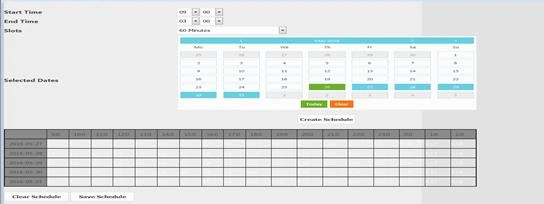
Next work is to select slots which I want to, for this on $(document).on('click', '.rid', function () simple apply a code for mouse click.
Code
- $(document).on('click', '.rid', function () {
- var a = ($(this).html());
- var res = a.split(',');
- $(this).val("Booked");
- $(this).css('backgroundColor', '#00FF00');
- $(this).css('color', '#00FF00');
- var sDt = date[parseInt(res[0])] + " " + time[parseInt(res[1]) - 1];
- var eDt = date[parseInt(res[0])] + " " + time[parseInt(res[1])];
- selectedStartDateTime.push(sDt);
- selectedEndDateTime.push(eDt);
- });
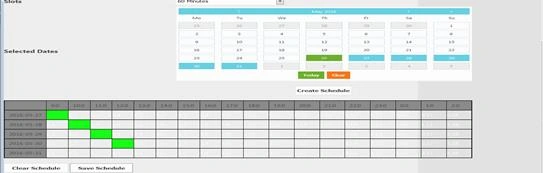
Clear Schedule button is use to Deselect Reserve Slot.
Mukhtiar LanderPosted Jul 24, 2022, 11:30 AM
I needed you source code and table structure please. [email protected]
sani samPosted May 24, 2021, 10:51 AM
How download
Raj kumarPosted Jun 2, 2019, 6:31 AM
Hi ,Will you provide me the code and table structure on [email protected]
Sameer BaijalPosted Feb 15, 2018, 1:55 AM
Could you send the code or share project as i required for doctor booking timeslot with select date
Sanwar RanwaPosted Jan 27, 2018, 5:28 AM
NICE ARTICLE MAM..............
Faisal AyubPosted Oct 26, 2017, 3:02 AM
Maam can you plz send me complete source code of calendar system? [email protected]
Delpin Susai RajPosted Aug 28, 2016, 5:01 AM
Nice
Munesh SharmaPosted May 28, 2016, 3:13 PM
great
Guest UserPosted May 28, 2016, 3:24 AM
Good job!
Guest UserPosted May 28, 2016, 3:24 AM
And, if you want to render HTML via JS then you could beautify your code using Template literals OR JavaScript templating engines.
Guest UserPosted May 28, 2016, 3:23 AM
I like the stuff. Your JS code needs refactoring... ex Use === rather == operator
Amatya AgyeyPosted May 28, 2016, 2:41 AM
Ohh.. Great effort.. All the Best :)
NitinPosted May 28, 2016, 2:20 AM
Nice
RajaPosted May 28, 2016, 1:59 AM
Good One
Muhammad Aqib ShehzadPosted May 28, 2016, 12:53 AM
very nice
Ajay MalikPosted May 28, 2016, 12:39 AM
good.
Vignesh ManiPosted May 27, 2016, 4:24 PM
Good one
Debasis SahaPosted May 27, 2016, 2:03 PM
Nice sharing..
Munesh SharmaPosted May 27, 2016, 1:55 PM
good one
Rajeesh MenothPosted May 27, 2016, 1:55 PM
Thank you for sharing..
Rahul BansalPosted May 27, 2016, 11:50 AM
Great, Keep it up