
Introduction:
In this article we are going to see how to ReImage a running instance of an Azure application using the Windows Azure Management Portal.Overview:
In our earlier article, we have seen how to reboot a running role of an Azure application; here we are going to see how to reimage the Role instance of the Azure application offline. Reimage differs based on the application we are going to reimage the role. In Reimage its been grouped in to 2 categories as- Web and Worker Role Reimage - In this type of role, Azure brings the role offline first and applies the fresh reinstallation of the Azure Guest Operating System and makes the role online again.
- VM Role Reimage - In this type of role, Azure brings the role offline, then applies the custom image which we have provided initially and then brings back the role online.
Let us see step by step how to do the editing manually using the Windows Azure Management Portal.
Steps:
Login to the Management Portal using the following link:http://www.microsoft.com/windowsazure/
We will see a screen like below. Select the "Sign into Management Portal" at the top right corner: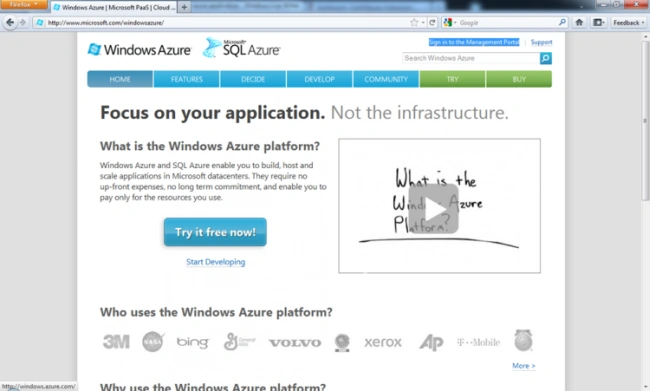
After selecting Sign into Management Portal you will be asked for the Username and Password to authenticate the process as shown in the following screen: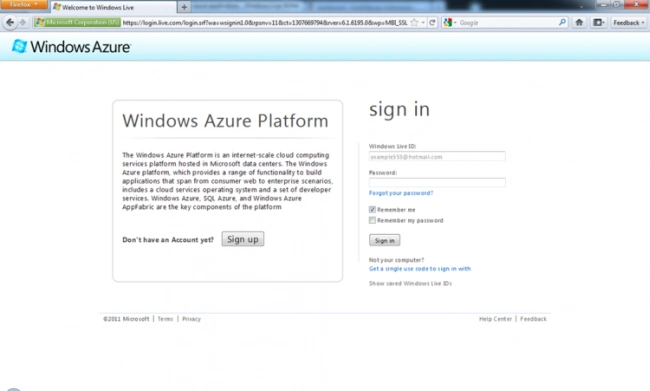
After providing the correct credentials and clicking on the submit button it will navigate to the main screen of the portal as shown in the following screen: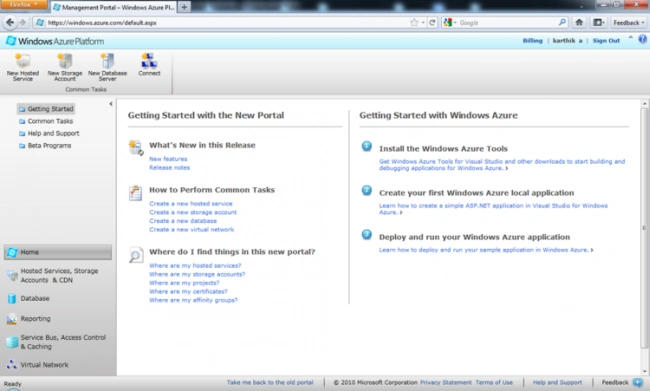
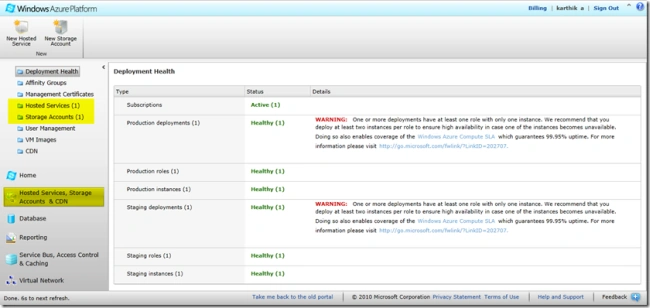
Now click on the Hosted Services, Storage Account and CDN option in the bottom menu and then select the Hosted Services as shown in the screen below.
Now select the deployed application (F5 Debug) as shown in the screen below. Here we will see the options like the environment on which its deployed and the DNS name to access the application etc.
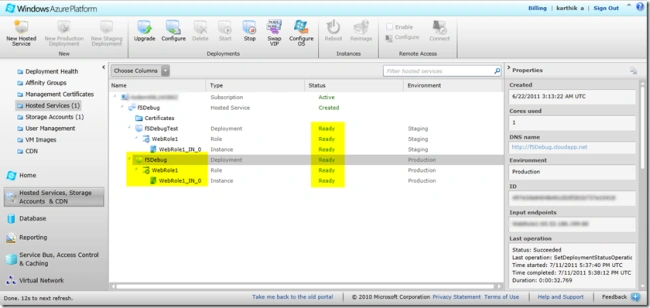
Now once we select a particular application instance to reimage, we will see a Ribbon menu at the top named "Reimage" enabled as highlighted in the screen below.


Karthikeyan AnbarasanPosted Jul 13, 2011, 7:06 AM
Thanks shalini
Shalini JunejaPosted Jul 13, 2011, 6:33 AM
Great Work