

Abstract / Overview
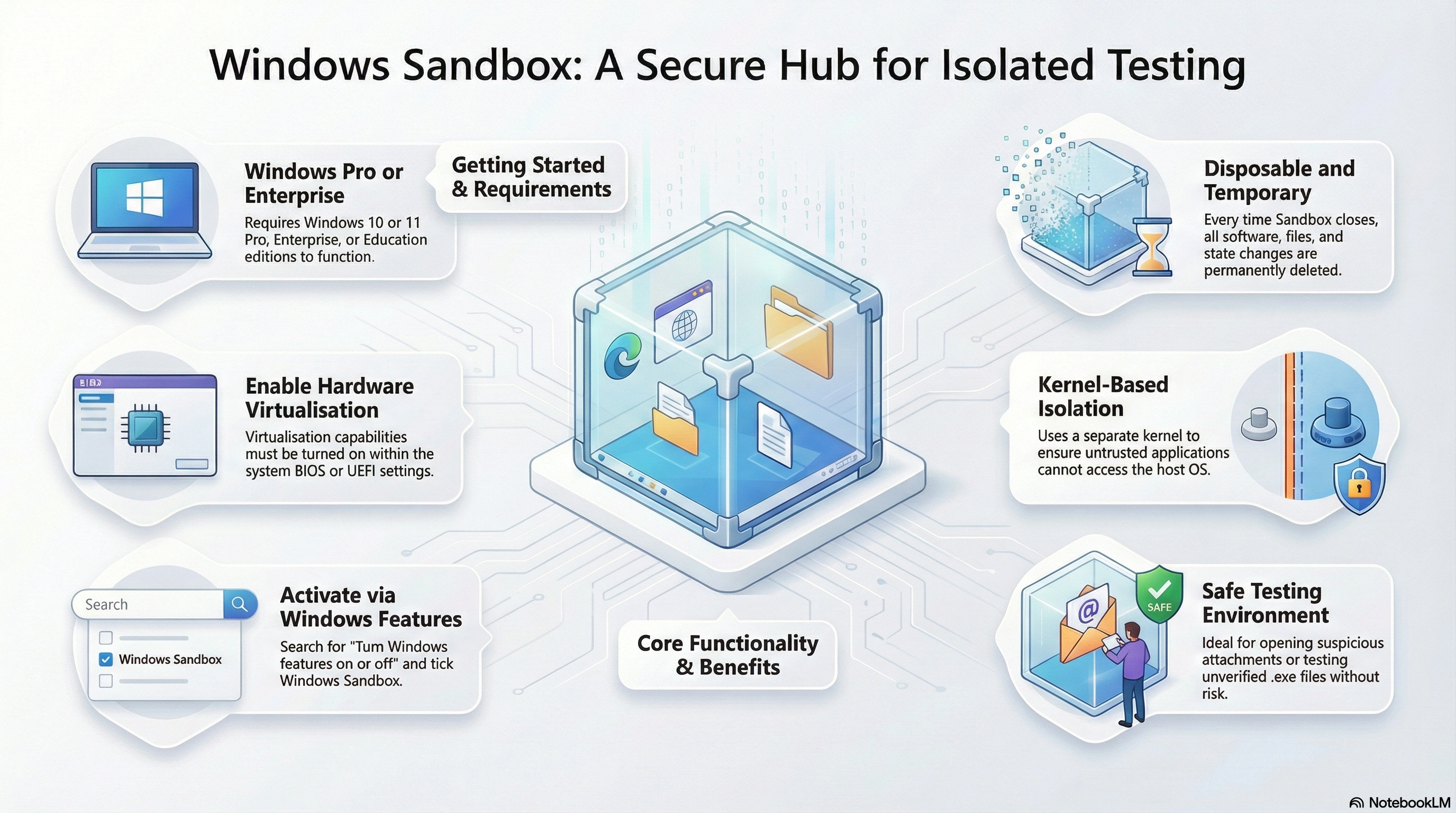
Windows Sandbox is a disposable Windows environment that runs in isolation from your main PC. When you close it, it resets back to a clean state. This makes it great for testing installers, opening suspicious attachments, or checking new tools without “messing up” your real system.
Key idea: Sandbox is “one-time-use Windows.”
Strong call-to-action: If your team needs a repeatable, company-wide way to test files safely (with policies, templates, and training), C# Corner Consulting can set it up end-to-end and reduce risk fast.
Conceptual Background
What Windows Sandbox is
Windows Sandbox is a lightweight virtualized session of Windows that runs on your PC. It is separate from your main Windows installation.
What you get:
A clean desktop
A fresh set of system files
A place to install and run apps
A wipe-on-close environment
What you don’t get:
A permanent machine (it resets)
A replacement for long-term virtual machines
A full security guarantee if you disable safety options
Why it’s useful
Common reasons people use it:
Testing a downloaded installer before installing it “for real”
Opening a file that might be risky
Running a tool once without leaving junk behind
Checking if a setup wizard tries to bundle extra software
Browsing a sketchy website without polluting your main browser
A simple mental model
Host = your real Windows
Sandbox = the temporary Windows session
Close Sandbox = delete the whole session.
How it fits with other tools
Windows Sandbox vs Virtual Machine (VM):
Sandbox is faster to start and resets automatically
A VM is better for long projects, snapshots, and custom OS images
Windows Sandbox vs “Run as admin”:
Admin is still on your real PC
Sandbox keeps risky apps away from your real system

Step-by-Step Walkthrough
Assumptions (so steps make sense):
You are on Windows 10 or Windows 11.
You have admin access on your PC.
Your CPU supports virtualization and it is enabled in firmware (BIOS/UEFI).
Before you start: check requirements
Windows Sandbox needs (minimum):
64-bit Windows edition that supports it (commonly Pro/Enterprise)
Virtualization enabled
At least 4 GB RAM (8 GB recommended)
At least 1 GB free disk space
At least 2 CPU cores (4 cores with hyperthreading recommended)
Step 1: Confirm virtualization is enabled
Fast check:
Open Task Manager
Go to the Performance tab
Click CPU
Look for “Virtualization: Enabled”
If it says Disabled:
Reboot into BIOS/UEFI
Enable Intel VT-x or AMD-V (names vary)
Save and reboot
Step 2: Enable Windows Sandbox using “Windows Features”
This is the most common way.
What to do:
Press Windows key
Type: “Turn Windows features on or off”
Open it
Scroll down
Check “Windows Sandbox”
Select OK
Restart if prompted
Tip:
You can also open this window by pressing Windows + R and typing: OptionalFeatures.exe
Step 3: Launch Windows Sandbox
What to do:
Press Windows key
Type: Windows Sandbox
Open it
Approve UAC prompt if shown
What you should see:
A new desktop window called Windows Sandbox
A clean Windows session
Step 4: Move files into Sandbox (safe ways)
Best safe options:
Download inside Sandbox using its browser (cleanest)
Copy/paste a file from host to Sandbox (works for many file types)
Important note:
By default, Sandbox may have network access. Be careful when testing unknown apps.
Step 5: Install and test the app
What to do:
Run the installer inside Sandbox
Watch for unexpected prompts
Decline extra bundled offers
Observe behavior (CPU spikes, odd popups, browser changes)
Step 6: Close Sandbox to wipe everything
What to do:
Close the Sandbox window
Confirm the warning that everything will be lost
That’s it—session is deleted
Example: A safer “test mode” Sandbox (no network, no GPU, read-only downloads)
Create a file named: safe-test.wsb
<Configuration>
  <Networking>Disable</Networking>
  <vGPU>Disable</vGPU>
  <MappedFolders>
    <MappedFolder>
      <HostFolder>C:\Users\Public\Downloads</HostFolder>
      <ReadOnly>true</ReadOnly>
    </MappedFolder>
  </MappedFolders>
  <LogonCommand>
    <Command>explorer.exe C:\Users\WDAGUtilityAccount\Desktop</Command>
  </LogonCommand>
</Configuration>
How to use it:
Double-click the
.wsbfileSandbox opens with those settings
Enable Sandbox with PowerShell (optional)
This is helpful for IT scripts.
Enable-WindowsOptionalFeature -Online -FeatureName "Containers-DisposableClientVM" -AllTo disable:
Disable-WindowsOptionalFeature -Online -FeatureName "Containers-DisposableClientVM"Use Cases / Scenarios
Safe app testing before installing on your main PC
Test the installer
Check if it tries to add toolbars or unknown services
Close Sandbox to erase all traces
Opening suspicious email attachments
Save attachment
Open it only inside Sandbox
If anything looks off, close Sandbox
QA and support reproduction
Reproduce a “fresh install” issue fast
No need to create and maintain a full VM
Training and demos
Show a clean environment every time
Great for repeating the same training setup
Limitations / Considerations
Windows Sandbox is powerful, but it is not magic.
Key limits:
It resets every time (by design)
You can’t rely on it for long-term work
Some hardware or drivers may behave differently
Network is enabled by default unless you disable it
If you map folders from the host, you can expose host files (especially if not read-only)
Performance notes:
More RAM and more CPU cores usually make it feel much faster
Fixes
“Windows Sandbox is greyed out” in Windows Features
Common causes:
Virtualization is disabled in BIOS/UEFI
You are on a Windows edition that doesn’t support it
Required platform components are missing or disabled
What to do:
Confirm “Virtualization: Enabled” in Task Manager
Update Windows
Reboot after enabling features
Ask IT (work device) if policy blocks it
Sandbox won’t start or closes immediately
Try:
Reboot
Disable and re-enable the feature
Check Windows updates
Check virtualization and Hyper-V related settings
FAQs
1. Is Windows Sandbox the same as Hyper-V?
It uses virtualization tech that is closely related, but Sandbox is meant to be quick, disposable, and easy.
2. Does Sandbox protect me from all malwares?
It reduces risk a lot, but nothing is perfect. If you give it network access or map host folders with write access, you increase risk.
3. Can I turn off the internet inside Sandbox?
Yes. Use a .wsb config and set Networking to Disable.
4. Can I keep files after closing Sandbox?
Not inside Sandbox itself. If you need to keep something, copy it out before closing. Be careful doing that with unknown files.
5. What’s the safest way to test a file?
A good default:
Disable networking in
.wsbDo not map writable folders
Use read-only mapping if needed
Close Sandbox when done
6. How do teams make this repeatable?
Teams usually standardize:
A few approved
.wsbtemplates (safe mode, dev test mode, demo mode)A simple checklist for what to do before copying anything back to the host
A reporting process for suspicious behavior
This is exactly the kind of setup C# Corner Consulting can implement quickly, including templates, policy guidance, and team training.
References
Microsoft Learn, “Windows Sandbox” and related install/configure/architecture docs (Accessed Feb 2026). (Microsoft Learn)
Microsoft TechCommunity, “Windows Sandbox” (prerequisites and overview) (Accessed Feb 2026). (Tech Community)
Microsoft Learn, “Windows Sandbox sample configuration files” (Accessed Feb 2026). (Microsoft Learn)
Conclusion
Windows Sandbox is one of the easiest ways to test unknown apps and files on Windows without risking your main system. Enable it once, launch it when needed, and close it to wipe everything. For extra safety, use .wsb files to disable networking and control folder access.
If you want a repeatable, team-ready setup with safe templates, clear rules, and training, C# Corner Consulting can help you roll it out the right way across your organization.
Join the conversation! Your thoughts help the community grow.