

Before reading this article, please go through the article links given below.
- Quick Start On Apache Cordova Using Visual Studio 2015
- Using Ionic Blank App Using Visual Studio 2015
- Using Ionic Side Menu App Using Visual Studio 2015
- Using Ionic Tabs App Using Visual Studio 2015
- Working With Color Classes In Ionic Blank App Using Visual Studio 2015
- Working With Button Class In Ionic Blank App Using Visual Studio 2015
Apache Cordova
Apache Cordova is an open source project, that aims at letting mobile developers build applications for all major mobile platforms using HTML, CSS and JavaScript technologies.
Ionic Framework
Ionic is a powerful HTML5 SDK that helps you build native-feeling mobile apps using web technologies like HTML, CSS, and JavaScript.
Building Ionic Blank App with different Ionic List Classes in Visual Studio 2015
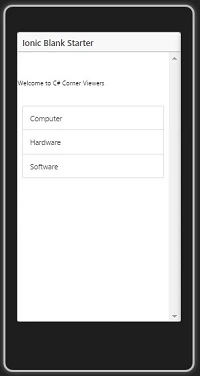
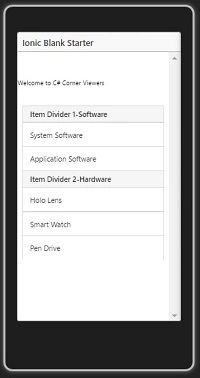
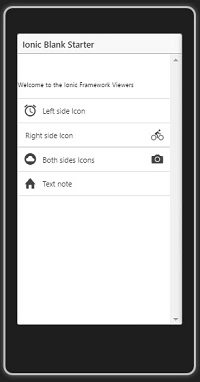
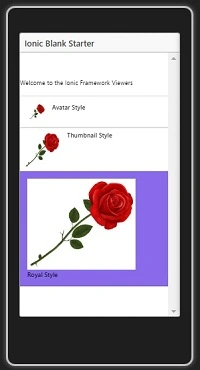
Let's see how Ionic Framework makes the use of List Item Control
The ListBox represents a Windows control to display a list of items to a user. It's one of the most popular elements of any web or mobile application. They are usually used for displaying various information.
They can be combined with other HTML elements for creating different menus, tabs or just to break the monotony of pure text files. Ionic framework offers different list types to make their usage easy.
Let’s see how to use the List Item Class with Ionic Blank Apps.
Prerequisites
- Visual Studio 2015
- Visual Studio Tools for Apache Cordova.
Follow the below steps to use the List Item Class in Ionic Blank Apps using Ionic Framework
Step 1 Create an Ionic Blank App
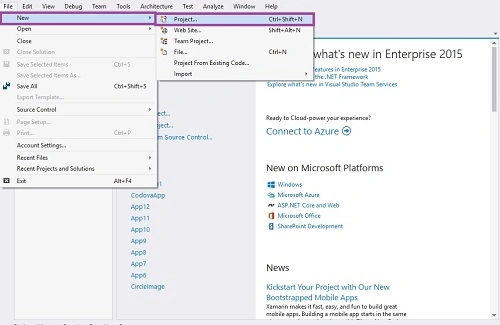
Let’s get ready to create a new project. Open Visual Studio 2015 and Click File -> New -> Project Option for creating Ionic Blank Apps using Ionic Framework.
Step 2 Giving the Project Name
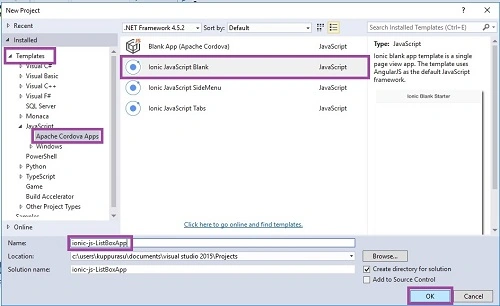
Then, a New Project Window will open, there you can select an Installed -> Template -> Java Script -> Apache Cordova Apps ->Ionic JavaScript Blank.
Type Project Name ionic-js-ListBoxApp and click the OK button
Step 3
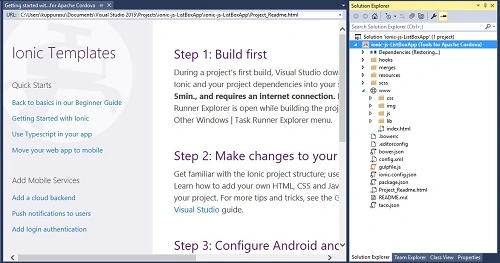
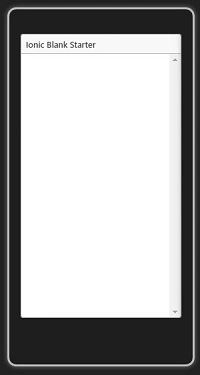
Main Screen
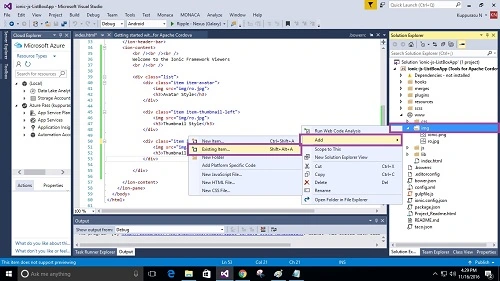
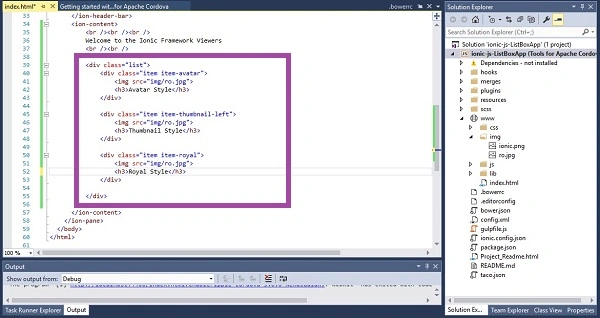
Step 4 Adding List Item Control
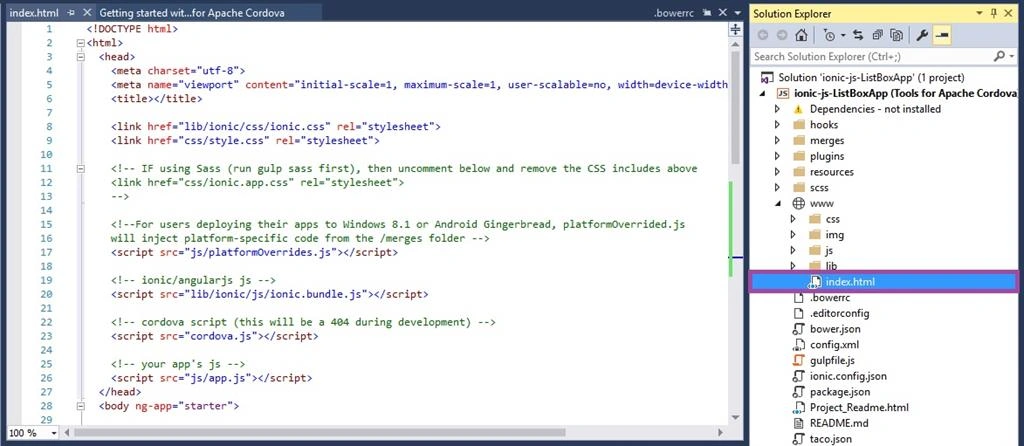
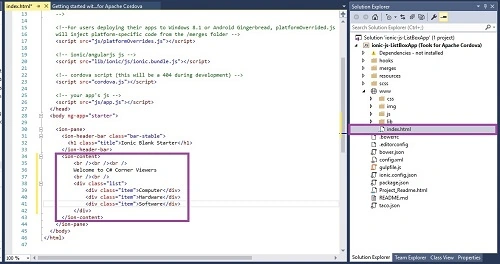
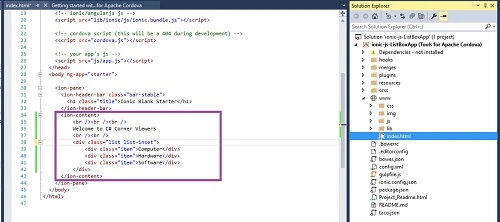
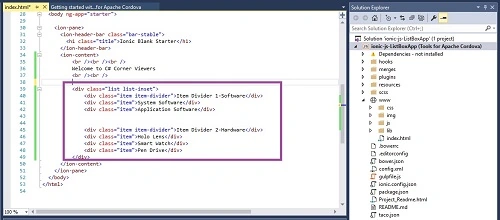
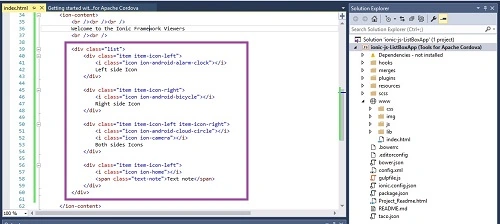
Go to the solution bar and choose the index.html. This is the Starting Screen of your App. We can add our HTML coding here.

Smartify SmartifySolPosted Aug 23, 2023, 12:39 PM
This is a wonderful post. Given so much information in it, this type of post keeps the user's interest in the website, and keeps on sharing more. Thank you for this brief explanation and very nice information.
RajaPosted Nov 19, 2016, 1:19 AM
Good one!.great share....