

C# ListView
C# ListView control provides an interface to display a list of items using different views including text, small images, and large images. In this tutorial, we will learn how to create and use a ListView control in C#. We will also see how to create multiple views of ListView items. This article also covers most of the common properties and methods of the ListView control.
Creating a C# ListView
There are two approaches to create a ListView control in Windows Forms. Either we can use the Forms designer to create a control at design-time or we can use the ListView class to create a control at run-time.
ListView at Design-time
In our first approach, we are going to create a ListView control at design-time using the Forms designer.
To create a ListView control at design-time, we simply drag and drop a ListView control from the Toolbox onto a Form in Visual Studio. After you drag and drop a ListView onto a Form, the ListView looks like Figure 1. Once a ListView is on the Form, you can move it around and resize it using the mouse and set its properties and events.
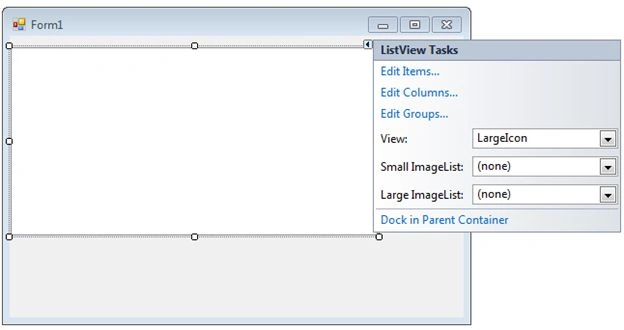
Figure 1
ListView at Run-time
The ListView class represents a ListView control in Windows Forms. To create a ListView control at run-time, we create an instance of the ListView class, set its properties and add a ListView object to the Form controls.
The first step to create a dynamic ListView is to create an instance of the ListView class. The following code snippet creates a ListView control object:
ListView ListView1 = new ListView();
In the next step, you may set the properties of the ListView control. The following code snippet sets the location, width, height, background color, foreground color, Text, Name, and Font properties of a ListView:
ListView1.Location = new System.Drawing.Point(12, 12);
ListView1.Name = "ListView1";
ListView1.Size = new System.Drawing.Size(245, 200);
ListView1.BackColor = System.Drawing.Color.Orange;
ListView1.ForeColor = System.Drawing.Color.Black;
Once the ListView control is ready with its properties, the next step is to add the ListView to a Form. To do so, we use the Form.Controls.Add method that adds a ListView control to the Form controls and displays it on the Form based on the location and size of the control. The following code snippet adds a ListView control to the current Form:
Controls.Add(ListView1);
Setting ListView Properties
The easiest way to set properties is from the Properties Window. You can open the Properties window by pressing F4 or right-clicking on a control and selecting the "Properties" menu item. The Properties window looks as in Figure 2.

Figure 2
Set Name of Listview
The Name property represents a unique name of a ListView control. It is used to access the control in the code. The following code snippet sets and gets the name and text of a ListView control:
ListView1.Name = "ListView1";
Location, Height, Width and Size of ListView
The Location property takes a Point that specifies the starting position of the ListView on a Form. You may also use Left and Top properties to specify the location of a control from the left top corner of the Form. The Size property specifies the size of the control. We can also use the Width and Height properties instead of the Size property. The following code snippet sets the Location, Width, and Height properties of a ListView control:
ListView1.Location = new System.Drawing.Point(12, 12);
ListView1.Size = new System.Drawing.Size(245, 200);
Change ListView Font
The Font property represents the font of the text in a ListView control. If you click on the Font property in the Properties window, you will see the Font name, size and other font options. The following code snippet sets the Font property at run-time:
ListView1.Font = new Font("Georgia", 16);
Change Background and Foreground of ListView
The BackColor and ForeColor properties are used to set the background and foreground color of a ListView, respectively. If you click on these properties in the Properties window, then the Color Dialog pops up.
Alternatively, you can set background and foreground colors at run-time. The following code snippet sets the BackColor and ForeColor properties:
ListView1.BackColor = System.Drawing.Color.Orange;
ListView1.ForeColor = System.Drawing.Color.Black;
The new ListView with background and foreground looks as in Figure 3.
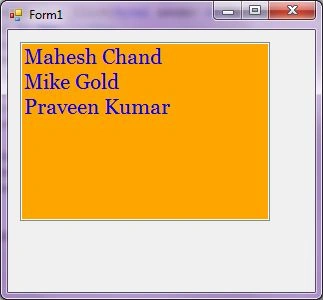
Figure 3
You can also set borders style of a ListView by using the BorderStyle property. The BorderStyle property is represented by a BorderStyle enumeration that has three values; FixedSingle, Fixed3D, and None. The default value of the border style is Fixed3D. The following code snippet sets the border style of a ListView to FixedSingle:
ListView1.BorderStyle = BorderStyle.FixedSingle;
Get and Set ListView Items
The Items property is used to add and work with items in a ListView. We can add items to a ListView at design-time from the Properties Window by clicking on the Items Collection as you can see in Figure 4.
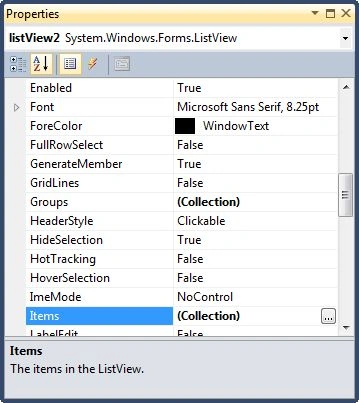
Figure 4
When you click on the Collections, the ListView Collection Editor window will pop-up where you can type strings. Each line added to this collection will become a ListView item. I add four items as you can see in Figure 5.
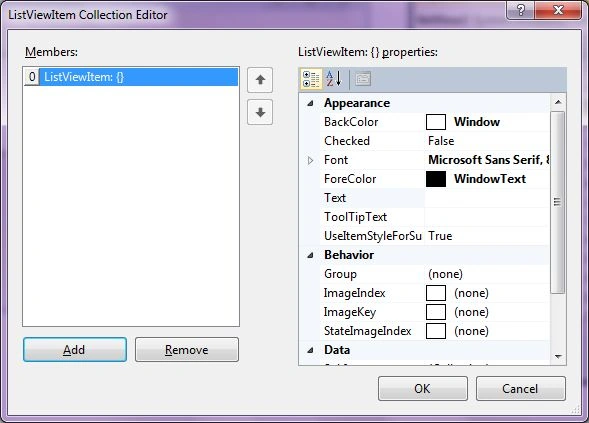
Figure 5
The ListView looks as in Figure 6.
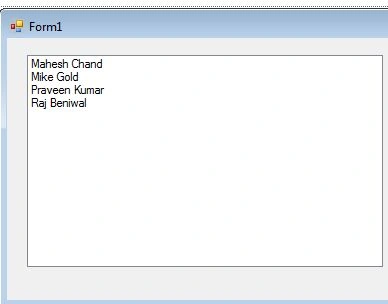
Figure 6
You can add some items at run-time by using the following code snippet:
ListView1.Items.Add("Mahesh Chand");
ListView1.Items.Add("Mike Gold");
ListView1.Items.Add("Praveen Kumar");
ListView1.Items.Add("Raj Beniwal");
Getting All ListView Items
To get all items, we use the Items property and loop through it to read all the items. The following code snippet loops through all items and adds item contents to a StringBuilder and displays them in a MessageBox.
private void GetItemsButton_Click(object sender, EventArgs e)
{
    System.Text.StringBuilder sb = new System.Text.StringBuilder();
    foreach (object item in ListView1.Items)
    {
        sb.Append(item.ToString());
        sb.Append(" ");
    }
    MessageBox.Show(sb.ToString());
}
Get ListView Selected Text and Selected Item
The Text property is used to set and get text of a ListView. The following code snippet sets and gets the current text of a ListView:
MessageBox.Show(ListView1.Text);
We can also get text associated with the currently selected item by using the Items property, as in:
string selectedItem = ListView1.Items[ListView1.SelectedIndex].ToString();
Why is the value of ListView.SelectedText Empty?
The SelectedText property gets and sets the selected text in a ListView only when a ListView has focus on it. If the focus moves away from a ListView, then the value of SelectedText will be an empty string. To get the current text in a ListView when it does not have the focus, use the Text property.
Selection Mode and Selecting Items in ListView
The SelectionMode property defines how items are selected in a ListView. The SelectionMode value can be one of the following four SelectionMode enumeration values:
- None: No item can be selected.
- One: Only one item can be selected.
- MultiSimple: Multiple items can be selected.
- MultiExtended: Multiple items can be selected, and the user can use the SHIFT, CTRL, and arrow keys to make selections.
To select an item in a ListView, we can use the SetSelect method that takes an item index and a true or false value where the true value represents the item to be selected.
The following code snippet sets a ListView to allow multiple selections and selects the second and third items in the list:
ListView1.SelectionMode = SelectionMode.MultiSimple;
ListView1.SetSelected(1, true);
ListView1.SetSelected(2, true);
We can clear all selected items by calling the ClearSelected method, as in:
ListView1.ClearSelected();
How to disable item selection in a ListView?
Just set SelectionMode property to None.
Sorting Items of a ListView
If the Sorted property is set to true, then the ListView items are sorted. The following code snippet sorts the ListView items:
ListView1.Sorted = true;
Find Items in ListView
The FindString method is used to find a string or substring in a ListView. The following code snippet finds a string in a ListView and selects it if found:
private void FindItemButton_Click(object sender, EventArgs e)
{
    ListView1.ClearSelected();
    int index = ListView1.FindString(textBox1.Text);
    if (index < 0)
    {
        MessageBox.Show("Item not found.");
        textBox1.Text = String.Empty;
    }
    else
   {
        ListView1.SelectedIndex = index;
    }
}
ListView SelectedIndexChanged Event Hander
The SelectedIndexChanged event is fired when the item selection is changed in a ListView. You can add the event handler using the Properties Widow and selecting the Event icon and double-clicking on SelectedIndexChanged as you can see in Figure 7.
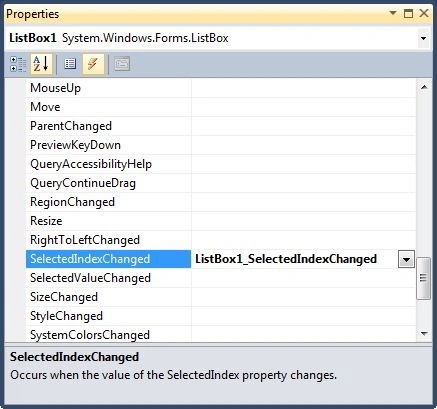
Figure 7
The following code snippet defines and implements these events and their respective event handlers. You can use this same code to implement an event at run-time.
ListView1.SelectedIndexChanged += new EventHandler(ListView1_SelectedIndexChanged);
private void ListView1_SelectedIndexChanged(object sender, System.EventArgs e)
{
    MessageBox.Show(ListView1.SelectedItem.ToString());
}
Now every time you change the selection in the ListView, you will see the selected item displayed in a MessageBox.
Data Binding
The DataSource property is used to bind a collection of items to a ListView. The following code snippet is a simple data binding example where an ArrayList is bound to a ListView.
private void DataBindingButton_Click(object sender, EventArgs e)
{
    ArrayList authors = new ArrayList();
    authors.Add("Mahesh Chand");
    authors.Add("Mike Gold");
    authors.Add("Raj Kumar");
    authors.Add("Praveen Kumar");
    ListView1.Items.Clear();
    ListView1.Items = authors;
}
If you are binding an object with multiple properites, you must specify which property you are displaying by using the DisplayMember property, as in:
ListView1.DataSource = GetData();
ListView1.DisplayMember = "Name";
Summary
In this article, we discussed how to create a ListView control in Windows Forms. After that, we saw how to use various properties and methods. I am planning to extend this article to add more topics including multiple columns, multiple views, header with images and so on.
Further Readings
Here are some more articles and tutorials about ListView that you may want to read:
- Transferring data from one ListBox to another in WPF
- Owner Draw ListView Control with Images
- Editable ListView in C#
- Databinding in ListView from XML file
- Using ListView in C#
- Adding & Retrieving items from ListView and check list box
- Owner Draw ListView Control in Windows Forms and C#
- Editable ListView Control
- Adding Items to a ListBox
- Checked ListBox Control In C#
- Editable ListView Control
Guest UserPosted Jun 13, 2017, 11:16 AM
I cant find the .SelectionMode property, what could be causing this?
Naveen DasdaPosted Nov 9, 2016, 5:01 AM
Which version of VS is this for? In VS10 we can't find any listview1.Text or .SelectedIndex properties.
kalu singh raoPosted Jul 11, 2016, 2:59 AM
Nice...
K UllahPosted Aug 13, 2014, 6:46 AM
You are using ListBox instead of Listview, be careful as users trying to anticipating some listbox properties to Listview Properties which is quite confusing and Frustrating.
joe bobPosted Oct 7, 2013, 2:47 AM
The databinding part of the tutorial is wrong. ListView does not have DataSource or DisplayMember properties. The ListView.Items member is read only; it cannot be set. If you data binding you must inherit this control and write your own data binding logic.
Rakesh JoganiPosted Oct 3, 2013, 3:19 AM
It is Possible in web without Edit button in Listview ???
vikram reddyPosted Sep 2, 2013, 12:11 AM
Read asp.net List view articles here: http://studentboxoffice.in/Articles.aspx?id=21
Prasenjit DeyPosted Aug 5, 2013, 8:44 AM
Very informative sir. Awesome work
Akhil MittalPosted Aug 5, 2013, 1:03 AM
Nice detailed and informative article Sir.Gr8 Work.
Prasad ParikPosted Aug 4, 2013, 10:37 AM
I don't see where do you find the datasource property for a listview. Even in the attached sample i don't that either. This is misleading.
pradeep kumarPosted Jan 12, 2011, 1:54 AM
I want to create a chart(pie or bar)in silverlight using wcf.Am using telerik controls with oracle database.I need to bind data from db to chart.In Declarative approach i dont have any problem..please send code as soon as possible with screenshots.
michael depoorterPosted Jan 5, 2011, 12:03 PM
I read your article, but i don't understand this "ListView1.DataSource = authors;". When i try this, i don't have the possibility to choise for datasource. I only can choose "DataBindings". Can somebody tell me why?
Sivaraman DhamodaranPosted Dec 28, 2010, 4:30 AM
It is a very nice article mahesh. More people will get benifit out of it. Further Readings section is real nice idea. Thanks for sharing.